
Introduction

Zeek (formerly Bro) is an open-source and commercial network monitoring tool (traffic analyser). https://docs.zeek.org/en/master/about.html
The official description; "Zeek (formerly Bro) is the world's leading platform for network security monitoring. Flexible, open-source, and powered by defenders." "Zeek is a passive, open-source network traffic analyser. Many operators use Zeek as a network security monitor (NSM) to support suspicious or malicious activity investigations. Zeek also supports a wide range of traffic analysis tasks beyond the security domain, including performance measurement and troubleshooting."
The room aims to provide a general network monitoring overview and work with Zeek to investigate captured traffic. This room will expect you to have basic Linux familiarity and Network fundamentals (ports, protocols and traffic data). We suggest completing the "Network Fundamentals" path before starting working in this room.
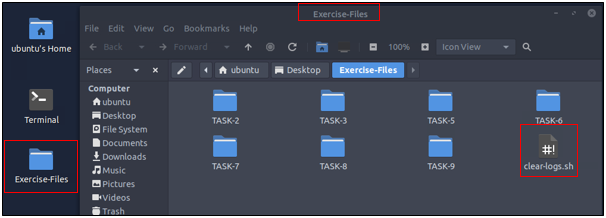
A VM is attached to this room. You don't need SSH or RDP; the room provides a "Split View" feature. Exercise files are located in the folder on the desktop. Log cleaner script "clear-logs.sh" is available in each exercise folder.
Network Security Monitoring and Zeek
Introduction to Network Monitoring Approaches
Network monitoring is a set of management actions to watch/continuously overview and optionally save the network traffic for further investigation. This action aims to detect and reduce network problems, improve performance, and in some cases, increase overall productivity. It is a main part of the daily IT/SOC operations and differs from Network Security Monitoring (NSM) in its purpose.
Network Monitoring
Network monitoring is highly focused on IT assets like uptime (availability), device health and connection quality (performance), and network traffic balance and management (configuration). Monitoring and visualising the network traffic, troubleshooting, and root cause analysis are also part of the Network Monitoring process. This model is helpful for network administrators and usually doesn't cover identifying non-asset in-depth vulnerabilities and significant security concerns like internal threats and zero-day vulnerabilities. Usually, Network Monitoring is not within the SOC scope. It is linked to the enterprise IT/Network management team.
Network Security Monitoring
Network Security Monitoring is focused on network anomalies like rogue hosts, encrypted traffic, suspicious service and port usage, and malicious/suspicious traffic patterns in an intrusion/anomaly detection and response approach. Monitoring and visualising the network traffic and investigating suspicious events is a core part of Network Security Monitoring. This model is helpful for security analysts/incident responders, security engineers and threat hunters and covers identifying threats, vulnerabilities and security issues with a set of rules, signatures and patterns. Network Security Monitoring is part of the SOC, and the actions are separated between tier 1-2-3 analyst levels.
What is ZEEK?
Zeek (formerly Bro) is an open-source and commercial passive Network Monitoring tool (traffic analysis framework) developed by Lawrence Berkeley Labs. Today, Zeek is supported by several developers, and Corelight provides an Enterprise-ready fork of Zeek. Therefore this tool is called both open source and commercial. The differences between the open-source version and the commercial version are detailed here. https://corelight.com/products/compare-to-open-source-zeek?hsLang=en
Zeek differs from known monitoring and IDS/IPS tools by providing a wide range of detailed logs ready to investigate both for forensics and data analysis actions. Currently, Zeek provides 50+ logs in 7 categories.
Zeek vs Snort
While both are called IDS/NIDS, it is good to know the cons and pros of each tool and use them in a specific manner. While there are some overlapping functionalities, they have different purposes for usage. Tool Zeek Snort Capabilities NSM and IDS framework. It is heavily focused on network analysis. It is more focused on specific threats to trigger alerts. The detection mechanism is focused on events. An IDS/IPS system. It is heavily focused on signatures to detect vulnerabilities. The detection mechanism is focused on signature patterns and packets. Cons
Hard to use.
The analysis is done out of the Zeek, manually or by automation. Hard to detect complex threats. Pros
It provides in-depth traffic visibility.
Useful for threat hunting.
Ability to detect complex threats.
It has a scripting language and supports event correlation.
Easy to read logs.
Easy to write rules.
Cisco supported rules.
Community support. Common Use Case Network monitoring. In-depth traffic investigation. Intrusion detecting in chained events. Intrusion detection and prevention. Stop known attacks/threats.
Zeek Architecture
Zeek has two primary layers; "Event Engine" and "Policy Script Interpreter". The Event Engine layer is where the packets are processed; it is called the event core and is responsible for describing the event without focusing on event details. It is where the packages are divided into parts such as source and destination addresses, protocol identification, session analysis and file extraction. The Policy Script Interpreter layer is where the semantic analysis is conducted. It is responsible for describing the event correlations by using Zeek scripts.

Zeek Frameworks
Zeek has several frameworks to provide extended functionality in the scripting layer. These frameworks enhance Zeek's flexibility and compatibility with other network components. Each framework focuses on the specific use case and easily runs with Zeek installation. For instance, we will be using the "Logging Framework" for all cases. Having ide on each framework's functionality can help users quickly identify an event of interest.
Available Frameworks Logging Notice Input Configuration Intelligence Cluster Broker Communication Supervisor GeoLocation File Analysis Signature Summary NetControl Packet Analysis TLS Decryption
You can read more on frameworks here. https://docs.zeek.org/en/master/frameworks/index.html
Zeek Outputs
As mentioned before, Zeek provides 50+ log files under seven different categories, which are helpful in various areas such as traffic monitoring, intrusion detection, threat hunting and web analytics. This section is not intended to discuss the logs in-depth. The logs are covered in TASK 3.
Once you run Zeek, it will automatically start investigating the traffic or the given pcap file and generate logs automatically. Once you process a pcap with Zeek, it will create the logs in the working directory. If you run the Zeek as a service, your logs will be located in the default log path. The default log path is: /opt/zeek/logs/
Working with Zeek
There are two operation options for Zeek. The first one is running it as a service, and the second option is running the Zeek against a pcap. Before starting working with Zeek, let's check the version of the Zeek instance with the following command: zeek -v
Now we are sure that we have Zeek installed. Let's start the Zeek as a service! To do this, we need to use the "ZeekControl" module, as shown below. The "ZeekControl" module requires superuser permissions to use. You can elevate the session privileges and switch to the superuser account to examine the generated log files with the following command: sudo su
Here we can manage the Zeek service and view the status of the service. Primary management of the Zeek service is done with three commands; "status", "start", and "stop".
ZeekControl Module


root@ubuntu$ zeekctl
Welcome to ZeekControl 2.X.0
[ZeekControl] > status
Name         Type       Host          Status    Pid    Started
zeek         standalone localhost     stopped
[ZeekControl] > start
starting zeek ...
[ZeekControl] > status
Name         Type       Host          Status    Pid    Started
zeek         standalone localhost     running   2541   13 Mar 18:25:08
[ZeekControl] > stop
stopping zeek ...
[ZeekControl] > status
Name         Type       Host          Status    Pid    Started
zeek         standalone localhost     stopped
You can also use the "ZeekControl" mode with the following commands as well;
zeekctl status
zeekctl start
zeekctl stop
The only way to listen to the live network traffic is using Zeek as a service. Apart from using the Zeek as a network monitoring tool, we can also use it as a packet investigator. To do so, we need to process the pcap files with Zeek, as shown below. Once you process a pcap file, Zeek automatically creates log files according to the traffic.
In pcap processing mode, logs are saved in the working directory. You can view the generated logs using the ls -l command.
ZeekControl Module


root@ubuntu$ zeek -C -r sample.pcap

root@ubuntu$ ls -l
-rw-r--r-- 1 ubuntu ubuntu  11366 Mar 13 20:45 conn.log
-rw-r--r-- 1 ubuntu ubuntu    763 Mar 13 20:45 dhcp.log
-rw-r--r-- 1 ubuntu ubuntu   2918 Mar 13 20:45 dns.log
-rw-r--r-- 1 ubuntu ubuntu    254 Mar 13 20:45 packet_filter.log
Main Zeek command line parameters are explained below; Parameter Description -r Reading option, read/process a pcap file. -C Ignoring checksum errors. -v Version information. zeekctl ZeekControl module.
Investigating the generated logs will require command-line tools (cat, cut, grep sort, and uniq) and additional tools (zeek-cut). We will cover them in the following tasks.
Each exercise has a folder. Ensure you are in the right directory to find the pcap file and accompanying files. Desktop/Exercise-Files/TASK-2
┌──(kali㉿kali)-[~]
└─$ mkpasswd -m sha-512 Password1234
$6$7aBBZsevrBf.kiTO$0T07Csq8zn0jvUNe5eT4LmHR2jwMR1ObSraOtop4ZQ3O/bf1bCLLR0EQLmqd8rSnoncfXM4CTOybHNRrGI7ZB/

ubuntu@ip-10-10-201-211:~$ sudo su
root@ip-10-10-201-211:/home/ubuntu# nano /etc/shadow
root@ip-10-10-201-211:/home/ubuntu# cat /etc/shadow

ubuntu:$6$7aBBZsevrBf.kiTO$0T07Csq8zn0jvUNe5eT4LmHR2jwMR1ObSraOtop4ZQ3O/bf1bCLLR0EQLmqd8rSnoncfXM4CTOybHNRrGI7ZB/:19050:0:99999:7:::

cannot

root@ip-10-10-201-211:/home/ubuntu/Desktop/Exercise-Files# cd TASK-2
root@ip-10-10-201-211:/home/ubuntu/Desktop/Exercise-Files/TASK-2# ls
clear-logs.sh  sample.pcap
root@ip-10-10-201-211:/home/ubuntu/Desktop/Exercise-Files/TASK-2# zeekctl
Warning: new zeek version detected (run the zeekctl "deploy" command)

Welcome to ZeekControl 2.4.0

Type "help" for help.

[ZeekControl] > help

ZeekControl Version 2.4.0

  capstats [<nodes>] [<secs>]      - Report interface statistics with capstats
  check [<nodes>]                  - Check configuration before installing it
  cleanup [--all] [<nodes>]        - Delete working dirs (flush state) on nodes
  config                           - Print zeekctl configuration
  cron [--no-watch]                - Perform jobs intended to run from cron
  cron enable|disable|?            - Enable/disable "cron" jobs
  deploy                           - Check, install, and restart
  df [<nodes>]                     - Print nodes' current disk usage
  diag [<nodes>]                   - Output diagnostics for nodes
  exec <shell cmd>                 - Execute shell command on all hosts
  exit                             - Exit shell
  install                          - Update zeekctl installation/configuration
  netstats [<nodes>]               - Print nodes' current packet counters
  nodes                            - Print node configuration
  peerstatus [<nodes>]             - Print status of nodes' remote connections
  print <id> [<nodes>]             - Print values of script variable at nodes
  process <trace> [<op>] [-- <sc>] - Run Zeek with options and scripts on trace
  quit                             - Exit shell
  restart [--clean] [<nodes>]      - Stop and then restart processing
  scripts [-c] [<nodes>]           - List the Zeek scripts the nodes will load
  start [<nodes>]                  - Start processing
  status [<nodes>]                 - Summarize node status
  stop [<nodes>]                   - Stop processing
  top [<nodes>]                    - Show Zeek processes ala top

Commands provided by plugins:

  ps.zeek [<nodes>]                - Show Zeek processes on nodes' systems


[ZeekControl] > status
Name         Type       Host          Status    Pid    Started
zeek         standalone localhost     stopped
[ZeekControl] > start
starting zeek ...
[ZeekControl] > status
Name         Type       Host          Status    Pid    Started
zeek         standalone localhost     running   8280   08 Dec 18:28:51

root@ip-10-10-201-211:/home/ubuntu/Desktop/Exercise-Files/TASK-2# zeek -v
zeek version 4.2.1


root@ip-10-10-201-211:/home/ubuntu/Desktop/Exercise-Files/TASK-2# zeekctl status
Warning: new zeek version detected (run the zeekctl "deploy" command)
Name         Type       Host          Status    Pid    Started
zeek         standalone localhost     running   8280   08 Dec 18:28:51

root@ip-10-10-201-211:/home/ubuntu/Desktop/Exercise-Files/TASK-2# cat clear-logs.sh
#!/bin/bash
rm -rf *.log
rm -rf extract_files

root@ip-10-10-201-211:/home/ubuntu/Desktop/Exercise-Files/TASK-2# zeek -C -r sample.pcap
root@ip-10-10-201-211:/home/ubuntu/Desktop/Exercise-Files/TASK-2# ls -l
total 444
-rwxr-xr-x 1 ubuntu ubuntu     46 Apr  3  2022 clear-logs.sh
-rw-r--r-- 1 root   root    11375 Dec  8 18:33 conn.log
-rw-r--r-- 1 root   root      761 Dec  8 18:33 dhcp.log
-rw-r--r-- 1 root   root     2911 Dec  8 18:33 dns.log
-rw-r--r-- 1 root   root     2528 Dec  8 18:33 ntp.log
-rw-r--r-- 1 root   root      254 Dec  8 18:33 packet_filter.log
-rw-r--r-- 1 ubuntu ubuntu 407510 Mar  3  2017 sample.pcap
-rw-r--r-- 1 root   root      530 Dec  8 18:33 snmp.log
-rw-r--r-- 1 root   root      703 Dec  8 18:33 ssh.log
-rw-r--r-- 1 root   root     1561 Dec  8 18:33 syslog.log


root@ip-10-10-201-211:/home/ubuntu/Desktop/Exercise-Files/TASK-2# cat conn.log
#separator \x09
#set_separator	,
#empty_field	(empty)
#unset_field	-
#path	conn
#open	2022-12-08-18-33-25
#fields	ts	uid	id.orig_h	id.orig_p	id.resp_h	id.resp_p	proto	service	duration	orig_bytes	resp_bytes	conn_state	local_orig	local_resp	missed_bytes	history	orig_pkts	orig_ip_bytes	resp_pkts	resp_ip_bytes	tunnel_parents
#types	time	string	addr	port	addr	port	enum	string	intervalcount	count	string	bool	bool	count	string	count	count	count	count	set[string]
1488571051.943250	CWjxT74xjObkfaakHi	192.168.121.2	51153	192.168.120.22	53	udp	dns	0.001263	36	106	SF	-	-0	Dd	1	64	1	134	-

root@ip-10-10-201-211:/home/ubuntu/Desktop/Exercise-Files/TASK-2# cat dhcp.log
#separator \x09
#set_separator	,
#empty_field	(empty)
#unset_field	-
#path	dhcp
#open	2022-12-08-18-33-25
#fields	ts	uids	client_addr	server_addr	mac	host_name	client_fqdn	domain	requested_addr	assigned_addr	lease_time	client_message	server_message	msg_types	duration
#types	time	set[string]	addr	addr	string	string	string	string	addr	addr	interval	string	string	vector[string]	interval
1488571152.666896	CB9fDUQgJ00UMF0Nc,CFrsWd4jVETjvRPkm9	-	-	00:21:70:e9:bb:47	Microknoppix	-	-	192.168.20.11	-	--	-	REQUEST,NAK	0.009251
1488571152.699148	CWkNtQRxRlsllb1w4,CFrsWd4jVETjvRPkm9	192.168.30.11	192.168.30.1	00:21:70:e9:bb:47	Microknoppix	-	webernetz.net	192.168.30.11	192.168.30.11	86400.000000	-	-	DISCOVER,OFFER,REQUEST,ACK	0.022753
#close	2022-12-08-18-33-25

root@ip-10-10-201-211:/home/ubuntu/Desktop/Exercise-Files/TASK-2# cat dns.log
#separator \x09
#set_separator	,
#empty_field	(empty)
#unset_field	-
#path	dns
#open	2022-12-08-18-33-25
#fields	ts	uid	id.orig_h	id.orig_p	id.resp_h	id.resp_p	proto	trans_id	rtt	query	qclass	qclass_name	qtype	qtype_name	rcode	rcode_name	AA	TC	RD	RA	Z	answers	TTLs	rejected
#types	time	string	addr	port	addr	port	enum	count	intervalstring	count	string	count	string	count	string	bool	bool	bool	bool	count	vector[string]	vector[interval]	bool
1488571051.943250	CWjxT74xjObkfaakHi	192.168.121.2	51153	192.168.120.22	53	udp	46282	0.001263	blog.webernetz.net	1	C_INTERNET	1	A	0	NOERROR	F	F	T	T	05.35.226.136	18180.000000	F
1488571111.943319	CqIqMWROm4Qn71gh	192.168.121.2	55916	192.168.120.22	53	udp	12856	-	blog.webernetz.net	1	C_INTERNET	1	A	-	-	F	F	T	F	0	--	F
1488571114.941785	CqIqMWROm4Qn71gh	192.168.121.2	55916	192.168.120.22	53	udp	12856	-	blog.webernetz.net	1	C_INTERNET	1	A	-	-	F	F	T	F	0	--	F
1488571117.941752	CqIqMWROm4Qn71gh	192.168.121.2	55916	192.168.120.22	53	udp	12856	-	blog.webernetz.net	1	C_INTERNET	1	A	-	-	F	F	T	F	0	--	F
1488571120.941715	CqIqMWROm4Qn71gh	192.168.121.2	55916	192.168.120.22	53	udp	12856	-	blog.webernetz.net	1	C_INTERNET	1	A	-	-	F	F	T	F	0	--	F
1488571171.944137	C5KAYIrIy6wl6Msg8	192.168.121.2	64768	192.168.120.22	53	udp	49578	-	blog.webernetz.net	1	C_INTERNET	1	A	-	-	F	F	T	F	0	--	F
1488571174.942481	C5KAYIrIy6wl6Msg8	192.168.121.2	64768	192.168.120.22	53	udp	49578	-	blog.webernetz.net	1	C_INTERNET	1	A	-	-	F	F	T	F	0	--	F
1488571177.942580	C5KAYIrIy6wl6Msg8	192.168.121.2	64768	192.168.120.22	53	udp	49578	-	blog.webernetz.net	1	C_INTERNET	1	A	-	-	F	F	T	F	0	--	F
1488571180.942543	C5KAYIrIy6wl6Msg8	192.168.121.2	64768	192.168.120.22	53	udp	49578	-	blog.webernetz.net	1	C_INTERNET	1	A	-	-	F	F	T	F	0	--	F
1488571231.945206	Cd0MrZ3ngXi2MPcdj5	192.168.121.2	58304	192.168.120.22	53	udp	25350	-	blog.webernetz.net	1	C_INTERNET	1	A	-	-	F	F	T	F	0	--	F
1488571234.943173	Cd0MrZ3ngXi2MPcdj5	192.168.121.2	58304	192.168.120.22	53	udp	25350	-	blog.webernetz.net	1	C_INTERNET	1	A	-	-	F	F	T	F	0	--	F
1488571237.943159	Cd0MrZ3ngXi2MPcdj5	192.168.121.2	58304	192.168.120.22	53	udp	25350	-	blog.webernetz.net	1	C_INTERNET	1	A	-	-	F	F	T	F	0	--	F
1488571240.944104	Cd0MrZ3ngXi2MPcdj5	192.168.121.2	58304	192.168.120.22	53	udp	25350	-	blog.webernetz.net	1	C_INTERNET	1	A	-	-	F	F	T	F	0	--	F
1488571291.946026	CRjbAG4teJkWpcRnWh	192.168.121.2	56469	192.168.120.22	53	udp	10917	0.001252	blog.webernetz.net	1	C_INTERNET	1	A	0	NOERROR	F	F	T	T	05.35.226.136	17940.000000	F
1488571351.947847	C1hBsX3s5LvIMUVpK2	192.168.121.2	62383	192.168.120.22	53	udp	58775	0.001001	blog.webernetz.net	1	C_INTERNET	1	A	0	NOERROR	F	F	T	T	05.35.226.136	17880.000000	F
1488571353.387074	Cy3hN025qGcHM8oVm7	2003:51:6012:121::2	64387	2003:51:6012:120::a08:53	53	udp	28238	0.001122	ip.webernetz.net1	C_INTERNET	28	AAAA	0	NOERROR	F	F	T	T0	2003:51:6012:110::19	62409.000000	F
#close	2022-12-08-18-33-25

root@ip-10-10-201-211:/home/ubuntu/Desktop/Exercise-Files/TASK-2# cat ntp.log
#separator \x09
#set_separator	,
#empty_field	(empty)
#unset_field	-
#path	ntp
#open	2022-12-08-18-33-25
#fields	ts	uid	id.orig_h	id.orig_p	id.resp_h	id.resp_p	version	mode	stratum	poll	precision	root_delay	root_disp	ref_id	ref_time	org_time	rec_time	xmt_time	num_exts
#types	time	string	addr	port	addr	port	count	count	count	interval	interval	interval	interval	string	time	time	time	time	count
1488571044.700378	CAgBkIsEviJh4JnT8	192.168.121.40	123	212.224.120.164	123	3	3	3	1024.000000	0.000004	0.0070800.005463	212.224.120.164	1488570020.701048	1488570020.696918	1488570020.701048	1488571044.702008	0
1488571044.702385	CAgBkIsEviJh4JnT8	192.168.121.40	123	212.224.120.164	123	3	4	2	1024.000000	0.000001	0.0043030.001572	131.188.3.220	1488570556.751928	1488571044.702008	1488571044.700752	1488571044.700816	0
1488571046.696935	C7pdOj203ijQ3pbx4a	192.168.121.40	123	78.46.107.140	123	3	3	3	1024.000000	0.000004	0.0081330.005890	212.224.120.164	1488571044.705910	1488570022.691850	1488570022.699347	1488571046.698614	0
1488571046.703936	C7pdOj203ijQ3pbx4a	192.168.121.40	123	78.46.107.140	123	3	4	2	1024.000000	0.000002	0.0115660.036118	192.53.103.108	1488570102.937028	1488571046.698614	1488571046.699470	1488571046.699542	0
1488571067.702200	C5624Q1QQ95u2Uozog	192.168.121.40	123	148.251.154.36	123	3	3	3	512.000000	0.000004	0.0081330.005890	212.224.120.164	1488571044.705910	1488570043.695927	1488570043.703567	1488571067.703860	0
1488571067.708955	C5624Q1QQ95u2Uozog	192.168.121.40	123	148.251.154.36	123	3	4	3	512.000000	0.000000	0.0117490.065445	98.189.166.96	1488570036.057400	1488571067.703860	1488571067.703979	1488571067.703995	0
1488571317.261458	C98TWF4OLMycbz2It6	2003:51:6012:121::10	123	2003:51:6012:110::dcf7:123	123	4	3	2	1024.000000	0.000008	0.003052	0.057007	106.20.14.218	1488569268.242463	1488570294.243916	1488570294.246714	1488571317.259985	0
1488571317.262960	C98TWF4OLMycbz2It6	2003:51:6012:121::10	123	2003:51:6012:110::dcf7:123	123	4	4	1	1024.000000	0.000002	0.000000	0.004700	DCFa	1488571186.880789	1488571317.259985	1488571317.259725	1488571317.260059	0
1488571365.706238	CM88QM8EiCbiParvb	192.168.121.40	123	212.227.54.68	123	3	3	3	512.000000	0.000004	0.0081330.005890	212.224.120.164	1488571044.705910	1488570341.696499	1488570341.703687	1488571365.707974	0
1488571365.711985	CM88QM8EiCbiParvb	192.168.121.40	123	212.227.54.68	123	3	4	2	512.000000	0.000000	0.0069890.030792	131.188.3.223	1488570046.289139	1488571365.707974	1488571365.708844	1488571365.708869	0
#close	2022-12-08-18-33-25

root@ip-10-10-201-211:/home/ubuntu/Desktop/Exercise-Files/TASK-2# cat packet_filter.log
#separator \x09
#set_separator	,
#empty_field	(empty)
#unset_field	-
#path	packet_filter
#open	2022-12-08-18-33-25
#fields	ts	node	filter	init	success
#types	time	string	string	bool	bool
1670524405.059987	zeek	ip or not ip	T	T
#close	2022-12-08-18-33-25

root@ip-10-10-201-211:/home/ubuntu/Desktop/Exercise-Files/TASK-2# cat snmp.log
#separator \x09
#set_separator	,
#empty_field	(empty)
#unset_field	-
#path	snmp
#open	2022-12-08-18-33-25
#fields	ts	uid	id.orig_h	id.orig_p	id.resp_h	id.resp_p	duration	version	community	get_requests	get_bulk_requests	get_responses	set_requests	display_string	up_since
#types	time	string	addr	port	addr	port	interval	string	string	count	count	count	count	string	time
1488571221.774628	CYSlce1x6fXGF2Ca8d	2003:51:6012:120::13	58684	2003:51:6012:121::2	161	0.026505	2c	n5rAD1ig314IqfioYBWw	20	0	20	0	-	-
#close	2022-12-08-18-33-25

root@ip-10-10-201-211:/home/ubuntu/Desktop/Exercise-Files/TASK-2# cat ssh.log
#separator \x09
#set_separator	,
#empty_field	(empty)
#unset_field	-
#path	ssh
#open	2022-12-08-18-33-25
#fields	ts	uid	id.orig_h	id.orig_p	id.resp_h	id.resp_p	version	auth_success	auth_attempts	direction	client	server	cipher_alg	mac_alg	compression_alg	kex_alg	host_key_alg	host_key
#types	time	string	addr	port	addr	port	count	bool	count	enum	string	string	string	string	string	string	string	string
1488571329.467978	CI8O6l2fkrwwTpBI1f	2003:51:6012:110::b15:22	60892	2003:51:6012:121::2	22	2	T	2	-	SSH-2.0-OpenSSH_7.2p2 Ubuntu-4ubuntu2.1	SSH-2.0-Cisco-1.25	aes128-cbc	hmac-sha1	none	diffie-hellman-group-exchange-sha1	ssh-rsa	cf:5f:e7:e2:32:12:88:6e:33:c9:ad:5b:da:b6:b1:43
#close	2022-12-08-18-33-25


root@ip-10-10-201-211:/home/ubuntu/Desktop/Exercise-Files/TASK-2# cat syslog.log
#separator \x09
#set_separator	,
#empty_field	(empty)
#unset_field	-
#path	syslog
#open	2022-12-08-18-33-25
#fields	ts	uid	id.orig_h	id.orig_p	id.resp_h	id.resp_p	proto	facility	severity	message
#types	time	string	addr	port	addr	port	enum	string	string	string
1488571038.380901	CsPXxu10fSq30yRyj	192.168.121.10	50080	192.168.120.10	514	udp	LOCAL7	NOTICE	72: Mar  3 19:57:17.371: %LINK-5-CHANGED: Interface GigabitEthernet0/2, changed state to administratively down
1488571038.381406	CsPXxu10fSq30yRyj	192.168.121.10	50080	192.168.120.10	514	udp	LOCAL7	NOTICE	73: Mar  3 19:57:18.377: %LINEPROTO-5-UPDOWN: Line protocol on Interface GigabitEthernet0/2, changed state to down
1488571187.162253	C8pRXW1zxob24icwEi	192.168.121.10	50080	192.168.120.10	514	udp	LOCAL7	ERR	74: Mar  3 19:59:46.152: %LINK-3-UPDOWN: Interface GigabitEthernet0/2, changed state to up
1488571189.276080	C8pRXW1zxob24icwEi	192.168.121.10	50080	192.168.120.10	514	udp	LOCAL7	NOTICE	75: Mar  3 19:59:48.266: %LINEPROTO-5-UPDOWN: Line protocol on Interface GigabitEthernet0/2, changed state to up
1488571330.521769	C4pCCU2FVNOfPYPW5b	192.168.121.2	50352	192.168.120.10	514	udp	LOCAL7	INFO	63: Mar  3 20:02:09.464: %IPV6_ACL-6-ACCESSLOGP: list vty-access/10 permitted tcp 2003:51:6012:110::B15:22(60892) -> ::(22), 1 packet
1488571330.522327	C4pCCU2FVNOfPYPW5b	192.168.121.2	50352	192.168.120.10	514	udp	LOCAL7	INFO	64: Mar  3 20:02:09.468: %IPV6_ACL-6-ACCESSLOGP: list vty-access/10 permitted tcp 2003:51:6012:110::B15:22(60892) -> 2003:51:6012:121::2(22), 1 packet
#close	2022-12-08-18-33-25


root@ip-10-10-201-211:/home/ubuntu/Desktop/Exercise-Files/TASK-2# cat sample.pcap

seems like packetracer commands

ip address 192.168.10.1 255.255.255.0
 ip verify unicast source reachable-via rx
 ipv6 address 2003:51:6012:122::1/64
 ipv6 rip CCNPv6 enable

interface FastEthernet0/1.20
 encapsulation dot1Q 20
 ip address 192.168.20.1 255.255.255.0
 ip verify unicast source reachable-via rx

interface FastEthernet0/1.30
 encapsulation dot1Q 30
 ip address 192.168.30.1 255.255.255.0
 ip verify unicast source reachable-via rx

interface FastEthernet0/1.121
 encapsulation dot1Q 121
 ip address 192.168.121.2 255.255.255.0
 ip verify unicast source reachable-via rx allow-default
 ipv6 address 2003:51:6012:121::2/64
 ipv6 rip CCNPv6 enable

interface Serial0/0/0
 no ip address
 shutdown
 no fair-queue
 clock rate 2000000

interface Serial0/0/1
 no ip address
 shutdown
 clock rate 2000000

router rip
 version 2
 network 192.168.10.0
 network 192.168.20.0
 network 192.168.30.0
 network 192.168.121.0

ip forward-protocol nd
no ip http server
ip http secure-server

ip sla 260720081
 icmp-echo 2A01:488:42:1000:50ED:8588:8A:C570
ip sla schedule 260720081 life forever start-time now
ip sla 260720082
 dns blog.webernetz.net name-server 192.168.120.22
ip sla schedule 260720082 life forever start-time now
ip sla 260720083
 icmp-jitter 192.168.120.1
ip sla schedule 260720083 life forever start-time now
ip sla 260720084
 udp-jitter 192.168.121.254 65535
ip sla schedule 260720084 life forever start-time now
ip sla 260720085
 udp-jitter 192.168.121.253 65534
ip sla schedule 260720085 life forever start-time now
logging 192.168.120.10
access-list 1 permit 192.168.0.0 0.0.255.255 log
access-list 1 deny   any log
ipv6 router rip CCNPv6
 timers 10 30 10 20

snmp-server community n5rAD1ig314IqfioYBWw RO
snmp-server ifindex persist
snmp-server contact Johannes Weber

radius server blubb
 address ipv6 2001:DB8::1812 auth-port 1812 acct-port 1813

ipv6 access-list vty-access
 permit ipv6 2003:51:6012::/48 any log
 deny ipv6 any any log

control-plane

mgcp profile default
line con 0
 exec-timeout 0 0
 privilege level 15
 logging synchronous
line aux 0
line vty 0 4
 access-class 1 in
 exec-timeout 0 0
 privilege level 15
 ipv6 access-class vty-access in
 transport input ssh
line vty 5 15
 access-class 1 in
 ipv6 access-class vty-access in
 transport input all

scheduler allocate 20000 1000
ntp update-calendar
ntp server ipv6 2.de.pool.ntp.org
ntp server ipv6 2.pool.ntp.org
ntp server ntp1.webernetz.net prefer
ntp server ntp2.webernetz.net prefer
end
CCNP-LAB-S1.webernetz.net
Cisco IOS Software, C2960 Software (C2960-LANBASEK9-M), Version 15.0(2)SE9, RELEASE SOFTWARE (fc1)
Technical Support: http://www.cisco.com/techsupport
Copyright (c) 1986-2015 by Cisco Systems, Inc.
Compiled Tue 01-Dec-15 07:07 by prod_rel_teaGigabitEthernet0/1
!3RFOC0630Z3KZ	Gi0/2
FOC1213Z3S4Gi0/1CCNP-LAB-S2.webernetz.net
!4QFOC1213Z3S4	Gi0/1
FOC0630Z3KZGi0/2CCNP-LAB-S1.webernetz.net

yeah!!
https://chat.openai.com/chat

This appears to be a configuration file for a Cisco router. The configuration file contains various commands for configuring the router's interfaces, routing protocols, and other features. Some of the notable commands in this configuration file include:

-   `ip address`: This command is used to configure an IP address on an interface.
-   `interface`: This command is used to enter interface configuration mode, where you can configure settings for a specific interface on the router.
-   `router rip`: This command is used to enable the RIP routing protocol on the router and specify the networks that should be included in the RIP routing table.
-   `ip forward-protocol`: This command is used to enable forwarding of a specific protocol on the router.
-   `ip http server`: This command is used to enable the HTTP server on the router, allowing users to access the router's configuration using a web browser.
-   `snmp-server community`: This command is used to configure a Simple Network Management Protocol (SNMP) community on the router.
-   `radius server`: This command is used to configure a RADIUS server on the router.
-   `ipv6 access-list`: This command is used to create an IPv6 access list on the router, which can be used to filter traffic based on specified criteria.
-   `control-plane`: This command is used to enter control-plane configuration mode, where you can configure settings for the router's control plane.
-   `mgcp profile`: This command is used to configure a Media Gateway Control Protocol (MGCP) profile on the router.
-   `line con 0`: This command is used to enter line configuration mode for the console line on the router, allowing you to configure settings for the console connection.
-   `scheduler allocate`: This command is used to allocate memory for the router's scheduler.
-   `ntp update-calendar`: This command is used to update the calendar on the router using Network Time Protocol (NTP).
-   `ntp server`: This command is used to configure an NTP server on the router.
-   `end`: This command is used to exit configuration mode and return to privileged EXEC mode.

https://weberblog.net/about/

nice webpage to learn networking
What is the installed Zeek instance version number? 4.2.1
What is the version of the ZeekControl module? 2.4.0
Investigate the "sample.pcap" file. What is the number of generated alert files? 8
Zeek Logs
Zeek Logs
Zeek generates log files according to the traffic data. You will have logs for every connection in the wire, including the application level protocols and fields. Zeek is capable of identifying 50+ logs and categorising them into seven categories. Zeek logs are well structured and tab-separated ASCII files, so reading and processing them is easy but requires effort. You should be familiar with networking and protocols to correlate the logs in an investigation, know where to focus, and find a specific piece of evidence.
Each log output consists of multiple fields, and each field holds a different part of the traffic data. Correlation is done through a unique value called "UID". The "UID" represents the unique identifier assigned to each session.
Zeek logs in a nutshell; Category Description Log Files Network Network protocol logs. conn.log, dce_rpc.log, dhcp.log, dnp3.log, dns.log, ftp.log, http.log, irc.log, kerberos.log, modbus.log, modbus_register_change.log, mysql.log, ntlm.log, ntp.log, radius.log, rdp.log, rfb.log, sip.log, smb_cmd.log, smb_files.log, smb_mapping.log, smtp.log, snmp.log, socks.log, ssh.log, ssl.log, syslog.log, tunnel.log. Files File analysis result logs. files.log, ocsp.log, pe.log, x509.log. NetControl Network control and flow logs. netcontrol.log, netcontrol_drop.log, netcontrol_shunt.log, netcontrol_catch_release.log, openflow.log. Detection Detection and possible indicator logs. intel.log, notice.log, notice_alarm.log, signatures.log, traceroute.log. Network Observations Network flow logs. known_certs.log, known_hosts.log, known_modbus.log, known_services.log, software.log. Miscellaneous Additional logs cover external alerts, inputs and failures. barnyard2.log, dpd.log, unified2.log, unknown_protocols.log, weird.log, weird_stats.log. Zeek Diagnostic Zeek diagnostic logs cover system messages, actions and some statistics. broker.log, capture_loss.log, cluster.log, config.log, loaded_scripts.log, packet_filter.log, print.log, prof.log, reporter.log, stats.log, stderr.log, stdout.log.
Please refer to Zeek's official documentation and Corelight log cheat sheet for more information. Although there are multiple log files, some log files are updated daily, and some are updated in each session. Some of the most commonly used logs are explained in the given table. https://docs.zeek.org/en/current/script-reference/log-files.html https://corelight.com/about-zeek/zeek-data Update Frequency Log Name Description Daily known_hosts.log List of hosts that completed TCP handshakes. Daily known_services.log List of services used by hosts. Daily known_certs.log List of SSL certificates. Daily software.log List of software used on the network. Per Session notice.log Anomalies detected by Zeek. Per Session intel.log Traffic contains malicious patterns/indicators. Per Session signatures.log List of triggered signatures.
This is too much protocol and log information! Yes, it is true; a difficulty of working with Zeek is having the required network knowledge and investigation mindset. Don't worry; you can have both of these and even more knowledge by working through TryHackMe paths. Just keep the streak!
Brief log usage primer table; Overall Info Protocol Based Detection Observation conn.log http.log notice.log known_host.log files.log dns.log signatures.log known_services.log intel.log ftp.log pe.log software.log loaded_scripts.log ssh.log traceroute.log weird.log
You can categorise the logs before starting an investigation. Thus, finding the evidence/anomaly you are looking for will be easier. The given table is a brief example of using multiple log files. You can create your working model or customise the given one. Make sure you read each log description and understand the purpose to know what to expect from the corresponding log file. Note that these are not the only ones to focus on. Investigated logs are highly associated with the investigation case type and hypothesis, so do not just rely only on the logs given in the example table!
The table shows us how to use multiple logs to identify anomalies and run an investigation by correlating across the available logs.
Overall Info: The aim is to review the overall connections, shared files, loaded scripts and indicators at once. This is the first step of the investigation.
Protocol Based: Once you review the overall traffic and find suspicious indicators or want to conduct a more in-depth investigation, you focus on a specific protocol.
Detection: Use the prebuild or custom scripts and signature outcomes to support your findings by having additional indicators or linked actions.
Observation: The summary of the hosts, services, software, and unexpected activity statistics will help you discover possible missing points and conclude the investigation.
Remember, we mention the pros and cons of the Zeek logs at the beginning of this task. Now let's demonstrate the log viewing and identify the differences between them.
Recall 1: Zeek logs are well structured and tab-separated ASCII files, so reading and processing them is easy but requires effort.
Recall 2: Investigating the generated logs will require command-line tools (cat, cut, grep sort, and uniq) and additional tools (zeek-cut).
Opening a Zeek log with a text editor and built-in commands;
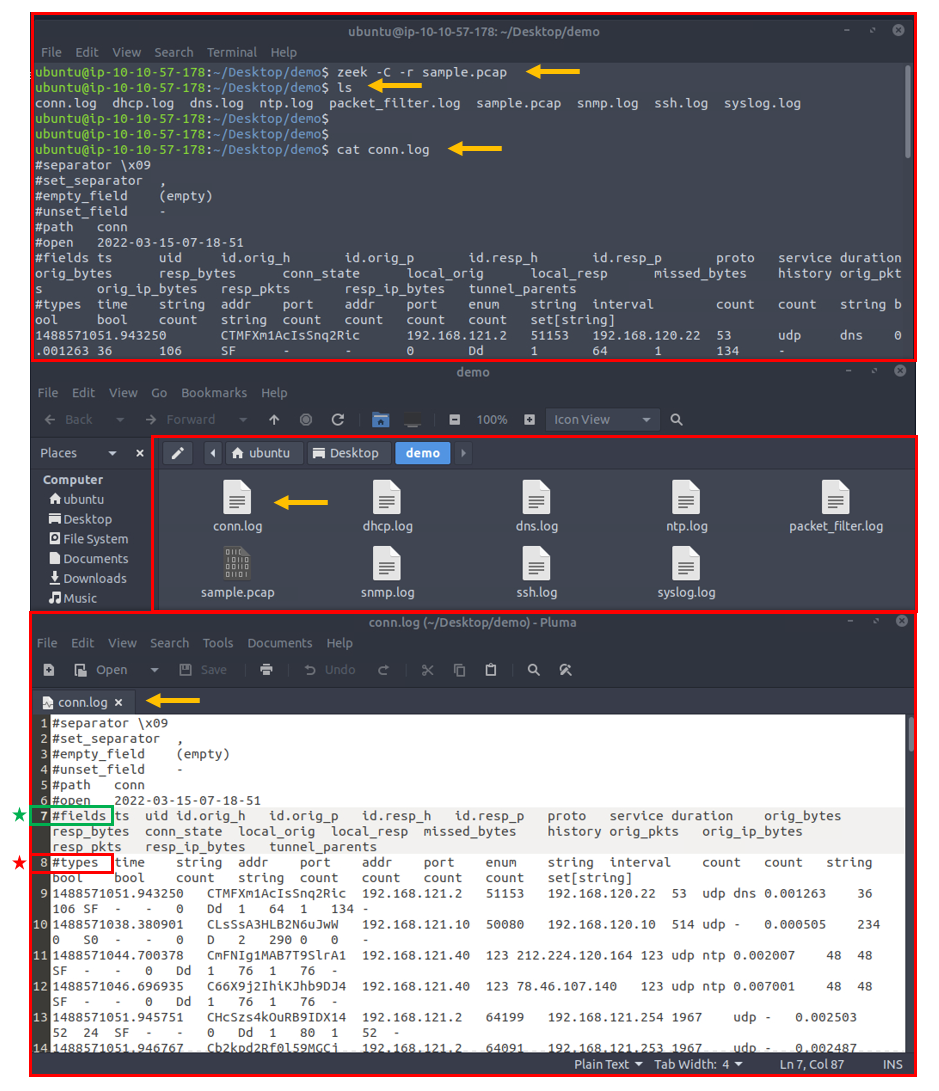
The above image shows that reading the logs with tools is not enough to spot an anomaly quickly. Logs provide a vast amount of data to investigate and correlate. You will need to have technical knowledge and event correlation ability to carry out an investigation. It is possible to use external visualisation and correlation tools such as ELK and Splunk. We will focus on using and processing the logs with a hands-on approach in this room.
In addition to Linux command-line tools, one auxiliary program called zeek-cut reduces the effort of extracting specific columns from log files. Each log file provides "field names" in the beginning. This information will help you while using zeek-cut. Make sure that you use the "fields" and not the "types".
Tool/Auxilary Name Purpose Zeek-cut Cut specific columns from zeek logs.
Let's see the "zeek-cut" in action. Let's extract the uid, protocol, source and destination hosts, and source and destination ports from the conn.log. We will first read the logs with the cat command and then extract the event of interest fields with zeek-cut auxiliary to compare the difference.
zeek-cut usage example


root@ubuntu$ cat conn.log
...
#fields	ts	uid	id.orig_h	id.orig_p	id.resp_h	id.resp_p	proto	service	duration	orig_bytes	resp_bytes	conn_state	local_orig	local_resp	missed_bytes	history	orig_pkts	orig_ip_bytes	resp_pkts	resp_ip_bytes	tunnel_parents
#types	time	string	addr	port	addr	port	enum	string	interval	count	count	string	bool	bool	count	string	count	count	count	count	set[string]
1488571051.943250	CTMFXm1AcIsSnq2Ric	192.168.121.2	51153	192.168.120.22	53	udp	dns	0.001263	36	106	SF	-	-0	Dd	1	64	1	134	-
1488571038.380901	CLsSsA3HLB2N6uJwW	192.168.121.10	50080	192.168.120.10	514	udp	-	0.000505	234	0	S0	-	-0	D	2	290	0	0	-

root@ubuntu$ cat conn.log | zeek-cut uid proto id.orig_h id.orig_p id.resp_h id.resp_p
CTMFXm1AcIsSnq2Ric	udp	192.168.121.2	51153	192.168.120.22	53
CLsSsA3HLB2N6uJwW	udp	192.168.121.10	50080	192.168.120.10	514
As shown in the above output, the "zeek-cut" auxiliary provides massive help to extract specific fields with minimal effort. Now take time to read log formats, practice the log reading/extracting operations and answer the questions.
Each exercise has a folder. Ensure you are in the right directory to find the pcap file and accompanying files. Desktop/Exercise-Files/TASK-3
root@ip-10-10-201-211:/home/ubuntu/Desktop/Exercise-Files/TASK-2# cd ../TASK-3/
root@ip-10-10-201-211:/home/ubuntu/Desktop/Exercise-Files/TASK-3# ls
clear-logs.sh sample.pcap
You have new mail in /var/mail/root
let's see the email
root@ip-10-10-201-211:/var/mail# cat root
From root@tryhackme.eu-west-1.compute.internal Thu Dec 8 19:00:06 2022
Return-Path: <root@tryhackme.eu-west-1.compute.internal>
X-Original-To: root@localhost
Delivered-To: root@localhost
Received: by tryhackme.eu-west-1.compute.internal (Postfix, from userid 0)
id 66341138811; Thu, 8 Dec 2022 19:00:06 +0000 (UTC)
From: Zeek <zeek@ip-10-10-201-211>
Subject: [Zeek] Connection summary from 18:30:43-19:00:00
To: root@localhost
User-Agent: ZeekControl 2.4.0
Message-Id: <20221208190006.66341138811@tryhackme.eu-west-1.compute.internal>
Date: Thu, 8 Dec 2022 19:00:06 +0000 (UTC)
>== Total === 2022-12-08-18-28-53 - 2022-12-08-18-43-53
- Connections 23.0 - Payload 251.4k -
Ports | Sources | Destinations | Services | Protocols | States |
80 43.5% | 10.10.201.211#1 82.6% | 169.254.169.254#2 34.8% | - 82.6% | 17 52.2% | OTH 56.5% |
123 21.7% | fe80::20:d5ff:fe9a:f0eb#3 8.7% | 10.10.201.211#4 8.7% | dns 13.0% | 6 43.5% | SHR 30.4% |
5353 8.7% | 10.100.1.202#5 8.7% | 10.10.0.1#6 8.7% | dhcp 4.3% | 1 4.3% | S0 8.7% |
53 8.7% | | 10.0.0.2#7 8.7% | | | SH 4.3% |
5351 4.3% | | ff02::fb#8 4.3% | | | |
1900 4.3% | | ff02::2#9 4.3% | | | |
134 4.3% | | 239.255.255.250#10 4.3% | | | |
67 4.3% | | 224.0.0.251#11 4.3% | | | |
| | 185.125.190.58#12 4.3% | | | |
| | 185.125.190.57#13 4.3% | | | |
#1=ip-10-10-201-211.eu-west-1.compute.internal #2=<???> #3=ip-10-10-201-211
#4=ip-10-10-201-211.eu-west-1.compute.internal #5=ip-10-100-1-202.eu-west-1.compute.internal #6=ip-10-10-0-1.eu-west-1.compute.internal
#7=ip-10-0-0-2.eu-west-1.compute.internal #8=<???> #9=ip6-allrouters
#10=<???> #11=<???> #12=prod-ntp-5.ntp4.ps5.canonical.com
#13=prod-ntp-4.ntp4.ps5.canonical.com
>== Top 10 local networks by number of connections
1 19.0 10.10.57.178/16 TryHackMe
2 2.0 10.0.0.0/8 Private IP space
3 0 172.16.0.0/12 Private IP space
4 0 192.168.0.0/16 Private IP space
>== 2 connections did not have any local address. Here are the first 10:
fe80::20:d5ff:fe9a:f0eb <-> ff02::2
fe80::20:d5ff:fe9a:f0eb <-> ff02::fb
>== Incoming === N/A - N/A
- Connections 0 - Payload 0 -
Ports | Sources | Destinations | Services | Protocols | States |
| | | | | |
>== Outgoing === 2022-12-08-18-28-53 - 2022-12-08-18-43-53
- Connections 21.0 - Payload 251.4k -
Ports | Sources | Destinations | Services | Protocols | States |
80 47.6% | 10.10.201.211#1 90.5% | 169.254.169.254#2 38.1% | - 85.7% | 17 52.4% | OTH 57.1% |
123 23.8% | 10.100.1.202#3 9.5% | 10.10.201.211#4 9.5% | dns 9.5% | 6 47.6% | SHR 33.3% |
53 9.5% | | 10.10.0.1#5 9.5% | dhcp 4.8% | | SH 4.8% |
5353 4.8% | | 10.0.0.2#6 9.5% | | | S0 4.8% |
5351 4.8% | | 239.255.255.250#7 4.8% | | | |
1900 4.8% | | 224.0.0.251#8 4.8% | | | |
67 4.8% | | 185.125.190.58#9 4.8% | | | |
| | 185.125.190.57#10 4.8% | | | |
| | 185.125.190.56#11 4.8% | | | |
| | 91.189.94.4#12 4.8% | | | |
#1=ip-10-10-201-211.eu-west-1.compute.internal #2=<???> #3=ip-10-100-1-202.eu-west-1.compute.internal
#4=ip-10-10-201-211.eu-west-1.compute.internal #5=ip-10-10-0-1.eu-west-1.compute.internal #6=ip-10-0-0-2.eu-west-1.compute.internal
#7=<???> #8=<???> #9=prod-ntp-5.ntp4.ps5.canonical.com
#10=prod-ntp-4.ntp4.ps5.canonical.com #11=prod-ntp-3.ntp4.ps5.canonical.com #12=pugot.canonical.com
>== 10.10.57.178/16 TryHackMe === 2022-12-08-18-30-43 - 2022-12-08-18-43-00
- Connections 19.0 - Payload 2.4k -
Ports | Sources | Destinations | Services | Protocols | States |
80 42.1% | 10.10.201.211#1 100.0% | 169.254.169.254#2 42.1% | - 84.2% | 17 57.9% | OTH 63.2% |
123 26.3% | | 10.10.0.1#3 10.5% | dns 10.5% | 6 42.1% | SHR 36.8% |
53 10.5% | | 10.0.0.2#4 10.5% | dhcp 5.3% | | |
5353 5.3% | | 239.255.255.250#5 5.3% | | | |
5351 5.3% | | 224.0.0.251#6 5.3% | | | |
1900 5.3% | | 185.125.190.58#7 5.3% | | | |
67 5.3% | | 185.125.190.57#8 5.3% | | | |
| | 185.125.190.56#9 5.3% | | | |
| | 91.189.94.4#10 5.3% | | | |
| | 91.189.91.157#11 5.3% | | | |
#1=ip-10-10-201-211.eu-west-1.compute.internal #2=<???> #3=ip-10-10-0-1.eu-west-1.compute.internal
#4=ip-10-0-0-2.eu-west-1.compute.internal #5=<???> #6=<???>
#7=prod-ntp-5.ntp4.ps5.canonical.com #8=prod-ntp-4.ntp4.ps5.canonical.com #9=prod-ntp-3.ntp4.ps5.canonical.com
#10=pugot.canonical.com #11=alphyn.canonical.com
>== 10.0.0.0/8 Private IP space === 2022-12-08-18-28-53 - 2022-12-08-18-43-53
- Connections 2.0 - Payload 249.0k -
Ports | Sources | Destinations | Services | Protocols | States |
80 100.0% | 10.100.1.202#1 100.0% | 10.10.201.211#2 100.0% | - 100.0% | 6 100.0% | SH 50.0% |
| | | | | S0 50.0% |
| | | | |
#1=ip-10-100-1-202.eu-west-1.compute.internal #2=ip-10-10-201-211.eu-west-1.compute.internal
First: 2022-12-08-18-28-53 (1670524133.901989) Last: 2022-12-08-18-43-53 1670525033.634755
0:05.64 real, 0.09 user, 0.05 sys, 0K total memory
--
[Automatically generated.]
From root@tryhackme.eu-west-1.compute.internal Thu Dec 8 20:00:06 2022
Return-Path: <root@tryhackme.eu-west-1.compute.internal>
X-Original-To: root@localhost
Delivered-To: root@localhost
Received: by tryhackme.eu-west-1.compute.internal (Postfix, from userid 0)
id 09B8713881B; Thu, 8 Dec 2022 20:00:06 +0000 (UTC)
From: Zeek <zeek@ip-10-10-201-211>
Subject: [Zeek] Connection summary from 19:00:00-20:00:00
To: root@localhost
User-Agent: ZeekControl 2.4.0
Message-Id: <20221208200006.09B8713881B@tryhackme.eu-west-1.compute.internal>
Date: Thu, 8 Dec 2022 20:00:06 +0000 (UTC)
>== Total === 2022-12-08-19-00-00 - 2022-12-08-19-58-36
- Connections 46.0 - Payload 5.9k -
Ports | Sources | Destinations | Services | Protocols | States |
53 34.8% | 10.10.201.211#1 91.3% | 10.0.0.2#2 34.8% | - 56.5% | 17 69.6% | SHR 52.2% |
80 26.1% | fe80::20:d5ff:fe9a:f0eb#3 8.7% | 169.254.169.254#4 26.1% | dns 39.1% | 6 26.1% | OTH 43.5% |
123 21.7% | | ff02::fb#5 4.3% | dhcp 4.3% | 1 4.3% | S0 4.3% |
5353 8.7% | | ff02::2#6 4.3% | | | |
134 4.3% | | 224.0.0.251#7 4.3% | | | |
67 4.3% | | 185.125.190.58#8 4.3% | | | |
| | 185.125.190.57#9 4.3% | | | |
| | 185.125.190.56#10 4.3% | | | |
| | 91.189.94.4#11 4.3% | | | |
| | 91.189.91.157#12 4.3% | | | |
#1=ip-10-10-201-211.eu-west-1.compute.internal #2=ip-10-0-0-2.eu-west-1.compute.internal #3=ip-10-10-201-211
#4=<???> #5=<???> #6=ip6-allrouters
#7=<???> #8=prod-ntp-5.ntp1.ps5.canonical.com #9=prod-ntp-4.ntp1.ps5.canonical.com
#10=prod-ntp-3.ntp1.ps5.canonical.com #11=pugot.canonical.com #12=alphyn.canonical.com
>== Top 10 local networks by number of connections
1 42.0 10.10.57.178/16 TryHackMe
2 0 10.0.0.0/8 Private IP space
3 0 172.16.0.0/12 Private IP space
4 0 192.168.0.0/16 Private IP space
>== 4 connections did not have any local address. Here are the first 10:
fe80::20:d5ff:fe9a:f0eb <-> ff02::2
fe80::20:d5ff:fe9a:f0eb <-> ff02::fb
>== Incoming === N/A - N/A
- Connections 0 - Payload 0 -
Ports | Sources | Destinations | Services | Protocols | States |
| | | | | |
>== Outgoing === 2022-12-08-19-00-00 - 2022-12-08-19-40-43
- Connections 42.0 - Payload 5.8k -
Ports | Sources | Destinations | Services | Protocols | States |
53 38.1% | 10.10.201.211#1 100.0% | 10.0.0.2#2 38.1% | - 57.1% | 17 71.4% | SHR 57.1% |
80 28.6% | | 169.254.169.254#3 28.6% | dns 38.1% | 6 28.6% | OTH 42.9% |
123 23.8% | | 224.0.0.251#4 4.8% | dhcp 4.8% | | |
5353 4.8% | | 185.125.190.58#5 4.8% | | | |
67 4.8% | | 185.125.190.57#6 4.8% | | | |
| | 185.125.190.56#7 4.8% | | | |
| | 91.189.94.4#8 4.8% | | | |
| | 91.189.91.157#9 4.8% | | | |
| | 10.10.0.1#10 4.8% | | | |
| | | | | |
#1=ip-10-10-201-211.eu-west-1.compute.internal #2=ip-10-0-0-2.eu-west-1.compute.internal #3=<???>
#4=<???> #5=prod-ntp-5.ntp1.ps5.canonical.com #6=prod-ntp-4.ntp1.ps5.canonical.com
#7=prod-ntp-3.ntp1.ps5.canonical.com #8=pugot.canonical.com #9=alphyn.canonical.com
#10=ip-10-10-0-1.eu-west-1.compute.internal
>== 10.10.57.178/16 TryHackMe === 2022-12-08-19-00-00 - 2022-12-08-19-40-43
- Connections 42.0 - Payload 5.8k -
Ports | Sources | Destinations | Services | Protocols | States |
53 38.1% | 10.10.201.211#1 100.0% | 10.0.0.2#2 38.1% | - 57.1% | 17 71.4% | SHR 57.1% |
80 28.6% | | 169.254.169.254#3 28.6% | dns 38.1% | 6 28.6% | OTH 42.9% |
123 23.8% | | 224.0.0.251#4 4.8% | dhcp 4.8% | | |
5353 4.8% | | 185.125.190.58#5 4.8% | | | |
67 4.8% | | 185.125.190.57#6 4.8% | | | |
| | 185.125.190.56#7 4.8% | | | |
| | 91.189.94.4#8 4.8% | | | |
| | 91.189.91.157#9 4.8% | | | |
| | 10.10.0.1#10 4.8% | | | |
| | | | | |
#1=ip-10-10-201-211.eu-west-1.compute.internal #2=ip-10-0-0-2.eu-west-1.compute.internal #3=<???>
#4=<???> #5=prod-ntp-5.ntp1.ps5.canonical.com #6=prod-ntp-4.ntp1.ps5.canonical.com
#7=prod-ntp-3.ntp1.ps5.canonical.com #8=pugot.canonical.com #9=alphyn.canonical.com
#10=ip-10-10-0-1.eu-west-1.compute.internal
First: 2022-12-08-19-00-00 (1670526000.924854) Last: 2022-12-08-19-58-36 1670529516.660470
0:05.55 real, 0.11 user, 0.04 sys, 0K total memory
--
[Automatically generated.]
let's continue ...
root@ip-10-10-201-211:/home/ubuntu/Desktop/Exercise-Files/TASK-3# zeekctl status
Warning: new zeek version detected (run the zeekctl "deploy" command)
Name Type Host Status Pid Started
zeek standalone localhost running 8280 08 Dec 18:28:51
root@ip-10-10-201-211:/home/ubuntu/Desktop/Exercise-Files/TASK-3# ls
clear-logs.sh sample.pcap
root@ip-10-10-201-211:/home/ubuntu/Desktop/Exercise-Files/TASK-3# zeek -C -r sample.pcap
root@ip-10-10-201-211:/home/ubuntu/Desktop/Exercise-Files/TASK-3# ls
clear-logs.sh dhcp.log ntp.log sample.pcap ssh.log
conn.log dns.log packet_filter.log snmp.log syslog.log
root@ip-10-10-201-211:/home/ubuntu/Desktop/Exercise-Files/TASK-3# cat dhcp.log
#separator \x09
#set_separator ,
#empty_field (empty)
#unset_field -
#path dhcp
#open 2022-12-08-20-18-21
#fields ts uids client_addr server_addr mac host_name client_fqdn domain requested_addr assigned_addr lease_time client_message server_message msg_types duration
#types time set[string] addr addr string string string stringaddr addr interval string string vector[string] interval
1488571152.666896 CBfp2q4pJMu8eBjq2b,CxqL5739TyybHBO7eb - - 00:21:70:e9:bb:47 Microknoppix - - 192.168.20.11 - - -- REQUEST,NAK 0.009251
1488571152.699148 CBfp2q4pJMu8eBjq2b,CsskKT1dYYdLVx1G3l 192.168.30.11 192.168.30.1 00:21:70:e9:bb:47 Microknoppix - webernetz.net 192.168.30.11 192.168.30.11 86400.000000 - - DISCOVER,OFFER,REQUEST,ACK 0.022753
#close 2022-12-08-20-18-21
root@ip-10-10-201-211:/home/ubuntu/Desktop/Exercise-Files/TASK-3# cat dhcp.log | zeek-cut host_name
Microknoppix
Microknoppix
root@ip-10-10-201-211:/home/ubuntu/Desktop/Exercise-Files/TASK-3# cat dns.log |zeek-cut uid
C5VvgirtmbSkLFZp3
C9QtH84h0Ru9var3tk
C9QtH84h0Ru9var3tk
C9QtH84h0Ru9var3tk
C9QtH84h0Ru9var3tk
C1J4wh1lVBHOUrutxb
C1J4wh1lVBHOUrutxb
C1J4wh1lVBHOUrutxb
C1J4wh1lVBHOUrutxb
CWqDVu3Y15ylyuWqxe
CWqDVu3Y15ylyuWqxe
CWqDVu3Y15ylyuWqxe
CWqDVu3Y15ylyuWqxe
C82I5f3PV5Fb7C49C8
C0OwDY35cqVpr33OPb
Cvwr882C7NpodZpA76
root@ip-10-10-201-211:/home/ubuntu/Desktop/Exercise-Files/TASK-3# cat dns.log |zeek-cut uid | wc -l
16
jaja
root@ip-10-10-201-211:/home/ubuntu/Desktop/Exercise-Files/TASK-3# cat dns.log | zeek-cut query
blog.webernetz.net
blog.webernetz.net
blog.webernetz.net
blog.webernetz.net
blog.webernetz.net
blog.webernetz.net
blog.webernetz.net
blog.webernetz.net
blog.webernetz.net
blog.webernetz.net
blog.webernetz.net
blog.webernetz.net
blog.webernetz.net
blog.webernetz.net
blog.webernetz.net
ip.webernetz.net
2 :)
thanks openai
┌──(kali㉿kali)-[~] └─$ cat zeek_test blog.webernetz.net blog.webernetz.net blog.webernetz.net blog.webernetz.net blog.webernetz.net blog.webernetz.net blog.webernetz.net blog.webernetz.net blog.webernetz.net blog.webernetz.net blog.webernetz.net blog.webernetz.net blog.webernetz.net blog.webernetz.net blog.webernetz.net ip.webernetz.net Como harias para contar solo los que no se repitan con un comando?
Para contar los elementos de una lista que no se repiten, puedes usar el comando `uniq`. Este comando elimina las entradas duplicadas de una lista y muestra solo las entradas únicas.
Para contar las entradas únicas en el archivo `zeek_test`, puedes usar el comando `uniq -u zeek_test | wc -l`. Esto eliminará las entradas duplicadas del archivo `zeek_test` y luego contará cuántas entradas únicas quedan.
Si deseas contar las entradas duplicadas en lugar de las únicas, puedes usar el comando `uniq -d zeek_test | wc -l`. Esto eliminará las entradas únicas del archivo `zeek_test` y luego contará cuántas entradas duplicadas quedan.
┌──(kali㉿kali)-[~]
└─$ cat zeek_test
blog.webernetz.net
blog.webernetz.net
blog.webernetz.net
blog.webernetz.net
blog.webernetz.net
blog.webernetz.net
blog.webernetz.net
blog.webernetz.net
blog.webernetz.net
blog.webernetz.net
blog.webernetz.net
blog.webernetz.net
blog.webernetz.net
blog.webernetz.net
blog.webernetz.net
ip.webernetz.net
┌──(kali㉿kali)-[~]
└─$ uniq -u zeek_test | wc -l
1
┌──(kali㉿kali)-[~]
└─$ uniq -d zeek_test | wc -l
1
Si deseas contar solo una de las entradas que se repiten y luego contar la otra entrada única, puedes usar el comando `sort zeek_test | uniq | wc -l`. Esto ordenará las entradas del archivo `zeek_test`, eliminará las entradas duplicadas y luego contará cuántas entradas quedan en total.
Es importante tener en cuenta que el comando `uniq` solo funciona correctamente si las entradas están ordenadas de forma consecutiva. Por lo tanto, es necesario usar el comando `sort` antes de usar `uniq`.
┌──(kali㉿kali)-[~]
└─$ sort zeek_test | uniq | wc -l
2
so
root@ip-10-10-201-211:/home/ubuntu/Desktop/Exercise-Files/TASK-3# cat dns.log | zeek-cut query | uniq | wc -l
2
:)
root@ip-10-10-201-211:/home/ubuntu/Desktop/Exercise-Files/TASK-3# cat conn.log | zeek-cut duration
0.001263
0.000505
0.002007
0.007001
0.002503
0.002487
0.182281
0.183525
26.848411
31.470888
33.422941
0.006755
38.919292
8.998396
-
0.002746
0.182530
9.999806
8.998406
57.384652
-
-
0.017002
0.048754
7.785955
0.002747
0.180026
9.998803
2.113827
8.998898
0.026505
0.004370
168.998982
0.002623
0.003750
0.180025
-
0.001252
9.998804
10.192086
-
-
-
-
-
-
-
0.002512
0.002749
0.183527
0.184153
37.608581
0.001001
0.001122
0.027877
-
0.016002
0.182027
0.182652
0.002498
0.002626
0.005747
0.000558
31.242600
0.008248
0.003744
62.871527
0.002289
63.399855
36.978736
43.843556
53.644578
319.846921
0.001502
329.899861
309.515828
300.183120
0.012496
307.422751
331.791038
304.539681
305.791751
300.012100
332.319364
59.206449
325.924370
76.127078
just looking
or
root@ip-10-10-201-211:/home/ubuntu/Desktop/Exercise-Files/TASK-3# cat conn.log | zeek-cut duration | sort -nr
332.319364
331.791038
329.899861
325.924370
319.846921
Investigate the sample.pcap file. Investigate the dhcp.log file. What is the available hostname? Microknoppix
Investigate the dns.log file. What is the number of unique DNS queries? 2
Investigate the conn.log file. What is the longest connection duration? 332.319364
CLI Kung-Fu Recall: Processing Zeek Logs
CLI Kung-Fu Recall: Processing Zeek Logs
Graphical User Interfaces (GUI) are handy and good for accomplishing tasks and processing information quickly. There are multiple advantages of GUIs, especially when processing the information visually. However, when processing massive amounts of data, GUIs are not stable and as effective as the CLI (Command Line Interface) tools.
The critical point is: What if there is no "function/button/feature" for what you want to find/view/extract?
Having the power to manipulate the data at the command line is a crucial skill for analysts. Not only in this room but each time you deal with packets, you will need to use command-line tools, Berkeley Packet Filters (BPF) and regular expressions to find/view/extract the data you are looking for. This task provides quick cheat-sheet like information to help you write CLI queries for your event of interest.
The Berkeley Packet Filter (BPF) is a technology used in certain computer operating systems for programs that need to, among other things, analyze network traffic. BPF supports filtering packets, allowing a userspace process to supply a filter program that specifies which packets it wants to receive.
Category
	Command Purpose and Usage
	Category
	Command Purpose and Usage
Basics


View the command history:
ubuntu@ubuntu$ history

Execute the 10th command in history:
ubuntu@ubuntu$ !10

Execute the previous command:
ubuntu@ubuntu$ !!
	Read File


Read sample.txt file:
ubuntu@ubuntu$ cat sample.txt

Read the first 10 lines of the file:
ubuntu@ubuntu$ head sample.txt

Read the last 10 lines of the file:
ubuntu@ubuntu$ tail sample.txt

Find
&
Filter


Cut the 1st field:
ubuntu@ubuntu$ cat test.txt | cut -f 1

Cut the 1st column:
ubuntu@ubuntu$ cat test.txt | cut -c1

Filter specific keywords:
ubuntu@ubuntu$ cat test.txt | grep 'keywords'

Sort outputs alphabetically:
ubuntu@ubuntu$ cat test.txt | sort

Sort outputs numerically:
ubuntu@ubuntu$ cat test.txt | sort -n

Eliminate duplicate lines:
ubuntu@ubuntu$ cat test.txt | uniq

Count line numbers:
ubuntu@ubuntu$ cat test.txt | wc -l

Show line numbers
ubuntu@ubuntu$ cat test.txt | nl
	Advanced


Print line 11:
ubuntu@ubuntu$ cat test.txt | sed -n '11p'

Print lines between 10-15:
ubuntu@ubuntu$ cat test.txt | sed -n '10,15p'

Print lines below 11:
ubuntu@ubuntu$ cat test.txt | awk 'NR < 11 {print $0}'

Print line 11:
ubuntu@ubuntu$ cat test.txt | awk 'NR == 11 {print $0}'
Special
Filter specific fields of Zeek logs:
ubuntu@ubuntu$ cat signatures.log | zeek-cut uid src_addr dst_addr
Use Case	Description

sort | uniq
	Remove duplicate values.

sort | uniq -c
	Remove duplicates and count the number of occurrences for each value.

sort -nr
	Sort values numerically and recursively.

rev
	Reverse string characters.

cut -f 1
	Cut field 1.

cut -d '.' -f 1-2
	Split the string on every dot and print keep the first two fields.

grep -v 'test'
	Display lines that  don't match the "test" string.

grep -v -e 'test1' -e 'test2'
	Display lines that don't match one or both "test1" and "test2" strings.

file
	View file information.

grep -rin Testvalue1 * | column -t | less -S
	Search the "Testvalue1" string everywhere, organise column spaces and view the output with less.
practicing


┌──(kali㉿kali)-[~]
└─$ history

 2018  sort zeek_test | uniq -u | wc -l
 2019  sort zeek_test | uniq | wc -l

┌──(kali㉿kali)-[~]
└─$ !2019

┌──(kali㉿kali)-[~]
└─$ sort zeek_test | uniq | wc -l
2

┌──(kali㉿kali)-[~]
└─$ !!

┌──(kali㉿kali)-[~]
└─$ sort zeek_test | uniq | wc -l
2

┌──(kali㉿kali)-[~]
└─$ head zeek_test
blog.webernetz.net
blog.webernetz.net
blog.webernetz.net
blog.webernetz.net
blog.webernetz.net
blog.webernetz.net
blog.webernetz.net
blog.webernetz.net
blog.webernetz.net
blog.webernetz.net

┌──(kali㉿kali)-[~]
└─$ tail zeek_test
blog.webernetz.net
blog.webernetz.net
blog.webernetz.net
blog.webernetz.net
blog.webernetz.net
blog.webernetz.net
blog.webernetz.net
blog.webernetz.net
blog.webernetz.net
ip.webernetz.net

┌──(kali㉿kali)-[~]
└─$ cat zeek_test | cut -d "." -f 1
blog
blog
blog
blog
blog
blog
blog
blog
blog
blog
blog
blog
blog
blog
blog
ip

┌──(kali㉿kali)-[~]
└─$ cat zeek_test | cut -c1-11
blog.webern
blog.webern
blog.webern
blog.webern
blog.webern
blog.webern
blog.webern
blog.webern
blog.webern
blog.webern
blog.webern
blog.webern
blog.webern
blog.webern
blog.webern
ip.webernet

┌──(kali㉿kali)-[~]
└─$ cat zeek_test | grep 'ip'
ip.webernetz.net

┌──(kali㉿kali)-[~]
└─$ cat zeek_test | sort
blog.webernetz.net
blog.webernetz.net
blog.webernetz.net
blog.webernetz.net
blog.webernetz.net
blog.webernetz.net
blog.webernetz.net
blog.webernetz.net
blog.webernetz.net
blog.webernetz.net
blog.webernetz.net
blog.webernetz.net
blog.webernetz.net
blog.webernetz.net
blog.webernetz.net
ip.webernetz.net

┌──(kali㉿kali)-[~]
└─$ cat zeek_test | sort -n
blog.webernetz.net
blog.webernetz.net
blog.webernetz.net
blog.webernetz.net
ip.webernetz.net
2
111
1998
2022

┌──(kali㉿kali)-[~]
└─$ cat zeek_test | uniq
blog.webernetz.net
ip.webernetz.net
111
1998
2022
2

┌──(kali㉿kali)-[~]
└─$ cat zeek_test | wc -l
9

┌──(kali㉿kali)-[~]
└─$ cat zeek_test | uniq | wc -l
6

┌──(kali㉿kali)-[~]
└─$ cat zeek_test | nl
     1  blog.webernetz.net
     2  blog.webernetz.net
     3  blog.webernetz.net
     4  blog.webernetz.net
     5  ip.webernetz.net
     6  111
     7  1998
     8  2022
     9  2

┌──(kali㉿kali)-[~]
└─$ cat zeek_test | sed -n "8p"
2022

┌──(kali㉿kali)-[~]
└─$ cat zeek_test | sed -n "4,8p"
blog.webernetz.net
ip.webernetz.net
111
1998
2022

El comando `awk` se utiliza para realizar operaciones de procesamiento de texto en un archivo. En este caso, el comando imprime las primeras diez líneas del archivo `test.txt`

`awk` es el nombre del comando y no tiene una abreviatura conocida. El nombre `awk` proviene de las iniciales de los apellidos de sus creadores: Alfred V. Aho, Peter J. Weinberger y Brian W. Kernighan. Es una herramienta muy útil para el procesamiento de texto y se utiliza ampliamente en sistemas operativos como Linux y Unix.

Donde `NR` es una variable predefinida en `awk` que almacena el número de líneas procesadas hasta el momento, y `$0` se refiere a toda la línea de texto actual. El comando imprime cada línea del archivo `test.txt` mientras se cumpla la condición `NR < 11`, es decir, mientras el número de líneas procesadas sea menor que 11.

┌──(kali㉿kali)-[~]
└─$ cat zeek_test | awk 'NR < 11 {print $0}'
blog.webernetz.net
blog.webernetz.net
blog.webernetz.net
blog.webernetz.net
ip.webernetz.net
111
1998
2022
2

┌──(kali㉿kali)-[~]
└─$ cat zeek_test | awk 'NR == 5 {print $0}'
ip.webernetz.net

┌──(kali㉿kali)-[~]
└─$ sort zeek_test | uniq -c
      1 111
      1 1998
      1 2
      1 2022
      4 blog.webernetz.net
      1 ip.webernetz.net

┌──(kali㉿kali)-[~]
└─$ sort zeek_test -nr
2022
1998
111
2
ip.webernetz.net
blog.webernetz.net
blog.webernetz.net
blog.webernetz.net
blog.webernetz.net

┌──(kali㉿kali)-[~]
└─$ rev zeek_test
ten.ztenrebew.golb
ten.ztenrebew.golb
ten.ztenrebew.golb
ten.ztenrebew.golb
ten.ztenrebew.pi
111
8991
2202
2

┌──(kali㉿kali)-[~]
└─$ cat zeek_test | cut -d '.' -f 1-3
blog.webernetz.net
blog.webernetz.net
blog.webernetz.net
blog.webernetz.net
ip.webernetz.net
111
1998
2022
2

┌──(kali㉿kali)-[~]
└─$ cat zeek_test | cut -d '.' -f 1-2
blog.webernetz
blog.webernetz
blog.webernetz
blog.webernetz
ip.webernetz
111
1998
2022
2

┌──(kali㉿kali)-[~]
└─$ cat zeek_test | grep -v 'webernetz'
111
1998
2022
2

┌──(kali㉿kali)-[~]
└─$ cat zeek_test | grep -v -e 'webernetz' -e '2'
111
1998

┌──(kali㉿kali)-[~]
└─$ file zeek_test
zeek_test: ASCII text

┌──(kali㉿kali)-[~]
└─$ grep -riE "VER LA ip|MAC" /home/kali/Desktop
/home/kali/Desktop/comandos_mininet:Volcar información sobre todos los nodos:
/home/kali/Desktop/comandos_mininet:ver la ip del host1 virtual
/home/kali/Desktop/comandos_mininet:ver la MAC del host1 virtual
/home/kali/Desktop/comandos_mininet:py h1.MAC()


grep -rin Testvalue1 * | column -t | less -S que es lo que hace?

El comando `grep` se utiliza para buscar un patrón de texto en un archivo o conjunto de archivos. En este caso, el comando busca la cadena de texto "Testvalue1" en todos los archivos del directorio actual y sus subdirectorios.

La sintaxis del comando es la siguiente:

Copy code

`grep -rin Testvalue1 * | column -t | less -S`

El comando incluye varias opciones:

-   `-r`: indica a `grep` que busque recursivamente en todos los subdirectorios del directorio actual.
-   `-i`: hace que la búsqueda sea insensible a mayúsculas y minúsculas.
-   `-n`: imprime el número de línea junto a cada resultado.

La salida del comando `grep` se pasa a `column`, que formatea la salida en columnas, lo que la hace más fácil de leer. La salida de `column` se pasa a `less`, que permite navegar por la salida de forma paginada. La opción `-S` de `less` evita que las líneas se envuelvan al llegar al final de la pantalla.

En resumen, el comando busca recursivamente la cadena "Testvalue1" en todos los archivos del directorio actual y sus subdirectorios, imprime el número de línea junto a cada resultado y formatea la salida en columnas para facilitar su lectura. La salida se puede navegar de forma paginada usando `less`.

┌──(kali㉿kali)-[~]
└─$ grep -rin ip.webernetz.net * | column -t | less -S

grep: Downloads/id_rsa: Permission denied
grep: hackthebox/Responder/certs/responder.key: Permission denied
zeek_test:5:ip.webernetz.net
Zeek Signatures
Zeek Signatures
Zeek supports signatures to have rules and event correlations to find noteworthy activities on the network. Zeek signatures use low-level pattern matching and cover conditions similar to Snort rules. Unlike Snort rules, Zeek rules are not the primary event detection point. Zeek has a scripting language and can chain multiple events to find an event of interest. We focus on the signatures in this task, and then we will focus on Zeek scripting in the following tasks.
Zeek signatures are composed of three logical paths; signature id, conditions and action. The signature breakdown is shown in the table below;
Signature id Unique signature name. Conditions Header: Filtering the packet headers for specific source and destination addresses, protocol and port numbers. Content: Filtering the packet payload for specific value/pattern. Action
Default action: Create the "signatures.log" file in case of a signature match.
Additional action: Trigger a Zeek script.
Now let's dig more into the Zeek signatures. The below table provides the most common conditions and filters for the Zeek signatures.
Condition Field Available Filters Header src-ip: Source IP. dst-ip: Destination IP. src-port: Source port. dst-port: Destination port. ip-proto: Target protocol. Supported protocols; TCP, UDP, ICMP, ICMP6, IP, IP6 Content payload: Packet payload. http-request: Decoded HTTP requests. http-request-header: Client-side HTTP headers. http-request-body: Client-side HTTP request bodys. http-reply-header: Server-side HTTP headers. http-reply-body: Server-side HTTP request bodys. ftp: Command line input of FTP sessions. Context same-ip: Filtering the source and destination addresses for duplication. Action event: Signature match message. Comparison
Operators ==, !=, <, <=, >, >=
NOTE! Filters accept string, numeric and regex values.
Run Zeek with signature file


ubuntu@ubuntu$ zeek -C -r sample.pcap -s sample.sig
Zeek signatures use the ".sig" extension. -C: Ignore checksum errors. -r: Read pcap file. -s: Use signature file.
Example | Cleartext Submission of Password
Let's create a simple signature to detect HTTP cleartext passwords.
View Signature
Sample Signature


signature http-password {
     ip-proto == tcp
     dst_port == 80
     payload /.*password.*/
     event "Cleartext Password Found!"
}

# signature: Signature name.
# ip-proto: Filtering TCP connection.
# dst-port: Filtering destination port 80.
# payload: Filtering the "password" phrase.
# event: Signature match message.
Remember, Zeek signatures support regex. Regex ".*" matches any character zero or more times. The rule will match when a "password" phrase is detected in the packet payload. Once the match occurs, Zeek will generate an alert and create additional log files (signatures.log and notice.log).
Signature Usage and Log Analysis


ubuntu@ubuntu$ zeek -C -r http.pcap -s http-password.sig
ubuntu@ubuntu$ ls
clear-logs.sh  conn.log  files.log  http-password.sig  http.log  http.pcap  notice.log  packet_filter.log  signatures.log

ubuntu@ubuntu$ cat notice.log  | zeek-cut id.orig_h id.resp_h msg
10.10.57.178	44.228.249.3	10.10.57.178: Cleartext Password Found!
10.10.57.178	44.228.249.3	10.10.57.178: Cleartext Password Found!

ubuntu@ubuntu$ cat signatures.log | zeek-cut src_addr dest_addr sig_id event_msg
10.10.57.178		http-password	10.10.57.178: Cleartext Password Found!
10.10.57.178		http-password	10.10.57.178: Cleartext Password Found!
As shown in the above terminal output, the signatures.log and notice.log provide basic details and the signature message. Both of the logs also have the application banner field. So it is possible to know where the signature match occurs. Let's look at the application banner!
Log Analysis


ubuntu@ubuntu$ cat signatures.log | zeek-cut sub_msg
POST /userinfo.php HTTP/1.1\x0d\x0aHost: testphp.vulnweb.com\x0d\x0aUser-Agent: Mozilla/5.0 (X11; Ubuntu; Linux x86_64; rv:98.0) Gecko/20100101 Firefox/...

ubuntu@ubuntu$ cat notice.log  | zeek-cut sub
POST /userinfo.php HTTP/1.1\x0d\x0aHost: testphp.vulnweb.com\x0d\x0aUser-Agent: Mozilla/5.0 (X11; Ubuntu; Linux x86_64; rv:98.0) Gecko/20100101 Firefox/...
We will demonstrate only one log file output to avoid duplication after this point. You can practice discovering the event of interest by analysing notice.log and signatures.log.
Example | FTP Brute-force
Let's create another rule to filter FTP traffic. This time, we will use the FTP content filter to investigate command-line inputs of the FTP traffic. The aim is to detect FTP "admin" login attempts. This basic signature will help us identify the admin login attempts and have an idea of possible admin account abuse or compromise events.
Sample Signature


signature ftp-admin {
     ip-proto == tcp
     ftp /.*USER.*dmin.*/
     event "FTP Admin Login Attempt!"
}
Let's run the Zeek with the signature and investigate the signatures.log and notice.log.
FTP Signature


ubuntu@ubuntu$ zeek -C -r ftp.pcap -s ftp-admin.sig
ubuntu@ubuntu$ cat signatures.log | zeek-cut src_addr dst_addr event_msg sub_msg | sort -r| uniq
10.234.125.254	10.121.70.151	10.234.125.254: FTP Admin Login Attempt!	USER administrator
10.234.125.254	10.121.70.151	10.234.125.254: FTP Admin Login Attempt!	USER admin
Our rule shows us that there are multiple logging attempts with account names containing the "admin" phrase. The output gives us great information to notice if there is a brute-force attempt for an admin account.
This signature can be considered a case signature. While it is accurate and works fine, we need global signatures to detect the "known threats/anomalies". We will need those case-based signatures for significant and sophistical anomalies like zero-days and insider attacks in the real-life environment. Having individual rules for each case will create dozens of logs and alerts and cause missing the real anomaly. The critical point is logging logically, not logging everything.
We can improve our signature by not limiting the focus only to an admin account. In that case, we need to know how the FTP protocol works and the default response codes. If you don't know these details, please refer to RFC documentation.
https://datatracker.ietf.org/doc/html/rfc765 Let's optimise our rule and make it detect all possible FTP brute-force attempts.
This signature will create logs for each event containing "FTP 530 response", which allows us to track the login failure events regardless of username.
Sample Signature


signature ftp-brute {
     ip-proto == tcp
     payload /.*530.*Login.*incorrect.*/
     event "FTP Brute-force Attempt"
}
Zeek signature files can consist of multiple signatures. Therefore we can have one file for each protocol/situation/threat type. Let's demonstrate this feature in our global rule.
Sample Signature


signature ftp-username {
    ip-proto == tcp
    ftp /.*USER.*/
    event "FTP Username Input Found!"
}

signature ftp-brute {
    ip-proto == tcp
     payload /.*530.*Login.*incorrect.*/
    event "FTP Brute-force Attempt!"
}
Let's merge both of the signatures in a single file. We will have two different signatures, and they will generate alerts according to match status. The result will show us how we benefit from this action. Again, we will need the "CLI Kung-Fu" skills to extract the event of interest.
This rule should show us two types of alerts and help us to correlate the events by having "FTP Username Input" and "FTP Brute-force Attempt" event messages. Let's investigate the logs. We're grepping the logs in range 1001-1004 to demonstrate that the first rule matches two different accounts (admin and administrator).
FTP Signature


ubuntu@ubuntu$ zeek -C -r ftp.pcap -s ftp-admin.sig
ubuntu@ubuntu$ cat notice.log | zeek-cut uid id.orig_h id.resp_h msg sub | sort -r| nl | uniq | sed -n '1001,1004p'
  1001	CeMYiaHA6AkfhSnd	10.234.125.254	10.121.70.151	10.234.125.254: FTP Username Input Found!	USER admin
  1002	CeMYiaHA6AkfhSnd	10.234.125.254	10.121.70.151	10.121.70.151: FTP Brute-force Attempt!	530 Login incorrect.
  1003	CeDTDZ2erDNF5w7dyf	10.234.125.254	10.121.70.151	10.234.125.254: FTP Username Input Found!	USER administrator
  1004	CeDTDZ2erDNF5w7dyf	10.234.125.254	10.121.70.151	10.121.70.151: FTP Brute-force Attempt!	530 Login incorrect.
Snort Rules in Zeek?
While Zeek was known as Bro, it supported Snort rules with a script called snort2bro, which converted Snort rules to Bro signatures. However, after the rebranding, workflows between the two platforms have changed. The official Zeek document mentions that the script is no longer supported and is not a part of the Zeek distribution.
Each exercise has a folder. Ensure you are in the right directory to find the pcap file and accompanying files. Desktop/Exercise-Files/TASK-5
Investigate the http.pcap file. Create the HTTP signature shown in the task and investigate the pcap. What is the source IP of the first event? You can use signatures.log or notice.log.
ubuntu@ip-10-10-51-220:~/Desktop/Exercise-Files/TASK-5/http$ cat http-password.sig
signature http-password {
    ip-proto == tcp
    dst-port == 80
    payload /.*password.*/
    event "Cleartext Password Found!"
}


ubuntu@ip-10-10-51-220:~/Desktop/Exercise-Files/TASK-5/http$ sudo su
root@ip-10-10-51-220:/home/ubuntu/Desktop/Exercise-Files/TASK-5/http# zeekctl start
Warning: new zeek version detected (run the zeekctl "deploy" command)
starting zeek ...
root@ip-10-10-51-220:/home/ubuntu/Desktop/Exercise-Files/TASK-5/http# zeekctl status
Warning: new zeek version detected (run the zeekctl "deploy" command)
Name         Type       Host          Status    Pid    Started
zeek         standalone localhost     running   2564   09 Dec 18:01:29

root@ip-10-10-51-220:/home/ubuntu/Desktop/Exercise-Files/TASK-5/http# zeek -C -r http.pcap -s http-password.sig
root@ip-10-10-51-220:/home/ubuntu/Desktop/Exercise-Files/TASK-5/http# ls
clear-logs.sh  files.log          http.log   notice.log         signatures.log
conn.log       http-password.sig  http.pcap  packet_filter.log


root@ip-10-10-51-220:/home/ubuntu/Desktop/Exercise-Files/TASK-5/http# cat notice.log | zeek-cut id.orig_h id.resp_h msg
10.10.57.178	44.228.249.3	10.10.57.178: Cleartext Password Found!
10.10.57.178	44.228.249.3	10.10.57.178: Cleartext Password Found!

root@ip-10-10-51-220:/home/ubuntu/Desktop/Exercise-Files/TASK-5/http# cat signatures.log | zeek-cut src_addr dest_addr sig_id event_msg
10.10.57.178		http-password	10.10.57.178: Cleartext Password Found!
10.10.57.178		http-password	10.10.57.178: Cleartext Password Found!
root@ip-10-10-51-220:/home/ubuntu/Desktop/Exercise-Files/TASK-5/http# cat signatures.log | zeek-cut sig_id
http-password
http-password
10.10.57.178
What is the source port of the second event? You can use signatures.log or notice.log.
root@ip-10-10-51-220:/home/ubuntu/Desktop/Exercise-Files/TASK-5/http# cat signatures.log | zeek-cut src_port dest_port sig_id event_msg
38706		http-password	10.10.57.178: Cleartext Password Found!
38712		http-password	10.10.57.178: Cleartext Password Found!
38712
Investigate the conn.log. What is the total number of the sent and received packets from source port 38706? Sent packets (orig_pkts), received packets (resp_pkts) source port (id.orig_p).
root@ip-10-10-51-220:/home/ubuntu/Desktop/Exercise-Files/TASK-5/http# cat conn.log  | zeek-cut orig_pkts resp_pkts id.orig_p | grep "38706"
11	9	38706
20
Create the global rule shown in the task and investigate the ftp.pcap file.
Investigate the notice.log. What is the number of unique events? uid, sort and uniq will help
root@ip-10-10-51-220:/home/ubuntu/Desktop/Exercise-Files/TASK-5/ftp# cat ftp-bruteforce.sig
signature ftp-username {
    ip-proto == tcp
    ftp /.*USER.*/
    event "FTP Username Input Found!"
}

signature ftp-brute {
    ip-proto == tcp
    payload /.*530.*Login.*incorrect.*/
    event "FTP Brute-force Attempt!"
}

root@ip-10-10-51-220:/home/ubuntu/Desktop/Exercise-Files/TASK-5/ftp# zeek -C -r ftp.pcap -s ftp-bruteforce.sig
root@ip-10-10-51-220:/home/ubuntu/Desktop/Exercise-Files/TASK-5/ftp# ls
clear-logs.sh  ftp-bruteforce.sig  notice.log         signatures.log
conn.log       ftp.pcap            packet_filter.log  weird.log

root@ip-10-10-51-220:/home/ubuntu/Desktop/Exercise-Files/TASK-5/ftp# cat notice.log | zeek-cut uid | sort | uniq | wc -l
1413
1413
What is the number of ftp-brute signature matches?
root@ip-10-10-51-220:/home/ubuntu/Desktop/Exercise-Files/TASK-5/ftp# head notice.log
#separator \x09
#set_separator	,
#empty_field	(empty)
#unset_field	-
#path	notice
#open	2022-12-09-18-19-15
#fields	ts	uid	id.orig_h	id.orig_p	id.resp_h	id.resp_p	fuid	file_mime_type	file_desc	proto	note	msg	sub	src	dst	p	n	peer_descr	actions	email_dest	suppress_for	remote_location.country_code	remote_location.region	remote_location.city	remote_location.latitude	remote_location.longitude

root@ip-10-10-51-220:/home/ubuntu/Desktop/Exercise-Files/TASK-5/ftp# tail ftp-bruteforce.sig
    event "FTP Username Input Found!"
}

signature ftp-brute {
    ip-proto == tcp
    payload /.*530.*Login.*incorrect.*/
    event "FTP Brute-force Attempt!"
}

root@ip-10-10-51-220:/home/ubuntu/Desktop/Exercise-Files/TASK-5/ftp# cat notice.log  | zeek-cut msg | grep -i 'brute' | wc -l
1410
1410
Zeek Scripts | Fundamentals
Zeek Scripts
Zeek has its own event-driven scripting language, which is as powerful as high-level languages and allows us to investigate and correlate the detected events. Since it is as capable as high-level programming languages, you will need to spend time on Zeek scripting language in order to become proficient. In this room, we will cover the basics of Zeek scripting to help you understand, modify and create basic scripts. Note that scripts can be used to apply a policy and in this case, they are called policy scripts.
Zeek has base scripts installed by default, and these are not intended to be modified. These scripts are located in "/opt/zeek/share/zeek/base".
User-generated or modified scripts should be located in a specific path. These scripts are located in "/opt/zeek/share/zeek/site".
Policy scripts are located in a specific path. These scripts are located in "/opt/zeek/share/zeek/policy".
Like Snort, to automatically load/use a script in live sniffing mode, you must identify the script in the Zeek configuration file. You can also use a script for a single run, just like the signatures. The configuration file is located in "/opt/zeek/share/zeek/site/local.zeek".
Zeek scripts use the ".zeek" extension.
Do not modify anything under the "zeek/base" directory. User-generated and modified scripts should be in the "zeek/site" directory.
You can call scripts in live monitoring mode by loading them with the command load @/script/path or load @script-name in local.zeek file.
Zeek is event-oriented, not packet-oriented! We need to use/write scripts to handle the event of interest.
running Zeek with signature


ubuntu@ubuntu$ zeek -C -r sample.pcap -s sample.sig
GUI vs Scripts
Have you ever thought about automating tasks in Wireshark, tshark or tcpdump? Zeek provides that chance to us with its scripting power. Let's say we need to extract all available DHCP hostnames from a pcap file. In that case, we have several options like using tcpdump, Wireshark, tshark or Zeek.
Zeek room - Wireshark hostnameLet's see Wireshark on the stage first. You can have the same information with Wireshark. However, while this information can be extracted using Wireshark is not easy to transfer the data to another tool for processing. Tcpdump and tshark are command-line tools, and it is easy to extract and transfer the data to another tool for processing and correlating.
extracting hostnames with tcpdump and tshark


ubuntu@ubuntu$ sudo tcpdump -ntr smallFlows.pcap port 67 or port 68 -e -vv | grep 'Hostname Option' | awk -F: '{print $2}' | sort -nr | uniq | nl
     1	 "vinlap01"
     2	 "student01-PC"
ubuntu@ubuntu$ tshark -V -r smallFlows.pcap -Y "udp.port==67 or udp.port==68" -T fields -e dhcp.option.hostname | nl | awk NF
     1	student01-PC
     2	vinlap01
Now let's see Zeek scripts in action. First, let's look at the components of the Zeek script. Here the first, second and fourth lines are the predefined syntaxes of the scripting language. The only part we created is the third line which tells Zeek to extract DHCP hostnames. Now compare this automation ease with the rest of the methods. Obviously, this four-line script is easier to create and use. While tcpdump and tshark can provide similar results, transferring uncontrolled data through multiple pipelines is not much preferred.
Sample Script


event dhcp_message (c: connection, is_orig: bool, msg: DHCP::Msg, options: DHCP::Options)
{
print options$host_name;
}
Now let's use the Zeek script and see the output.
extracting hostnames with tcpdump and tshark


ubuntu@ubuntu$ zeek -C -r smallFlows.pcap dhcp-hostname.zeek
student01-PC
vinlap01
The provided outputs show that our script works fine and can extract the requested information. This should show why Zeek is helpful in data extraction and correlation. Note that Zeek scripting is a programming language itself, and we are not covering the fundamentals of Zeek scripting. In this room, we will cover the logic of Zeek scripting and how to use Zeek scripts. You can learn and practice the Zeek scripting language by using Zeek's official training platform for free. https://try.bro.org/#/?example=hello
There are multiple options to trigger conditions in Zeek. Zeek can use "Built-In Function" (Bif) and protocols to extract information from traffic data. You can find supported protocols and Bif either by looking in your setup or visiting the Zeek repo. https://docs.zeek.org/en/master/script-reference/scripts.html Customized script locations /opt/zeek/share/zeek/base/bif /opt/zeek/share/zeek/base/bif/plugins /opt/zeek/share/zeek/base/protocols
Each exercise has a folder. Ensure you are in the right directory to find the pcap file and accompanying files. Desktop/Exercise-Files/TASK-6
Investigate the smallFlows.pcap file. Investigate the dhcp.log file. What is the domain value of the "vinlap01" host?
root@ip-10-10-18-177:/home/ubuntu/Desktop/Exercise-Files/TASK-6/smallflow# ls
clear-logs.sh  dhcp-hostname.zeek  smallFlows.pcap
root@ip-10-10-18-177:/home/ubuntu/Desktop/Exercise-Files/TASK-6/smallflow# cat dhcp-hostname.zeek
event dhcp_message (c: connection, is_orig: bool, msg: DHCP::Msg, options: DHCP::Options)
{
print options$host_name;
}

root@ip-10-10-18-177:/home/ubuntu/Desktop/Exercise-Files/TASK-6/smallflow# zeekctl start
Warning: new zeek version detected (run the zeekctl "deploy" command)
starting zeek ...
root@ip-10-10-18-177:/home/ubuntu/Desktop/Exercise-Files/TASK-6/smallflow# zeekctl status
Warning: new zeek version detected (run the zeekctl "deploy" command)
Name         Type       Host          Status    Pid    Started
zeek         standalone localhost     running   2455   10 Dec 03:58:22

root@ip-10-10-18-177:/home/ubuntu/Desktop/Exercise-Files/TASK-6/smallflow# zeek -C -r smallFlows.pcap dhcp-hostname.zeek
student01-PC
vinlap01
1295981640.291600 expression error in ./dhcp-hostname.zeek, line 3: field value missing (options$host_name)

root@ip-10-10-18-177:/home/ubuntu/Desktop/Exercise-Files/TASK-6/smallflow# head dhcp.log
#separator \x09
#set_separator	,
#empty_field	(empty)
#unset_field	-
#path	dhcp
#open	2022-12-10-03-59-05
#fields	ts	uids	client_addr	server_addr	mac	host_name	client_fqdn	domain	requested_addr	assigned_addr	lease_time	client_message	server_message	msg_types	duration

root@ip-10-10-18-177:/home/ubuntu/Desktop/Exercise-Files/TASK-6/smallflow# cat dhcp.log | zeek-cut host_name domain
student01-PC	-
vinlap01	astaro_vineyard
astaro_vineyard
Investigate the bigFlows.pcap file. Investigate the dhcp.log file. What is the number of identified unique hostnames? "sort -nr | uniq" Can help you remove duplicate values.
root@ip-10-10-18-177:/home/ubuntu/Desktop/Exercise-Files/TASK-6/bigflow# cat dhcp-hostname.zeek
event dhcp_message (c: connection, is_orig: bool, msg: DHCP::Msg, options: DHCP::Options)
{
print options$host_name;
}

root@ip-10-10-18-177:/home/ubuntu/Desktop/Exercise-Files/TASK-6/bigflow# zeek -C -r bigFlows.pcap dhcp-hostname.zeek
JDT115
1361916156.616130 expression error in ./dhcp-hostname.zeek, line 3: field value missing (options$host_name)
JDT91
m30-sqdesk
m30-sqdesk
JDT100
JDT096
JDT094
m30-sqdesk
m30-sqdesk
m30-sqdesk
m30-sqdesk
m30-sqdesk
JDT134
JDT120
m30-sqdesk
JLT108
1361916250.897465 expression error in ./dhcp-hostname.zeek, line 3: field value missing (options$host_name)
m30-sqdesk
JDT094
JDT107
JDT096
m30-sqdesk
1361916271.899466 expression error in ./dhcp-hostname.zeek, line 3: field value missing (options$host_name)
1361916271.899656 expression error in ./dhcp-hostname.zeek, line 3: field value missing (options$host_name)
1361916276.905344 expression error in ./dhcp-hostname.zeek, line 3: field value missing (options$host_name)
1361916276.905494 expression error in ./dhcp-hostname.zeek, line 3: field value missing (options$host_name)
JDT80
1361916281.911262 expression error in ./dhcp-hostname.zeek, line 3: field value missing (options$host_name)
1361916281.911400 expression error in ./dhcp-hostname.zeek, line 3: field value missing (options$host_name)
m30-sqdesk
JDT95
1361916302.577465 expression error in ./dhcp-hostname.zeek, line 3: field value missing (options$host_name)
m30-sqdesk
JDT153
m30-sqdesk
m30-sqdesk
JDT91
JDT094
m30-sqdesk
JDT120
JDT80
m30-sqdesk
JDT081
JDT100
m30-sqdesk
JLT108
1361916377.255226 expression error in ./dhcp-hostname.zeek, line 3: field value missing (options$host_name)
m30-sqdesk
JDT131
1361916394.447452 expression error in ./dhcp-hostname.zeek, line 3: field value missing (options$host_name)
JDT95
1361916402.179910 expression error in ./dhcp-hostname.zeek, line 3: field value missing (options$host_name)
m30-sqdesk
JDT168
1361916411.787948 expression error in ./dhcp-hostname.zeek, line 3: field value missing (options$host_name)
m30-sqdesk
JDT153
m30-sqdesk
JDT096
JDT123
m30-sqdesk

root@ip-10-10-18-177:/home/ubuntu/Desktop/Exercise-Files/TASK-6/bigflow# cat dhcp.log | zeek-cut host_name | sort -nr  | uniq | nl
     1	m30-sqdesk
     2	JLT108
     3	JDT95
     4	JDT91
     5	JDT80
     6	JDT168
     7	JDT153
     8	JDT134
     9	JDT131
    10	JDT123
    11	JDT120
    12	JDT115
    13	JDT107
    14	JDT100
    15	JDT096
    16	JDT094
    17	JDT081
    18	-
17
Investigate the dhcp.log file. What is the identified domain value?
root@ip-10-10-18-177:/home/ubuntu/Desktop/Exercise-Files/TASK-6/bigflow# cat dhcp.log | zeek-cut domain
jaalam.net
jaalam.net
Investigate the dns.log file. What is the number of unique queries?
You can filter the lines containing "*" and "-" values with "grep -v -e '*' -e '-' ".
root@ip-10-10-18-177:/home/ubuntu/Desktop/Exercise-Files/TASK-6/bigflow# head dns.log
#separator \x09
#set_separator	,
#empty_field	(empty)
#unset_field	-
#path	dns
#open	2022-12-10-04-06-45
#fields	ts	uid	id.orig_h	id.orig_p	id.resp_h	id.resp_p	proto	trans_id	rtt	query	qclass	qclass_name	qtype	qtype_name	rcode	rcode_name	AA	TC	RD	RA	Z	answers	TTLs	rejected

root@ip-10-10-18-177:/home/ubuntu/Desktop/Exercise-Files/TASK-6/bigflow# cat dns.log | zeek-cut query | sort -nr | uniq | grep -v -e '*' -e '-'   | wc -l
1109
1109
Zeek Scripts | Scripts and Signatures
Scripts 101 | Write Basic Scripts
Scripts contain operators, types, attributes, declarations and statements, and directives. Let's look at a simple example event called "zeek_init" and "zeek_done". These events work once the Zeek process starts and stops. Note that these events don't have parameters, and some events will require parameters.
Sample Script


event zeek_init()
    {
     print ("Started Zeek!");
    }
event zeek_done()
    {
    print ("Stopped Zeek!");
    }

# zeek_init: Do actions once Zeek starts its process.
# zeek_done: Do activities once Zeek finishes its process.
# print: Prompt a message on the terminal.
Run Zeek with the script
Run Zeek with a script


ubuntu@ubuntu$ zeek -C -r sample.pcap 101.zeek
Started Zeek!
Stopped Zeek!
The above output shows how the script works and provides messages on the terminal. Zeek will create logs in the working directory separately from the scripts tasks.
Let's print the packet data to the terminal and see the raw data. In this script, we are requesting details of a connection and extracting them without any filtering or sorting of the data. To accomplish this, we are using the "new_connection" event. This event is automatically generated for each new connection. This script provides bulk information on the terminal. We need to get familiar with Zeek's data structure to reduce the amount of information and focus on the event of interest. To do so, we need to investigate the bulk data.
Sample Script


event new_connection(c: connection)
{
	print c;
}
Run Zeek with the script
Run Zeek with a script


ubuntu@ubuntu$ zeek -C -r sample.pcap 102.zeek
[id=[orig_h=192.168.121.40, orig_p=123/udp, resp_h=212.227.54.68, resp_p=123/udp], orig=[size=48, state=1, num_pkts=0, num_bytes_ip=0, flow_label=0, l2_addr=00:16:47:df:e7:c1], resp=[size=0, state=0, num_pkts=0, num_bytes_ip=0, flow_label=0, l2_addr=00:00:0c:9f:f0:79], start_time=1488571365.706238, duration=0 secs, service={}, history=D, uid=CajwDY2vSUtLkztAc, tunnel=, vlan=121, inner_vlan=, dpd=, dpd_state=, removal_hooks=, conn=, extract_orig=F, extract_resp=F, thresholds=, dce_rpc=, dce_rpc_state=, dce_rpc_backing=, dhcp=, dnp3=, dns=, dns_state=, ftp=, ftp_data_reuse=F, ssl=, http=, http_state=, irc=, krb=, modbus=, mysql=, ntlm=, ntp=, radius=, rdp=, rfb=, sip=, sip_state=, snmp=, smb_state=, smtp=, smtp_state=, socks=, ssh=, syslog=]
The above terminal provides bulk data for each connection. This style is not the best usage, and in real life, we will need to filter the information for specific purposes. If you look closely at the output, you can see an ID and field value for each part.
To filter the event of interest, we will use the primary tag (in this case, it is c --comes from "c: connection"--), id value (id=), and field name. You should notice that the fields are the same as the fields in the log files.
Sample Script


event new_connection(c: connection)
{
	print ("###########################################################");
	print ("");
	print ("New Connection Found!");
	print ("");
	print fmt ("Source Host: %s # %s --->", c$id$orig_h, c$id$orig_p);
	print fmt ("Destination Host: resp: %s # %s <---", c$id$resp_h, c$id$resp_p);
	print ("");
}

# %s: Identifies string output for the source.
# c$id: Source reference field for the identifier.
Now you have a general idea of running a script and following the provided output on the console. Let's look closer to another script that extracts specific information from packets. The script above creates logs and prompts each source and destination address for each connection.
Let's see this script in action.
Run Zeek with a script


ubuntu@ubuntu$ zeek -C -r sample.pcap 103.zeek
###########################################################
New Connection Found! Source Host: 192.168.121.2 # 58304/udp --->
Destination Host: resp: 192.168.120.22 # 53/udp <---
###########################################################
The above output shows that we successfully extract specific information from the events. Remember that this script extracts the event of interest (in this example, a new connection), and we still have logs in the working directory. We can always modify and optimise the scripts at any time.
Scripts 201 | Use Scripts and Signatures Together
Up to here, we covered the basics of Zeek scripts. Now it is time to use scripts collaboratively with other scripts and signatures to get one step closer to event correlation. Zeek scripts can refer to signatures and other Zeek scripts as well. This flexibility provides a massive advantage in event correlation.
Let's demonstrate this concept with an example. We will create a script that detects if our previously created "ftp-admin" rule has a hit.
 Sample Script


event signature_match (state: signature_state, msg: string, data: string)
{
if (state$sig_id == "ftp-admin")
    {
    print ("Signature hit! --> #FTP-Admin ");
    }
}
This basic script quickly checks if there is a signature hit and provides terminal output to notify us. We are using the "signature_match" event to accomplish this. You can read more about events here. Note that we are looking only for "ftp-admin" signature hits. The signature is shown below. https://docs.zeek.org/en/master/scripts/base/bif/event.bif.zeek.html?highlight=signature_match
Sample Script


signature ftp-admin {
    ip-proto == tcp
    ftp /.*USER.*admin.*/
    event "FTP Username Input Found!"
}
Let's see this script in action.
Run Zeek with signature and script


ubuntu@ubuntu$ zeek -C -r ftp.pcap -s ftp-admin.sig 201.zeek
Signature hit! --> #FTP-Admin Signature hit! --> #FTP-Admin
Signature hit! --> #FTP-Admin Signature hit! --> #FTP-Admin
The above output shows that we successfully combined the signature and script. Zeek processed the signature and logs then the script controlled the outputs and provided a terminal output for each rule hit.
Scripts 202 | Load Local Scripts
Load all local scripts
We mentioned that Zeek has base scripts located in "/opt/zeek/share/zeek/base". You can load all local scripts identified in your "local.zeek" file. Note that base scripts cover multiple framework functionalities. You can load all base scripts by easily running the local command.
Load local scripts


ubuntu@ubuntu$ zeek -C -r ftp.pcap local
ubuntu@ubuntu$ ls
101.zeek  103.zeek          clear-logs.sh  ftp.pcap            packet_filter.log  stats.log
102.zeek  capture_loss.log  conn.log       loaded_scripts.log  sample.pcap        weird.log
The above output demonstrates how to run all base scripts using the "local" command. Look at the above terminal output; Zeek provided additional log files this time. Loaded scripts generated loaded_scripts.log, capture_loss.log, notice.log, stats.log files. Note that, in our instance, 465 scripts loaded and used by using the "local" command. However, Zeek doesn't provide log files for the scripts doesn't have hits or results.
Load Specific Scripts
Another way to load scripts is by identifying the script path. In that case, you have the opportunity of loading a specific script or framework. Let's go back to FTP brute-forcing case. We created a script that detects multiple admin login failures in previous steps. Zeek has an FTP brute-force detection script as well. Now let's use the default script and identify the differences.
Load local scripts


ubuntu@ubuntu$ zeek -C -r ftp.pcap /opt/zeek/share/zeek/policy/protocols/ftp/detect-bruteforcing.zeek

ubuntu@ubuntu$ cat notice.log | zeek-cut ts note msg
1024380732.223481	FTP::Bruteforcing	10.234.125.254 had 20 failed logins on 1 FTP server in 0m1s
The above output shows how to load a specific script. This script provides much more information than the one we created. It provides one single line output and a connection summary for the suspicious incident. You can find and read more on the prebuilt scripts and frameworks by visiting Zeek's online book here. https://docs.zeek.org/en/master/frameworks/index.html
Each exercise has a folder. Ensure you are in the right directory to find the pcap file and accompanying files. Desktop/Exercise-Files/TASK-7
Go to folder TASK-7/101. Investigate the sample.pcap file with 103.zeek script. Investigate the terminal output. What is the number of the detected new connections?
root@ip-10-10-18-177:/home/ubuntu/Desktop/Exercise-Files/TASK-7/101# ls
101.zeek  102.zeek  103.zeek  clear-logs.sh  sample.pcap
root@ip-10-10-18-177:/home/ubuntu/Desktop/Exercise-Files/TASK-7/101# cat 101.zeek
event zeek_init()
    {
     print ("Started Zeek!");
    }
event zeek_done()
    {
    print ("Stopped Zeek!");
    }
root@ip-10-10-18-177:/home/ubuntu/Desktop/Exercise-Files/TASK-7/101# cat 102.zeek
event new_connection(c: connection)
{
	print c;
}


root@ip-10-10-18-177:/home/ubuntu/Desktop/Exercise-Files/TASK-7/101# cat 103.zeek
event new_connection(c: connection)
{
	print ("###########################################################");
	print ("");
	print ("New Connection Found!");
	print ("");
	print fmt ("Source Host: %s # %s --->", c$id$orig_h, c$id$orig_p);
	print fmt ("Destination Host: resp: %s # %s <---", c$id$resp_h, c$id$resp_p);
	print ("");
}


root@ip-10-10-18-177:/home/ubuntu/Desktop/Exercise-Files/TASK-7/101# zeek -C -r sample.pcap 103.zeek

root@ip-10-10-18-177:/home/ubuntu/Desktop/Exercise-Files/TASK-7/101# cat conn.log | zeek-cut uid | wc -l
87
87
Go to folder TASK-7/201. Investigate the ftp.pcap file with ftp-admin.sig signature and 201.zeek script. Investigate the signatures.log file. What is the number of signature hits?
root@ip-10-10-18-177:/home/ubuntu/Desktop/Exercise-Files/TASK-7/201# cat 201.zeek
event signature_match (state: signature_state, msg: string, data: string)
{
if (state$sig_id == "ftp-admin")
    {
    print ("Signature hit! --> #FTP-Admin ");
    }
}


root@ip-10-10-18-177:/home/ubuntu/Desktop/Exercise-Files/TASK-7/201# cat ftp-admin.sig
signature ftp-admin {
    ip-proto == tcp
    ftp /.*USER.*admin.*/
    event "FTP Username Input Found!"
}

root@ip-10-10-18-177:/home/ubuntu/Desktop/Exercise-Files/TASK-7/201# zeek -C -r ftp.pcap -s ftp-admin.sig 201.zeek

root@ip-10-10-18-177:/home/ubuntu/Desktop/Exercise-Files/TASK-7/201# head signatures.log
#separator \x09
#set_separator	,
#empty_field	(empty)
#unset_field	-
#path	signatures
#open	2022-12-10-04-36-37
#fields	ts	uid	src_addr	src_port	dst_addr	dst_portnote	sig_id	event_msg	sub_msg	sig_count	host_count


root@ip-10-10-18-177:/home/ubuntu/Desktop/Exercise-Files/TASK-7/201# cat signatures.log | zeek-cut uid | wc -l
1401
1401
Investigate the signatures.log file. What is the total number of "administrator" username detections?
root@ip-10-10-18-177:/home/ubuntu/Desktop/Exercise-Files/TASK-7/201# cat signatures.log | zeek-cut sub_msg | grep 'administrator' | wc -l
731
731
Investigate the ftp.pcap file with all local scripts, and investigate the loaded_scripts.log file. What is the total number of loaded scripts? The "local" command can help.
root@ip-10-10-18-177:/home/ubuntu/Desktop/Exercise-Files/TASK-7/201# zeek -C -r ftp.pcap local
root@ip-10-10-18-177:/home/ubuntu/Desktop/Exercise-Files/TASK-7/201# head loaded_scripts.log
#separator \x09
#set_separator	,
#empty_field	(empty)
#unset_field	-
#path	loaded_scripts
#open	2022-12-10-04-52-59
#fields	name

root@ip-10-10-18-177:/home/ubuntu/Desktop/Exercise-Files/TASK-7/201# cat loaded_scripts.log | zeek-cut name | wc -l
498
498
Go to folder TASK-7/202. Investigate the ftp-brute.pcap file with "/opt/zeek/share/zeek/policy/protocols/ftp/detect-bruteforcing.zeek" script. Investigate the notice.log file. What is the total number of brute-force detections?
root@ip-10-10-18-177:/home/ubuntu/Desktop/Exercise-Files/TASK-7/202# zeek -C -r ftp-brute.pcap /opt/zeek/share/zeek/policy/protocols/ftp/detect-bruteforcing.zeek
root@ip-10-10-18-177:/home/ubuntu/Desktop/Exercise-Files/TASK-7/202# cat notice.log | zeek-cut msg sub
10.234.125.254 had 20 failed logins on 1 FTP server in 0m1s	-
192.168.56.1 had 20 failed logins on 1 FTP server in 0m37s	-
2
Zeek Scripts | Frameworks
Scripts 203 | Load Frameworks
Zeek has 15+ frameworks that help analysts to discover the different events of interest. In this task, we will cover the common frameworks and functions. You can find and read more on the prebuilt scripts and frameworks by visiting Zeek's online book here. https://docs.zeek.org/en/master/frameworks/index.html
File Framework | Hashes
Not all framework functionalities are intended to be used in CLI mode. The majority of them are used in scripting. You can easily see the usage of frameworks in scripts by calling a specific framework as load @ $PATH/base/frameworks/framework-name. Now, let's use a prebuilt function of the file framework and have MD5, SHA1 and SHA256 hashes of the detected files. We will call the "File Analysis" framework's "hash-all-files" script to accomplish this. Before loading the scripts, let's look at how it works.
View file framework


ubuntu@ubuntu$ cat hash-demo.zeek
# Enable MD5, SHA1 and SHA256 hashing for all files.
@load /opt/zeek/share/zeek/policy/frameworks/files/hash-all-files.zeek
The above output shows how frameworks are loaded. In earlier tasks, we mentioned that Zeek highly relies on scripts, and the frameworks depend on scripts. Let's have a closer look at the file hash framework and see the script behind it.
View file framework


ubuntu@ubuntu$ cat /opt/zeek/share/zeek/policy/frameworks/files/hash-all-files.zeek
# Enable MD5, SHA1 and SHA256 hashing for all files.

@load base/files/hash
event file_new(f: fa_file)
	{
	Files::add_analyzer(f, Files::ANALYZER_MD5);
	Files::add_analyzer(f, Files::ANALYZER_SHA1);
	Files::add_analyzer(f, Files::ANALYZER_SHA256);
	}
Now let's execute the script and investigate the log file.
Grab file hashes


ubuntu@ubuntu$ zeek -C -r case1.pcap hash-demo.zeek
ubuntu@ubuntu$ zeek -C -r case1.pcap /opt/zeek/share/zeek/policy/frameworks/files/hash-all-files.zeek

ubuntu@ubuntu$ cat files.log | zeek-cut md5 sha1 sha256
cd5a4d3fdd5bffc16bf959ef75cf37bc	33bf88d5b82df3723d5863c7d23445e345828904	6137f8db2192e638e13610f75e73b9247c05f4706f0afd1fdb132d86de6b4012
b5243ec1df7d1d5304189e7db2744128	a66bd2557016377dfb95a87c21180e52b23d2e4e	f808229aa516ba134889f81cd699b8d246d46d796b55e13bee87435889a054fb
cc28e40b46237ab6d5282199ef78c464	0d5c820002cf93384016bd4a2628dcc5101211f4	749e161661290e8a2d190b1a66469744127bc25bf46e5d0c6f2e835f4b92db18
Look at the above terminal outputs. Both of the scripts provided the same result. Here the preference is up to the user. Both of the usage formats are true. Prebuilt frameworks are commonly used in scriptings with the "@load" method. Specific scripts are used as practical scripts for particular use cases.
File Framework | Extract Files
The file framework can extract the files transferred. Let's see this feature in action!
Extract files


ubuntu@ubuntu$ zeek -C -r case1.pcap /opt/zeek/share/zeek/policy/frameworks/files/extract-all-files.zeek

ubuntu@ubuntu$ ls
101.zeek  102.zeek  103.zeek  case1.pcap  clear-logs.sh  conn.log  dhcp.log  dns.log  extract_files  files.log  ftp.pcap  http.log  packet_filter.log  pe.log
We successfully extracted files from the pcap. A new folder called "extract_files" is automatically created, and all detected files are located in it. First, we will list the contents of the folder, and then we will use the file command to determine the file type of the extracted files.
Investigate files


ubuntu@ubuntu$ ls extract_files | nl
     1	extract-1561667874.743959-HTTP-Fpgan59p6uvNzLFja
     2	extract-1561667889.703239-HTTP-FB5o2Hcauv7vpQ8y3
     3	extract-1561667899.060086-HTTP-FOghls3WpIjKpvXaEl

ubuntu@ubuntu$ cd extract_files

ubuntu@ubuntu$ file *| nl
     1	extract-1561667874.743959-HTTP-Fpgan59p6uvNzLFja:  ASCII text, with no line terminators
     2	extract-1561667889.703239-HTTP-FB5o2Hcauv7vpQ8y3:  Composite Document File V2 Document, Little Endian, Os: Windows, Version 6.3, Code page: 1252, Template: Normal.dotm, Last Saved By: Administrator, Revision Number: 2, Name of Creating Application: Microsoft Office Word, Create Time/Date: Thu Jun 27 18:24:00 2019, Last Saved Time/Date: Thu Jun 27 18:24:00 2019, Number of Pages: 1, Number of Words: 0, Number of Characters: 1, Security: 0
     3	extract-1561667899.060086-HTTP-FOghls3WpIjKpvXaEl: PE32 executable (GUI) Intel 80386, for MS Windows
Zeek extracted three files. The "file" command shows us one .txt file, one .doc/.docx file and one .exe file. Zeek renames extracted files. The name format consists of four values that come from conn.log and files.log files; default "extract" keyword, timestamp value (ts), protocol (source), and connection id (conn_uids). Let's look at the files.log to understand possible anomalies better and verify the findings. Look at the below output; files.log provides the same results with additional details. Let's focus on the .exe and correlate this finding by searching its connection id (conn_uids).
The given terminal output shows us that there are three files extracted from the traffic capture. Let's look at the file.log and correlate the findings with the rest of the log files.
Investigate files


ubuntu@ubuntu$ cat files.log | zeek-cut fuid conn_uids tx_hosts rx_hosts mime_type extracted | nl
     1	Fpgan59p6uvNzLFja	CaeNgL1QzYGxxZPwpk	23.63.254.163	10.6.27.102	text/plain	extract-1561667874.743959-HTTP-Fpgan59p6uvNzLFja
     2	FB5o2Hcauv7vpQ8y3	CCwdoX1SU0fF3BGBCe	107.180.50.162	10.6.27.102	application/msword	extract-1561667889.703239-HTTP-FB5o2Hcauv7vpQ8y3
     3	FOghls3WpIjKpvXaEl	CZruIO2cqspVhLuAO9	107.180.50.162	10.6.27.102	application/x-dosexec	extract-1561667899.060086-HTTP-FOghls3WpIjKpvXaEl

ubuntu@ubuntu$ grep -rin CZruIO2cqspVhLuAO9 * | column -t | nl | less -S
#NOTE: The full output is not shown here!. Redo the same actions in the attached VM!
     1	conn.log:43:1561667898.852600   CZruIO2cqspVhLuAO9  10.6.27.102     49162        107.180.50.162      80    tcp  http
     2	files.log:11:1561667899.060086  FOghls3WpIjKpvXaEl  107.180.50.162  10.6.27.102  CZruIO2cqspVhLuAO9  HTTP  0    EXTRACT,PE
     3	http.log:11:1561667898.911759   CZruIO2cqspVhLuAO9  10.6.27.102     49162        107.180.50.162      80    1    GET
The "grep" tool helps us investigate the particular value across all available logs. The above terminal output shows us that the connection id linked with .exe appears in conn.log, files.log, and http.log files. Given example demonstrates how to filter some fields and correlate the findings with the rest of the logs. We've listed the source and destination addresses, file and connection id numbers, MIME types, and file names. Up to now, provided outputs and findings show us that record number three is a .exe file, and other log files provide additional information.
Notice Framework | Intelligence
The intelligence framework can work with data feeds to process and correlate events and identify anomalies. The intelligence framework requires a feed to match and create alerts from the network traffic. Let's demonstrate a single user-generated threat intel file and let Zeek use it as the primary intelligence source.
Intelligence source location: /opt/zeek/intel/zeek_intel.txt
There are two critical points you should never forget. First, the source file has to be tab-delimited. Second, you can manually update the source and adding extra lines doesn't require any re-deployment. However, if you delete a line from the file, you will need to re-deploy the Zeek instance.
Let's add the suspicious URL gathered from the case1.pcap file as a source intel and see this feature in action! Before executing the script, let's look at the intelligence file and the script contents.
ubuntu@ubuntu$ cat /opt/zeek/intel/zeek_intel.txt
#fields	indicator	indicator_type	meta.source	meta.desc
smart-fax.com	Intel::DOMAIN	zeek-intel-test	Zeek-Intelligence-Framework-Test

ubuntu@ubuntu$ cat intelligence-demo.zeek
# Load intelligence framework!
@load policy/frameworks/intel/seen
@load policy/frameworks/intel/do_notice
redef Intel::read_files += { "/opt/zeek/intel/zeek_intel.txt" };
The above output shows the contents of the intel file and script contents. There is one intelligence input, and it is focused on a domain name, so when this domain name appears in the network traffic, Zeek will create the "intel.log" file and provide the available details.
Investigate intel file and script


ubuntu@ubuntu$ zeek -C -r case1.pcap intelligence-demo.zeek

ubuntu@ubuntu$ cat intel.log | zeek-cut uid id.orig_h id.resp_h seen.indicator matched
CZ1jLe2nHENdGQX377	10.6.27.102	10.6.27.1	smart-fax.com	Intel::DOMAIN
C044Ot1OxBt8qCk7f2	10.6.27.102	107.180.50.162	smart-fax.com	Intel::DOMAIN
The above output shows that Zeek detected the listed domain and created the intel.log file. This is one of the easiest ways of using the intelligence framework. You can read more on the intelligence framework here and here. https://docs.zeek.org/en/current/scripts/base/frameworks/intel/main.zeek.html#type-Intel::Type
https://docs.zeek.org/en/master/frameworks/intel.html
Each exercise has a folder. Ensure you are in the right directory to find the pcap file and accompanying files. Desktop/Exercise-Files/TASK-8
Investigate the case1.pcap file with intelligence-demo.zeek script. Investigate the intel.log file. Look at the second finding, where was the intel info found? Re-run the Zeek and the script if you don't see the "intel.log" file.
root@ip-10-10-162-235:/home/ubuntu/Desktop/Exercise-Files/TASK-8# ls
case1.pcap     file-extract-demo.zeek  intelligence-demo.zeek
clear-logs.sh  hash-demo.zeek
root@ip-10-10-162-235:/home/ubuntu/Desktop/Exercise-Files/TASK-8# cat intelligence-demo.zeek
# Load intelligence framework!
@load /opt/zeek/share/zeek/policy/frameworks/intel/seen
@load /opt/zeek/share/zeek/policy/frameworks/intel/do_notice.zeek
redef Intel::read_files += { "/opt/zeek/intel/zeek_intel.txt" };

root@ip-10-10-162-235:/home/ubuntu/Desktop/Exercise-Files/TASK-8# zeekctl start
Warning: new zeek version detected (run the zeekctl "deploy" command)
starting zeek ...
root@ip-10-10-162-235:/home/ubuntu/Desktop/Exercise-Files/TASK-8# zeekctl status
Warning: new zeek version detected (run the zeekctl "deploy" command)
Name         Type       Host          Status    Pid    Started
zeek         standalone localhost     running   7901   10 Dec 15:57:28

root@ip-10-10-162-235:/home/ubuntu/Desktop/Exercise-Files/TASK-8# zeek -C -r case1.pcap intelligence-demo.zeek
root@ip-10-10-162-235:/home/ubuntu/Desktop/Exercise-Files/TASK-8# ls
case1.pcap     dns.log                 http.log                pe.log
clear-logs.sh  file-extract-demo.zeek  intel.log
conn.log       files.log               intelligence-demo.zeek
dhcp.log       hash-demo.zeek          packet_filter.log
root@ip-10-10-162-235:/home/ubuntu/Desktop/Exercise-Files/TASK-8# head intel.log
#separator \x09
#set_separator	,
#empty_field	(empty)
#unset_field	-
#path	intel
#open	2022-12-10-15-58-52
#fields	ts	uid	id.orig_h	id.orig_p	id.resp_h	id.resp_p	seen.indicator	seen.indicator_type	seen.where	seen.nodematched	sources	fuid	file_mime_type	file_desc

root@ip-10-10-162-235:/home/ubuntu/Desktop/Exercise-Files/TASK-8# cat intel.log | zeek-cut seen.where
DNS::IN_REQUEST
HTTP::IN_HOST_HEADER
IN_HOST_HEADER
Investigate the http.log file. What is the name of the downloaded .exe file?
root@ip-10-10-162-235:/home/ubuntu/Desktop/Exercise-Files/TASK-8# head http.log
#separator \x09
#set_separator	,
#empty_field	(empty)
#unset_field	-
#path	http
#open	2022-12-10-15-58-52
#fields	ts	uid	id.orig_h	id.orig_p	id.resp_h	id.resp_p	trans_depth	method	host	uri	referrer	version	user_agent	origin	request_body_len	response_body_len	status_code	status_msg	info_code	info_msg	tags	username	password	proxied	orig_fuids	orig_filenames	orig_mime_types	resp_fuids	resp_filenames	resp_mime_types

root@ip-10-10-162-235:/home/ubuntu/Desktop/Exercise-Files/TASK-8# cat http.log | grep '.exe'
1561667898.911759	CN6wrh3LuLfROp5t5g	10.6.27.102	49162	107.180.50.162	80	1	GET	smart-fax.com	/knr.exe	-1.1	Mozilla/4.0 (compatible; MSIE 7.0; Windows NT 6.1; WOW64; Trident/7.0; SLCC2; .NET CLR 2.0.50727; .NET CLR 3.5.30729; .NET CLR 3.0.30729; Media Center PC 6.0; .NET4.0C; .NET4.0E)	-	0	2437120	200	OK-	-	(empty)	-	-	-	-	-	-	FOghls3WpIjKpvXaEl	-	application/x-dosexec
knr.exe
Investigate the case1.pcap file with hash-demo.zeek script. Investigate the files.log file. What is the MD5 hash of the downloaded .exe file?
oot@ip-10-10-162-235:/home/ubuntu/Desktop/Exercise-Files/TASK-8# cat hash-demo.zeek
# Enable MD5, SHA1 and SHA256 hashing for all files.

@load /opt/zeek/share/zeek/policy/frameworks/files/hash-all-files.zeek

root@ip-10-10-162-235:/home/ubuntu/Desktop/Exercise-Files/TASK-8# zeek -C -r case1.pcap hash-demo.zeek

root@ip-10-10-162-235:/home/ubuntu/Desktop/Exercise-Files/TASK-8# head files.log
#separator \x09
#set_separator	,
#empty_field	(empty)
#unset_field	-
#path	files
#open	2022-12-10-16-07-26
#fields	ts	fuid	tx_hosts	rx_hosts	conn_uids	source	depth	analyzers	mime_type	filename	duration	local_orig	is_orig	seen_bytes	total_bytes	missing_bytes	overflow_bytes	timedout	parent_fuid	md5	sha1	sha256	extracted	extracted_cutoff	extracted_size

root@ip-10-10-162-235:/home/ubuntu/Desktop/Exercise-Files/TASK-8# cat files.log | zeek-cut mime_type md5 | grep 'x-dosexec'
application/x-dosexec	cc28e40b46237ab6d5282199ef78c464
cc28e40b46237ab6d5282199ef78c464
Investigate the case1.pcap file with file-extract-demo.zeek script. Investigate the "extract_files" folder. Review the contents of the text file. What is written in the file?
root@ip-10-10-162-235:/home/ubuntu/Desktop/Exercise-Files/TASK-8# cat file-extract-demo.zeek
# Load file extract framework!
@load /opt/zeek/share/zeek/policy/frameworks/files/extract-all-files.zeek

root@ip-10-10-162-235:/home/ubuntu/Desktop/Exercise-Files/TASK-8# zeek -C -r case1.pcap file-extract-demo.zeek

root@ip-10-10-162-235:/home/ubuntu/Desktop/Exercise-Files/TASK-8# ls
case1.pcap     extract_files           intel.log
clear-logs.sh  file-extract-demo.zeek  intelligence-demo.zeek
conn.log       files.log               packet_filter.log
dhcp.log       hash-demo.zeek          pe.log
dns.log        http.log
root@ip-10-10-162-235:/home/ubuntu/Desktop/Exercise-Files/TASK-8# cd extract_files/
root@ip-10-10-162-235:/home/ubuntu/Desktop/Exercise-Files/TASK-8/extract_files# ls
extract-1561667874.743959-HTTP-Fpgan59p6uvNzLFja
extract-1561667889.703239-HTTP-FB5o2Hcauv7vpQ8y3
extract-1561667899.060086-HTTP-FOghls3WpIjKpvXaEl

root@ip-10-10-162-235:/home/ubuntu/Desktop/Exercise-Files/TASK-8/extract_files# cat extract-1561667874.743959-HTTP-Fpgan59p6uvNzLFja
Microsoft NCSI
Microsoft NCSI
Zeek Scripts | Packages
Scripts 204 | Package Manager
Zeek Package Manager helps users install third-party scripts and plugins to extend Zeek functionalities with ease. The package manager is installed with Zeek and available with the zkg command. Users can install, load, remove, update and create packages with the "zkg" tool. You can read more on and view available packages here and here. Please note that you need root privileges to use the "zkg" tool. https://github.com/zeek/packages https://packages.zeek.org/
Basic usage of zkg; Command Description
zkg install package_path Install a package. Example (zkg install zeek/j-gras/zeek-af_packet-plugin).
zkg install git_url Install package. Example (zkg install https://github.com/corelight/ztest).
zkg list List installed package.
zkg remove Remove installed package.
zkg refresh Check version updates for installed packages.
zkg upgrade Update installed packages.
There are multiple ways of using packages. The first approach is using them as frameworks and calling specific package path/directory per usage. The second and most common approach is calling packages from a script with the "@load" method. The third and final approach to using packages is calling their package names; note that this method works only for packages installed with the "zkg" install method.
Packages | Cleartext Submission of Password
Let's install a package first and then demonstrate the usage in different approaches. Note: The package is installed in the given VM.
Install package with zkg


ubuntu@ubuntu$ zkg install zeek/cybera/zeek-sniffpass
The following packages will be INSTALLED:
  zeek/cybera/zeek-sniffpass (master)
Proceed? [Y/n] Y
Installing "zeek/cybera/zeek-sniffpass"
Installed "zeek/cybera/zeek-sniffpass" (master)
Loaded "zeek/cybera/zeek-sniffpass"

ubuntu@ubuntu$ zkg list
zeek/cybera/zeek-sniffpass (installed: master) - Sniffpass will alert on cleartext passwords discovered in HTTP POST requests
The above output shows how to install and list the installed packages. Now we successfully installed a package. As the description mentions on the above terminal, this package creates alerts for cleartext passwords found in HTTP traffic. Let's use this package in three different ways!
Execute/load package


### Calling with script
ubuntu@ubuntu$ zeek -Cr http.pcap sniff-demo.zeek

### View script contents
ubuntu@ubuntu$ cat sniff-demo.zeek
@load /opt/zeek/share/zeek/site/zeek-sniffpass

### Calling from path
ubuntu@ubuntu$ zeek -Cr http.pcap /opt/zeek/share/zeek/site/zeek-sniffpass

### Calling with package name
ubuntu@ubuntu$ zeek -Cr http.pcap zeek-sniffpass
The above output demonstrates how to execute/load packages against a pcap. You can use the best one for your case. The "zeek-sniffpass" package provides additional information in the notice.log file. Now let's review the logs and discover the obtained data using the specific package.
Investigate log files


ubuntu@ubuntu$ cat notice.log | zeek-cut id.orig_h id.resp_h proto note msg
10.10.57.178	44.228.249.3	tcp	SNIFFPASS::HTTP_POST_Password_Seen	Password found for user BroZeek
10.10.57.178	44.228.249.3	tcp	SNIFFPASS::HTTP_POST_Password_Seen	Password found for user ZeekBro
The above output shows that the package found cleartext password submissions, provided notice, and grabbed the usernames. Remember, in TASK-5 we created a signature to do the same action. Now we can do the same activity without using a signature file. This is a simple demonstration of the benefit and flexibility of the Zeek scripts.
Packages | Geolocation Data
Let's use another helpful package called "geoip-conn". This package provides geolocation information for the IP addresses in the conn.log file. It depends on "GeoLite2-City.mmdb" database created by MaxMind. This package provides location information for only matched IP addresses from the internal database.
Execute/load package


ubuntu@ubuntu$ zeek -Cr case1.pcap geoip-conn

ubuntu@ubuntu$ cat conn.log | zeek-cut uid id.orig_h id.resp_h geo.orig.country_code geo.orig.region geo.orig.city geo.orig.latitude geo.orig.longitude geo.resp.country_code geo.resp.region geo.resp.city
Cbk46G2zXi2i73FOU6	10.6.27.102	23.63.254.163	-	-	-	-	-	US	CA	Los Angeles
Up to now, we've covered what the Zeek packages are and how to use them. There are much more packages and scripts available for Zeek in the wild. You can try ready or third party packages and scripts or learn Zeek scripting language and create new ones.
Each exercise has a folder. Ensure you are in the right directory to find the pcap file and accompanying files. Desktop/Exercise-Files/TASK-9
Investigate the http.pcap file with the zeek-sniffpass module. Investigate the notice.log file. Which username has more module hits?
root@ip-10-10-162-235:/home/ubuntu/Desktop/Exercise-Files/TASK-9/cleartext-pass# zkg list
warning: skipped using package source named "zeek": failed to clone git repo
zeek/0xxon/zeek-sumstats-counttable (installed: 0.0.4) - Two-dimensional buckets for sumstats (count occurences per $str).
zeek/brimsec/geoip-conn (installed: master) - Adds additional fields to the conn.log for the data obtained via Zeek's GeoLocation feature (https://docs.zeek.org/en/current/frameworks/geoip.html).
zeek/corelight/cve-2021-44228 (installed: v0.5.4) - A Zeek package which raises notices for RCE in Log4J (CVE-2021-44228).
zeek/cybera/zeek-sniffpass (installed: master) - Sniffpass will alert on cleartext passwords discovered in HTTP POST requests
zeek/sethhall/domain-tld (installed: v1.2.2) - A library for getting the "effective tld" of a domain name.

root@ip-10-10-162-235:/home/ubuntu/Desktop/Exercise-Files/TASK-9/cleartext-pass# zeek -Cr http.pcap zeek-sniffpass
root@ip-10-10-162-235:/home/ubuntu/Desktop/Exercise-Files/TASK-9/cleartext-pass# ls
clear-logs.sh  files.log  http.pcap   packet_filter.log
conn.log       http.log   notice.log

root@ip-10-10-162-235:/home/ubuntu/Desktop/Exercise-Files/TASK-9/cleartext-pass# cat notice.log | zeek-cut msg
Password found for user BroZeek
Password found for user BroZeek
Password found for user BroZeek
Password found for user ZeekBro
Password found for user ZeekBro
BroZeek
Investigate the case2.pcap file with geoip-conn module. Investigate the conn.log file. What is the name of the identified City?
root@ip-10-10-162-235:/home/ubuntu/Desktop/Exercise-Files/TASK-9/geoip-conn# ls
case1.pcap  case2.pcap  clear-logs.sh  sumstats-counttable.zeek
root@ip-10-10-162-235:/home/ubuntu/Desktop/Exercise-Files/TASK-9/geoip-conn# zkg list | grep 'geo'
warning: skipped using package source named "zeek": failed to clone git repo
zeek/brimsec/geoip-conn (installed: master) - Adds additional fields to the conn.log for the data obtained via Zeek's GeoLocation feature (https://docs.zeek.org/en/current/frameworks/geoip.html).
root@ip-10-10-162-235:/home/ubuntu/Desktop/Exercise-Files/TASK-9/geoip-conn# zeek -Cr case2.pcap geoip-conn

root@ip-10-10-162-235:/home/ubuntu/Desktop/Exercise-Files/TASK-9/geoip-conn# head conn.log
#separator \x09
#set_separator	,
#empty_field	(empty)
#unset_field	-
#path	conn
#open	2022-12-10-16-45-16
#fields	ts	uid	id.orig_h	id.orig_p	id.resp_h	id.resp_p	proto	service	duration	orig_bytes	resp_bytes	conn_state	local_orig	local_resp	missed_bytes	history	orig_pkts	orig_ip_bytes	resp_pkts	resp_ip_bytes	tunnel_parents	geo.orig.country_code	geo.orig.region	geo.orig.city	geo.orig.latitude	geo.orig.longitudegeo.resp.country_code	geo.resp.region	geo.resp.city	geo.resp.latitude	geo.resp.longitude


root@ip-10-10-162-235:/home/ubuntu/Desktop/Exercise-Files/TASK-9/geoip-conn# cat conn.log | zeek-cut geo.resp.city
Chicago
Chicago
Chicago
Which IP address is associated with the identified City?
root@ip-10-10-162-235:/home/ubuntu/Desktop/Exercise-Files/TASK-9/geoip-conn# cat conn.log | zeek-cut geo.resp.city id.resp_h
Chicago	23.77.86.54
Chicago	23.77.86.54
23.77.86.54
Investigate the case2.pcap file with sumstats-counttable.zeek script. How many types of status codes are there in the given traffic capture?
root@ip-10-10-162-235:/home/ubuntu/Desktop/Exercise-Files/TASK-9/geoip-conn# zeek -Cr case2.pcap sumstats-counttable.zeek
Host: 116.203.71.114
status code: 200, count: 26
status code: 404, count: 6
status code: 302, count: 4
status code: 301, count: 4
Host: 23.77.86.54
status code: 301, count: 4
4
Conclusion
Congratulations! You just finished the Zeek room. In this room, we covered Zeek, what it is, how it operates, and how to use it to investigate threats.
Now, we invite you to complete the Zeek Exercise room: ZeekExercises https://tryhackme.com/room/zeekbroexercises
[[Snort Challenge - Live Attacks]]