
Hardening Basics

Welcome to the walkthrough for Harden. In this room, we will explore the different ways to protect an Ubuntu 18.04 Server. Tasks will cover a wide range of hardening topics with challenges along the way to prove your mettle and test your knowledge. You can look forward to the following topics:
User Accounts
Firewall Security
SSH and Encryption
Mandatory Access Control
There are no questions related to performing tasks on a virtual machine. However, I have provided a semi-configured Ubuntu 18.04 environment for you to play around with while you go through the different tasks. Things that have been configured at a basic level will be:
Users
PAM
Permissions
Passwords
And that's it! I'll leave you to play around as you wish. You may access the machine with the following credentials:
spooky:tryhackme
These will be global credentials that should give you access to do everything you need to. I will provide other credentials for tasks where I feel it's possible to lock yourself out from a mistake. You can find some optional challenges in Part 2 of this room series.
The hope is that by the end of this room, you'll be able to clearly explain and understand the above topics and apply them to your daily life, or life at work. Whether you're a senior systems administrator or just starting out as a junior, these topics will help you understand what it takes to harden a Linux system.
Topics have been chosen from this book. I looked through the table of contents and picked out the ones that would be the most important and allow the room to have the best content while still keeping it within the proper limits. I think the above 4 topics are the best and will give you the most knowledge on how to harden a system. If you have a subscription to O'Reilly through work or school, I suggest checking the book out.
Disclaimer
All tasks for this room were completed using Ubuntu 18.04 LTS. That being said, pretty much everything that applies to 18.04 can apply to 20.04 as well. If you take what you learn out of this room and try to apply it in the real world for practice and fun and something does not work, be sure to check the documentation for what you are trying to do.
~~~~~ Chapter 1: Securing User Accounts ~~~~~
Chapter 1: Securing User Accounts
Managing the users of any system is no small task. The principle of least privilege states that each user should only have enough access to perform their daily tasks. This means that an HR Admin should not have access to the system log files. However, this may mean that an IT Administrator does have access to the HR drive but not necessarily employee information. This chapter will focus on securing your user accounts through the smart configuration of sudo, using complex passwords, disabling root access and locking down home directories.
The Dangers of Root
The Dangers of Root
The root user is the highest user in a Linux system. They are able to do anything, including modifying system and boot files. Knowing that, you can see why logging in as root is probably not ideal in most situations.
Being on a site like this, you probably use root to utilize the features of your Kali, Parrot, or other hacking Operating System. In an environment like this, it's completely fine. But in the real world, using root can be and should be viewed as a danger to your system and company.
There is a tool in Linux that allows users to use their standard user accounts but still access programs and binaries as if they were root with their standard user passwords. That tool is sudo.
Sudo (Part 1)
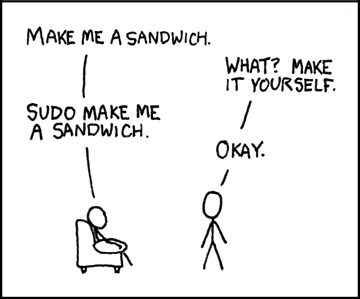
What is sudo?
sudo stands for "super-user do". Sudo allows any non-root user to run applications as root. It's as simple as that.
Why is sudo Important?
sudo is important to system administrators because it means they can allow certain users to perform actions with sudo while still having that user keep his/her privileges.
Let's say Nick is a Junior System Administrator and he's asked by his senior to perform some tasks. He's asked to:
Install a package that the team will need (apt install)
Reload the Apache web server after the senior made some configuration changes (systemctl reload apache2)
Each of these tasks will require Nick to use sudo before being able to perform them. Doing so will grant him root user privileges for the duration of that program and then returns back to Nick's default privileges.
Advantages of sudo
It was touched on above but when sudo is configured correctly, it greatly increases the security of your Linux environment. There are a few advantages it has such as:
Slowing hackers down. Since the root login will most likely be disabled and your users are properly granted sudo, any attacker will not know which account to go after, thus slowing them down. If they are slowed down enough, they may stop the attack and give up
Allow non-privileged users to perform privileged tasks by entering their own passwords
Keeps in line with the principle of least privilege by allowing administrators to assign certain users full privileges, while assigning other users only the privileges they need to complete their daily tasks
Adding Users to a Predefined Admin Group
Method 1
This is the first way to add users to the sudo group. Generally, this is considered the easiest method to allow users to use the sudo command. On Ubuntu 18.04, unless otherwise specified upon account creation, the user is automatically added to the sudo group. Let's take a look at nick's groups with the groups command.

We can see that Nick is a part of the sudo group (as well as a few others). If Nick was not part of the sudo group already, we could easily add him with one simple command: usermod -aG sudo nick. The -aG options here will add Nick to the group sudo. Using the -a option helps Nick retain any previously existing groups. You can also directly add a user to the sudo group upon creation with the command, useradd -G sudo james .
But what does adding a user to the sudo group in Ubuntu mean? By default, Ubuntu allows sudo users to execute any program as root with their password. There are a few ways we can check this information. The first way is as Nick with sudo -l .

The important information are in the last lines. This is saying that Nick (as part of the sudo group) may run all commands as any user on any machine.
There's another way to view this information and that's with visudo. This opens the sudo policy file. The sudo policy file is stored in /etc/sudoers. We can do it here as Nick, but we would need to use sudo if we want to edit it since it can only be edited by the root user (using just visudo as Nick actually gives a permission denied).

This gives the same information as sudo -l but it has one difference; the "%sudo" indicates that it's for the group, sudo. There are other groups in this file such as "admin". This is where administrators can set what programs a user in a certain group can perform and whether or not they need a password. You may have seen sometimes %sudo ALL=(ALL:ALL) ALL NOPASSWD: ALL. That NOPASSWD part says that the user that is part of the sudo group does not need to enter their local password to use sudo privileges. Generally, this is not recommended - even for home use.
Method 2
This next method utilizes the sudo policy file mentioned in Method 1. It's nice to be able to modify what an entire group can do, but that's just for Ubuntu. If you're managing users in a network across multiple flavors of Linux (CentOS, Red Hat, etc.), where the sudo group may be called something different, this method may be more preferable.
What you can do is add a User Alias to the policy file and add users to that alias (below), or add lines for individual users. The first image below creates the ADMIN User Alias and assigns 3 users to it and then says that this Alias has full sudo powers.
# User alias specification
User_Alias     ADMINS = spooky, james
               ADMINS ALL=(ALL) ALL


I would not recommend the second option (individual user aliases) in a large network since this can become unwieldy very quickly. The first option is going to be your best bet as you'll see in the next Task that we can simply add users to this alias and control which commands they have access to with sudo very easily.
Sudo (Part 2)
Setting Up sudo for Only Certain Delegated Privileges
Assigning Command Aliases
In the previous task, we saw how we can add users to the sudo group, and set up a User Alias in the sudo policy file, visudo.
I know I've hammered this point a lot in these two tasks, but the next method that we'll talk about here will ensure that users are assigned to the groups they belong to and only are allowed access to the programs they need to complete their daily tasks. This is how sudo aligns with the principle of least privilege.
It does this by allowing the root user to set what are called Command Aliases in the sudo policy file. Just as we set a User Alias in this file in the last task, we'll set a Command Alias now in the same file. Since we've already gone over it, I'm going to create another User Alias with the name of SYSTEMADMINS and assign some users to it. So again, using sudo visudo, we'll edit the line under the comment # Cmnd alias specification
We'll just add a few commands to the list. These don't mean anything in the actual context of what a System Admin would need. In reality, a System Admin would probably have sudo access to most things, but for brevity, let's only include a few.
# Cmnd alias specification
Cmnd_ALias SYSTEM = /usr/bin/systemctl restart , /usr/bin/systemctl restart ssh, /bin/chmod


The SYSTEM Command Alias allows the user to run systemctl restart, systemctl restart ssh and chmod . What do you think will happen if someone in the SYSTEMADMINS User Alias tried to run systemctl restart apache2? It would fail because that specific service has not been specified in the Alias. However, they are able to restart the ssh service because this is specified. And lastly, they can use chmod with all options.
If we wanted to allow the SYSTEMADMINS User Alias to be able to restart all services, we can use a wildcard character at the end so the new Alias would look like /usr/bin/systemctl restart *.
Different Ways to Assign Commands
We can also assign Command Aliases to individual users, specific commands to individual users, and Command Aliases to groups:

So dark is assigned specifically to the WEBDEV Command Alias, the user paradox is assigned only the cd command (poor Paradox) and the HR User Alias can only perform tasks in the HR Command Alias. See how useful the sudo policy can be in allowing you to separate privileges?
A Mention of Host Aliases
Host Aliases exist. They are a way to trickle down a sudo policy across the network and different servers. For example, you may have a MAILSERVERS Host Alias which contains servers mail1 and mail2. This Host Alias has certain users or groups assigned to it like we've demonstrated in these last two tasks and that Host Alias has a Command Alias assigned to it stating which commands those users are able to run.
When those users run a command on mail1 or mail2, the server will check the sudo policy file to see if they can do what they're trying to do.
I don't want to go into too much detail about it here because in a home environment and small-medium business environments, it probably is just easier to copy the sudo policy file to each server in the network. This will really only come into play with large enterprise networks and even then they will probably be using one centralized Ansible or other automation in effect.
http://www.silcom.com.pe/servicios_automatizacion_ansible.html
Disabling Root Access
Disabling Root Access
Restrict Root Shell Access
Generally it's a good idea to restrict root access. You can do this through several methods:
Disabling the root login shell
Disabling root SSH login
Disabling root using PAM (Password Authentication Module)
Disable Root Login Shell
Disabling the root login shell is a very simple task. You need to edit the /etc/passwd file to be the following:

root:x:0:0:root:/root:/usr/sbin/nologin
Normally, this is set to /bin/bash but setting it to /usr/sbin/nologin will politely reject the root login. Doing this will prevent users from doing sudo -s
Disable Root SSH Login
Disabling the root SSH login is another simple task that's fixed with one simple configuration change in /etc/ssh/sshd_config.conf

spooky@harden:/etc/ssh$ cat sshd_config
#       $OpenBSD: sshd_config,v 1.101 2017/03/14 07:19:07 djm Exp $

# This is the sshd server system-wide configuration file.  See
# sshd_config(5) for more information.

# This sshd was compiled with PATH=/usr/bin:/bin:/usr/sbin:/sbin

# The strategy used for options in the default sshd_config shipped with
# OpenSSH is to specify options with their default value where
# possible, but leave them commented.  Uncommented options override the
# default value.

#Port 22
#AddressFamily any
#ListenAddress 0.0.0.0
#ListenAddress ::

#HostKey /etc/ssh/ssh_host_rsa_key
#HostKey /etc/ssh/ssh_host_ecdsa_key
#HostKey /etc/ssh/ssh_host_ed25519_key

# Ciphers and keying
#RekeyLimit default none

# Logging
#SyslogFacility AUTH
#LogLevel INFO

# Authentication:

#LoginGraceTime 2m
PermitRootLogin yes

in this case just change yes to no
PermitRootLogin no
We change the #PermitRootLogin to no. Easy.
Disable Root Using PAM
This is one that I didn't even know about so bare with me here. For those that don't know, the PAM is "a powerful suite of shared libraries used to dynamically authenticate a user to applications (or services) in a Linux system" (Tecmint). The PAM settings are controlled by the conf file in /etc/pam.d or /etc/pam.conf. The pam.conf file warns us https://www.tecmint.com/configure-pam-in-centos-ubuntu-linux/

!!! WARNING !!! Editing the /etc/pam.d/* or /etc/pam.conf files can lock you out of your system.
I'll go through one example because there's a lot to it. Let's look at the example of disabling root SSHD login because that seems to be a common theme among articles online. We can configure our /etc/pam.d/sshd like the following

And lastly in /etc/ssh, we make a file called deniedusers and use vim to add root to the top and then save and close.
For the above configuration, the below explains what each setting does (Tecmint)
auth: the module type
required: a flag that states if the above module is used, it must pass, otherwise fail.
pam_listfile.so: a module that provides a way to deny or allow services based on an arbitrary file
onerr=succeed: module argument
item=user: module argument that specifies what is listed in the file and should be checked for
sense=deny: module argument which specifies the action to take if the name is found in the file. If not found, then the opposite action is requested
file=/etc/ssh/deniedusers: module argument; specifies file containing one line per argument (in this case, our users that are denied access)
# Custom PAM Configurations
auth    required        pam_listfile.so \
        onerr=succeed   item=user       sense=deny      file=/etc/ssh/deniedusers

root@harden:/etc/ssh# cat deniedusers
root
Disabling Shell Escapes
If you've ever visited GTFOBins, then you know that there exist ways for non-privileged users to escalate their privileges to root using shell escapes in text editors. Looking at the simple example of vim from GTFOBins, we see the following escapes:

Escape (a) has you adding the -c option which will execute the following command, which in this case is /bin/sh.
Escape (b) has you setting the variable "shell" to /bin/sh and then calling it.
If, in either of these examples, you are able to run vim with sudo, either of these will escape you into a root shell

In order to get around this issue, use sudoedit in the sudo policy file instead of any editor as sudoedit does not have any shell escapes. You can do this with the following:

spooky@harden:/etc/pam.d$ sudoedit hi
spooky@harden:/etc/pam.d$ ls
atd              common-session-noninteractive  runuser
chfn             cron                           runuser-l
chpasswd         hi                             sshd
chsh             login                          su
common-account   newusers                       sudo
common-auth      other                          systemd-user
common-password  passwd                         vmtoolsd
common-session   polkit-1
spooky@harden:/etc/pam.d$ cat hi
hi

spooky@harden:/etc/pam.d$ nano hi (with nano, vim, vi cannot modified, just only with sudoedit)
spooky@harden:/etc/pam.d$ sudoedit hi
spooky@harden:/etc/pam.d$ cat hi
hi :)
Locking Home Directories
Quick Note on Locking a User's Home Directory in Ubuntu
Ubuntu by default sets a new user's home directory permissions to 755 (UMASK of 022). This means that any other user and group can read and write in that user's directory. This is generally not good practice and it's up to the system admin to change this. The UMASK is set in /etc/login.defs so let's take a look at that file real quick.

Specifically, we're looking at the boxed UMASK in this screenshot, but pay attention to the long note that Ubuntu gives. They even state that 077 would be more secure. So changing that here will automatically make any new user's home directory more secure. Awesome stuff.
Note: The resulting permissions that get set are just 777 - UMASK so in this case:
777
022
755
Since 777 is the numerical equivalent of rwxrwxrwx in Linux, subtracting that from the UMASK, you get the resulting permissions that will be set on a user's home directory and files.
so with 077 will be 777 - 077 = 700
Configuring Password Complexity
Pwquality
Pwquality is a PAM module that allows you to configure password complexity requirements for your users. It's fairly easy to install on Ubuntu. You'll do sudo apt-get install libpam-pwquality. Once installed, it automatically adds an entry into the /etc/pam.d/common-password file. The pam.d directory is just another location where PAM adds files for basic services like ssh, basic login, etc.
spooky@harden:/etc/pam.d$ cat common-password | grep pwquality
password        requisite                       pam_pwquality.so retry=3,minlen=8,difok=3,lcredit=-1,ucredit=-1,dcredit=-1,ocredit=-1

Remember from before how to read this? There's a few differences but let's take a look:
password: module
requisite: module; states that if the the module fails, the operation is immediately terminated with a failure without invoking other modules
pam_pwquality.so: checks the pwquality.conf file for the requirements
retry=3: allows the user to retry their password 3 times before returning with an error
If we look at a few lines from the pwquality.conf file found in /etc/security, we can see that there are many options the administrator can set for the password quality. The lines just need to be uncommented and modified.
spooky@harden:/etc/security$ cat pwquality.conf
# Configuration for systemwide password quality limits
# Defaults:
#
# Number of characters in the new password that must not be present in the
# old password.
# difok = 1
#
# Minimum acceptable size for the new password (plus one if
# credits are not disabled which is the default). (See pam_cracklib manual.)
# Cannot be set to lower value than 6.
# minlen = 8
#
# The maximum credit for having digits in the new password. If less than 0
# it is the minimum number of digits in the new password.
# dcredit = 0
#
# The maximum credit for having uppercase characters in the new password.
# If less than 0 it is the minimum number of uppercase characters in the new
# password.
# ucredit = 0
#
# The maximum credit for having lowercase characters in the new password.
# If less than 0 it is the minimum number of lowercase characters in the new
# password.
# lcredit = 0
#
# The maximum credit for having other characters in the new password.
# If less than 0 it is the minimum number of other characters in the new
# password.
# ocredit = 0
#
# The minimum number of required classes of characters for the new
# password (digits, uppercase, lowercase, others).
# minclass = 0
#
# The maximum number of allowed consecutive same characters in the new password.
# The check is disabled if the value is 0.
# maxrepeat = 0
#
# The maximum number of allowed consecutive characters of the same class in the
# new password.
# The check is disabled if the value is 0.
# maxclassrepeat = 0
#
# Whether to check for the words from the passwd entry GECOS string of the user.
# The check is enabled if the value is not 0.
# gecoscheck = 0
#
# Whether to check for the words from the cracklib dictionary.
# The check is enabled if the value is not 0.
# dictcheck = 1
#
# Whether to check if it contains the user name in some form.
# The check is enabled if the value is not 0.
# usercheck = 1
#
# Whether the check is enforced by the PAM module and possibly other
# applications.
# The new password is rejected if it fails the check and the value is not 0.
# enforcing = 1
#
# Path to the cracklib dictionaries. Default is to use the cracklib default.
# dictpath =

Configuring Other Password Requirements
Configuring Other Password Requirements
In the Security world, when we talk about passwords, there's 4 important concepts that relate to passwords. They are:
Password complexity
Password length
Password expiration
Password history
We already covered the first 2 in previous tasks by configuring pwquality for our server. Now let's cover the last 2.
Password Expiration
When we open /etc/login.defs, and scroll down to the "Password aging controls" section, we can set password expiration here. There are a few options:

spooky@harden:/etc$ cat login.defs | grep PASS_
#       PASS_MAX_DAYS   Maximum number of days a password may be used.
#       PASS_MIN_DAYS   Minimum number of days allowed between password changes.
#       PASS_WARN_AGE   Number of days warning given before a password expires.
PASS_MAX_DAYS   99999
PASS_MIN_DAYS   0
PASS_WARN_AGE   7
PASS_MAX_DAYS: Default 99999; Sets the maximum number of days a password may be used
PASS_MIN_DAYS: Default 0; Sets the minimum number of days a user must keep their password before changing it
PASS_WARN_AGE: Default 7; Sets the number of days out from expiration that the system will warn the user
It is generally considered good practice to have a user's password expire after 90 days with a minimum age of at least 1. We'll get into why when we get to Password History next.
Password History
When configuring the password history of any system, it is generally considered best practice to remember the previous 10 passwords. This will ensure that the user's passwords stay different and are not reused. As we talked about above, setting a minimum age of 1 and a password history of 10 means that somebody would need to wait at least 11 days before they're able to get back to their original password. Usually this is enough to dissuade anyone from trying.
To configure password history in Ubuntu, we're once again going to look at /etc/pam.d/common-password. Take a look at the screenshot below for a sample configuration

The pwquality line from before has been removed for simplicity. Let's focus on the top line. Again, I'll go through the PAM settings.
Disclaimer: The PAM is not easy to understand. I did a lot of research and reading for any of these tasks where PAM was used. Some of these explanations are from the documentation of pam.d found here.
password: module type we are referencing
required: module where failure returns a failure to the PAM-API
pam_pwhistory.so: module that configures the password history requirements
remember=2: option for the pam_pwhistory.so module to remember the last n passwords (n = 2). These passwords are saved in /etc/security/opasswd
retry=3: option for the pam_pwhistory.so module to prompt the user 3 times before returning a failure
You may notice a change to the pam_unix.so line below the top one. We make use of use_authtok here and we tell the module to use shadow which will create shadow passwords when updating a user's password.
spooky@harden:/etc/security$ sudo -s
root@harden:/etc/security# sudoedit opasswd

# here are the per-ackage modules (the "Primary" block)
password        required        pam_pwhistory.so remember=2 retry=3
password        (success=1 default=ignore)      pam_unix.so use_authtok obscure sha512 shadow
Dangers of the lxd Group
The lxd Group in Ubuntu
I figure this wouldn't be a room about hardening if I ignore the fact that for whatever reason, Ubuntu places users (unless otherwise specified) into the lxd group. This group is known to be a point of privilege escalation and should be removed from any user that is a part of it.
It's so prevalent that Linux-Smart-Enumeration even checks for it. So, just remove it from any user that has it assigned. Using adduser does not add the user to any predefined groups and should probably be used when adding new users.
LXD, forma abreviada de Linux Container Daemon, es una herramienta de gestión de los contenedores del sistema operativo Linux. Ha sido desarrollado por Canonical, que también produce Ubuntu.
~~~~~ Chapter 1 Quiz ~~~~~
Summary
We've gone through quite a bit of material. And to be honest, I could have included more. There's a lot to securing user accounts in Linux. There's lots of ways to do so and lots of things to think of when preparing to secure user accounts. The material included here only accounts for some of the things you can do. But, overall I feel these are the most important things and the things you'd see on a regular basis if you were a system admin that handles Linux machines.
So take some time to grab a drink, stretch, and re-read some Tasks if you have to. Then let's dive into the questions.
What group are users automatically added to in Ubuntu? sudo
What would be the command to add an existing user, nick, to the sudo group? You're running as root usermod -aG sudo nick
What command as a user can we enter to see what we are allowed to execute with sudo? sudo -l
root@harden:/etc# cat sudoers
#
# This file MUST be edited with the 'visudo' command as root.
#
# Please consider adding local content in /etc/sudoers.d/ instead of
# directly modifying this file.
#
# See the man page for details on how to write a sudoers file.
#
Defaults        env_reset
Defaults        mail_badpass
Defaults        secure_path="/usr/local/sbin:/usr/local/bin:/usr/sbin:/usr/bin:/sbin:/bin:/snap/bin"

# Host alias specification

# User alias specification

# Cmnd alias specification

# User privilege specification
root    ALL=(ALL:ALL) ALL

# Members of the admin group may gain root privileges
%admin ALL=(ALL) ALL

# Allow members of group sudo to execute any command
%sudo   ALL=(ALL:ALL) ALL

# See sudoers(5) for more information on "#include" directives:

#includedir /etc/sudoers.d
# User alias specification
User_Alias     ADMINS = spooky, james
               ADMINS ALL=(ALL) ALL

or sudo visudo
Where is the sudo policy file stored? /etc/sudoers
When in visudo and you see %____, what does the % sign indicate that you are dealing with? group
This Alias lets the user assign a name, like "ADMINS" to a group of people User
Which Alias allows you to create a set of commands that you can then assign to a User Alias? It's abbreviated in visudo, but spell out the whole word Command
Emacs es un editor de texto con una gran cantidad de funciones, muy popular entre programadores y usuarios técnicos. GNU Emacs es parte del proyecto GNU y la versión más popular de Emacs con una gran actividad en su desarrollo. Yey/Ney - emacs has a shell escape Yey (all nano, vim, emacs but sudoedit)
What is the minimum recommended password length set by NIST? 8
When using the pwhistory module, which file will contain the previous passwords for the user? opasswd
What principle states that every user only has enough access to do their daily duties and tasks principle of least privilege
~~~~~ Chapter 2: Firewall Basics ~~~~~
Chapter 2: Firewall Basics
We've covered user account security which is really important. But now let's move into more of the networking side of things with Firewalls.
A Firewall by Cisco's definition is a "network security device that monitors incoming and outgoing network traffic and decides whether to allow or block specific traffic based on a defined set of security rules" (Cisco). After reading that, you may think that a Firewall can only be a network device. But, a Firewall actually comes in two different flavors:
Host Based
Network Based
Host-Based
Host-based Firewalls are just what they sound like - host-based. They are installed on host machines and monitor traffic from that host. Microsoft Windows includes Windows Firewall by default on all of its operating systems.


Rules can be configured on the Windows Firewall just like any other. If using a host-based Firewall, system administrators typically will configure the Firewall on the Windows Server which can then act as the Firewall for the entire network.
Network Based
A network based Firewall is more likely the type of Firewall that Cisco was referring to in their definition above. This type of Firewall is commonly a piece of hardware that may have two or more network interface cards.
The network based Firewall is placed on the border of the internal network and the open Internet and all traffic will pass through the Firewall before either entering the private network or leaving to the public Internet. Cisco has model lines such as Firepower that are network-based Firewalls and help protect a company from outside (and inside) threats.

A Cisco Firepower Firewall from cisco.com
A Note on Web Application Firewalls
You may have heard of the term, "Web Application Firewall" (WAF). This type of device is not to be confused with a network-based Firewall. WAFs are commonly placed in the Demilitarized Zone (DMZ) of a network and help protect the web-server from outside and inside threats. However, you should not only rely on a web-application firewall to protect your entire network. Instead, a network-based Firewall should be added on the border of the network as discussed above to add an additional layer of security.
Summary
We've briefly gone over the two types of Firewalls. Since this room is focused on Ubuntu and Linux, we're going to cover Linux's host-based Firewall utility called iptables.
iptables
iptables
As hackers, you're probably around Linux a lot, right? So you've probably heard of iptables. But did you know that iptables is not actually the name of Linux's Firewall? In fact, iptables is just one way of interacting with netfilter which every Linux distribution comes with.
Ubuntu actually comes with the Uncomplicated Firewall (ufw), which is an easy to use frontend for iptables. We will go over its uses later on in the room.
The Four Components of iptables
iptables actually has 4 different components to it that all come together to give the utility its overall functionality. They are:
Filter table - offers the basic protection that you'd expect a firewall to provide
Network Address Translation table - connects the public interwebs to the private networks
Mangle table - for mangling them packets as they go through the firewall
Security table - only used by SELinux
Getting Familiar with iptables Commands
To start, let's look at what our iptables look like on Ubuntu. We can do this by doing a sudo iptables -L (iptables must be called as root, so sudo is needed here).

As you can see from the image, we have no rules! Yikes! This means, that all traffic is allowed in and out of this system. Not good. We'll go over how someone would go about fixing that. Let's briefly explain the Chains that we have here.
INPUT - packets coming into the firewall
FORWARD - packets routed to another NIC on the network; for packets on the local network that are being forwarded on.
OUTPUT - packets going out of the firewall
With that out of the way, and without wanting to overwhelm you, let's jump into the next task and go over some ways to correct this iptable.
iptables Configuration
iptables Configuration
Now that you've learned what the different Chains are for the Filter table, we can get started on configuring our empty table and add some rules. In security, these rules that are added are commonly called an Access Control List (ACL). These rules determine the traffic that is allowed in and out of our network. In our case, our ACL will only define the rules for our single host. In a real network, a much more robust Firewall would be used (possibly a network-based Firewall) to defend the network. However, a utility such as Ansible could be used to distribute host-based Firewall rules to other hosts quickly and easily.
Note ACLs are read by the system from the top down. Keep that in mind when reading the rules that we will add.
Adding Basic Rules
To start, let's add a basic rule that will accept packets from hosts that have initiated connections with our host.
There are quite a few options to keep track of when configuring your Filter table. You can view them all in the iptables documentation. Any options included in my examples, I'll be sure to explain as best as I can. Let's get started with that first rule. https://linux.die.net/man/8/iptables
sudo iptables -A INPUT -m conntrack --ctstate ESTABLISHED,RELATED -j ACCEPT
Wow, there's a lot to that one rule. Let's break it down and I promise the others won't be so long.
-A INPUT: Append to the INPUT Chain
-m conntrack: Call an iptable module. In this case we're calling conntrack which keeps track of connections. This option permits the use of the following option
--ctstate ESTABLISHED,RELATED: Available due to the previous flag/option set. Will keep track of connections which are already ESTABLISHED and RELATED. RELATED just means that it's new but part of another already established connection
-j ACCEPT: The j stands for jump (I don't know why). This option will just ACCEPT the packet and stop processing other rules
Allowing Traffic Through Specific Ports
From what I could find while researching, the above command came up quite a few times. Ubuntu gives it as their first example for configuring iptables and the book I read through had it as their first example too. So I figured it was best to include it. But what if we want to allow traffic through specific ports? We can do that too. Let's look at a few ways to do so.
sudo iptables -A INPUT -p tcp --dport ssh -j ACCEPT
sudo iptables -A INPUT -p tcp --dport 21 -j ACCEPT
sudo iptables -A INPUT -p udp --dport 4380 -j ACCEPT
They all have the same options used but the difference is in what they are allowing through and how they are written to allow those things through. We've already seen the -A INPUT option, so let's go over the -p and --dport options.
-p {option}: Which connection protocol to use. Only "tcp" or "udp" can be used here
--dport: Controls the destination port that we want the rule to operate on.
Notice in the first example that we set our --dport to "ssh". This is valid syntax. However, we could just as well have entered 22 here since 22 is the port that corresponds to SSH. And likewise, in #2, we use port 21 but could have put ftp here since that is the protocol that operates on port 21.
The last example is just to show that we can use something other than "tcp" with the -p option.
Of course there are other rules that a system admin would want to add such as allowing all incoming web traffic. This is important for employees so that they are able to surf the internet and get out to research things if needed.
Blocking Incoming Traffic
So you've learned how to add rules to the Filter table and allow traffic through but what about blocking traffic? There's two things we want to cover here and those things are:
How to configure the iptable to block traffic
How to configure an implicit deny rule
Learning how to block/drop traffic will give you a good idea on how to do #2 so let's get to it.
Continuing with our admins of dark, ashu and skidy from the first tasks, let's say they have an SMB Server that they use internally to share files on the THM network. But, they don't want people from the outside to be able to access it or even try to access it. They could add a rule such as the following:
sudo iptables -A INPUT -p tcp --dport smb -j DROP
This line will drop all incoming packets using the TCP connection protocol and bound for the port that SMB is configured on.
Implicit Deny Rule
After you've configured all of your rules and you think you're just about done with your iptable...THINK AGAIN! There's actually one more rule that all system admins should apply to their Firewall before considering it complete. This is called the implicit deny rule. Remember the note from the start of this task? If you didn't read it, you should. The implicit deny rule states "if I have not explicitly allowed something through the Firewall, then DENY it implicitly, without hesitation". It is essentially a catch-all for anything else that you don't want to specifically add a rule for. We can make this rule with
sudo iptables -A INPUT -j DROP
This command will add the following line to the iptable

You can see that any/all protocols coming from anywhere going anywhere on our internal network will be DROPPED. This is the implicit deny rule.
Brief Note on Allowing Traffic OUT of a Network
So we've covered how to allow traffic into our network with the INPUT Chain but what about going out? That's what the OUTPUT Chain is for. I won't cover it here but if you want to configure outgoing rules, you would simply change the option for the -A flag.
Saving Configuration
Unfortunately, iptables is not saved in memory and needs to be configured each time you reboot your machine. This can be troublesome and annoying for any system admin. Restarting a server is probably an uncommon event but nonetheless, can happen. In order to save iptables configuration, you can enter sudo iptables-save
Summary
That was a lot. Hopefully you're learning a lot here. We're going to continue with our discussion on Firewalls in the next task. There's a different utility for Ubuntu that makes adding firewall rules a lot less complicated and doesn't require saving or runs the risk of losing your changes. You'll see it next.
root@harden:/etc# sudo iptables -A INPUT -m conntrack --ctstate ESTABLISHED,RELATED -j ACCEPT
root@harden:/etc# sudo iptables -L
Chain INPUT (policy DROP)
target prot opt source destination
ufw-before-logging-input all -- anywhere anywhere
ufw-before-input all -- anywhere anywhere
ufw-after-input all -- anywhere anywhere
ufw-after-logging-input all -- anywhere anywhere
ufw-reject-input all -- anywhere anywhere
ufw-track-input all -- anywhere anywhere
ACCEPT all -- anywhere anywhere ctstate RELATED,ESTABLISHED
Chain FORWARD (policy DROP)
target prot opt source destination
ufw-before-logging-forward all -- anywhere anywhere
ufw-before-forward all -- anywhere anywhere
ufw-after-forward all -- anywhere anywhere
ufw-after-logging-forward all -- anywhere anywhere
ufw-reject-forward all -- anywhere anywhere
ufw-track-forward all -- anywhere anywhere
Chain OUTPUT (policy ACCEPT)
target prot opt source destination
ufw-before-logging-output all -- anywhere anywhere
ufw-before-output all -- anywhere anywhere
ufw-after-output all -- anywhere anywhere
ufw-after-logging-output all -- anywhere anywhere
ufw-reject-output all -- anywhere anywhere
ufw-track-output all -- anywhere anywhere
Chain ufw-after-forward (1 references)
target prot opt source destination
Chain ufw-after-input (1 references)
target prot opt source destination
ufw-skip-to-policy-input udp -- anywhere anywhere udp dpt:netbios-ns
ufw-skip-to-policy-input udp -- anywhere anywhere udp dpt:netbios-dgm
ufw-skip-to-policy-input tcp -- anywhere anywhere tcp dpt:netbios-ssn
ufw-skip-to-policy-input tcp -- anywhere anywhere tcp dpt:microsoft-ds
ufw-skip-to-policy-input udp -- anywhere anywhere udp dpt:bootps
ufw-skip-to-policy-input udp -- anywhere anywhere udp dpt:bootpc
ufw-skip-to-policy-input all -- anywhere anywhere ADDRTYPE match dst-type BROADCAST
Chain ufw-after-logging-forward (1 references)
target prot opt source destination
LOG all -- anywhere anywhere limit: avg 3/min burst 10 LOG level warning prefix "[UFW BLOCK] "
Chain ufw-after-logging-input (1 references)
target prot opt source destination
LOG all -- anywhere anywhere limit: avg 3/min burst 10 LOG level warning prefix "[UFW BLOCK] "
Chain ufw-after-logging-output (1 references)
target prot opt source destination
Chain ufw-after-output (1 references)
target prot opt source destination
Chain ufw-before-forward (1 references)
target prot opt source destination
ACCEPT all -- anywhere anywhere ctstate RELATED,ESTABLISHED
ACCEPT icmp -- anywhere anywhere icmp destination-unreachable
ACCEPT icmp -- anywhere anywhere icmp time-exceeded
ACCEPT icmp -- anywhere anywhere icmp parameter-problem
ACCEPT icmp -- anywhere anywhere icmp echo-request
ufw-user-forward all -- anywhere anywhere
Chain ufw-before-input (1 references)
target prot opt source destination
ACCEPT all -- anywhere anywhere
ACCEPT all -- anywhere anywhere ctstate RELATED,ESTABLISHED
ufw-logging-deny all -- anywhere anywhere ctstate INVALID
DROP all -- anywhere anywhere ctstate INVALID
ACCEPT icmp -- anywhere anywhere icmp destination-unreachable
ACCEPT icmp -- anywhere anywhere icmp time-exceeded
ACCEPT icmp -- anywhere anywhere icmp parameter-problem
ACCEPT icmp -- anywhere anywhere icmp echo-request
ACCEPT udp -- anywhere anywhere udp spt:bootps dpt:bootpc
ufw-not-local all -- anywhere anywhere
ACCEPT udp -- anywhere 224.0.0.251 udp dpt:mdns
ACCEPT udp -- anywhere 239.255.255.250 udp dpt:1900
ufw-user-input all -- anywhere anywhere
Chain ufw-before-logging-forward (1 references)
target prot opt source destination
Chain ufw-before-logging-input (1 references)
target prot opt source destination
Chain ufw-before-logging-output (1 references)
target prot opt source destination
Chain ufw-before-output (1 references)
target prot opt source destination
ACCEPT all -- anywhere anywhere
ACCEPT all -- anywhere anywhere ctstate RELATED,ESTABLISHED
ufw-user-output all -- anywhere anywhere
Chain ufw-logging-allow (0 references)
target prot opt source destination
LOG all -- anywhere anywhere limit: avg 3/min burst 10 LOG level warning prefix "[UFW ALLOW] "
Chain ufw-logging-deny (2 references)
target prot opt source destination
RETURN all -- anywhere anywhere ctstate INVALID limit: avg 3/min burst 10
LOG all -- anywhere anywhere limit: avg 3/min burst 10 LOG level warning prefix "[UFW BLOCK] "
Chain ufw-not-local (1 references)
target prot opt source destination
RETURN all -- anywhere anywhere ADDRTYPE match dst-type LOCAL
RETURN all -- anywhere anywhere ADDRTYPE match dst-type MULTICAST
RETURN all -- anywhere anywhere ADDRTYPE match dst-type BROADCAST
ufw-logging-deny all -- anywhere anywhere limit: avg 3/min burst 10
DROP all -- anywhere anywhere
Chain ufw-reject-forward (1 references)
target prot opt source destination
Chain ufw-reject-input (1 references)
target prot opt source destination
Chain ufw-reject-output (1 references)
target prot opt source destination
Chain ufw-skip-to-policy-forward (0 references)
target prot opt source destination
DROP all -- anywhere anywhere
Chain ufw-skip-to-policy-input (7 references)
target prot opt source destination
DROP all -- anywhere anywhere
Chain ufw-skip-to-policy-output (0 references)
target prot opt source destination
ACCEPT all -- anywhere anywhere
Chain ufw-track-forward (1 references)
target prot opt source destination
Chain ufw-track-input (1 references)
target prot opt source destination
Chain ufw-track-output (1 references)
target prot opt source destination
ACCEPT tcp -- anywhere anywhere ctstate NEW
ACCEPT udp -- anywhere anywhere ctstate NEW
Chain ufw-user-forward (1 references)
target prot opt source destination
Chain ufw-user-input (1 references)
target prot opt source destination
DROP tcp -- anywhere anywhere tcp dpt:http
DROP udp -- anywhere anywhere udp dpt:80
ACCEPT tcp -- anywhere anywhere tcp dpt:ssh
Chain ufw-user-limit (0 references)
target prot opt source destination
LOG all -- anywhere anywhere limit: avg 3/min burst 5 LOG level warning prefix "[UFW LIMIT BLOCK] "
REJECT all -- anywhere anywhere reject-with icmp-port-unreachable
Chain ufw-user-limit-accept (0 references)
target prot opt source destination
ACCEPT all -- anywhere anywhere
Chain ufw-user-logging-forward (0 references)
target prot opt source destination
Chain ufw-user-logging-input (0 references)
target prot opt source destination
Chain ufw-user-logging-output (0 references)
target prot opt source destination
Chain ufw-user-output (1 references)
target prot opt source destination
root@harden:/etc# sudo iptables -A INPUT -p tcp --dport ssh -j ACCEPT
root@harden:/etc# sudo iptables -L
Chain INPUT (policy DROP)
target prot opt source destination
ufw-before-logging-input all -- anywhere anywhere
ufw-before-input all -- anywhere anywhere
ufw-after-input all -- anywhere anywhere
ufw-after-logging-input all -- anywhere anywhere
ufw-reject-input all -- anywhere anywhere
ufw-track-input all -- anywhere anywhere
ACCEPT all -- anywhere anywhere ctstate RELATED,ESTABLISHED
ACCEPT tcp -- anywhere anywhere tcp dpt:ssh
Chain FORWARD (policy DROP)
target prot opt source destination
ufw-before-logging-forward all -- anywhere anywhere
ufw-before-forward all -- anywhere anywhere
ufw-after-forward all -- anywhere anywhere
ufw-after-logging-forward all -- anywhere anywhere
ufw-reject-forward all -- anywhere anywhere
ufw-track-forward all -- anywhere anywhere
Chain OUTPUT (policy ACCEPT)
target prot opt source destination
ufw-before-logging-output all -- anywhere anywhere
ufw-before-output all -- anywhere anywhere
ufw-after-output all -- anywhere anywhere
ufw-after-logging-output all -- anywhere anywhere
ufw-reject-output all -- anywhere anywhere
ufw-track-output all -- anywhere anywhere
Chain ufw-after-forward (1 references)
target prot opt source destination
Chain ufw-after-input (1 references)
target prot opt source destination
ufw-skip-to-policy-input udp -- anywhere anywhere udp dpt:netbios-ns
ufw-skip-to-policy-input udp -- anywhere anywhere udp dpt:netbios-dgm
ufw-skip-to-policy-input tcp -- anywhere anywhere tcp dpt:netbios-ssn
ufw-skip-to-policy-input tcp -- anywhere anywhere tcp dpt:microsoft-ds
ufw-skip-to-policy-input udp -- anywhere anywhere udp dpt:bootps
ufw-skip-to-policy-input udp -- anywhere anywhere udp dpt:bootpc
ufw-skip-to-policy-input all -- anywhere anywhere ADDRTYPE match dst-type BROADCAST
Chain ufw-after-logging-forward (1 references)
target prot opt source destination
LOG all -- anywhere anywhere limit: avg 3/min burst 10 LOG level warning prefix "[UFW BLOCK] "
Chain ufw-after-logging-input (1 references)
target prot opt source destination
LOG all -- anywhere anywhere limit: avg 3/min burst 10 LOG level warning prefix "[UFW BLOCK] "
Chain ufw-after-logging-output (1 references)
target prot opt source destination
Chain ufw-after-output (1 references)
target prot opt source destination
Chain ufw-before-forward (1 references)
target prot opt source destination
ACCEPT all -- anywhere anywhere ctstate RELATED,ESTABLISHED
ACCEPT icmp -- anywhere anywhere icmp destination-unreachable
ACCEPT icmp -- anywhere anywhere icmp time-exceeded
ACCEPT icmp -- anywhere anywhere icmp parameter-problem
ACCEPT icmp -- anywhere anywhere icmp echo-request
ufw-user-forward all -- anywhere anywhere
Chain ufw-before-input (1 references)
target prot opt source destination
ACCEPT all -- anywhere anywhere
ACCEPT all -- anywhere anywhere ctstate RELATED,ESTABLISHED
ufw-logging-deny all -- anywhere anywhere ctstate INVALID
DROP all -- anywhere anywhere ctstate INVALID
ACCEPT icmp -- anywhere anywhere icmp destination-unreachable
ACCEPT icmp -- anywhere anywhere icmp time-exceeded
ACCEPT icmp -- anywhere anywhere icmp parameter-problem
ACCEPT icmp -- anywhere anywhere icmp echo-request
ACCEPT udp -- anywhere anywhere udp spt:bootps dpt:bootpc
ufw-not-local all -- anywhere anywhere
ACCEPT udp -- anywhere 224.0.0.251 udp dpt:mdns
ACCEPT udp -- anywhere 239.255.255.250 udp dpt:1900
ufw-user-input all -- anywhere anywhere
Chain ufw-before-logging-forward (1 references)
target prot opt source destination
Chain ufw-before-logging-input (1 references)
target prot opt source destination
Chain ufw-before-logging-output (1 references)
target prot opt source destination
Chain ufw-before-output (1 references)
target prot opt source destination
ACCEPT all -- anywhere anywhere
ACCEPT all -- anywhere anywhere ctstate RELATED,ESTABLISHED
ufw-user-output all -- anywhere anywhere
Chain ufw-logging-allow (0 references)
target prot opt source destination
LOG all -- anywhere anywhere limit: avg 3/min burst 10 LOG level warning prefix "[UFW ALLOW] "
Chain ufw-logging-deny (2 references)
target prot opt source destination
RETURN all -- anywhere anywhere ctstate INVALID limit: avg 3/min burst 10
LOG all -- anywhere anywhere limit: avg 3/min burst 10 LOG level warning prefix "[UFW BLOCK] "
Chain ufw-not-local (1 references)
target prot opt source destination
RETURN all -- anywhere anywhere ADDRTYPE match dst-type LOCAL
RETURN all -- anywhere anywhere ADDRTYPE match dst-type MULTICAST
RETURN all -- anywhere anywhere ADDRTYPE match dst-type BROADCAST
ufw-logging-deny all -- anywhere anywhere limit: avg 3/min burst 10
DROP all -- anywhere anywhere
Chain ufw-reject-forward (1 references)
target prot opt source destination
Chain ufw-reject-input (1 references)
target prot opt source destination
Chain ufw-reject-output (1 references)
target prot opt source destination
Chain ufw-skip-to-policy-forward (0 references)
target prot opt source destination
DROP all -- anywhere anywhere
Chain ufw-skip-to-policy-input (7 references)
target prot opt source destination
DROP all -- anywhere anywhere
Chain ufw-skip-to-policy-output (0 references)
target prot opt source destination
ACCEPT all -- anywhere anywhere
Chain ufw-track-forward (1 references)
target prot opt source destination
Chain ufw-track-input (1 references)
target prot opt source destination
Chain ufw-track-output (1 references)
target prot opt source destination
ACCEPT tcp -- anywhere anywhere ctstate NEW
ACCEPT udp -- anywhere anywhere ctstate NEW
Chain ufw-user-forward (1 references)
target prot opt source destination
Chain ufw-user-input (1 references)
target prot opt source destination
DROP tcp -- anywhere anywhere tcp dpt:http
DROP udp -- anywhere anywhere udp dpt:80
ACCEPT tcp -- anywhere anywhere tcp dpt:ssh
Chain ufw-user-limit (0 references)
target prot opt source destination
LOG all -- anywhere anywhere limit: avg 3/min burst 5 LOG level warning prefix "[UFW LIMIT BLOCK] "
REJECT all -- anywhere anywhere reject-with icmp-port-unreachable
Chain ufw-user-limit-accept (0 references)
target prot opt source destination
ACCEPT all -- anywhere anywhere
Chain ufw-user-logging-forward (0 references)
target prot opt source destination
Chain ufw-user-logging-input (0 references)
target prot opt source destination
Chain ufw-user-logging-output (0 references)
target prot opt source destination
Chain ufw-user-output (1 references)
target prot opt source destination
root@harden:/etc# sudo iptables -A INPUT -p tcp --dport smb -j DROP
iptables v1.6.1: invalid port/service `smb' specified
Try `iptables -h' or 'iptables --help' for more information.
root@harden:/etc# sudo iptables -A INPUT -p tcp --dport 21 -j DROP
root@harden:/etc# sudo iptables -A INPUT -p tcp --dport smb -j DROP
iptables v1.6.1: invalid port/service `smb' specified
Try `iptables -h' or 'iptables --help' for more information.
root@harden:/etc# sudo iptables -A INPUT -j DROP
root@harden:/etc# sudo iptables -A OUTPUT -j DROP
root@harden:/etc# sudo iptables-save
# Generated by iptables-save v1.6.1 on Sat Oct 22 21:56:59 2022
*filter
:INPUT DROP [0:0]
:FORWARD DROP [0:0]
:OUTPUT ACCEPT [0:0]
:ufw-after-forward - [0:0]
:ufw-after-input - [0:0]
:ufw-after-logging-forward - [0:0]
:ufw-after-logging-input - [0:0]
:ufw-after-logging-output - [0:0]
:ufw-after-output - [0:0]
:ufw-before-forward - [0:0]
:ufw-before-input - [0:0]
:ufw-before-logging-forward - [0:0]
:ufw-before-logging-input - [0:0]
:ufw-before-logging-output - [0:0]
:ufw-before-output - [0:0]
:ufw-logging-allow - [0:0]
:ufw-logging-deny - [0:0]
:ufw-not-local - [0:0]
:ufw-reject-forward - [0:0]
:ufw-reject-input - [0:0]
:ufw-reject-output - [0:0]
:ufw-skip-to-policy-forward - [0:0]
:ufw-skip-to-policy-input - [0:0]
:ufw-skip-to-policy-output - [0:0]
:ufw-track-forward - [0:0]
:ufw-track-input - [0:0]
:ufw-track-output - [0:0]
:ufw-user-forward - [0:0]
:ufw-user-input - [0:0]
:ufw-user-limit - [0:0]
:ufw-user-limit-accept - [0:0]
:ufw-user-logging-forward - [0:0]
:ufw-user-logging-input - [0:0]
:ufw-user-logging-output - [0:0]
:ufw-user-output - [0:0]
-A INPUT -j ufw-before-logging-input
-A INPUT -j ufw-before-input
-A INPUT -j ufw-after-input
-A INPUT -j ufw-after-logging-input
-A INPUT -j ufw-reject-input
-A INPUT -j ufw-track-input
-A INPUT -m conntrack --ctstate RELATED,ESTABLISHED -j ACCEPT
-A INPUT -p tcp -m tcp --dport 22 -j ACCEPT
-A INPUT -p tcp -m tcp --dport 21 -j DROP
-A INPUT -j DROP
-A FORWARD -j ufw-before-logging-forward
-A FORWARD -j ufw-before-forward
-A FORWARD -j ufw-after-forward
-A FORWARD -j ufw-after-logging-forward
-A FORWARD -j ufw-reject-forward
-A FORWARD -j ufw-track-forward
-A OUTPUT -j ufw-before-logging-output
-A OUTPUT -j ufw-before-output
-A OUTPUT -j ufw-after-output
-A OUTPUT -j ufw-after-logging-output
-A OUTPUT -j ufw-reject-output
-A OUTPUT -j ufw-track-output
-A OUTPUT -j DROP
-A ufw-after-input -p udp -m udp --dport 137 -j ufw-skip-to-policy-input
-A ufw-after-input -p udp -m udp --dport 138 -j ufw-skip-to-policy-input
-A ufw-after-input -p tcp -m tcp --dport 139 -j ufw-skip-to-policy-input
-A ufw-after-input -p tcp -m tcp --dport 445 -j ufw-skip-to-policy-input
-A ufw-after-input -p udp -m udp --dport 67 -j ufw-skip-to-policy-input
-A ufw-after-input -p udp -m udp --dport 68 -j ufw-skip-to-policy-input
-A ufw-after-input -m addrtype --dst-type BROADCAST -j ufw-skip-to-policy-input
-A ufw-after-logging-forward -m limit --limit 3/min --limit-burst 10 -j LOG --log-prefix "[UFW BLOCK] "
-A ufw-after-logging-input -m limit --limit 3/min --limit-burst 10 -j LOG --log-prefix "[UFW BLOCK] "
-A ufw-before-forward -m conntrack --ctstate RELATED,ESTABLISHED -j ACCEPT
-A ufw-before-forward -p icmp -m icmp --icmp-type 3 -j ACCEPT
-A ufw-before-forward -p icmp -m icmp --icmp-type 11 -j ACCEPT
-A ufw-before-forward -p icmp -m icmp --icmp-type 12 -j ACCEPT
-A ufw-before-forward -p icmp -m icmp --icmp-type 8 -j ACCEPT
-A ufw-before-forward -j ufw-user-forward
-A ufw-before-input -i lo -j ACCEPT
-A ufw-before-input -m conntrack --ctstate RELATED,ESTABLISHED -j ACCEPT
-A ufw-before-input -m conntrack --ctstate INVALID -j ufw-logging-deny
-A ufw-before-input -m conntrack --ctstate INVALID -j DROP
-A ufw-before-input -p icmp -m icmp --icmp-type 3 -j ACCEPT
-A ufw-before-input -p icmp -m icmp --icmp-type 11 -j ACCEPT
-A ufw-before-input -p icmp -m icmp --icmp-type 12 -j ACCEPT
-A ufw-before-input -p icmp -m icmp --icmp-type 8 -j ACCEPT
-A ufw-before-input -p udp -m udp --sport 67 --dport 68 -j ACCEPT
-A ufw-before-input -j ufw-not-local
-A ufw-before-input -d 224.0.0.251/32 -p udp -m udp --dport 5353 -j ACCEPT
-A ufw-before-input -d 239.255.255.250/32 -p udp -m udp --dport 1900 -j ACCEPT
-A ufw-before-input -j ufw-user-input
-A ufw-before-output -o lo -j ACCEPT
-A ufw-before-output -m conntrack --ctstate RELATED,ESTABLISHED -j ACCEPT
-A ufw-before-output -j ufw-user-output
-A ufw-logging-allow -m limit --limit 3/min --limit-burst 10 -j LOG --log-prefix "[UFW ALLOW] "
-A ufw-logging-deny -m conntrack --ctstate INVALID -m limit --limit 3/min --limit-burst 10 -j RETURN
-A ufw-logging-deny -m limit --limit 3/min --limit-burst 10 -j LOG --log-prefix "[UFW BLOCK] "
-A ufw-not-local -m addrtype --dst-type LOCAL -j RETURN
-A ufw-not-local -m addrtype --dst-type MULTICAST -j RETURN
-A ufw-not-local -m addrtype --dst-type BROADCAST -j RETURN
-A ufw-not-local -m limit --limit 3/min --limit-burst 10 -j ufw-logging-deny
-A ufw-not-local -j DROP
-A ufw-skip-to-policy-forward -j DROP
-A ufw-skip-to-policy-input -j DROP
-A ufw-skip-to-policy-output -j ACCEPT
-A ufw-track-output -p tcp -m conntrack --ctstate NEW -j ACCEPT
-A ufw-track-output -p udp -m conntrack --ctstate NEW -j ACCEPT
-A ufw-user-input -p tcp -m tcp --dport 80 -j DROP
-A ufw-user-input -p udp -m udp --dport 80 -j DROP
-A ufw-user-input -p tcp -m tcp --dport 22 -j ACCEPT
-A ufw-user-limit -m limit --limit 3/min -j LOG --log-prefix "[UFW LIMIT BLOCK] "
-A ufw-user-limit -j REJECT --reject-with icmp-port-unreachable
-A ufw-user-limit-accept -j ACCEPT
COMMIT
# Completed on Sat Oct 22 21:56:59 2022
root@harden:/etc# sudo iptables -L
Chain INPUT (policy DROP)
target prot opt source destination
ufw-before-logging-input all -- anywhere anywhere
ufw-before-input all -- anywhere anywhere
ufw-after-input all -- anywhere anywhere
ufw-after-logging-input all -- anywhere anywhere
ufw-reject-input all -- anywhere anywhere
ufw-track-input all -- anywhere anywhere
ACCEPT all -- anywhere anywhere ctstate RELATED,ESTABLISHED
ACCEPT tcp -- anywhere anywhere tcp dpt:ssh
DROP tcp -- anywhere anywhere tcp dpt:ftp
DROP all -- anywhere anywhere
Chain FORWARD (policy DROP)
target prot opt source destination
ufw-before-logging-forward all -- anywhere anywhere
ufw-before-forward all -- anywhere anywhere
ufw-after-forward all -- anywhere anywhere
ufw-after-logging-forward all -- anywhere anywhere
ufw-reject-forward all -- anywhere anywhere
ufw-track-forward all -- anywhere anywhere
Chain OUTPUT (policy ACCEPT)
target prot opt source destination
ufw-before-logging-output all -- anywhere anywhere
ufw-before-output all -- anywhere anywhere
ufw-after-output all -- anywhere anywhere
ufw-after-logging-output all -- anywhere anywhere
ufw-reject-output all -- anywhere anywhere
ufw-track-output all -- anywhere anywhere
DROP all -- anywhere anywhere
Chain ufw-after-forward (1 references)
target prot opt source destination
Chain ufw-after-input (1 references)
target prot opt source destination
ufw-skip-to-policy-input udp -- anywhere anywhere udp dpt:netbios-ns
ufw-skip-to-policy-input udp -- anywhere anywhere udp dpt:netbios-dgm
ufw-skip-to-policy-input tcp -- anywhere anywhere tcp dpt:netbios-ssn
ufw-skip-to-policy-input tcp -- anywhere anywhere tcp dpt:microsoft-ds
ufw-skip-to-policy-input udp -- anywhere anywhere udp dpt:bootps
ufw-skip-to-policy-input udp -- anywhere anywhere udp dpt:bootpc
ufw-skip-to-policy-input all -- anywhere anywhere ADDRTYPE match dst-type BROADCAST
Chain ufw-after-logging-forward (1 references)
target prot opt source destination
LOG all -- anywhere anywhere limit: avg 3/min burst 10 LOG level warning prefix "[UFW BLOCK] "
Chain ufw-after-logging-input (1 references)
target prot opt source destination
LOG all -- anywhere anywhere limit: avg 3/min burst 10 LOG level warning prefix "[UFW BLOCK] "
Chain ufw-after-logging-output (1 references)
target prot opt source destination
Chain ufw-after-output (1 references)
target prot opt source destination
Chain ufw-before-forward (1 references)
target prot opt source destination
ACCEPT all -- anywhere anywhere ctstate RELATED,ESTABLISHED
ACCEPT icmp -- anywhere anywhere icmp destination-unreachable
ACCEPT icmp -- anywhere anywhere icmp time-exceeded
ACCEPT icmp -- anywhere anywhere icmp parameter-problem
ACCEPT icmp -- anywhere anywhere icmp echo-request
ufw-user-forward all -- anywhere anywhere
Chain ufw-before-input (1 references)
target prot opt source destination
ACCEPT all -- anywhere anywhere
ACCEPT all -- anywhere anywhere ctstate RELATED,ESTABLISHED
ufw-logging-deny all -- anywhere anywhere ctstate INVALID
DROP all -- anywhere anywhere ctstate INVALID
ACCEPT icmp -- anywhere anywhere icmp destination-unreachable
ACCEPT icmp -- anywhere anywhere icmp time-exceeded
ACCEPT icmp -- anywhere anywhere icmp parameter-problem
ACCEPT icmp -- anywhere anywhere icmp echo-request
ACCEPT udp -- anywhere anywhere udp spt:bootps dpt:bootpc
ufw-not-local all -- anywhere anywhere
ACCEPT udp -- anywhere 224.0.0.251 udp dpt:mdns
ACCEPT udp -- anywhere 239.255.255.250 udp dpt:1900
ufw-user-input all -- anywhere anywhere
Chain ufw-before-logging-forward (1 references)
target prot opt source destination
Chain ufw-before-logging-input (1 references)
target prot opt source destination
Chain ufw-before-logging-output (1 references)
target prot opt source destination
Chain ufw-before-output (1 references)
target prot opt source destination
ACCEPT all -- anywhere anywhere
ACCEPT all -- anywhere anywhere ctstate RELATED,ESTABLISHED
ufw-user-output all -- anywhere anywhere
Chain ufw-logging-allow (0 references)
target prot opt source destination
LOG all -- anywhere anywhere limit: avg 3/min burst 10 LOG level warning prefix "[UFW ALLOW] "
Chain ufw-logging-deny (2 references)
target prot opt source destination
RETURN all -- anywhere anywhere ctstate INVALID limit: avg 3/min burst 10
LOG all -- anywhere anywhere limit: avg 3/min burst 10 LOG level warning prefix "[UFW BLOCK] "
Chain ufw-not-local (1 references)
target prot opt source destination
RETURN all -- anywhere anywhere ADDRTYPE match dst-type LOCAL
RETURN all -- anywhere anywhere ADDRTYPE match dst-type MULTICAST
RETURN all -- anywhere anywhere ADDRTYPE match dst-type BROADCAST
ufw-logging-deny all -- anywhere anywhere limit: avg 3/min burst 10
DROP all -- anywhere anywhere
Chain ufw-reject-forward (1 references)
target prot opt source destination
Chain ufw-reject-input (1 references)
target prot opt source destination
Chain ufw-reject-output (1 references)
target prot opt source destination
Chain ufw-skip-to-policy-forward (0 references)
target prot opt source destination
DROP all -- anywhere anywhere
Chain ufw-skip-to-policy-input (7 references)
target prot opt source destination
DROP all -- anywhere anywhere
Chain ufw-skip-to-policy-output (0 references)
target prot opt source destination
ACCEPT all -- anywhere anywhere
Chain ufw-track-forward (1 references)
target prot opt source destination
Chain ufw-track-input (1 references)
target prot opt source destination
Chain ufw-track-output (1 references)
target prot opt source destination
ACCEPT tcp -- anywhere anywhere ctstate NEW
ACCEPT udp -- anywhere anywhere ctstate NEW
Chain ufw-user-forward (1 references)
target prot opt source destination
Chain ufw-user-input (1 references)
target prot opt source destination
DROP tcp -- anywhere anywhere tcp dpt:http
DROP udp -- anywhere anywhere udp dpt:80
ACCEPT tcp -- anywhere anywhere tcp dpt:ssh
Chain ufw-user-limit (0 references)
target prot opt source destination
LOG all -- anywhere anywhere limit: avg 3/min burst 5 LOG level warning prefix "[UFW LIMIT BLOCK] "
REJECT all -- anywhere anywhere reject-with icmp-port-unreachable
Chain ufw-user-limit-accept (0 references)
target prot opt source destination
ACCEPT all -- anywhere anywhere
Chain ufw-user-logging-forward (0 references)
target prot opt source destination
Chain ufw-user-logging-input (0 references)
target prot opt source destination
Chain ufw-user-logging-output (0 references)
target prot opt source destination
Chain ufw-user-output (1 references)
target prot opt source destination
Basic Uncomplicated Firewall for Ubuntu & Chapter 2 Quiz
Uncomplicated Firewall
The Uncomplicated Firewall (UFW) is meant to make creating Firewall rules less complicated. It provides a friendly way to create an IPv4 (or v6) based Firewall. By default, UFW is disabled. You can check the status of UFW with sudo ufw status (UFW must be run as root). To enable UFW, you simply do sudo ufw enable. And to disable you do sudo ufw disable. Ez-pz.
Allowing and Denying Ports
It's actually really easy to allow and deny things with UFW. The basic format is as follows
sudo ufw <allow/deny> <port>/<optional: protocol>
So to allow TCP connections on port 9000 we do sudo ufw allow 9000/tcp. Denying something would be just as easy. Let's say we want to deny telnet traffic on port 23. We'd do sudo ufw deny 23.
Allowing and Denying Services
UFW also allows for entering of services instead of ports with sudo ufw <allow/deny> <service name>. For example, allowing SSH would be done with sudo ufw allow ssh. It's really that easy. You can do the same with deny in order to deny a service that you don't to pass through the Firewall.
Advanced Syntax
There's more advanced syntax to allow or deny specific IP addresses, ranges or subnets. We won't cover this here, but if you want to learn more about how to configure UFW, check out https://help.ubuntu.com/community/UFW.
Chapter 2 Summary
I hope you've learned something going through this chapter. We've gone through iptables and ufw, which are the two most common ways to configure a Firewall on an Ubuntu server.
Now it's time to complete a little skills check and see how well you understand the material.
Room Summary
This ends Part 1 of this series. Please head to Part 2 to finish the last 2 chapters!
root@harden:/etc# sudo ufw status
Status: active

To                         Action      From
--                         ------      ----
80                         DENY        Anywhere
22/tcp                     ALLOW       Anywhere
80 (v6)                    DENY        Anywhere (v6)
22/tcp (v6)                ALLOW       Anywhere (v6)

┌──(kali㉿kali)-[~]
└─$ ufw
Command 'ufw' not found, but can be installed with:
sudo apt install ufw
Do you want to install it? (N/y)y
sudo apt install ufw


┌──(kali㉿kali)-[~]
└─$ sudo ufw enable
Firewall is active and enabled on system startup

┌──(kali㉿kali)-[~]
└─$ sudo ufw status
Status: active

root@harden:/etc# sudo ufw allow 80
Rule updated
Rule updated (v6)
root@harden:/etc# sudo ufw status
Status: active

To                         Action      From
--                         ------      ----
80                         ALLOW       Anywhere
22/tcp                     ALLOW       Anywhere
80 (v6)                    ALLOW       Anywhere (v6)
22/tcp (v6)                ALLOW       Anywhere (v6)


root@harden:/etc# sudo ufw deny 80
Rule updated
Rule updated (v6)
root@harden:/etc# sudo ufw status
Status: active

To                         Action      From
--                         ------      ----
80                         DENY        Anywhere
22/tcp                     ALLOW       Anywhere
80 (v6)                    DENY        Anywhere (v6)
22/tcp (v6)                ALLOW       Anywhere (v6)

root@harden:/etc# sudo ufw allow 23
Rule added
Rule added (v6)
root@harden:/etc# sudo ufw status
Status: active

To                         Action      From
--                         ------      ----
80                         DENY        Anywhere
22/tcp                     ALLOW       Anywhere
23                         ALLOW       Anywhere
80 (v6)                    DENY        Anywhere (v6)
22/tcp (v6)                ALLOW       Anywhere (v6)
23 (v6)                    ALLOW       Anywhere (v6)
This type of Firewall typically has two NIC cards Network-based
This type of Firewall is typically installed on a host computer and rules apply to that specific host only Host-based
Web Application Firewalls help add an extra layer of security to your web servers. Where should these be installed? Demilitarized Zone
iptables is not the name of the Linux Firewall. What is the framework that iptables allows us to interact with? netfilter
This 3 letter acronym is a set of rules that defines what the Firewall should allow and what it should deny ACL
Which iptables option allows us to keep track of the connection state? --ctstate
Which iptable Chain is responsible for packets on the local network that are being carried onwards? FORWARD
Which table mashes up the packets as they go through the Firewall? Mangle
What is the last rule that should be added to an access control list? Implicit Deny
[[Microsoft Windows Hardening]]