
Introduction
In this room, we will explore the core processes within a Windows system. This room aims to help you know and understand what normal behavior within a Windows operating system is. This foundational knowledge will help you identify malicious processes running on an endpoint.
The Windows operating system is clearly the most used in the world (whether people like it or not), and the majority of its users don't fully understand its interworkings. Users are simply content that it works, like anything complex such as a car. It starts, and you can drive from point A to point B. In regards to computers, if they can surf the web, read/answer emails, shop, listen to music, watch movies, etc., then all is well. It took a long time for users to grasp the need for antivirus programs fully. Only when one of their basic everyday computer functions were disrupted is when antivirus mattered. Antivirus was enough, say over 5-7 years ago (rough estimate).
Time changes everything. Malware and attacks have evolved, and antivirus is no longer enough. As a matter of fact, antivirus has struggled to keep up, and that is solely based on how it's designed to catch 'evil'.
Today antivirus is just 1 solution within the layered defensive approach. New security tools, such as EDR (Endpoint Detection and Response), have been created because antivirus cannot catch every malicious binary and processes running on the endpoint.
But guess what? Even with these new tools, it is still not 100% effective. Attackers can still bypass the defenses running on the endpoint. This is where we come in. Whether you're a Security Analyst, SOC Analyst, Detection Engineer, Threat Hunter, etc., if one of the tools alerts us of a suspicious binary or process, we must investigate and decide on a course of action. Knowing what normal behavior with the systems that we have to defend, a Windows system (in this case) is, we can infer if the binary or process is benign or evil.
If you want to access the virtual machine via Remote Desktop, use the credentials below.
Machine IP: 10.10.77.145
User: administrator
Password: letmein123!

Accept the Certificate when prompted, and you should be logged into the remote system now.
Note: The virtual machine may take up to 3 minutes to load.
I've read the intro and deployed the attached virtual machine. No answer needed
Task Manager
Task Manager is a built-in GUI-based Windows utility that allows users to see what is running on the Windows system. It also provides information on resource usage, such as how much CPU and memory are utilized by each process. When a program is not responding, Task Manager is used to end (kill) the process.
If you're not familiar with Task Manager, we'll go through a brief overview.
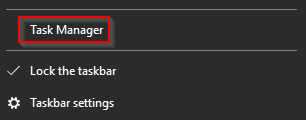
To open Task Manager, right-click the Taskbar. When the new window appears, select Task Manager (as shown below).
If you don't have any apps that you explicitly opened, then you should see the same message as shown below.
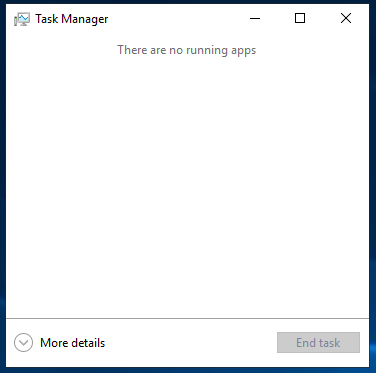
Weird. Not seeing much, eh? Within a Windows system, many processes are running. Click on More details.
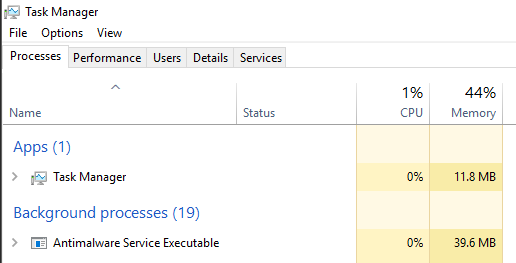
Ok, now we're getting somewhere. Notice the 5 tabs within Task Manager. By default, the current tab is Processes.
Note: If you're running Task Manager on your Windows machine, you might see additional tabs.
In the above image (or if you're following along within your own Windows system), notice that the processes are categorized: Apps and Background processes. Another category that is not visible in the above image is Windows processes.
The columns are very minimal. The columns Name, Status, CPU, and Memory, are the only ones visible. To view more columns, right-click on any of the column headers to open more options.
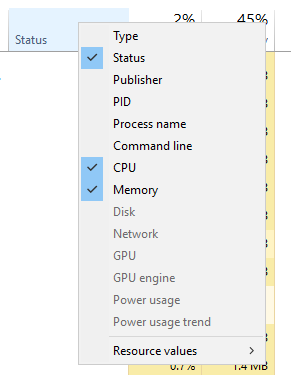

This looks a little better. Let's briefly go over each column (excluding Name, of course):
Type - Each process falls into 1 of 3 categories (Apps, Background process, or Windows process).
Publisher - Think of this column as the name of the author of the program/file.
PID - This is known as the process identifier number. Windows assigns a unique process identifier each time a program starts. If the same program has multiple processes running, each will have its own unique process identifier (PID).
Process name - This is the file name of the process. In the above image, the file name for Task Manager is Taskmrg.exe.
Command line - The full command used to launch the process.
CPU - The amount of CPU (processing power) used by the process.
Memory - The amount of physical working memory utilized by the process.
This is a utility you should be comfortable with using, whether you're troubleshooting or performing analysis on the endpoint.
Let's move to the Details tab. Within this view are some of the core processes that will be discussed in this room. Sort the PID column so that the PIDs are in ascending order.
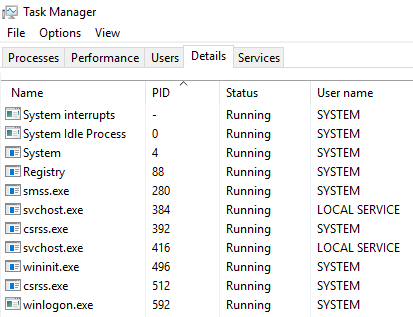
Add some additional columns to see more information about these processes. Good columns to add are Image path name and Command line.
These 2 columns can quickly alert an analyst on any outliers with a given process. For example, in the below image, PID 384 is paired with a process named svchost.exe, a Windows process, but if the Image path name or Command line is not what it's expected to be, then we can perform a deeper analysis on this process.

Of course, you can add as many columns as you wish, but it's recommended to add the columns that would be pertinent to your current task.
Task Manager is a powerful built-in Windows utility but lacks certain important information when analyzing processes, such as parent process information. This is another key column when identifying outliers. Back to svchost.exe, if the parent process for PID 384 is not services.exe, then this will warrant further analysis.
To further prove this point, where is services.exe?
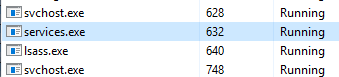
Based on the above image, the PID for services.exe is 632. But wait, one of the svchost.exe processes has a PID of 384. How did svchost.exe start before services.exe? Well, it didn't. Task Manager doesn't show a Parent-Child process view. That is where other utilities, such as Process Hacker and Process Explorer, come to the rescue.
Process Hacker

Process Explorer

Moving forward, I'll use both Process Hacker and Process Explorer instead of Task Manager to obtain information about each of the Windows processes.
As always, it's encouraged that you inspect and familiarize yourself with all information that is available within Task Manager. It's a built-in utility that is available in every Windows system. You might find yourself in a situation where you can't bring your tools to the fight and rely on the tools that are native to the system.
Aside from Task Manager, it would be best if you also familiarize yourself with the command-line equivalent of obtaining information about the running processes on a Windows system: tasklist, Get-Process or ps (PowerShell), and wmic.
On to the next task... No answer needed
System
The first Windows process on the list is System. It was mentioned in a previous section that a PID for any given process is assigned at random, but that is not the case for the System process. The PID for System is always 4. What does this process do exactly?
The official definition from Windows Internals 6th Edition:
"The System process (process ID 4) is the home for a special kind of thread that runs only in kernel mode a kernel-mode system thread. System threads have all the attributes and contexts of regular user-mode threads (such as a hardware context, priority, and so on) but are different in that they run only in kernel-mode executing code loaded in system space, whether that is in Ntoskrnl.exe or in any other loaded device driver. In addition, system threads don't have a user process address space and hence must allocate any dynamic storage from operating system memory heaps, such as a paged or nonpaged pool."
What is user mode? Kernel-mode? Visit the following link (here) to understand each of these.
Now, what is normal behavior for this process? Let's use Process Explorer and view the properties for System.
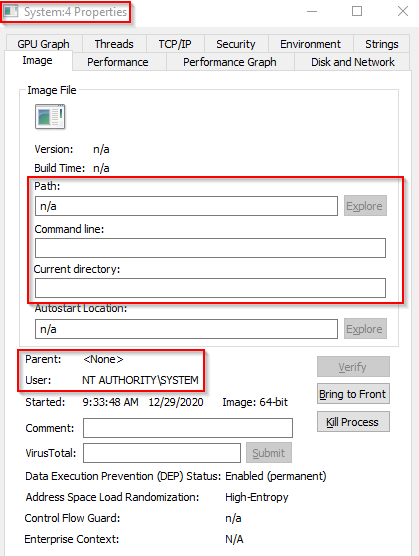
Image Path: N/A Parent Process: None Number of Instances: One User Account: Local System Start Time: At boot time
The information is slightly different if we view the System properties using Process Hacker.
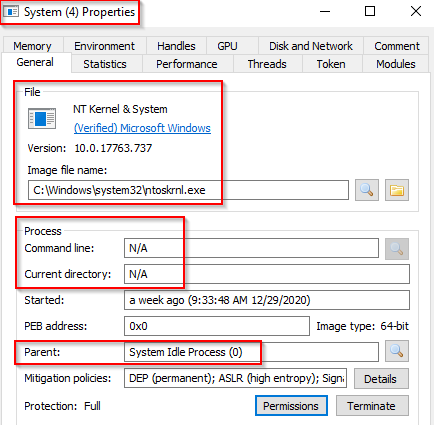
Image Path: C:\Windows\system32\ntoskrnl.exe (NT OS Kernel)
Parent Process: System Idle Process (0)
Technically this is correct. Notice that Process Hacker confirms this is legit '(Verified) Microsoft Windows.
What is unusual behavior for this process?
A parent process (aside from System Idle Process (0))
Multiple instances of System. (Should only be 1 instance)
A different PID. (Remember that the PID will always be PID 4)
Not running in Session 0
What PID should System always be? 4
System > smss.exe
The next process is smss.exe (Session Manager Subsystem). This process, also known as the Windows Session Manager, is responsible for creating new sessions. This is the first user-mode process started by the kernel.
This process starts the kernel mode and user mode of the Windows subsystem (you can read more about the NT Architecture here). This subsystem includes win32k.sys (kernel mode), winsrv.dll (user mode), and csrss.exe (user mode).
Smss.exe starts csrss.exe (Windows subsystem) and wininit.exe in Session 0, an isolated Windows session for the operating system, and csrss.exe and winlogon.exe for Session 1, which is the user session. The first child instance creates child instances in new sessions. This is done by smss.exe copying itself into the new session and self-terminating. You can read more about this process here.
Session 0 (csrss.exe & wininit.exe)


Session 1 (csrss.exe & winlogon.exe)


Any other subsystem listed in the Required value of HKLM\System\CurrentControlSet\Control\Session Manager\Subsystems is also launched.

SMSS is also responsible for creating environment variables, virtual memory paging files and starts winlogon.exe (the Windows Logon Manager).
What is normal?
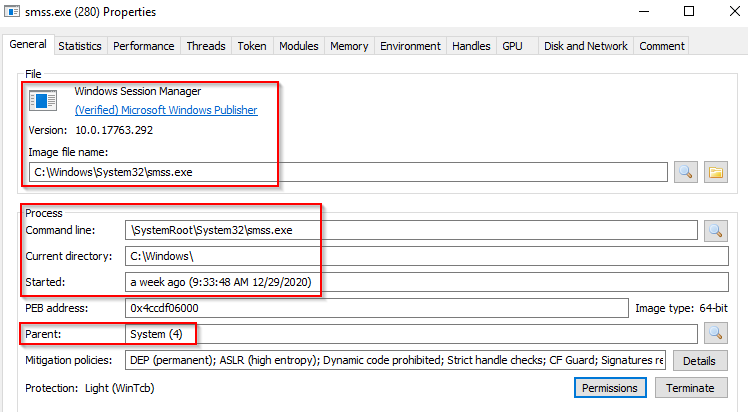
Image Path: %SystemRoot%\System32\smss.exe
Parent Process: System
Number of Instances: One master instance and child instance per session. The child instance exits after creating the session.
User Account: Local System
Start Time: Within seconds of boot time for the master instance
What is unusual?
A different parent process other than System(4)
Image path is different from C:\Windows\System32
More than 1 running process. (children self-terminate and exit after each new session)
User is not SYSTEM
Unexpected registry entries for Subsystem
What other two processes does smss.exe start in Session 1? (answer format: process1, process2) (Adding the Session ID column in Process Hacker might help you, but it's also covered in the Task content in detail.)
csrss.exe, winlogon.exe
csrss.exe
As mentioned in the previous section, csrss.exe (Client Server Runtime Process) is the user-mode side of the Windows subsystem. This process is always running and is critical to system operation. If by chance this process is terminated it will result in system failure. This process is responsible for the Win32 console window and process thread creation and deletion. For each instance csrsrv.dll, basesrv.dll, and winsrv.dll are loaded (along with others).
This process is also responsible for making the Windows API available to other processes, mapping drive letters, and handling the Windows shutdown process. You can read more about this process here.
Note: Recall that csrss.exe and winlogon.exe are called from smss.exe at startup for Session 1.
What is normal?
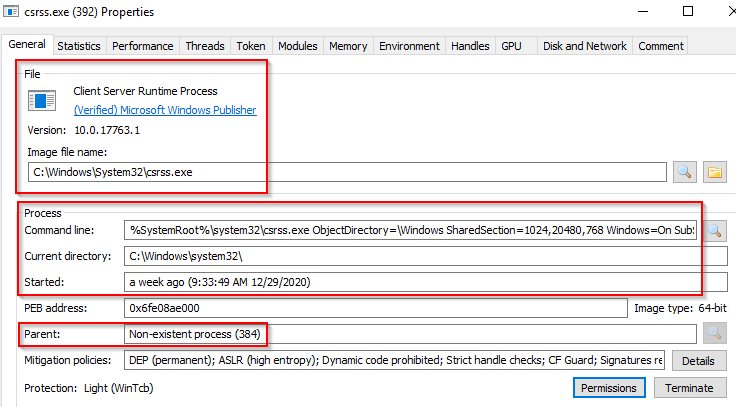
Session 0 (PID 392)
Session 1 (PID 512)
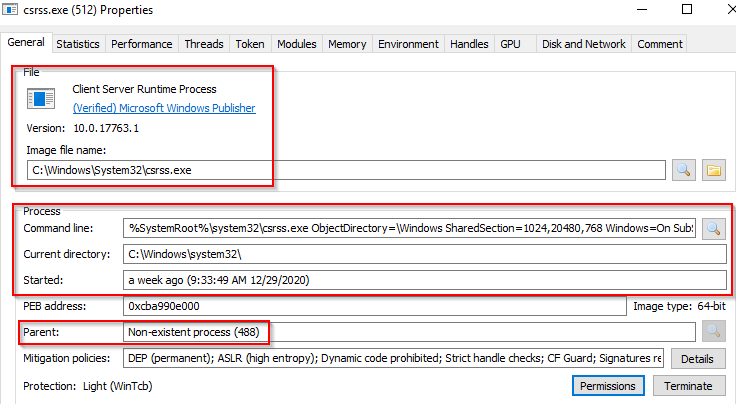
Notice what is shown for the parent process for these 2 processes. Remember these processes are spawned by smss.exe which self-terminates itself.
Image Path: %SystemRoot%\System32\csrss.exe
Parent Process: Created by an instance of smss.exe
Number of Instances: Two or more
User Account: Local System
Start Time: Within seconds of boot time for the first 2 instances (for Session 0 and 1). Start times for additional instances occur as new sessions are created, although often only Sessions 0 and 1 are created.
What is unusual?
An actual parent process. (smss.exe calls this process and self-terminates)
Image file path other than C:\Windows\System32
Subtle misspellings to hide rogue process masquerading as csrss.exe in plain sight
User is not SYSTEM
What was the process which had PID 384 and PID 488? smss.exe
wininit.exe
The Windows Initialization Process, wininit.exe, is responsible for launching services.exe (Service Control Manager), lsass.exe (Local Security Authority), and lsaiso.exe within Session 0. This is another critical Windows process that runs in the background, along with its child processes.

Note: lsaiso.exe is a process associated with Credential Guard and Key Guard. You will only see this process if Credential Guard is enabled.
What is normal?
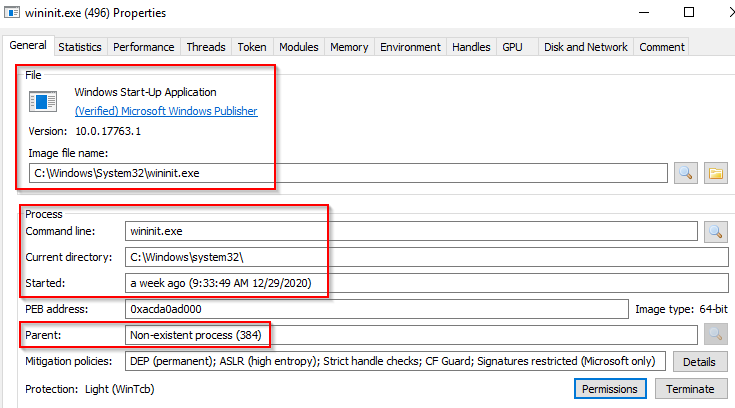
Image Path: %SystemRoot%\System32\wininit.exe
Parent Process: Created by an instance of smss.exe
Number of Instances: One
User Account: Local System
Start Time: Within seconds of boot time
What is unusual?
An actual parent process. (smss.exe calls this process and self-terminates)
Image file path other than C:\Windows\System32
Subtle misspellings to hide rogue process in plain sight
Multiple running instances
Not running as SYSTEM
Which process you might not see running if Credential Guard is not enabled? lsaiso.exe
wininit.exe > services.exe
The next process is the Service Control Manager (SCM), which is services.exe. Its primary responsibility is to handle system services: loading services, interacting with services, starting/ending services, etc. It maintains a database that can be queried using a Windows built-in utility, 'sc.exe.'

Information regarding services is stored in the registry, HKLM\System\CurrentControlSet\Services.
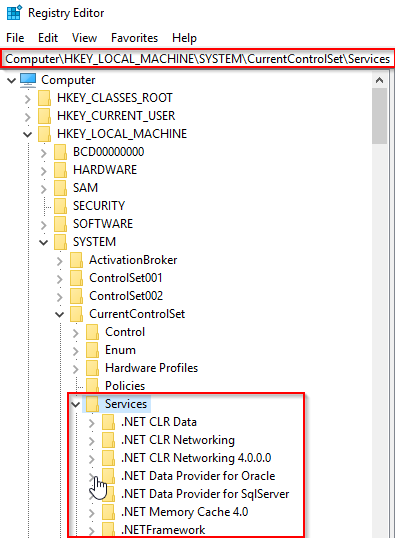
This process also loads device drivers marked as auto-start into memory.
When a user logs into a machine successfully, this process is responsible for setting the value of the Last Known Good control set (Last Known Good Configuration), HKLM\System\Select\LastKnownGood, to that of the CurrentControlSet.
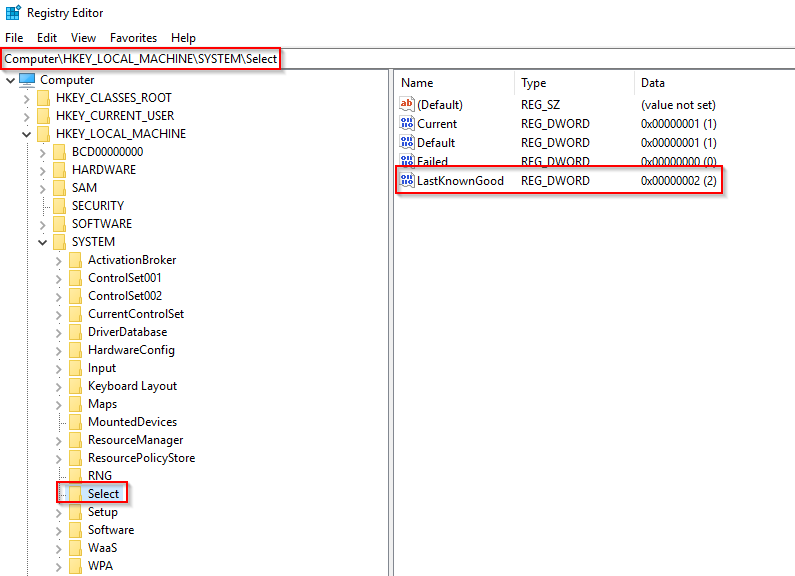
This process is the parent to several other key processes: svchost.exe, spoolsv.exe, msmpeng.exe, dllhost.exe, to name a few. You can read more about this process here.

What is normal?
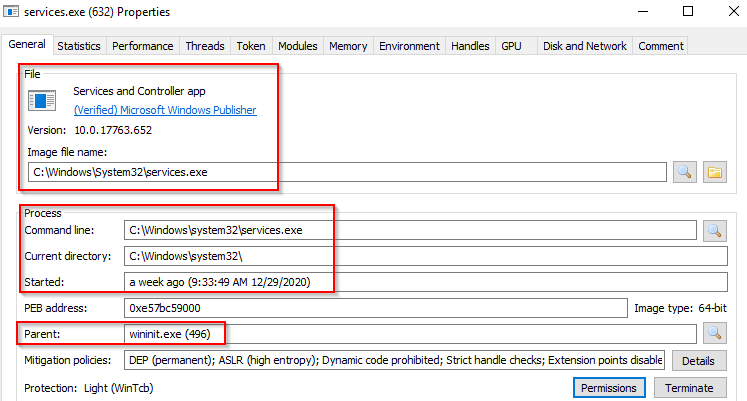
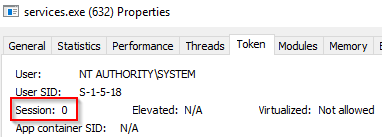
Image Path: %SystemRoot%\System32\services.exe
Parent Process: wininit.exe
Number of Instances: One
User Account: Local System
Start Time: Within seconds of boot time
What is unusual?
A parent process other than wininit.exe
Image file path other than C:\Windows\System32
Subtle misspellings to hide rogue process in plain sight
Multiple running instances
Not running as SYSTEM
How many instances of services.exe should be running on a Windows system? 1
wininit.exe > services.exe > svchost.exe
The Service Host (Host Process for Windows Services), or svchost.exe, is responsible for hosting and managing Windows services.

The services running in this process are implemented as DLLs. The DLL to implement is stored in the registry for the service under the Parameters subkey in ServiceDLL. The full path is HKLM\SYSTEM\CurrentControlSet\Services\SERVICE NAME\Parameters.
The example below is the ServiceDLL value for the Dcomlaunch service.

In order to view this information from within Process Hacker right-click the svchost.exe process. In this case, it will be PID 748.
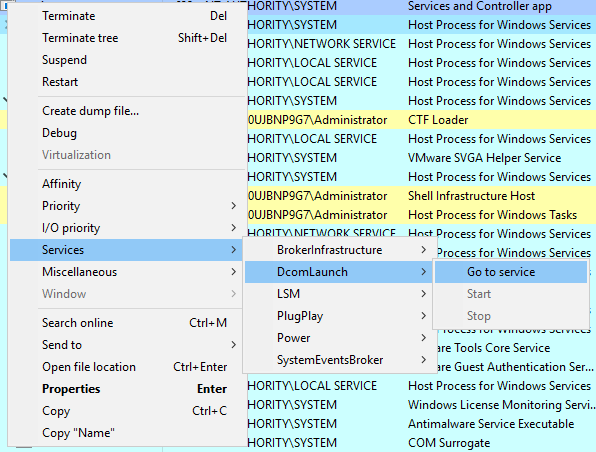
Right-click the service and select Properties. Look at Service DLL.
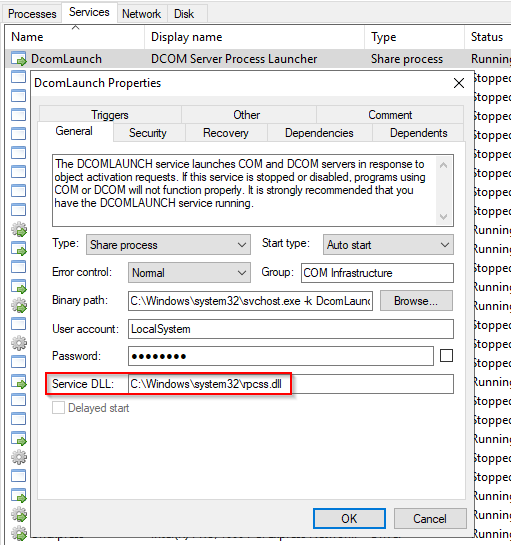
From the above screenshot, the Binary Path is listed.
Also, notice how it is structured. There is a key identifier in the binary path. That identifier is -k . This is how a legitimate svchost.exe process is called.
The -k parameter is for grouping similar services to share the same process. This concept was based on the OS design and implemented to reduce resource consumption. Starting from Windows 10 Version 1703 services grouped into host processes changed. On machines running more than 3.5 GB of memory, each service will run its own process. You can read more about this process here.
Back to the key identifier (-k) from the binary path. In the above screen the -k value is Dcomlaunch. In the virtual machine used to create this room, there are other services running with the same binary path.

Each will have a different value for ServiceDLL. Let's take LSM for example and inspect the value for ServiceDLL.

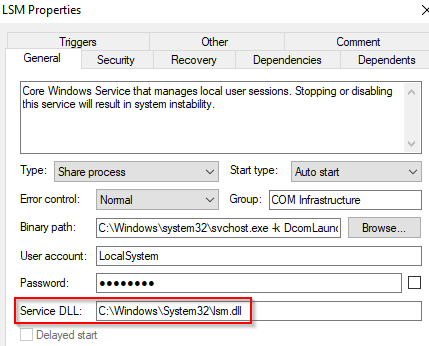
Since svchost.exe will always have multiple running processes on any Windows system, this process has been a target for malicious use. Adversaries create malware to masquerade as this process and try to hide amongst the legitimate svchost.exe processes. They can name the malware svchost.exe or misspell it slightly, such as scvhost.exe. By doing so the intention is to go under the radar. Another tactic is to install/call a malicious service (DLL).
Extra reading - Hexacorn Blog (https://www.hexacorn.com/blog/2015/12/18/the-typographical-and-homomorphic-abuse-of-svchost-exe-and-other-popular-file-names/)
What is normal?
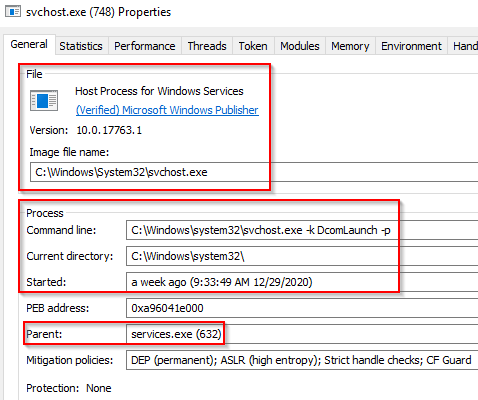
Image Path: %SystemRoot%\System32\svchost.exe
Parent Process: services.exe
Number of Instances: Many
User Account: Varies (SYSTEM, Network Service, Local Service) depending on the svchost.exe instance. In Windows 10 some instances can run as the logged-in user.
Start Time: Typically within seconds of boot time. Other instances can be started after boot
What is unusual?
A parent process other than services.exe
Image file path other than C:\Windows\System32
Subtle misspellings to hide rogue process in plain sight
The absence of the -k parameter
What single letter parameter should always be visible in the Command line or Binary path? k
lsass.exe
Per Wikipedia, "Local Security Authority Subsystem Service (LSASS) is a process in Microsoft Windows operating systems that is responsible for enforcing the security policy on the system. It verifies users logging on to a Windows computer or server, handles password changes, and creates access tokens. It also writes to the Windows Security Log."
It creates security tokens for SAM (Security Account Manager), AD (Active Directory), and NETLOGON. It uses authentication packages specified in HKLM\System\CurrentControlSet\Control\Lsa.
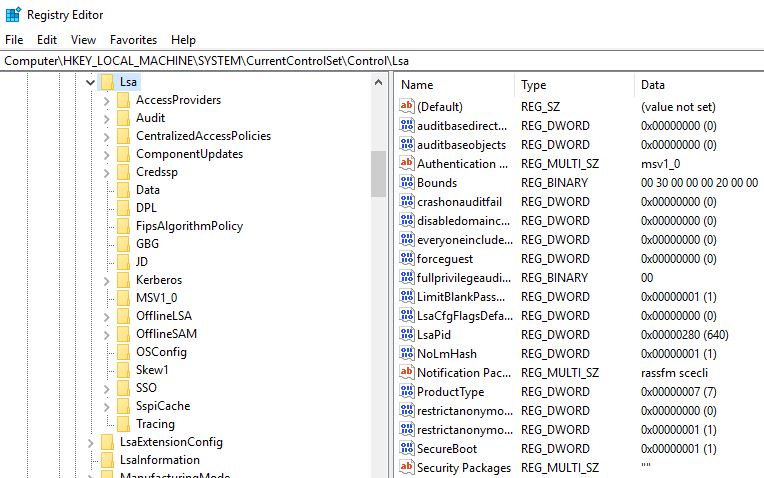
This is another process adversaries target. Common tools such as mimikatz is used to dump credentials or they mimic this process to hide in plain sight. Again, they do this by either naming their malware by this process name or simply misspelling the malware slightly.
Extra reading: How LSASS is maliciously used and additional features that Microsoft has put into place to prevent these attacks. (here)
What is normal?
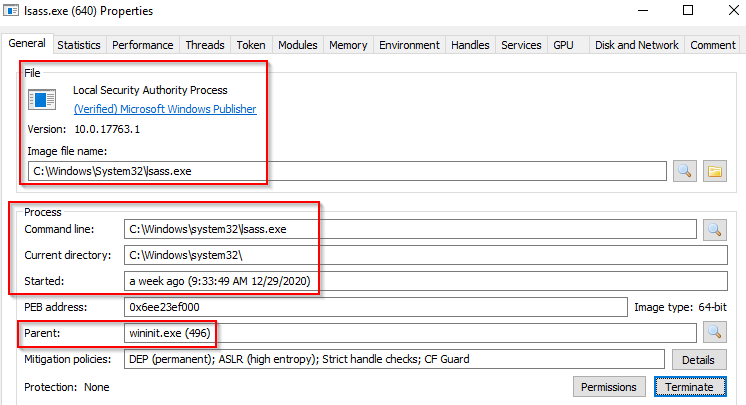
Image Path: %SystemRoot%\System32\lsass.exe
Parent Process: wininit.exe
Number of Instances: One
User Account: Local System
Start Time: Within seconds of boot time
What is unusual?
A parent process other than wininit.exe
Image file path other than C:\Windows\System32
Subtle misspellings to hide rogue process in plain sight
Multiple running instances
Not running as SYSTEM
What is the parent process for LSASS? wininit.exe
winlogon.exe
The Windows Logon, winlogon.exe, is responsible for handling the Secure Attention Sequence (SAS). This is the ALT+CTRL+DELETE key combination users press to enter their username & password.
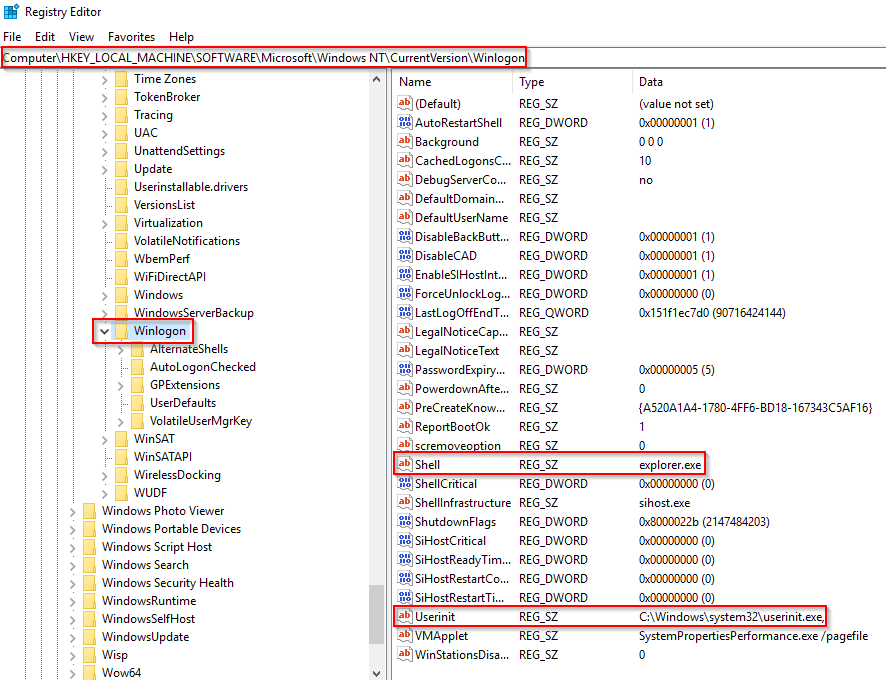
This process is also responsible for loading the user profile. This is done by loading the user's NTUSER.DAT into HKCU and via userinit.exe loads the user's shell. Read more about this process here.
It is also responsible for locking the screen and running the user's screensaver, among other functions. You can read more about this process here.
Remember from earlier sections, smss.exe launches this process along with a copy of csrss.exe within Session 1.

What is normal?

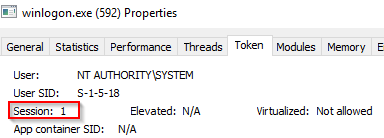
Image Path: %SystemRoot%\System32\winlogon.exe
Parent Process: Created by an instance of smss.exe that exits, so analysis tools usually do not provide the parent process name.
Number of Instances: One or more
User Account: Local System
Start Time: Within seconds of boot time for the first instance (for Session 1). Additional instances occur as new sessions are created, typically through Remote Desktop or Fast User Switching logons.
What is unusual?
An actual parent process. (smss.exe calls this process and self-terminates)
Image file path other than C:\Windows\System32
Subtle misspellings to hide rogue process in plain sight
Not running as SYSTEM
Shell value in the registry other than explorer.exe
What is the non-existent parent process for winlogon.exe? smss.exe
explorer.exe
The last process we'll look at is the Windows Explorer, explorer.exe. This is the process that gives the user access to their folders and files. It also provides functionality to other features such as the Start Menu, Taskbar, etc.
As mentioned previously, the Winlogon process runs userinit.exe, which launches the value in HKLM\Software\Microsoft\Windows NT\CurrentVersion\Winlogon\Shell. Userinit.exe exits after spawning explorer.exe. Because of this, the parent process is non-existent.
There will be many child processes for explorer.exe.

What is normal?
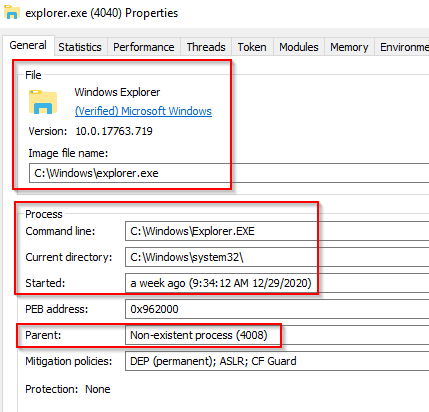
Image Path: %SystemRoot%\explorer.exe
Parent Process: Created by userinit.exe and exits
Number of Instances: One or more per interactively logged-in user
User Account: Logged-in user(s)
Start Time: First instance when the first interactive user logon session begins
What is unusual?
An actual parent process. (userinit.exe calls this process and exits)
Image file path other than C:\Windows
Running as an unknown user
Subtle misspellings to hide rogue process in plain sight
Outbound TCP/IP connections
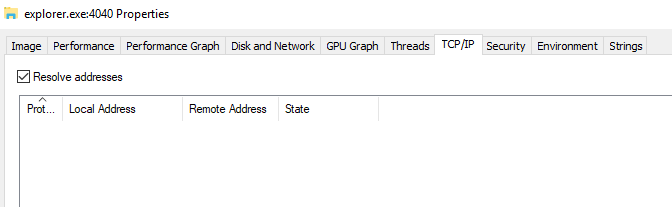
Note: The above image is a screenshot for the explorer.exe properties view from Process Explorer.
What is the non-existent process for explorer.exe? *userinit.exe *
Conclusion
It is vital to understand how the Windows operating system functions as a defender. The Windows processes discussed in this room are core processes. Understanding how they operate normally can aid a defender to identify unusual activity on the endpoint.
With the introduction of Windows 10 additional processes have been added to the list of core processes to know and understand normal behavior.
Earlier it was mentioned that if Credential Guard is enabled on the endpoint an additional process will be running, which will be a child process to wininit.exe, and that process is lsaiso.exe. This process works in conjunction with lsass.exe to enhance password protection on the endpoint.
Other processes with Windows 10 is RuntimeBroker.exe and taskhostw.exe (formerly taskhost.exe and taskhostex.exe). Please research these processes and any other processes you might be curious about to understand their purpose and their normal functionality.
The information for this room was derived from multiple sources.
https://www.threathunting.se/tag/windows-process/
https://www.sans.org/security-resources/posters/hunt-evil/165/download
https://docs.microsoft.com/en-us/sysinternals/resources/windows-internals
Other links were provided throughout the room. It is encouraged to read them at your own leisure to further your foundation and understanding regarding the core Windows processes.
Thanks for stopping by. No answer needed [[Windows Privilege Escalation]]